

Getting Started with Claude Code: Installation, First Session and Understanding the Agentic Loop
The most expensive mistake when starting with Claude Code is signing in with the wrong account: on a company repo use the company's Team or Enterprise account and check the active credential with /status. Native installer, WinGet and WSL installs on Windows, the Bash versus PowerShell tool and Git for Windows, the three phases of the agentic loop, and a first small, test-verified change in Bookstore.
Version note: This post describes Claude Code 2.1.325 (13 November 2026); installation, sign-in and command details were checked on 15 November 2026 against the Advanced setup, Quickstart, Authentication and How Claude Code works pages at code.claude.com/docs. This post is based on the official documentation. Commands are given for Windows 11 and PowerShell; Claude Code ships several releases a week, so details on your screen may differ slightly.
Guess First
Emre is a backend developer on Bookstore, the online bookstore used as the shared example across this site's series. One evening he installed Claude Code at home and signed in with his own Pro account, and the next morning he opened the Bookstore repo on his company laptop with the same account. His first prompt was ambitious: "Rewrite the Ordering module as CQRS from scratch." Claude Code changed dozens of files over half an hour and finally said "the tests pass". Emre committed the changes without running the tests himself. Git for Windows was not installed on the laptop.
What is your guess? Which of these three decisions is the most expensive: signing in to a company repo with a personal account, asking for a huge refactor as the first task, or accepting "the tests pass" without checking? And on a machine without Git for Windows, which shell does Claude Code run commands in? The first answer is in the sign-in section, the second in the installation section.
This series covers Claude Code from installation to team use: CLAUDE.md and memory, permission modes, plan mode, skills, subagents, hooks, MCP servers, parallel sessions, CI, plugins, the Agent SDK and cost. Tool-independent AI-assisted development practice is covered in the AI-Assisted Development series, Claude's web and desktop apps in the Working with Claude series, and the Copilot equivalent of the same work in the GitHub Copilot series. Here we look only at what is specific to Claude Code and go back to those series when needed.
What Is Claude Code?
The official documentation describes Claude Code as an agentic coding tool that reads your codebase, edits files, runs commands and integrates with your development tools. The key word is "agentic". Unlike inline completion, which suggests text where the cursor is, Claude Code takes a goal and decides for itself which files to read, which commands to run and how to verify the result. For a bug it searches for the relevant files, makes coordinated changes across several of them, runs the tests and commits if you ask it to.
Another term the docs use often is harness. The model itself only produces text; what turns it into an agent that reads files and runs commands is the layer that provides the tools and manages the context the model sees. Claude Code is exactly that layer. The same engine runs in the terminal, in the VS Code and JetBrains extensions, in the Code tab of Claude Desktop and in cloud sessions on claude.ai/code, so the repo's CLAUDE.md, settings and MCP servers apply on every surface.
If you have read the GitHub Copilot series you will see the similarities right away: Copilot's agent in the IDE and the Copilot CLI work with the same loop. The difference is mostly where each tool started. Copilot started in the editor and on GitHub.com and came to the terminal; Claude Code started in the terminal and spread to the IDE, the desktop and the web. That is why this series focuses on the terminal and covers the other surfaces together in post nine.
Installation: Which Route on Windows?
According to the docs, Claude Code runs on Windows 10 1809 and later and Windows Server 2019 and later; it needs at least 4 GB of RAM, an x64 or arm64 processor and an internet connection. You don't need administrator rights to install it. The recommended route is the native installer, which runs in PowerShell or the Command Prompt:
# In PowerShell (the prompt starts with "PS C:\...")
irm https://claude.ai/install.ps1 | iex

# The same in the Command Prompt (CMD)
curl -fsSL https://claude.ai/install.cmd -o install.cmd && install.cmd && del install.cmd

# Alternative: WinGet
winget install Anthropic.ClaudeCode

# After installing, in a NEW terminal window
claude --version
claude doctor
The docs call out two common mix-ups. If you paste the CMD command into PowerShell you get The token '&&' is not a valid statement separator; if you run the PowerShell command in CMD you see 'irm' is not recognized. The installer shows no progress, and you need to open a new window when it finishes. claude --version prints the version followed by (Claude Code); if claude is not found, the install folder (%USERPROFILE%\.local\bin for the native install) is not on your PATH yet. claude doctor shows install health, errors in settings files and the result of the last update attempt, read-only and without starting a session.
| Route | Updates | When |
|---|---|---|
| Native installer (PowerShell or CMD) | Automatic, in the background | The default for most developers |
WinGet Anthropic.ClaudeCode | Manual: winget upgrade Anthropic.ClaudeCode | Teams that manage packages with WinGet |
| Linux installer in the Linux environment on Windows | Automatic | When you need a Linux toolchain or the sandbox |
| Global npm package | Manual; needs Node.js 22 or later | When the company package source only allows npm |
Here is the answer to the second question. On native Windows, if Git for Windows is installed, Claude Code runs its Bash tool through Git Bash; if it is not, it uses the PowerShell tool for shell commands. The docs list Git for Windows as optional but recommended; the Bash tool and the Monitor tool, which watches background output, need Git Bash. The practical consequence shows up in post three: a permission rule such as Bash(dotnet test *) does not cover the PowerShell tool, which needs its own PowerShell(...) rule.
The third route in the table is WSL. You run the Linux installer inside WSL 2 and start claude from the WSL terminal. According to the docs, the sandbox that restricts commands at the operating system level is not supported on native Windows but is supported in WSL 2. For a repo like Bookstore, developed on Windows with Visual Studio and SQL Server, the native install is the natural choice; we discuss the sandbox in post three.
The native install follows the latest channel by default and gets every release as soon as it ships. If it matters that everyone on the team sees the same behaviour, the stable channel trails by about a week and skips releases with major regressions. You pick the channel in /config or in your user settings file (%USERPROFILE%\.claude\settings.json); to avoid dropping below your current version you can also set minimumVersion:
{
  "$schema": "https://json.schemastore.org/claude-code-settings.json",
  "autoUpdatesChannel": "stable",
  "minimumVersion": "2.1.325"
}
Sign-in: With Which Account?
Claude Code is not included in the free claude.ai plan. You need a Pro, Max, Ultra, Team or Enterprise subscription, a Claude Console account billed by usage, or a cloud provider such as Amazon Bedrock, Google Cloud or Microsoft Foundry. The first time you run claude a browser opens, and after signing in you see Login successful in the terminal. On the first Console sign-in, a workspace called "Claude Code" is created in the Console for cost tracking. Plan prices and usage limits are in the first post of the Working with Claude series; the same subscription covers both the Claude apps and Claude Code.
The answer to the first question is here too: Emre's most expensive mistake was signing in to the company repo with a personal account. A refactor can be undone and tests can be run again, but the company's code has now gone to the model from an account outside the company's admin settings, data policy and billing. On Team and Enterprise plans an admin can push settings across the organization and require sign-ins to belong to a specific organization; a personal Pro account is covered by none of that. Work on the company repo with the account the company gives you.
If you need both accounts on one machine, the docs recommend a separate configuration folder for each. The CLAUDE_CONFIG_DIR environment variable moves settings, session history and the sign-in to that folder. You can add a function like this to your PowerShell profile:
# In $PROFILE: keep the work account in its own folder
function claude-work {
    $previous = $env:CLAUDE_CONFIG_DIR
    $env:CLAUDE_CONFIG_DIR = Join-Path $HOME ".claude-work"
    try { claude @args } finally { $env:CLAUDE_CONFIG_DIR = $previous }
}
One more trap: credentials are picked in a precedence order. If ANTHROPIC_API_KEY is set in your environment and you approved it when Claude Code asked, that API key is used instead of your subscription and the bill goes to the Console; in non-interactive mode with claude -p, the key is used without asking whenever it is present. /status shows which credential is active in a session. /login switches accounts and /logout signs out. On Windows the sign-in is stored in %USERPROFILE%\.claude\.credentials.json, protected by the access rights of your user profile.
The Agentic Loop: How Claude Code Does a Job
The docs describe the loop in three phases: gathering context, taking action and verifying results. The phases blend together; at each step Claude calls a tool, reads the result and decides the next step based on it. A question about the codebase may need only the first phase, while a bug fix goes around all three many times.
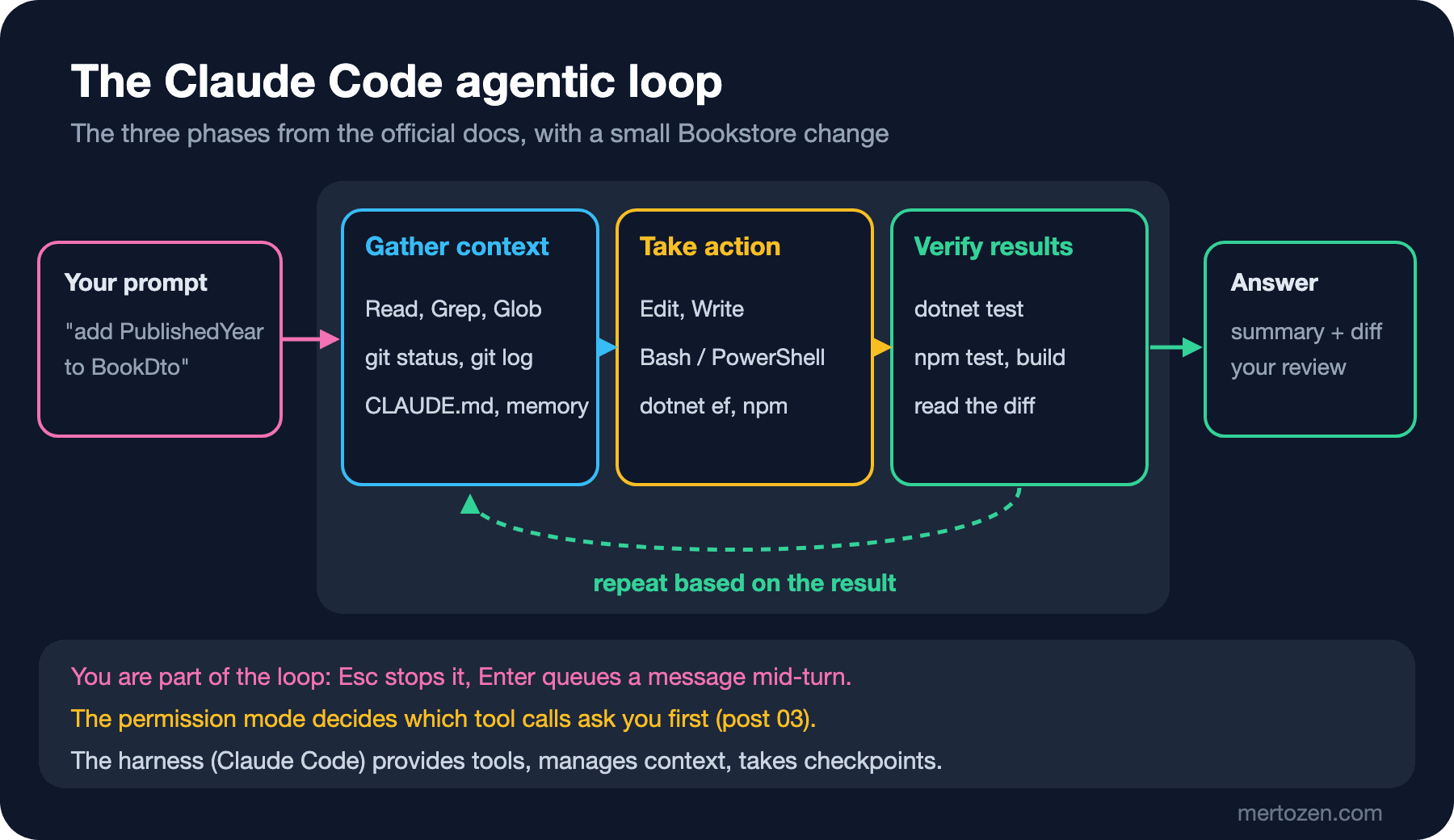
The tools fall into five groups: file operations (reading, editing, creating), search (file name patterns and regex content search), execution (shell commands, tests, git), web (search and fetching documentation) and code intelligence (seeing type errors after an edit, which needs a separate plugin). On top of these come coordination tools such as starting a subagent or asking you a question. When you start Claude Code in a directory, Claude can access the files in it and below it, every command you could run in the terminal, the git state (branch, uncommitted changes, recent commits), the CLAUDE.md files and the auto memory notes it keeps for itself.
You are part of the loop too. Esc cancels the running tool call and Claude waits for your next instruction. If you type a correction and press Enter while Claude is working, your message is queued; Claude reads it in the same turn once its current tool calls finish and changes direction. File edits can be undone as well: before editing a file Claude snapshots its current contents, and pressing Esc twice on an empty prompt opens the rewind menu. Checkpoints are covered in post four; for now, know that external effects such as database changes, pushes or deploys cannot be undone.
Every session starts with a fresh context window; the previous session's conversation does not carry over. Information that must persist goes into CLAUDE.md or auto memory, which is the topic of post two. When the context approaches its limit, Claude Code shortens the conversation into a summary on its own, but detailed instructions from early in the conversation can get lost in the process. The /context command shows what is taking up space.
First Session: Getting to Know Bookstore
When you open a terminal at the repo root and type claude, the version, the active model and the working directory appear above the prompt. Bookstore's layout is familiar: Bookstore.Api and Bookstore.Contracts under src/, test projects under tests/, the Angular app under web/bookstore-web and a SQL Server database. The first job is not to ask for a change but to see how Claude reads the repo:
Explain how this solution is layered: list the projects under src/ and tests/,
what each one depends on, and where the Catalog endpoints are registered.
Then explain the route structure of the Angular app in web/bookstore-web.
Name the files you used for each claim. Do not change any file.
The last two sentences matter. Asking Claude to name the files it relied on makes the answer verifiable: if it talks about the endpoint registrations in Program.cs or the Angular route definitions, you can open those files and check. "Do not change any file" keeps an accidental edit out of the exploration phase; in post four we will guarantee that with plan mode rather than with the prompt. The docs give the same advice: rather than dictating every step, give Claude the goal and the context and let it decide which files to read.
First Change: Adding PublishedYear to BookDto
Emre's second mistake was asking for a huge refactor first. The first change should be small, clearly bounded and verifiable with tests. That way you see both how Claude works in the repo and your own review habit on a small diff:
Add a nullable int property PublishedYear to BookDto in src/Bookstore.Contracts.
Map it from the Book entity in the Catalog endpoints and update the existing
tests in tests/Bookstore.Api.Tests. If Book has no publication year column,
stop and ask me instead of adding a migration.
Run dotnet test when you are done and show me the test summary.
This prompt has three parts: what changes (one property and its mapping), where it changes (two projects and the test project) and where to stop (ask if the database schema needs to change). The stop condition looks minor but matters: if Claude decides to add a migration, the change grows from a single property to the database schema, and your review grows with it.
Whether Claude asks you before each edit and each command depends on the permission mode. Since 2.1.283 the default mode for interactive sessions in the terminal and VS Code is Auto: a separate classifier model blocks risky actions and the rest runs without asking. Shift+Tab switches between Manual, Accept edits and Plan. In your first sessions, switching to Manual and approving every edit one by one is a good way to see how the tool works. Details in post three.
When Claude says "the tests pass", the job is not done; that was Emre's third mistake. Look at the test summary Claude shows, but decide based on your own run: read the changed files with /diff or with git diff in your own terminal, then run the tests yourself:
git diff --stat
git diff src/Bookstore.Contracts
dotnet test
What you expect in the diff: a new property on BookDto, a single mapping line on the Catalog side and an assertion in the test project that checks the field. Anything you don't expect (a change to another DTO, a new package, a deleted test) is a question for the review. Commit yourself, or tell Claude "commit my changes with a descriptive message"; but don't approve without reading the message and the scope.
Everyday Commands and Other Surfaces
The basic commands in the docs fall into two groups: the ones that start Claude Code from the terminal and the ones you type with / inside a session.
| Command | What it does |
|---|---|
claude / claude "task" | Starts an interactive session; the second starts with a first prompt |
claude -p "query" | Runs a one-off query and exits (for scripts and CI; post ten) |
claude -c / claude -r | Continues the latest conversation in this directory / lets you pick from the session list |
/help, /status, /doctor | Lists commands / version, model, account / install and settings checkup |
/clear, /resume | Starts a new conversation with empty context / goes back to an earlier one |
/exit or Ctrl+D twice | Exits Claude Code |
Shift+Tab, Esc, Esc Esc | Changes the permission mode / stops Claude / opens the rewind menu |
Typing just / at the prompt lists the commands and skills available to you; Tab completes and the up arrow brings back earlier prompts. The surfaces outside the terminal use the same engine: the VS Code extension shows diffs in the editor, the JetBrains plugin needs the CLI installed, the Code tab in Claude Desktop can run parallel sessions without installing the CLI, and claude.ai/code runs the work in a cloud environment that Anthropic manages. You can also hand off work from Slack and follow it from your phone. All of these are in post nine.
In Production
Version differences on a team cause surprises. If one person is on the latest channel and another on a WinGet install that hasn't been updated for three weeks, the same setting can behave differently on the two machines. The stable channel and minimumVersion are a good start for a team; on Team and Enterprise an admin can enforce a version range with managed settings. If you use WinGet, put winget upgrade on the calendar.
Watch your environment variables. An ANTHROPIC_API_KEY added to your shell profile for some other job can make Claude Code use Console billing instead of your subscription. In your first session, check with /status that the account, the organization and the active credential are the right ones.
Start Claude Code at the repo root. A session started in your home folder or in a parent folder that spans several repos gets access to a wider file area than it needs and does not read project settings from the right place. If you are behind a corporate proxy, configure the network on the docs' network configuration page; if installation or sign-in gets stuck, the first step is claude doctor.
Common Pitfalls
Asking for a big refactor first. A thirty-file diff cannot be reviewed before you know the tool and the repo. In the first week, pick small jobs that tests can verify.
Treating "the tests pass" as evidence. Claude's report is a claim; the evidence is the test output in your own terminal and the diff you read.
Signing in with the wrong account. Company code on a personal subscription, personal side projects on the company account; both are hard to explain later. Separate accounts with CLAUDE_CONFIG_DIR.
Running the install command in the wrong shell. The PowerShell command doesn't work in CMD and the CMD command doesn't work in PowerShell; the error message tells you which one you are in.
Writing Bash rules without Git for Windows. If Claude uses the PowerShell tool on that machine, Bash(...) permissions match nothing. Know which shell is in use and write the rules for it.
A Small Experiment
★☆☆ Install Claude Code with the native installer and look at the output of claude --version and claude doctor in a new terminal. Start a session and note with /status which account and which credential it is using.
★★☆ In your own repo, run the "explain the layers, name the files you used, change nothing" prompt. For each claim in the answer, open the file it names and mark whether the claim is correct. How many claims held up?
★★★ Ask for a small DTO change with a stop condition. First approve every edit one by one in Manual mode, then undo it with git stash and repeat in Auto mode. How different were the diffs and the number of times you stepped in?
Claude Code starts every session with a fresh context; if you don't want to explain Bookstore's build commands, layer rules and bans such as "never edit migration files by hand" every time, you need to write them down somewhere. In post two we look at the CLAUDE.md layers, path-specific rules with .claude/rules/ and the auto memory that Claude keeps for itself.