

Everything Is a Widget in Flutter: StatelessWidget, StatefulWidget, BuildContext and the Three Trees
In Flutter a widget is not the thing on the screen but an immutable configuration: on a rebuild widgets are replaced while elements and render objects stay, and State lives in the element. Using BookCard and FavoriteButton, we show with real test output the State lifecycle with its Angular counterparts, how const cuts off rebuilds, the mounted check after an await, and how state slides to the wrong row without keys.
Version note: The examples in this post were run with Flutter 3.47.8 (Dart 3.13.7) and material_ui 1.11.0. All output comes from flutter test runs; running on an emulator or a device was not done for this post.
Guess First
In the mobile app of Bookstore, the online bookstore used as the shared example across this site's series, the user is putting together a gift list: a book on each row and a box that gets ticked when you tap the row. Whether a row is ticked is kept by the row's own State. The list is Dune, Emma, Middlemarch. The user ticks Dune, and then Dune is removed from the list.
before: [x] Dune, [ ] Emma, [ ] Middlemarch
after : ?
What do you see in the remaining two rows: none ticked, or Emma ticked? Does it change if you give the rows a Key? At the end of this post we run both cases in a test. The answer is the shortest way to understand how Flutter manages the screen.
A Widget Is a Configuration: StatelessWidget and BookCard
In Flutter everything on the screen is a widget: text, spacing, alignment, buttons, the screen itself. But a widget is not the thing on the screen; it is an immutable configuration that describes how that thing should look. All its fields are final, and most constructors are const. The book card in the catalog is a StatelessWidget:
import 'package:material_ui/material_ui.dart';

import '../../../domain/models/book.dart';
import 'favorite_button.dart';

class BookCard extends StatelessWidget {
  const BookCard({super.key, required this.book, this.onAddToCart});

  final Book book;
  final VoidCallback? onAddToCart;

  @override
  Widget build(BuildContext context) {
    final textTheme = Theme.of(context).textTheme;
    return Card(
      child: Padding(
        padding: const EdgeInsets.all(12),
        child: Row(
          children: [
            Expanded(
              child: Column(
                crossAxisAlignment: CrossAxisAlignment.start,
                children: [
                  Text(book.displayTitle, style: textTheme.titleMedium),
                  Text(
                    '${book.author.name} · ${book.publishedYear}',
                    style: textTheme.bodySmall,
                  ),
                  Text(book.price.format(), style: textTheme.titleSmall),
                ],
              ),
            ),
            FavoriteButton(isbn: book.isbn),
            IconButton(
              onPressed: onAddToCart,
              tooltip: 'Add to cart',
              icon: const Icon(Icons.add_shopping_cart),
            ),
          ],
        ),
      ),
    );
  }
}
The build method produces a subtree from the given configuration: a Padding inside a Card, a Row inside that, and on the row the book's details, the favorite button and the add-to-cart button. It resembles an Angular component: book is the counterpart of an input() and the onAddToCart callback of an output(). The difference is that the template is not a separate language but Dart code; the data-down, events-up flow from the Angular series post "Component Communication in Angular: @Input, @Output, @ViewChild and ng-content" is built here with constructor parameters and callbacks.
BookCard has no changing data of its own; every time it is called with the same book it produces the same tree. If the book changes, the parent creates a new BookCard. That is why widgets are cheap: creating a widget object means allocating a small object that holds a few references.
StatefulWidget and State: FavoriteButton
The favorite button has to hold a piece of information that changes as you tap it. There are two classes for that: the immutable StatefulWidget and the mutable State attached to it:
import 'package:material_ui/material_ui.dart';

class FavoriteButton extends StatefulWidget {
  const FavoriteButton({
    super.key,
    required this.isbn,
    this.initiallyFavorite = false,
    this.onChanged,
  });

  final String isbn;
  final bool initiallyFavorite;
  final ValueChanged<bool>? onChanged;

  @override
  State<FavoriteButton> createState() => _FavoriteButtonState();
}

class _FavoriteButtonState extends State<FavoriteButton> {
  late bool _isFavorite;

  @override
  void initState() {
    super.initState();
    _isFavorite = widget.initiallyFavorite;
  }

  @override
  void didUpdateWidget(FavoriteButton oldWidget) {
    super.didUpdateWidget(oldWidget);
    // Same State, different book: reset instead of keeping the old value
    if (oldWidget.isbn != widget.isbn) {
      _isFavorite = widget.initiallyFavorite;
    }
  }

  void _toggle() {
    setState(() => _isFavorite = !_isFavorite);
    widget.onChanged?.call(_isFavorite);
  }

  @override
  Widget build(BuildContext context) {
    return IconButton(
      onPressed: _toggle,
      tooltip: _isFavorite ? 'Remove from favorites' : 'Add to favorites',
      icon: Icon(_isFavorite ? Icons.favorite : Icons.favorite_border),
    );
  }
}
The widget may be recreated on every rebuild, but the State object lives on; that is why _isFavorite is there. State reaches its current widget through the widget property. Calling setState does two things: it runs the function you pass and marks this State to be rebuilt in the next frame. If you change the field outside setState, the value changes but the screen is not updated.
This test checks that a tap changes the icon and that the new value is reported through the callback; the second test checks that didUpdateWidget resets the state when a different ISBN arrives:
testWidgets('tapping toggles the icon and reports the new value', (
  tester,
) async {
  final changes = <bool>[];
  await tester.pumpWidget(
    host(FavoriteButton(isbn: '9780441172719', onChanged: changes.add)),
  );
  expect(find.byIcon(Icons.favorite_border), findsOneWidget);

  await tester.tap(find.byType(FavoriteButton));
  await tester.pump();

  expect(find.byIcon(Icons.favorite), findsOneWidget);
  expect(changes, [true]);
});
tester.pump() advances one frame; the rebuild marked by setState happens there. Had you checked the icon without calling pump, you would still see the old icon.
The State Lifecycle and Its Angular Counterparts
To see which State methods are called and when, we wrote a widget that logs every method:
class _LifecycleProbeState extends State<LifecycleProbe> {
  @override
  void initState() {
    super.initState();
    log.add('initState');
  }

  @override
  void didChangeDependencies() {
    super.didChangeDependencies();
    log.add('didChangeDependencies');
  }

  @override
  void didUpdateWidget(LifecycleProbe oldWidget) {
    super.didUpdateWidget(oldWidget);
    log.add('didUpdateWidget(${oldWidget.title} -> ${widget.title})');
  }

  @override
  void dispose() {
    log.add('dispose');
    super.dispose();
  }

  @override
  Widget build(BuildContext context) {
    log.add('build(${widget.title})');
    return Text(widget.title, textDirection: TextDirection.ltr);
  }
}

void main() {
  testWidgets('State lifecycle', (tester) async {
    await tester.pumpWidget(const LifecycleProbe(title: 'Dune'));
    log.add('--- parent rebuilds with a new title');
    await tester.pumpWidget(const LifecycleProbe(title: 'Emma'));
    log.add('--- widget removed from the tree');
    await tester.pumpWidget(const SizedBox());
    debugPrint(log.join('\n'));
    expect(log.first, 'createState');
    expect(log.last, 'dispose');
  });
}
createState
initState
didChangeDependencies
build(Dune)
--- parent rebuilds with a new title
didUpdateWidget(Dune -> Emma)
build(Emma)
--- widget removed from the tree
disposeThe second pumpWidget passed a widget of the same type with a different title; Flutter did not create a new State, it updated the existing one with the new widget and called didUpdateWidget. In the third pumpWidget the widget left the tree and dispose ran. If you have read "Angular Lifecycle Hooks: A Component's Life From ngOnInit to ngOnDestroy" in the Angular series, the mapping is:
Flutter (State) | Angular | What for |
|---|---|---|
initState | ngOnInit | One-time setup: creating controllers, starting to listen to a stream, starting the first request |
didChangeDependencies | No direct counterpart | When a value read from the tree, such as Theme.of or MediaQuery.of, changes |
didUpdateWidget | ngOnChanges | Comparing with the old configuration when the parent gives a new one at the same place |
build | Rendering the template | Must be pure: no side effects, no requests |
dispose | ngOnDestroy | Closing controllers, subscriptions and timers |
In the previous post we saw that a Future started inside build fires a new request on every rebuild; the "Must be pure" row in the table is the rule behind it. The place for the first request is initState, and the place to stop listening is dispose.
Three Trees: Widget, Element and RenderObject
If widgets are immutable and constantly recreated, where does State live and where is the pixel information kept? Flutter keeps two more trees in the background:
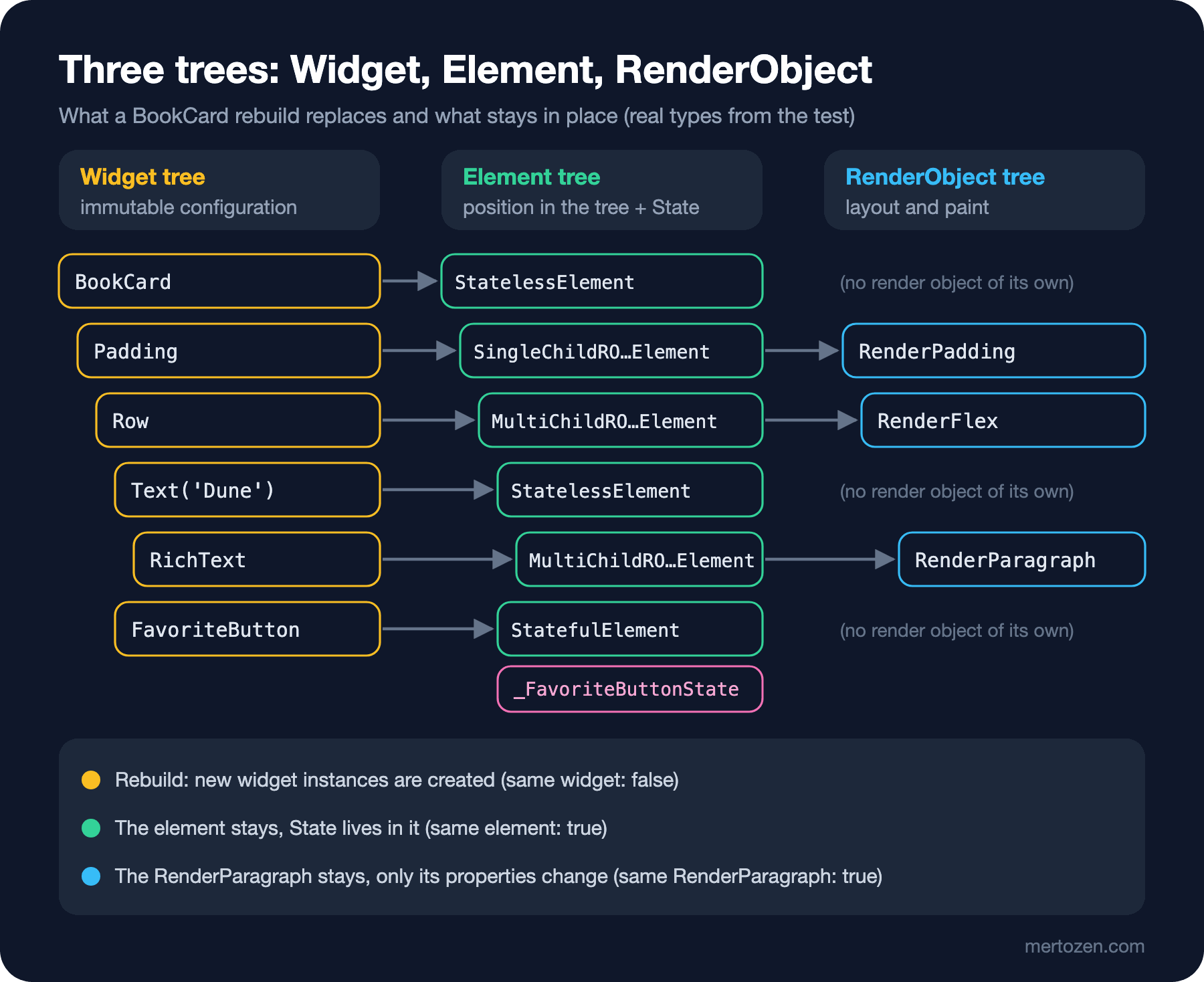
The element tree holds one element for each widget in the widget tree. An element represents the widget's place in the tree and is long-lived; the State object is attached to the StatefulElement. The render object tree consists of the objects that do layout (computing size and position), painting and hit testing. Not every widget has a render object: widgets like BookCard and Text only produce other widgets, while Padding, Row and the RichText created inside Text create a render object that takes up space on the screen. We verified this with a test: we built BookCard with Dune and then gave the same place a book with a different title.
Widget host(Book book) => MaterialApp(
  home: Scaffold(body: BookCard(book: book)),
);

String describeTitle(WidgetTester tester, String title) {
  final textElement = tester.element(find.text(title));
  final richTextElement = tester.element(
    find.descendant(of: find.text(title), matching: find.byType(RichText)),
  );
  return '${textElement.widget.runtimeType} -> ${textElement.runtimeType}\n'
      '${richTextElement.widget.runtimeType} -> ${richTextElement.runtimeType} -> '
      '${richTextElement.renderObject.runtimeType}';
}
Text -> StatelessElement
RichText -> MultiChildRenderObjectElement -> RenderParagraph
same widget: false
same element: true
same RenderParagraph: trueAfter the rebuild the Text widget in the title is a new object, but the element and the RenderParagraph are the same instances. Flutter compared the new widget with the old element's widget; since the type and key were the same, it reused the element and updated only the text property of the render object. The expensive work, creating render objects and setting up layout from scratch, was not done. This is why build is cheap: build only produces configuration, and the element tree applies the actual change in small steps. It resembles Angular's change detection finding the changed binding and updating only that in the DOM; in Flutter, render objects take the place of the DOM.
A const Constructor Cuts Off the Rebuild
If the element sees that the new widget is the same object as the old one, it does not build that subtree at all. Because const widgets are canonical (we saw this with identical in the third post), this is exactly what happens with const. To measure it, we counted how many times the header next to the cart counter is built:
class _CartBadgeState extends State<CartBadge> {
  int _count = 0;

  @override
  Widget build(BuildContext context) {
    return Column(
      children: [
        widget.constHeader ? const CatalogHeader() : CatalogHeader(),
        TextButton(
          onPressed: () => setState(() => _count++),
          child: Text('Cart: $_count'),
        ),
      ],
    );
  }
}
const: false -> CatalogHeader.build ran 4 times for 1 + 3 frames
const: true -> CatalogHeader.build ran 1 times for 1 + 3 framesThe button was pressed three times. Without const the header was rebuilt on every setState; with const only the first time. In this small example the difference is negligible, but when a list has hundreds of rows with dozens of widgets each, const skips a whole subtree. That is why flutter_lints' prefer_const_constructors_in_immutables rule asks you to declare const constructors on widget classes; make a habit of writing const when you create widgets that do not change, too.
BuildContext and mounted
The context in build(BuildContext context) is in fact that widget's element; a door into the widget's place in the tree. Theme.of(context) searches upwards from this position for the nearest Theme. It is like Angular's hierarchical injector looking for a dependency upwards in the component tree; in the state management post we will see that provider uses the same mechanism.
When the element leaves the tree, context becomes invalid. This is where the danger starts when calling setState after asynchronous work: the user may have left the screen while you were waiting for the API. We reproduced this in a test; while the save was running we replaced the screen with another one, then completed the save:
Future<void> saveNow() async {
  setState(() => _status = 'saving');
  await widget.save();
  // The user may have left the screen while we were waiting
  if (widget.checkMounted && !mounted) return;
  setState(() => _status = 'saved');
}
checkMounted: false -> setState() called after dispose(): SaveFavoriteState#88115(lifecycle state: defunct, not mounted)
checkMounted: true -> no errorWithout the mounted check, Flutter threw an error saying setState was called on a disposed State. With the check, the work finished quietly. The rule: after every await, check mounted before using setState or context. The use_build_context_synchronously rule in flutter_lints already catches unchecked use of context after an await. After the architecture post this work largely moves to the view model, but the rule applies to every asynchronous callback that stays in a widget.
Keys: When State Slides to the Wrong Row
We built the gift list from "Guess First" in a test. Each row is a PickRow that keeps its own _picked value:
// A row that remembers whether the user picked it (e.g. for a gift list)
class PickRow extends StatefulWidget {
  const PickRow({super.key, required this.title});
  final String title;

  @override
  State<PickRow> createState() => _PickRowState();
}

class _PickRowState extends State<PickRow> {
  bool _picked = false;

  @override
  Widget build(BuildContext context) => TextButton(
    onPressed: () => setState(() => _picked = !_picked),
    child: Text('${_picked ? '[x]' : '[ ]'} ${widget.title}'),
  );
}

Widget list(List<String> titles, {required bool useKeys}) => MaterialApp(
  home: Scaffold(
    body: Column(
      children: [
        for (final title in titles)
          PickRow(key: useKeys ? ValueKey(title) : null, title: title),
      ],
    ),
  ),
);
keys: false, before: [x] Dune, [ ] Emma, [ ] Middlemarch
keys: false, after : [x] Emma, [ ] Middlemarch
keys: true, before: [x] Dune, [ ] Emma, [ ] Middlemarch
keys: true, after : [ ] Emma, [ ] MiddlemarchWithout keys, Dune's tick moved to Emma. Why: Flutter matches the new list of children with the old one in order, looking at type and key. Without keys, the first PickRow(title: 'Emma') had the same type as the old element in first position, so it took that element and its State; Dune's _picked = true stayed on Emma's row. The last element had no partner any more and was disposed. With ValueKey(title) Flutter matched by key: Emma's widget found Emma's element, and Dune's element and state were thrown away.
When you need a key: when a collection of stateful widgets of the same type is reordered, has items inserted, or has items removed from the middle. Always use a stable identity for the key; in Bookstore that is the ISBN. That is why we wrote BookCard(key: ValueKey(book.isbn), ...) in the card list in HomeScreen. Using the list index as the key does not solve the problem, because indices shift after a removal too. GlobalKey is a different tool: for reaching a widget's state from elsewhere in the tree (the GlobalKey<FormState> in the forms post) or keeping a widget's state while moving it in the tree. It is expensive and not used for list rows.
In Production
Measure rebuilds instead of guessing. When you turn on the option to track widget builds in Flutter DevTools' performance view, you see which widget was built how many times. If you see a setState rebuilding the whole screen, move the state further down, into the small widget that changes; calling setState at the root of a large screen is the most common performance problem.
Write dispose completely. If objects such as TextEditingController, AnimationController, StreamSubscription and Timer are not closed, they stay in memory after the screen closes and their callbacks keep running. In code review, check that everything created in initState has a counterpart in dispose.
Derive list keys from data identity. The order of a list from the API can change, and paging can insert records in between. Without keys, these situations reach the user as a favorite shown on the wrong row, as above, or a cart quantity belonging to the wrong product.
Common Pitfalls
The first pitfall is treating build as setup code that runs once. build runs on every rebuild; starting requests, creating controllers or writing a counter to a variable in it is wrong. Setup happens in initState.
The second pitfall is putting state in the widget's fields. A StatefulWidget itself is immutable and may be recreated on every rebuild; changing values live in the State. If you copy a value from the parent into the State in initState, do not forget to update it in didUpdateWidget when the parent changes the value.
The third pitfall is calling setState or Navigator.of(context) after an await without checking mounted. This error, caught in the test environment, shows up on a real device when the user quickly presses the back button.
The fourth pitfall is treating keys as the answer to every problem, or never using them. A fixed list of stateless rows needs no keys; rows that hold state and change order need them.
A Small Experiment
★☆☆ Remove const from const EdgeInsets.all(12) and const Icon(...) in BookCard. What does flutter analyze say? Do the tests still pass?
★★☆ Add a third case to keys_test.dart that uses ValueKey(index) as the key. After removing Dune, does the output look like the case without keys or like the ValueKey(title) case? Explain why with the element matching rule.
★★★ Delete didUpdateWidget from FavoriteButton and run the second test in favorite_button_test.dart. In which scenario does the user see the wrong book as a favorite? Reproduce it with a list where BookCard has no key.
In the next post we move on to how we lay out the screen: Flutter's layout rule (constraints go down, sizes go up, the parent sets the position), Row, Column, Expanded, Stack, the "RenderFlex overflowed" error and the book details screen.