

Big Tasks with ChatGPT Work: File Analysis, Document/Deck/Sheet Creation, Scheduled Tasks and Dots
When you give ChatGPT Work a big task, write the outcome, the constraints and the verification criteria, and ask for the plan first; refine the file with annotations and check the numbers against the source. Subagents, document/deck/sheet previews, scheduled tasks triggered by time or app events, dots access and custom rules as of 15 November 2026, and Bookstore's third-quarter sales CSV with a table of correct answers.
Version note: This post describes file analysis, document, deck and sheet creation, scheduled tasks and dots in ChatGPT Work as of 15 November 2026; the details were checked the same day on the Get started with Work, Work with files, Long-running work, Subagents, Scheduled tasks and dots pages of the ChatGPT documentation (learn.chatgpt.com). This post is based on the official documentation. The sample CSV file and the correct answers in the check table were prepared by the author and calculated with Python. Features roll out to accounts gradually, so some menus may not appear in your account yet.
Guess First
On Monday morning Selin uploaded the third-quarter sales file of Bookstore, the online bookstore used as the shared example across this site's series, to ChatGPT Work and wrote one sentence: analyze the sales and prepare a deck for the leadership meeting. Twenty minutes later a tidy six-slide deck arrived. Selin sent it to Hakan, and Hakan used it in a meeting with institutional customers. After the meeting Emre noticed three things: the chart had seven categories, because the file spelled the same category "Sci-Fi" in August and "Science Fiction" in the other months; revenue had been calculated without subtracting refunds; and the near doubling of the Software refund rate in September did not appear anywhere in the deck.
What is your guess? Is the problem the model or the task description? What should the description have contained for Work to catch these mistakes itself? The answer is in three words on the long-running work page of the ChatGPT documentation: outcome, constraints and verification.
Giving Work a Task: Outcome, Constraints, Verification
According to the "Get started with Work" page (https://learn.chatgpt.com/docs/get-started-with-work, 15 November 2026), Work is for delegating a task with a clear outcome: a brief, a deck, an analysis, a recurring update or a file you will review and use. It uses your files, plugins and the tools you approve; you follow the progress, answer questions, change direction and approve important actions. The documentation also describes a good task: a clear outcome, a few source materials and an output you can review.
The "Long-running work" page (https://learn.chatgpt.com/docs/long-running-work) splits the description into three parts. Outcome: describe the result you want, not only the activity. Constraints: the tools and sources to use, the rules to follow and the approaches to avoid. Verification: the test, measurement or review criteria that show the work is done. Selin's sentence had only the first, and even that was vague. For Work to check its own work, it needs criteria such as "merge category names", "net revenue = gross − refunds" and "totals must match the source file".
In the desktop app you can turn this description into Goal mode with the /goal command: the goal text becomes both the first prompt and the completion criteria, and the row above the composer lets you pause, resume, edit or clear the goal. If the outcome is not clear yet, start with /plan and ask ChatGPT to interview you, find the constraints and turn them into measurable success criteria. On the web you write the same three parts directly into the Work prompt, then add context, change constraints or ask for a status update in the same chat. The documentation adds one warning: you can open separate chats for independent tasks, but do not let two tasks write to the same connected source.
How Does a Work Task Run?
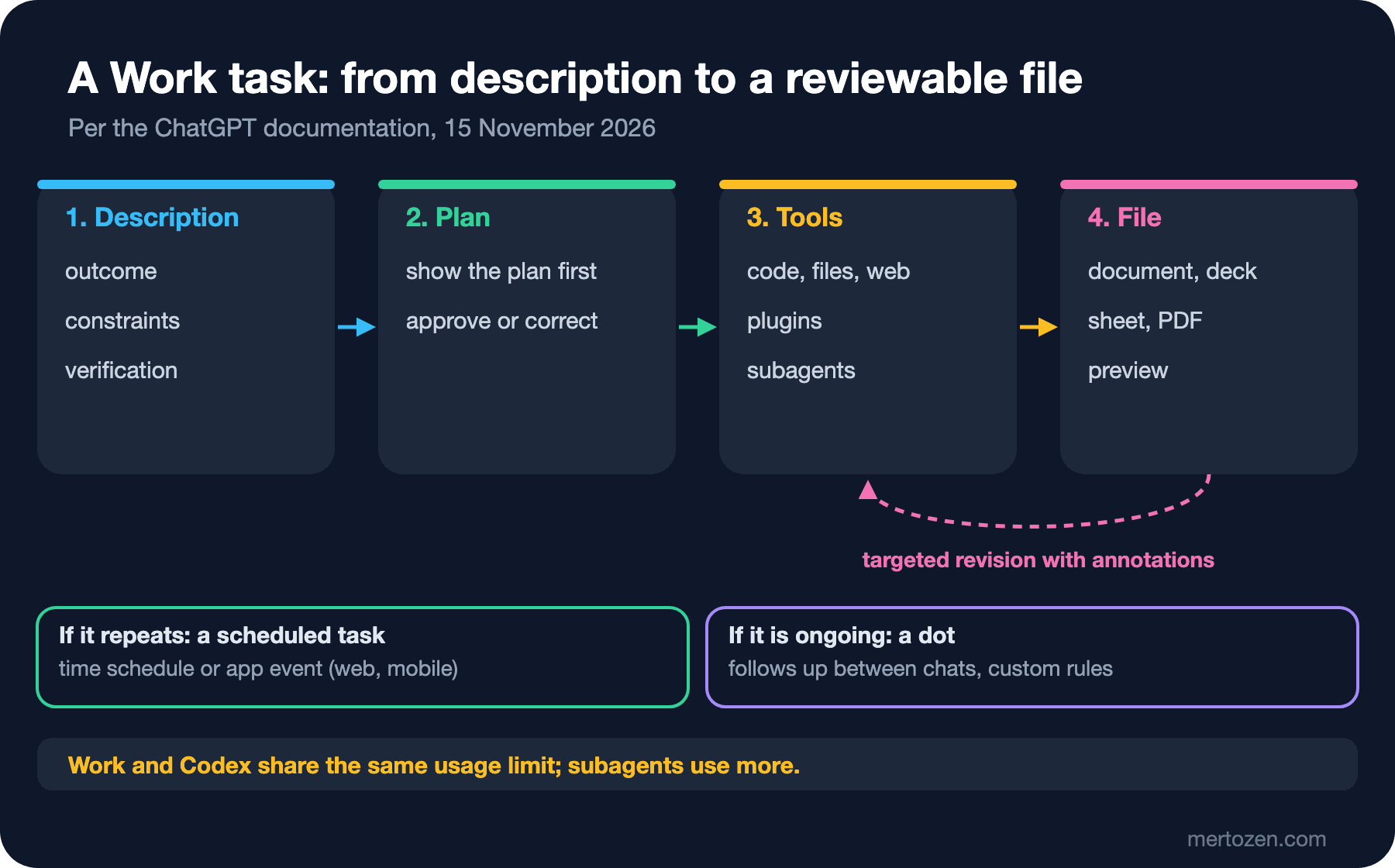
Work breaks the goal into steps; when needed it runs code, reads and writes files, searches the web, uses plugins and finally leaves a file you can review. As we saw in the first post, on the web it always runs in an OpenAI-managed cloud environment; in the desktop app, choosing Local lets it use the files, apps and browser on your computer. Two more details matter for a large analysis.
The first is subagents. According to the Subagents page (https://learn.chatgpt.com/docs/agent-configuration/subagents), Work can hand independent pieces of work to separate agents running in parallel and collect their results in one response; these agents run in ChatGPT's hosted environment and their activity shows up in the chat. At most intelligence levels you need to ask for delegation explicitly; only with Ultra does ChatGPT delegate on its own where parallel agents would really help. The cost is stated too: each subagent does its own model and tool work, so a subagent workflow uses more tokens than a comparable single-agent run. For an eighteen-row file subagents are unnecessary; for a truly parallel job such as reading ten supplier contracts one by one they make sense.
The second is duration and continuity. With continuing across devices, introduced at DevDay 2026 (29 September 2026), if your workspace has enabled local computer access you can start a task with Cloud selected on the desktop and follow it from your phone or the web; steps that need files on the computer require the laptop to stay on and connected. If a task pauses for a safety review, you read the notice and any findings before continuing.
Creating and Reviewing Files
The "Work with files" page (https://learn.chatgpt.com/docs/artifacts-viewer) says Work creates documents, presentations, spreadsheets and PDF files, and that the review tools depend on the surface. The desktop app previews these files next to the chat; with automatic previews on, it opens a generated file when the task finishes. Generated HTML files can open as interactive previews, and a standalone .tex file can be edited side by side with a PDF preview. On the web you review the file in the chat, download it when needed and give targeted feedback for the next version.
The most efficient way to revise is annotations on the desktop: you mark an area of the preview and ask for a change to that area only. The documentation's examples include marking a chart on a slide and asking for a clearer label, or selecting a claim in a document and asking for its source; the parts you already like are not regenerated. On the web you get the same effect by naming the page, slide, sheet or table in your revision request and saying what should stay unchanged. On both surfaces the documentation gives the same advice: when you ask for a spreadsheet or a deck, describe the sheets, columns, charts, slide sections and checks you expect up front, and at the end ask ChatGPT to explain where it saved the file and how it checked the result.
Bookstore: Third-Quarter Sales Analysis
Let us rebuild Selin's task. The sample file is small and deliberately contains two traps: one category name is spelled differently in August, and revenue is gross, with refunds in a separate column. If you want to try it yourself, here is the content of the CSV file:
month,category,orders,units,gross_try,refunds_try
2026-07,Fiction,1240,1980,612400.00,18300.00
2026-07,Science Fiction,610,890,287300.00,6100.00
2026-07,Children,820,1650,301900.00,4200.00
2026-07,History,330,410,176800.00,3900.00
2026-07,Software,290,330,368500.00,22100.00
2026-07,Textbooks,150,1420,402600.00,9800.00
2026-08,Fiction,1310,2105,648900.00,17500.00
2026-08,Sci-Fi,655,960,309800.00,7300.00
2026-08,Children,790,1590,292300.00,3800.00
2026-08,History,345,430,184200.00,4100.00
2026-08,Software,305,350,389700.00,25400.00
2026-08,Textbooks,410,4380,1251500.00,31200.00
2026-09,Fiction,1180,1890,585300.00,16900.00
2026-09,Science Fiction,700,1030,334600.00,6800.00
2026-09,Children,760,1520,279600.00,3600.00
2026-09,History,360,455,193700.00,4500.00
2026-09,Software,320,365,411200.00,48600.00
2026-09,Textbooks,620,6650,1897900.00,52700.00
The description we give Work contains all three parts and asks it to stop before building the files:
Attached: bookstore-q3-2026-sales.csv (monthly sales by category, July to
September 2026, amounts in TRY).

Outcome: an Excel workbook and a 6-slide deck on Q3 2026 sales for the
Bookstore leadership meeting.

Rules:
- Treat "Sci-Fi" and "Science Fiction" as the same category. List any other
  data cleaning you do.
- Net revenue = gross_try - refunds_try. Use net revenue everywhere unless a
  slide says otherwise.
- Workbook tabs: raw data (unchanged), clean data, a summary by category
  (net revenue, share of total, orders, average order value, refund rate,
  July-to-September change) and a monthly trend. Use formulas, not pasted
  values, in the summary tab.
- Deck: total, categories, trend, refunds, risks, decisions needed. Every
  number on a slide must come from the summary tab.

Verification: before you finish, check that the summary totals match the
raw file, report the check, and flag anything unusual you cannot explain
from the data. Show me your plan first and stop before you build the files.
The expected flow is this: Work shows the plan first and stops; once you approve it, it builds the files and finally reports the file names and the check it ran. The analysis itself does not depend on the platform, so we calculated the correct answer from the same CSV with Python. You can compare ChatGPT's output with this table:
| Category | Net revenue (TRY) | Share | Average order (TRY) | Refund rate | July → September |
|---|---|---|---|---|---|
| Textbooks | 3,458,300 | 40.0% | 2,930.76 | 2.6% | +369.8% |
| Fiction | 1,793,900 | 20.8% | 480.94 | 2.9% | −4.3% |
| Software | 1,073,300 | 12.4% | 1,173.01 | 8.2% | +4.7% |
| Science Fiction | 911,500 | 10.5% | 463.87 | 2.2% | +16.6% |
| Children | 862,200 | 10.0% | 363.80 | 1.3% | −7.3% |
| History | 542,200 | 6.3% | 523.86 | 2.3% | +9.4% |
| Total | 8,641,400 | 100% | 771.90 | 3.2% | +71.2% |
The check points come from the table itself. There should be six categories; if you see seven, "Sci-Fi" was not merged. Total net revenue is 8,641,400; if you see 8,928,200, refunds were not subtracted. Average order value is net revenue divided by orders, and the refund rate is refunds divided by gross revenue. A good analysis should flag two things on its own. The first is the September jump in Textbooks: the school term or institutional orders come to mind, but no column in the file shows that, so the deck should list it as an open question, not as a definite cause. The second is the Software refund rate: 6.0% in July, 6.5% in August and 11.8% in September. If either is missing from the deck, or if a cause that is not in the file is stated as fact for the Textbooks growth, mark that slide and ask ChatGPT to show what it is based on.
Scheduled Tasks: A Weekly Report
The analysis was done once; from now on Selin wants an updated note every Monday. According to the Scheduled tasks page (https://learn.chatgpt.com/docs/automations), recurring tasks run in the background, and you see all tasks and their recent runs in Scheduled. On the web you create the task from Chat or Work; these tasks can use uploaded files, connected tools, skills and plugins, but they cannot work in a folder on your computer. Tasks in the desktop app can work with local projects; for that the computer must be on and the app running.
There are two kinds of task. A standalone task starts a new chat from the saved prompt on every run; a task inside a chat returns to the same chat and uses its existing context. Custom schedule controls cover special cadences, and a more advanced schedule can be written as an RRULE line in the iCalendar format of RFC 5545. On eligible plans, on the web and mobile, a task can also be triggered by an app event instead of time: a new incoming Gmail message, a new message in selected Slack channels or pull request activity on GitHub. Event-triggered tasks are not available in the desktop app; one task can use several event triggers but cannot combine event triggers with a time-based schedule.
Every Monday at 09:00 Europe/Istanbul, read the latest weekly sales export
in the "Bookstore Sales Reports" project. Use the same rules as the Q3
analysis (merge category aliases, net revenue = gross - refunds). Update the
summary table and write a one-page note: changes since the previous week,
any category with a refund rate above 8%, and open questions. Do not send
or share anything; leave the note for my review. If the export is missing
or its columns have changed, stop and tell me instead of guessing.
The documentation recommends three habits. Before you schedule a task, test the prompt in a regular chat. Review the first few runs, and adjust the prompt, tools or cadence if the results are too broad or missing context. Put durable instructions in the task prompt or a skill, and keep the source file in an accessible project. There is also a warning: scheduled tasks run unattended with your default sandbox settings; start with the narrowest access that lets the task succeed. That is why the prompt above says "do not send anything" and "stop if the columns have changed".
Dots: An Always-On Agent
The dot, announced at DevDay 2026, is in the documentation's words (https://learn.chatgpt.com/docs/dots) an always-on agent that keeps work moving across your tools and projects. It has its own computer and browser in the cloud, so it can keep working while your computer is off. You can message it in ChatGPT, Slack and Teams or call it; it tracks progress between conversations and comes back to you when a decision needs your judgment. The documentation draws the line like this: Work is for delegating a task now or on a schedule; a dot is for keeping track of an ongoing responsibility, working out the next step as things change and, when needed, creating tasks in Work or Codex.
Access is limited. As of 15 November 2026, dots are rolling out gradually to eligible Pro and Business Premium accounts. On Pro they are for users aged 18 and older outside the European Economic Area, the United Kingdom and Switzerland; in Enterprise, Edu and Healthcare they are available in eligible workspaces and, from 18 November 2026, on by default unless the workspace opts out. On Pro and Business Premium, conversations with your dot do not count toward your usage limits, but tasks the dot starts in Work or Codex count toward those products' limits.
At Bookstore, the job that fits a dot best is Hakan's institutional quotes. The documentation gives a similar example: you share the proposal and customer requirements, and as the requested quantity or terms change, the dot updates the figures and brings you the next decisions. Here the controls are what matter. According to the "Control your dot" page (https://learn.chatgpt.com/docs/dots/controls), before any action that affects your accounts or shares information, an automatic review decides whether the action can proceed, needs your approval or is a step you must do yourself. With custom rules you choose one of four options for specific actions: take action without asking, take action when you say so, ask before taking action, or hand off to you. A sensible setup for Hakan is "ask before taking action" for every message to an institutional customer and "hand off to you" for deleting files in the shared folder. The documentation states one boundary clearly: asking for drafts does not give permission to send them, and rules neither grant access to an app nor remove built-in safety confirmations.
There are also three separate ways to stop work, and they do not replace each other. Pause stops the dot's current main task; you stop tasks the dot created one by one in Activity and recurring tasks separately in Scheduled. None of them undoes an action that has already completed.
In Production
Keep the limit in mind. Work and Codex share the same usage limits and credits. The Get started page suggests Astra for demanding work that needs careful reasoning, Sol for complex work at a lower cost and Luna for simpler tasks, and tells you to check your plan usage before a large task. Subagents and image generation make the same job more expensive.
Tie every number to its source. Check that the sheet calculates values with formulas and that every number in the deck comes from a cell in the sheet. A pasted value without a formula silently goes stale with the next data update.
Keep access narrow. Scheduled tasks and dots work while you are away. Every app you connect is an account these jobs can touch; a report that does not need to write only needs read access.
Common Pitfalls
Sharing numbers without checking them. A tidy slide is not a correct slide. Do not send the deck to anyone before comparing the totals with the source file.
Giving a vague description. "Analyze" is an activity, not an outcome. If you do not write the output format, the rules and the check, Work chooses them itself and does not always tell you what it chose.
Skipping the plan step. "Show me the plan first and stop" costs a few minutes of waiting and keeps a misunderstood task from spending your whole limit.
Giving a dot more app access than it needs. A dot is always on; broad permission given once can be used every day. Start with a narrow responsibility, correct the first results, then widen it.
A Small Experiment
★☆☆ Save the CSV from this post to a file and tell Work only "analyze the sales". Then try again with the description from this post. Compare both results with the check table: do the category count and the net total match?
★★☆ Pick a recurring report from your own work. Test the prompt in a regular chat first, then turn it into a weekly scheduled task. Review the results of the first three runs and note what you changed in the prompt.
★★★ If you have a dot, give it one responsibility and write two custom rules: which actions it should ask you about and which ones it should hand off to you. After a week, look at Activity and Scheduled and list what the dot did without your approval.
The files Work creates are usually shared with a team. In the eighth post we will look at what came after Canvas: pages and slides in ChatGPT Space, small web apps with Sites and interactive visualizations in the chat, using Bookstore's campaign calendar and a stock lookup screen.