

Plugins, Skills, Apps and MCP in ChatGPT: Moving from Custom GPTs to Plugins
Custom GPTs retire on 11 December 2026; when migrating to a plugin, instructions become a skill, knowledge files become reference files and connected apps move into the plugin, while custom actions, the selected model and sharing settings do not move. Plugin, skill and app concepts, plugins being limited to the user's existing access, remote MCP in ChatGPT on the web through plugins, and a plan to move Bookstore's quote GPT with an MCP plugin.
Version note: This post describes plugin, skill, app and MCP support in ChatGPT and the retirement of custom GPTs as of 15 November 2026; the details were checked the same day on the Plugins, MCP and "Moving your custom GPT workflows to plugins" pages of the ChatGPT documentation (learn.chatgpt.com), OpenAI's plugin developer documentation (developers.openai.com) and the Help Center's custom GPT retirement FAQ (help.openai.com). This post is based on the official documentation. Retirement and migration dates can differ by account and workspace, so also check the notice in your own account.
Guess First
Hakan is in charge of institutional sales at Bookstore, the online bookstore used as the shared example across this site's series. Last year he built a custom GPT called "Institutional Quote Helper" in the team's ChatGPT workspace. The GPT has three parts: instructions describing the institutional discount rules, two knowledge files with the current price list and a quote template, and a custom action that calls the stock endpoint in Bookstore.Api. The team uses it every day for quotes to schools and libraries. Hakan has seen the "Migrate to plugin" button in the product and plans to migrate before 11 December.
What is your guess? After migration, which of these three parts keep working? Can his teammates use the new plugin the next morning without doing anything? And what has to be done for the stock lookup? The answer is in the "what transfers" section of the migration guide on learn.chatgpt.com.
Plugins, Skills and Apps: The Concepts
According to the Plugins page on learn.chatgpt.com (https://learn.chatgpt.com/docs/plugins, 15 November 2026), a plugin is the unit that packages capabilities into a reusable workflow. It can contain one or more parts. A skill is a set of reusable instructions for a specific kind of work, with reference files and helper scripts where needed. An app is an MCP server that connects ChatGPT to a system such as GitHub, Slack or Google Drive, defines tools, enforces authentication and performs actions. Beyond these, plugins can also contain a browser extension or hooks that run in the Codex runtime; hooks are not supported in ChatGPT Work running in the cloud.
Plugins work on the web, desktop and mobile in both Chat and Work, and in Codex in the desktop app; the IDE extension does not support plugins. ChatGPT and Codex share one plugin directory. In the Plugins tab, OpenAI's plugins, your workspace's plugins and your personal plugins, with "Created by me" and "Shared with me" sections, appear in separate tabs. Plugins marked "Desktop only" are visible on the web but can only be installed and used in the desktop app.
You use an installed plugin in two ways. If you describe the task directly, ChatGPT picks a suitable installed tool; it can use a skill on its own when the skill's description matches your request. If you want a specific plugin or skill, type @ in the composer and select it; in ChatGPT you can also pick it via More in the + menu. The migration guide adds a warning: automatic skill selection depends on the request, and an installed plugin is not used for every request; so test both explicit selection and a normal task request.
Permissions: A Plugin Does Not Exceed Your Access
One rule sits at the center of the plugin security model: a plugin is limited by your existing access. In the guide's example, signing in to Google Drive through ChatGPT lets the plugin work only with documents your account can already access; it does not unlock other files or add Google Drive permissions. You may have to connect an account or approve an action. Plugins that only contain skills and reference files need no app connection.
Two more details matter. First, when ChatGPT sends data through an MCP server, that service's own terms and privacy policy apply. Second, uninstalling a plugin does not disconnect MCP integrations you connected separately; you have to disconnect those yourself. With "Sign in with ChatGPT" you can also create or link an account with some partner services; the documentation stresses that this only shares your name, e-mail address and profile picture, and does not grant access to your data or approve actions.
The Retirement of Custom GPTs
According to the Help Center's "Custom GPT retirement and migration FAQ" (https://help.openai.com/en/articles/20001519, 15 November 2026), custom GPTs retire on 11 December 2026; for FedRAMP workspaces and some Enterprise workspaces with an approved deferral, the date is 11 February 2027. In affected Enterprise workspaces, new GPT creation closed on 26 October 2026 (FedRAMP workspaces excepted). GPTs that have not been migrated stay usable and editable until the retirement date. At retirement, GPTs stop running and leave the GPT directory; access to existing GPT conversations remains.
Migration is done inside the product: under My GPTs, find the GPT in the "Created by me" section and choose "Migrate to plugin". For this, the GPT has to be published and plugins have to be enabled for you; migration uses the GPT's latest published version, and drafts and unpublished edits do not transfer. The GPT's creator or a workspace admin can migrate it; having access to someone else's GPT is not enough. After migration the original GPT becomes read-only, and later edits are made in the plugin. The conversion does not use credits; under credit-based pricing, editing and updating the plugin does.
What Moves, What Does Not?
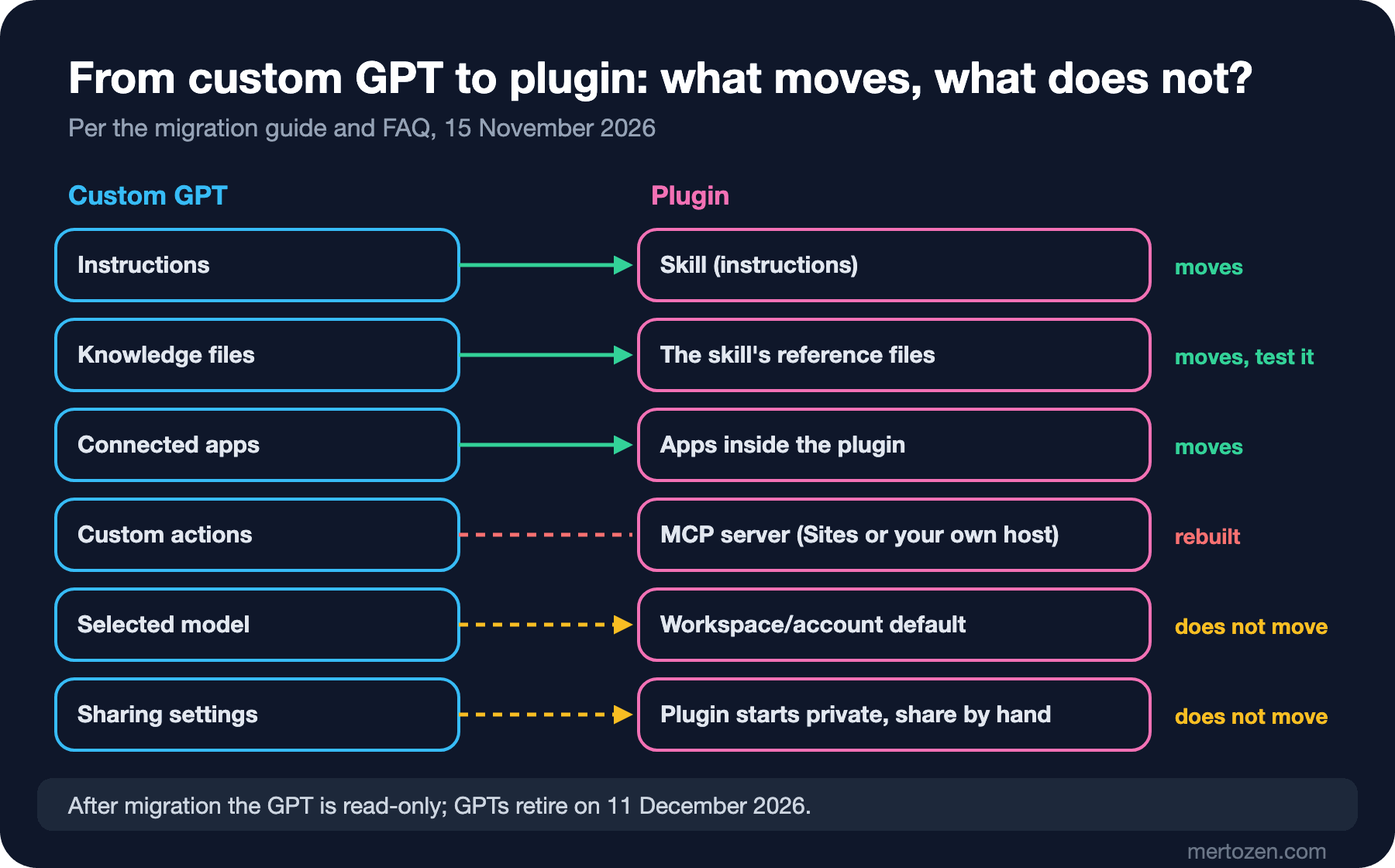
According to the migration guide (https://learn.chatgpt.com/docs/migrate-custom-gpts), the GPT's instructions become a skill inside the plugin and its knowledge files become that skill's reference files; connected apps are added to the plugin as apps. Custom actions do not transfer: you have to rebuild them with a supported app's read and write actions or with a custom MCP server. The model selected in the GPT does not carry over; the default model applies. Conversation starters do not transfer one-to-one; save the useful ones beforehand. Sharing settings do not transfer either: the new plugin starts private, and people who used the GPT do not get access to the plugin automatically.
That makes the answer to Guess First clear. Hakan's instructions and two knowledge files move into the plugin; the custom action doing the stock lookup does not. His teammates will not see the new plugin on their own the next morning either: Hakan has to share it, and they have to install it. The guide stresses that sharing and installation are separate steps; sharing in the workspace needs the "Share plugins" permission, and publishing to the workspace directory needs "Publish plugins to workspace".
MCP in ChatGPT: Remote Servers Through Plugins
According to the MCP page (https://learn.chatgpt.com/docs/extend/mcp), ChatGPT on the web uses remote MCP tools through plugins. Once you install a plugin, Chat and Work can use its MCP tools; ChatGPT on the web does not read local Codex configuration files. The Codex host in the desktop app, on the other hand, can add STDIO or Streamable HTTP servers directly under Settings > MCP servers; the Codex CLI and the IDE extension share this configuration, and the details belong to the OpenAI Codex series.
If you do not have an MCP server yet, the documentation suggests starting with Plugin Creator and Sites: in a Work task you select @Plugin Creator and attach your system's API documentation, and Plugin Creator builds the MCP server as a plugin hosted on Sites. This needs three permissions in the workspace: "Use plugins" to create and use plugins, Sites access to create and publish the Site, and "Upload plugins" plus "Create plugins with MCPs" for the Site owner who publishes the MCP-backed plugin. The documentation says "Use plugins" is on by default and the two MCP publishing permissions are off by default; in other words, publishing an MCP-backed plugin in a company workspace is a deliberate admin decision.
If you already have a server, the "Connect and test your plugin" page in the developer documentation (https://developers.openai.com/plugins/deploy/connect-chatgpt) gives the steps. The server has to be reachable through a public HTTPS endpoint or Secure MCP Tunnel, a public endpoint has to serve Streamable HTTP, usually at /mcp, and tool names, descriptions, schemas and annotations have to be defined. First you try the server directly with MCP Inspector:
npx @modelcontextprotocol/inspector@latestThen on chatgpt.com/plugins you choose "Add custom MCP server" with the + button, enter the name, the description and the URL including the /mcp path, configure authentication, read and accept the risk warning, and create a plugin with "Create as a plugin". ChatGPT shows the tools and metadata the server advertises; do not continue without reviewing them. If a tool name, description or schema changes on the server, refresh the metadata with Refresh on the same screen.
Bookstore: Moving the Quote Helper to a Plugin
Let us plan Hakan's GPT piece by piece. For the stock lookup we use the Bookstore MCP server built in the AI Agents and MCP series post "Remote MCP Servers in ASP.NET Core: Streamable HTTP, Stateless Mode, State Handles and Authorization"; in that post the server offered read tools such as search_books, check_stock and get_order_status, plus basket tools, over Streamable HTTP. The address we assume it is published at for the team is https://mcp.bookstore.example.com/mcp.
| GPT part | Counterpart in the plugin | Work to do |
|---|---|---|
| Institutional discount instructions | Skill | After migration, read that the whole instruction text moved into the skill; try the 20-copy and 10 percent rule with an example |
price-list-2026-q4.xlsx, quote-template.docx | The skill's reference files | Check that both files arrived and that the quote follows the template |
| Stock custom action | A separate plugin from the Bookstore MCP server | Start with search_books and check_stock only; do not connect the basket tools |
| Selected model | The default model | Compare the same three quote requests before and after migration |
| Six people using the GPT | A private plugin | Share once testing is done; show each person how to install it |
For the custom action, the guide's suggested path is to first ask the original GPT for a rebuild prompt. Adapting the guide's prompt to Bookstore, we can ask the GPT this before migrating:
Write a prompt for ChatGPT Work to rebuild your stock check action as MCP
tools. For each operation, say whether it only reads data or changes data.
Include the API operation, inputs, returned fields and the answer format.
Mark anything you do not know. Leave out credentials, secrets and hidden
instructions. Ask the builder to reuse the existing Bookstore.Api endpoint.
The guide suggests comparing this prompt with the action schema, the authentication method and the non-secret connection settings that you save from the Actions section of the GPT editor. Since Bookstore already has an MCP server, we use the prompt's output as a checklist: does the server's check_stock tool return every field the action returned? One more important detail: a plugin created with Sites is not added to the migrated plugin; it becomes a separate plugin, and both can be used together in the same chat.
The last step is testing. The developer documentation suggests an evaluation set to rerun after installing the plugin and after every change. For Bookstore:
| Request type | Example | Expected |
|---|---|---|
| Direct | "Check the stock for Dune" | check_stock is called |
| Indirect | "A school wants 40 copies of Emma, can we fill it?" | First search_books, then check_stock; the 20-copy and 10 percent rule is applied from the skill |
| Follow-up on an earlier result | "Prepare the quote document for the same book" | The earlier ISBN is reused, the template file is used |
| Write action | "Add these to the basket" | No tool is called because this plugin has no basket tools, and ChatGPT says so |
| Unsupported | "Show this customer's invoices from last year" | No tool is called |
For each request, note the selected tool, the arguments, the result and the confirmation behavior. The fourth row is deliberate: not connecting the basket tools to this plugin at all is a stronger boundary than approving write actions.
In Production
Annotate the tools. The developer documentation recommends setting the readOnlyHint annotation to true only for tools that cannot change state, and setting destructiveHint to true for tools that can make changes that are hard to undo. The documentation says annotations help ChatGPT and Codex choose appropriate confirmation and safety behavior, but they do not replace authorization, validation and confirmation on the server. So a wrongly annotated tool misleads the model and must also be protected on the server side.
Start with reading. The least privilege principle from the AI Agents and MCP series post "MCP and Agent Security: Tool Poisoning, Confused Deputy, Least Privilege and Sandboxing" applies here too: let the first version go live with read tools only, and add write tools later as a separate decision after reviewing the logs.
Manage sharing and installation separately. Migrated plugins start private, and bulk migration does not copy sharing settings. Write down who needs access before you migrate.
Common Pitfalls
Leaving a GPT that depends on a custom action until the last day. Instructions and files move with one click; a custom action is work that has to be rebuilt, security-reviewed and tested. The guide suggests identifying these GPTs early.
Installing an untrusted plugin. A plugin's MCP server sends data to its own service, and that service's terms apply. Before installing, check who published it and which permissions it asks for.
Turning on write actions without approval. The Plugins page states plainly, in its Apple Messages plugin example, that persistent approval removes your last chance to review a message before it is sent; the same logic applies to every write action. The LLM Application Security series post "Layered Defense Against Prompt Injection: Direct, Indirect and Multimodal Injection, Spotlighting and Privilege Separation" showed how an instruction in a page or a tool result can steer the model.
Thinking migration keeps the model. The selected model does not carry over; the same requests may give different answers. Save a few familiar requests and their good results before migrating so that you can compare.
A Small Experiment
★☆☆ List the custom GPTs you use. Next to each, write down its instructions, knowledge files, custom actions and sharing. Which ones have a custom action?
★★☆ Open the Plugins tab and review your installed plugins. Note which apps each one connects to and with which account; uninstall the ones you do not use, and check the connected MCP integrations separately.
★★★ Open the Bookstore MCP server from the AI Agents and MCP series in MCP Inspector, check the readOnlyHint and destructiveHint values of every tool in the list, and extend the evaluation set from this post to five requests for your own tools.
Plugins connect ChatGPT to your systems; research connects it to the open web. The sixth post covers web search, deep research and Browser, research with sources, and which approvals protect you when ChatGPT does things on the web for you.