

ChatGPT Projects: Keeping Sources, Project Instructions and Chats Together
In ChatGPT, open a project for work that continues over time, produces several outputs and relies on the same files, and start a separate chat inside it for each distinct output; one giant chat mixes old versions into answers. Chats, Sources and project instructions, the 5, 25 and 40 file limits by plan as of 15 November 2026, project-only memory, local projects on desktop, and a Bookstore product documentation project.
Version note: This post describes ChatGPT Projects as of 15 November 2026; project structure, local projects on desktop, file and sharing limits, and project memory were checked the same day on the "Projects and chats" page of the ChatGPT documentation (learn.chatgpt.com) and in the Help Center article "Projects in ChatGPT" (help.openai.com). This post is based on the official documentation. Limits vary by plan and change often, so check the current values before uploading many files to a project.
Guess First
Selin is the Product Owner of Bookstore, the online bookstore used as the shared example across this site's series. For three weeks she has run all product documentation work in a single ChatGPT chat: the PRD for the returns feature, a draft FAQ for institutional orders, API change notes. She uploaded the second and then the third version of the PRD into the chat. In the last few days the answers started mixing the two versions; at some point she had also added a complaint export from the support team, with customer names in it, to the same chat.
What is your guess? Why do the answers mix the two versions? How should Selin have split the work to avoid this? And where did the complaint export belong? The answer is in two recommendations on the "Projects and chats" page on learn.chatgpt.com: open a project for work that continues over time, and start a separate chat for each distinct output.
When to Open a Project
The "Projects and chats" page (https://learn.chatgpt.com/docs/projects, 15 November 2026) ties the decision to three questions: does the work continue over time, does it produce more than one output, does it depend on the same files and sources? If any answer is yes, open a project. If the work is self-contained and needs no shared context, a chat without a project is enough. If a chat grows, you can move it into a project later.
Selin's work says yes to all three. The documentation also recommends starting a separate chat inside the project for each distinct result: that keeps the chat's messages and output focused while the project keeps the shared context. One giant chat is the in-product version of the problem described in the LLM Fundamentals series post "The LLM Context Window: What the Model Remembers and What It Silently Cuts": old versions, abandoned ideas and unrelated attachments sit side by side in the same context, and the model has no way of knowing which one is current.
The Parts of a Project
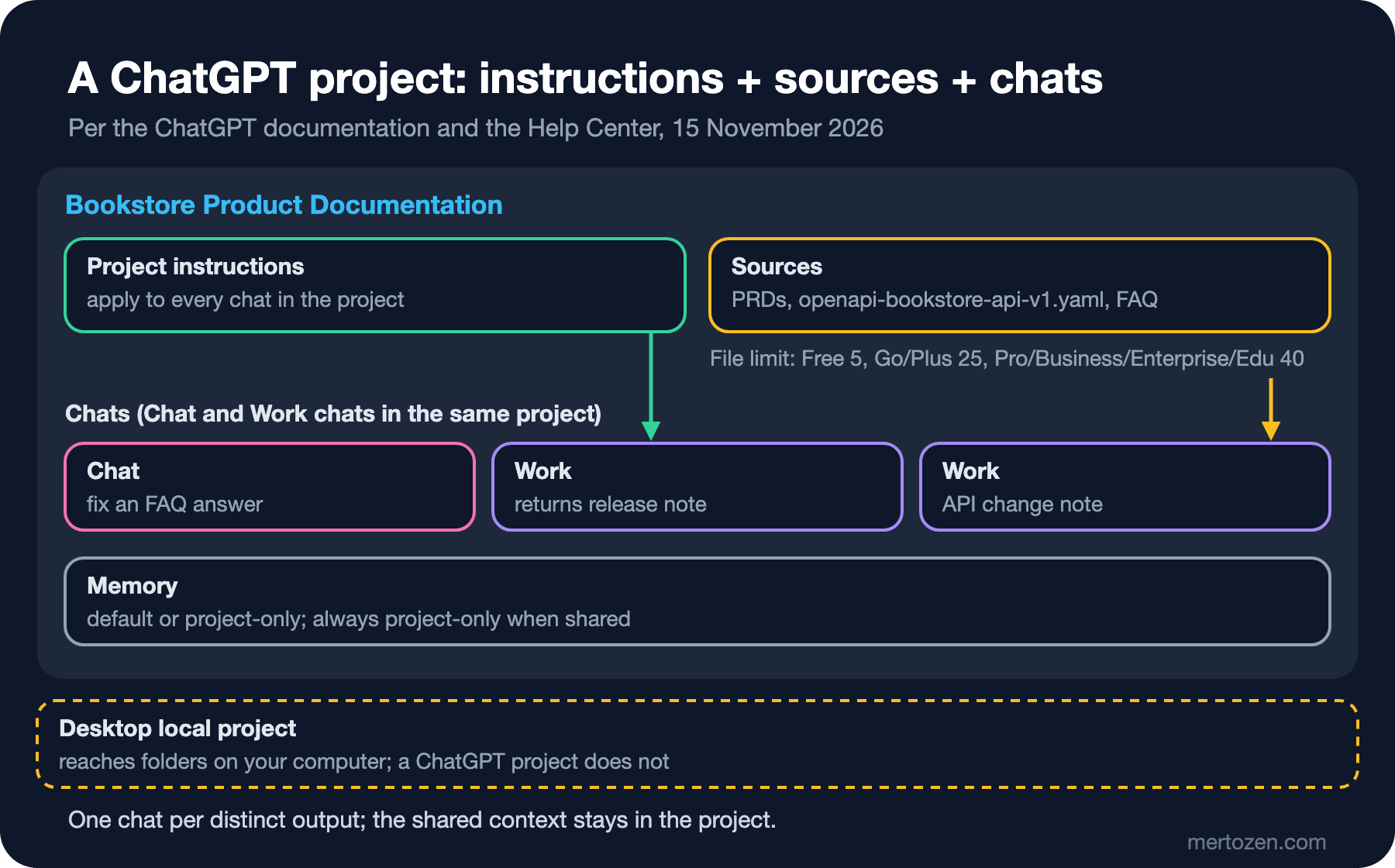
A ChatGPT project has three main parts. The Chats section lists the chats in the project; short chats started with Chat and large tasks started with ChatGPT Work sit side by side in the same project. The Sources section holds the files you upload and the sources you connect; every chat in the project can use them. Project instructions are instructions applied to all chats in the project.
To use the project's shared files and instructions, you have to start the chat from inside the project. A file that only matters for a single request is better attached directly to that chat; the documentation makes this distinction explicitly: what several chats need goes into Sources, what one chat needs goes into that chat. You can also use plugins in chats inside a project; in Work, plugins and memory come into play in addition to the project's context.
One important limit: a ChatGPT project does not access a folder on your computer directly. You have to upload the files you want it to use or connect them as a source. Folder access is what local projects in the desktop app are for; we look at them separately below.
Sources: What to Upload, What Are the Limits?
According to the Help Center article "Projects in ChatGPT" (https://help.openai.com/en/articles/10169521, 15 November 2026), the file limit per project depends on the plan: 5 on Free, 25 on Go and Plus, 40 on Edu, Pro, Business and Enterprise. At most 10 files can be uploaded at the same time. When you hit the limit, the article suggests removing old or unneeded files, combining files, or splitting the work across several projects. An older file upload FAQ still says 20 files for Plus; this difference between two Help Center pages shows why the limit needs checking at the time you set things up.
Shared projects also limit the number of collaborators: according to the article, 5 files and 5 people on Free, 25 files and 10 people on Plus and Go, 40 files and 100 people on Pro.
The "Use ChatGPT" page lists the files you can attach to ChatGPT as documents, presentations, spreadsheets, PDFs, images and data exports. Before uploading a file, ask: is this file needed in several chats in the project, and is it current? If both answers are not yes, the file does not belong in Sources.
Project Memory
A project's memory behavior is a separate setting. According to the Help Center, since 14 August 2026 projects that are not shared can switch between default memory and project-only memory. With project-only memory, your saved memories are not used in project chats, and the chats cannot draw on conversations outside the project, meaning general ChatGPT chats or chats in other projects; ChatGPT only uses chats in the same project. Shared projects always use project-only memory and cannot access a member's personal memory. Project memory is not shown as a list the way personal memory is.
For Bookstore this means: if Selin's personal memory holds context from some other job, project-only memory keeps it out of the product documentation. The rule from the third post applies here too: memory is a helpful layer, and the team's rule should live in project instructions.
Local Projects on Desktop
The Projects view in the desktop app shows ChatGPT projects and local projects together. A local project gives its chats access to one or more folders on your computer, such as a collection of source files or a codebase. To add or change folders, choose "Edit project" from the project's menu, then "Add folder"; ChatGPT can read and change files in every folder you add. "Make primary" chooses the default working directory: new chats start there, and Codex automatically discovers AGENTS.md, skills and config.toml only in that folder. Secondary folders remain available for search, reading and editing. Remote projects currently support one folder.
Two details matter for security. First, projects organize the work, but the sandbox decides what local commands can read and change and whether they can reach the network; adding a folder to a project is not a permission boundary. Second, syncing a chat across devices does not upload the whole folder or open it to another computer. Opening separate projects for unrelated work, as the documentation also suggests, makes sure each chat reaches only the folder it needs.
| Option | When | Access to files |
|---|---|---|
| Chat without a project | Self-contained, one-off work | Only the files you attach to the chat |
| ChatGPT project | Work that continues over time, has several outputs and relies on the same sources | Sources you upload or connect; no local folder |
| Desktop local project | Work that has to read and change files on your computer | The folders you add; the sandbox sets the limit |
Bookstore: A Product Documentation Project
Let us set Selin's work up from scratch. The project is called "Bookstore Product Documentation". What goes into Sources are files that each cover a single topic and carry their version in the name:
prd-returns-v3.mdandprd-institutional-orders-v2.md: only the current version of each PRD; older ones removed from the project.openapi-bookstore-api-v1.yaml: the OpenAPI definition ofBookstore.Api.support-faq-2026-q3.md: the support team's frequent questions, with customer names, e-mail addresses and order numbers removed.glossary.md: short definitions of product terms (return, partial shipment, institutional approval).
Project instructions:
You help the Bookstore product team write and maintain product documentation.

Sources: use the files in this project first. For every claim, name the
source file and the section. If the sources do not answer the question,
say so before using general knowledge, and label that part.

Versions: PRD files are named prd-<feature>-v<N>.md. If you see two
versions of the same PRD, use the higher one and tell me the older file
is still in the project.

Conflicts: openapi-bookstore-api-v1.yaml is the source for endpoints and
fields. If a PRD and the OpenAPI file disagree, point out the conflict
instead of choosing one. Do not invent endpoints.

Language: write documents in Turkish; keep code, identifiers, endpoint
paths and technical terms in English.

Privacy: the sources contain no customer data. If I paste names, e-mail
addresses or order numbers, remind me to mask them.
Three lines of this text answer the problem from Guess First directly. The version rule makes it visible when an old PRD file is forgotten in the project. The conflict rule stops the model from silently picking one of two sources. The citation rule lets you check which file an answer relies on; if there is no file name, the answer most likely comes from general knowledge. On top of that, each output gets its own chat: a Chat chat for fixing an FAQ answer, a Work chat for the returns feature's release note, another Work chat for the API change note. For example, the first message of the release note chat could be:
Using prd-returns-v3.md and the returns endpoints in
openapi-bookstore-api-v1.yaml, write a one-page release note for the
customer service team. Explain what changes for customers, which statuses
a return can have, and what the team should tell a customer whose return
is rejected. Flag every field in the PRD that has no matching field in the
API. Give me a .docx file.
The expected answer is Work showing its plan, reading the two files and then producing a Word file; each section of the file should state which source it used, and fields that do not match between the PRD and the API should appear in a separate list. The way to check it is to open the release note and compare each claim with the section in the source file. As for the complaint export: this project is not its place. If it is needed at all, names and contact details should be masked and it should be handled in a separate, unshared project, or according to the rules we will see in the tenth post.
For Readers Coming from Claude Projects
If you have read the Claude Projects post in the Working with Claude series, the concepts will feel familiar. That post showed Claude switching to RAG mode in large projects. The basic idea is the same: in both products a project keeps instructions, source files and chats together, and the chats stay focused. The details differ: file limits, how project memory behaves, and how local folder access works in which app vary by product. We leave a concept-by-concept comparison of the two products to the last post of the series; the practical point here is to recheck the limits and the memory setting when you move a project structure from one product to the other.
In Production
Give Sources an owner. The most common problem in team projects is a stale file. When a PRD is updated, make removing the old version from the project and uploading the new one part of the workflow; uploading the new version without deleting the old one is exactly the confusion Selin ran into.
Name and archive chats. The documentation suggests giving chats short names that describe the outcome ("Checkout accessibility review", for example). Archive finished chats; "Archive chats" in the project menu archives a project's chats together, and you can restore archived ones under Settings > Data Controls > Archived chats. Pinning frequently used projects and chats only changes where they appear in the sidebar; it does not change what ChatGPT can access.
Do not put changing data in files. Stock levels, daily sales or open support tickets are stale on the day they are uploaded. Data like that belongs in plugins; the fifth post covers setting up an MCP connection to Bookstore's own system through a plugin.
Common Pitfalls
Running all the work in one giant chat. Every new output carries the full context of the old conversation; old versions and abandoned ideas leak into the answer. Open a project and start a new chat for each output.
Leaving stale sources. If Sources holds two versions of the same document, the model cannot know which one is current. Put the version in the file name and remove the old one.
Uploading customer personal data as a source. A file in Sources is open to every chat in the project; in a shared project it goes into everyone's chats. Remove names, e-mail addresses, addresses and order numbers before uploading.
Treating a local project as a permission boundary. Adding a folder organizes access; the sandbox decides what commands can read and change. Never add sensitive folders to a project.
Memorizing limits. Two Help Center pages give different file counts for Plus; check the current article when you set up a project.
A Small Experiment
★☆☆ Find your longest-running chat of the past month. How many separate outputs did it produce? If each had been a separate chat, which files would have gone into the project's Sources section?
★★☆ Set up a project for your own work: at most five files, file names that include a version, and project instructions following the structure in this post. Ask the same question inside and outside the project; what is the difference in how sources are cited?
★★★ Design two projects for your team: one for product documentation, one for support answers. For each, prepare a one-page rule text listing the Sources, the instructions, who updates the files, and the memory setting (default or project-only).
Projects gather information but do not connect to outside systems. The fifth post covers plugins, skills, apps and MCP, the retirement of custom GPTs on 11 December 2026, and what moves when you migrate a GPT to a plugin.