

Space, Pages, Sites and Visualizations in ChatGPT: Documents and Sharing After Canvas

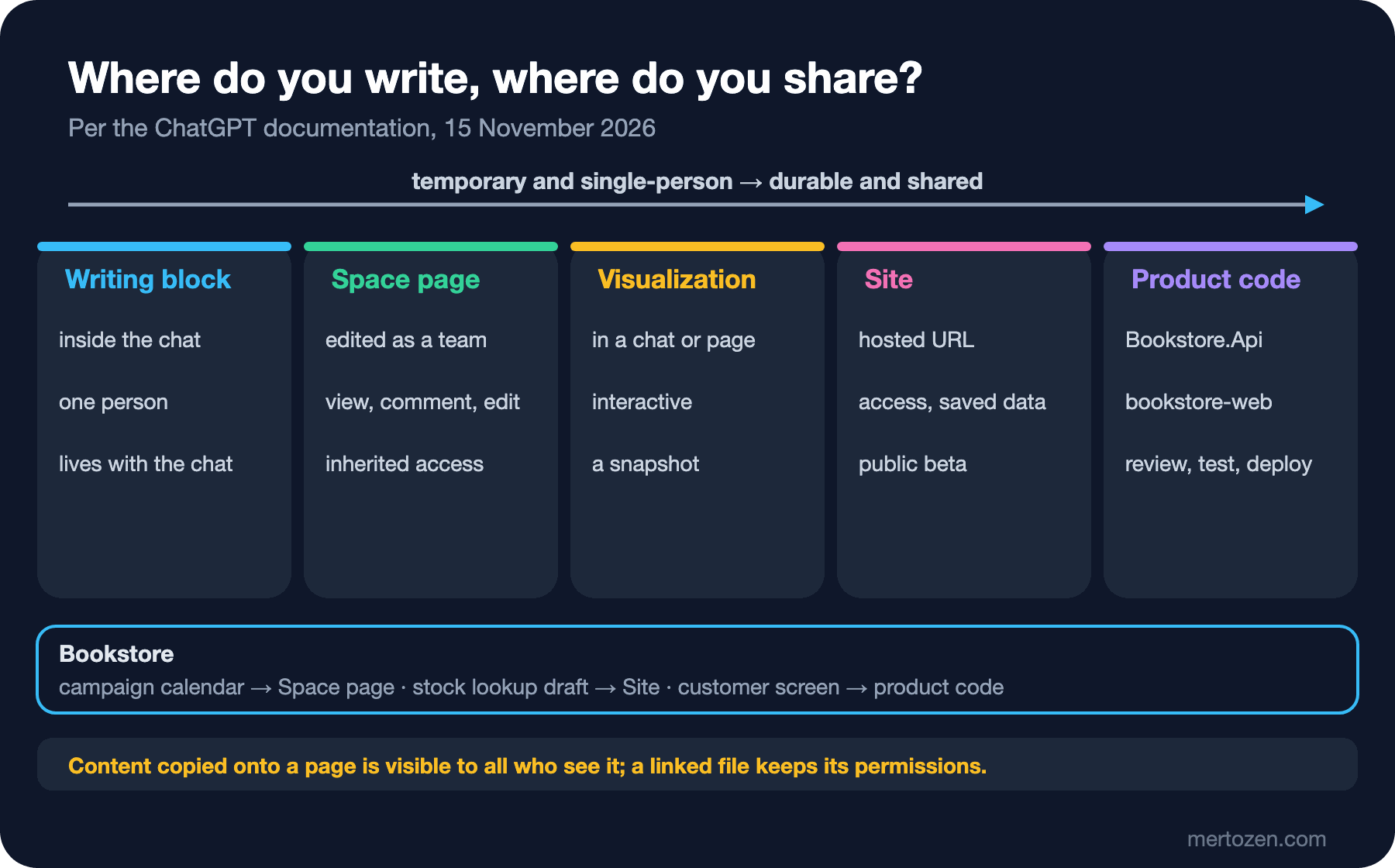
Canvas was replaced by writing blocks in the chat and by ChatGPT Space, which teams edit together; in Space linked files keep their own permissions, but content copied onto a page is visible to everyone who can see it. Pages and slides, inherited access, visualizations as snapshots, access options, limits and 2027 hosting prices of Sites in public beta as of 15 November 2026, and which job belongs where for Bookstore.
Version note: This post describes ChatGPT Space, pages and slides, Sites and visualizations as of 15 November 2026; the details were checked the same day on the Space, Sites, Visualizations and Pricing pages of the ChatGPT documentation (learn.chatgpt.com) and in the Help Center's release notes and Space articles (help.openai.com). This post is based on the official documentation. These features are new and change quickly; Sites is in public beta, and visualizations are rolling out gradually as a preview.
Guess First
Selin opened a "Campaign calendar" page in ChatGPT Space for the winter campaign of Bookstore, the online bookstore used as the shared example across this site's series. She linked a publisher's confidential price offer from Google Drive to the page and asked ChatGPT to write the offer's main points onto the page. Then she shared the page with the whole team. The same week Emre built a small "Stock lookup" Site by describing it, using the warehouse stock list, and set its access to "Anyone on the internet" so a supplier could look at it too.
What is your guess? What does a team member without access to the offer in Drive see on the page? Can Emre's Site replace Bookstore's stock screen? The answer is in one sentence of the Space documentation and in the limits section of Sites: linked files keep their own permissions, but content copied onto a page is visible to everyone who can see the page.
After Canvas: Writing Blocks and Space
Guides from 2025 describe Canvas for long text and code. According to the Help Center release notes (https://help.openai.com/en/articles/6825453, 15 November 2026), Canvas was removed on 28 May 2026 from GPT-5.5 Instant and GPT-5.5 Thinking, the Chat models of that time; paid users could keep using it for a while through legacy models. Its place was taken by writing blocks and code blocks inside the chat response: you can edit a block directly or ask for a revision of the selected text or the whole draft. Since 8 June 2026, writing blocks on the web can also open in a full-screen editor.
A writing block is a single-person draft inside one chat. For a document that a team edits together and that lives independently of a chat, ChatGPT Space arrived at DevDay 2026 (29 September 2026). According to the Space documentation (https://learn.chatgpt.com/docs/space), Space brings pages, slides, spreadsheets, Sites, images and files together in one place; according to the admin guide, it was formerly called Library. According to the Help Center article "Getting started with Space in ChatGPT" (https://help.openai.com/en/articles/20001549), creating and editing content in Space is available on the Pro, Business and Enterprise plans; for workspaces with data residency in Canada or the United Arab Emirates it says "coming soon".
Pages and Slides in Space
A page is a document you and ChatGPT edit together. According to the "Work with pages" page (https://learn.chatgpt.com/docs/space/pages), content is made of blocks such as headings, paragraphs and tables; typing / opens a menu where you add a table, code, an image, a file, a subpage or a link to another page. Generate in that menu writes a draft of what you describe straight into the page; Visualize adds an interactive calculator or diagram; a Prompt block stores a ready request that readers can run with one click. You can select a sentence and use "Ask for change" to revise only that part, and type @ to mention a person, ChatGPT, your dot, a file or a chat. File and chat mentions reference the source without copying its content into the page.
ChatGPT Slides is part of Space too. You ask for a deck from a conversation, an outline or source files, and state the audience, goal and length; optionally you provide a reference deck or a template. You can edit text, images, tables and charts in the deck directly, or select an element and use "Request edits" to ask ChatGPT for a change. On the web you can export to PowerPoint (.pptx), PDF and Google Slides. The documentation adds a note for the Windows desktop app: if the app creates a PowerPoint file instead of a collaborative deck, switch to cloud mode or use the web. In the seventh post the .pptx created by Work was a file; a deck in Space is a live document the team edits at the same time.
Sharing: View, Comment, Edit and Inherited Access
The "Collaborate in Space" page (https://learn.chatgpt.com/docs/space/collaboration) splits access into three levels, and the answer to Guess First is in this page and in the Space overview:
| Situation | What happens? |
|---|---|
| View, Comment, Edit | Reads; reads and leaves feedback; changes the content with you. Slides have only view and edit. |
| Sharing a space | Gives access to all its pages; sharing a page also gives access to its child pages. |
| Removing a direct invitation | Does not remove access inherited from a parent page or space; you change that in the parent's sharing settings. |
| A linked source file | Keeps its own permissions; someone who can read the page may not be able to open the linked file. |
| Content copied or written onto the page | Is visible to everyone who can see the page. |
| Your chats and your memory | Sharing a page does not share them. |
Selin's mistake is in the fifth row. The offer in Drive was protected by its own permission, but the main points ChatGPT wrote onto the page are now part of the page, and everyone who sees the page can read them. The Help Center article "ChatGPT Space: sharing, data, and controls" (https://help.openai.com/en/articles/20001544) adds one more detail: when people work with shared content, each person's own model training and memory settings apply; one person's setting does not cover another person's use. If an Enterprise admin turns sharing off, new shares and permission changes are blocked but existing shares remain, so fixing a wrong share is always the page owner's job.
Visualizations: Interactive Explanations in the Chat
According to the Visualizations page (https://learn.chatgpt.com/docs/visualizations), ChatGPT can turn a question or data into a chart, map, diagram, calculator or simulation. ChatGPT picks this format itself when it helps; to ask for it explicitly you type @Visualize in the composer. As of 15 November 2026 it is available in Chat and Work for supported accounts on the web; it is rolling out as a preview in the desktop app and to eligible accounts on mobile; it does not render in Codex CLI or the IDE extension. Inside a page you add one with /visualize.
Two warnings in the documentation matter. A visualization is generally a snapshot of the information available when it was created, not a live dashboard that stays in sync with a connected source. Accessibility is not guaranteed either: before sharing, check that it works from a keyboard, ask for a text summary and a data table, and ask for labels that do not rely on color alone. When you need a durable URL, access settings or saved data, the documentation suggests moving to a Site.
Sites: Web Apps by Conversation
Sites lets you build a website by describing it in ChatGPT or Codex and host it on OpenAI's infrastructure (https://learn.chatgpt.com/docs/sites). The documentation's examples include resource hubs, dashboards, trackers, request forms, calculators and guided processes. According to the Pricing page, Sites is in public beta and included with eligible Plus, Pro, Business and Enterprise plans. When data must be saved, records use the D1 relational database and files use R2 object storage.
Access is the most important setting here. According to the "Publish and share" page (https://learn.chatgpt.com/docs/sites/publishing-and-sharing), a new Site is first limited to its owner and workspace admins. The options depend on the account and workspace: selected users or groups, invited external viewers, anyone in the workspace, and anyone on the internet only when public publishing is enabled. In Enterprise, public publishing is off by default. The documentation asks you to try the site from the intended visitor's point of view before publishing, check that it contains no confidential information or secrets, and choose the narrowest sharing option that fits. Sign in with ChatGPT can be added; the bypass token generated so a service can call a site behind sign-in is treated by the documentation as a secret: it must stay out of browser code, URLs and source control.
The limits are clear too. A Site runs in a supported runtime; some frameworks, private networks, databases and background services are not supported. HTTP, HTTPS and WebSockets work, raw TCP connections do not. The record database is limited to 10 GB per Site. Payments can be collected only through a third-party payment processor, and only that provider may process card data. On cost, hosting is free through 31 December 2026; from 1 January 2027 the monthly allowance is 125 credits on Plus, 375 on Pro and 125 per seat on Business, and usage above it is charged. Building and editing a Site counts toward your plan's Codex usage.
Bookstore: Campaign Calendar and a Stock Lookup Draft
Let us rebuild Selin's page. The offer text does not go onto the page; the page holds only what the whole team may see, and the offer stays in Drive with its own permission, referenced from the page as a link:
Create a page called "Winter campaign calendar" in the Bookstore space.
Use the attached campaign brief. Add a table with campaign name, start and
end date, categories, discount and owner. Link the publisher offer in
Google Drive instead of copying it; do not write any prices or terms from
that file onto the page. List unconfirmed dates as open questions.
For Emre's Site, the goal is not a product screen but a draft for the internal team:
Build a site called "Stock lookup draft" from the attached stock export
(isbn, title, warehouse, on_hand, reserved). Let staff search by ISBN or
title and show available = on_hand - reserved per warehouse. Read-only: no
forms, no saved records. Keep access limited to me until I review it, then
share it only with the Bookstore staff group. Show me the saved version
before deploying.
The expected result is a preview that shows the search and the calculated column, and a flow that stops before publishing. As the documentation suggests, test the ISBN search and the "available" calculation with a known record, a search with no matches and a stock level that could go negative. Then settle which job belongs where:
| Need | Where it belongs |
|---|---|
| One person's long answer, a one-off draft | A writing block in the chat |
| A calendar, decision note or deck the team edits together | Space pages and slides |
| Explaining a calculation or a relationship interactively | A visualization |
| A small internal tool with a durable URL and access settings | A Site |
| The stock and order screens customers use | Bookstore.Api and bookstore-web: with review, tests and deployment |
In Production
A Site is not a production application. Bookstore's stock screen lives in product code with authentication, authorization, logging, tests and deployment; a Site's runtime, data location and price depend on OpenAI's decisions. Building a workflow that depends on a Site brings vendor lock-in risk; do not put a Site into a permanent process without a way to take its code and data out.
Audit sharing regularly. Inherited access in Space and the separately managed visitor, group and public settings in Sites blur over time who sees what. Looking through the list of shared pages and Sites once a quarter is a sufficient habit.
Watch the cost now. From 1 December 2026 the traffic and storage usage of each Site will be visible; knowing which Sites are really used before hosting becomes paid in 2027 pays off.
Common Pitfalls
Having confidential content copied onto a page. The linked file's permission does not carry over to the page; copied text is visible with the page's permission. Leave a sensitive source as a link.
Publishing a Site with broad access. "Anyone on the internet" is broader than needed to show something to a supplier; an external viewer invitation or selected groups are usually enough.
Treating a visualization as a live dashboard. It is a snapshot; when the data changes you need to create it again.
Looking for Canvas. Canvas is not in the new models; the steps in old guides map to writing blocks and Space.
A Small Experiment
★☆☆ Ask for a long text in a chat, open the writing block in full screen and ask for a revision of one paragraph only. Did the other paragraphs change?
★★☆ If you have Space access, create a space with two subpages. Invite a teammate to one subpage only, then share the space and remove the invitation. Can they still open it, and why?
★★★ Describe a small Site draft for your own team: which data, who sees it, what it saves, when it is published. Apply the documentation's checklist before publishing, and write down three signs that the Site should move into product code.
Pages and slides in Space also take images. In the ninth post we will look at generating and editing images in ChatGPT, asking questions with a screenshot, and ChatGPT Voice, using Bookstore's Angular basket screen.