

Terminal Multiplexing with tmux: Panes, Sessions and Surviving a Dropped SSH Connection
In tmux, shells run inside a background tmux server and your terminal is just a client; that's why a job outside tmux dies when SSH drops while a job inside tmux keeps going (shown with a real experiment). We cover sessions, windows and panes, prefix shortcuts, a development script that opens dotnet watch and ng serve with one command, copy mode, a minimal .tmux.conf that accounts for default changes between tmux 3.4 and 3.8, and the nested tmux and TERM pitfalls.
Version note: The commands in this post were run on Ubuntu 24.04 with tmux 3.8 (built from the official source), and for comparison with Ubuntu's apt package tmux 3.4, .NET SDK 10.0.404, Angular CLI 22.2.7 and an OpenSSH server running in the same environment to test a dropped connection. The pane shortcuts of Windows Terminal and iTerm2 come from their official documentation.
Guess First
You connected to a test server over SSH and started the catalog import script of Bookstore, the online bookstore used as the shared example across this site's series. The script writes a log line every second for 30 seconds. In the fourth second the Wi-Fi goes and the SSH connection drops. You run the same experiment twice: once running the script directly, once with tmux new -s import ./import.sh.
$ ssh dev-server ./import.sh
$ ssh dev-server tmux new -s import ./import.sh
A few seconds after the connection drops, what is the last line of the log in each case, and is the script still running? I show the answer with a real experiment in the middle of the post; the difference between those two answers is the reason tmux exists.
Server, Session, Window and Pane
tmux is a terminal multiplexer: it opens several terminals inside a single terminal window and keeps them alive independently of your window. It does this in two parts. The tmux server is a process running in the background; all shells and programs run as its children, in PTYs it opens. The tmux you see in your terminal is only a client: it draws the screen and forwards your keys to the server. When the client goes away (you closed the window, SSH dropped), the server and everything in it keep running.
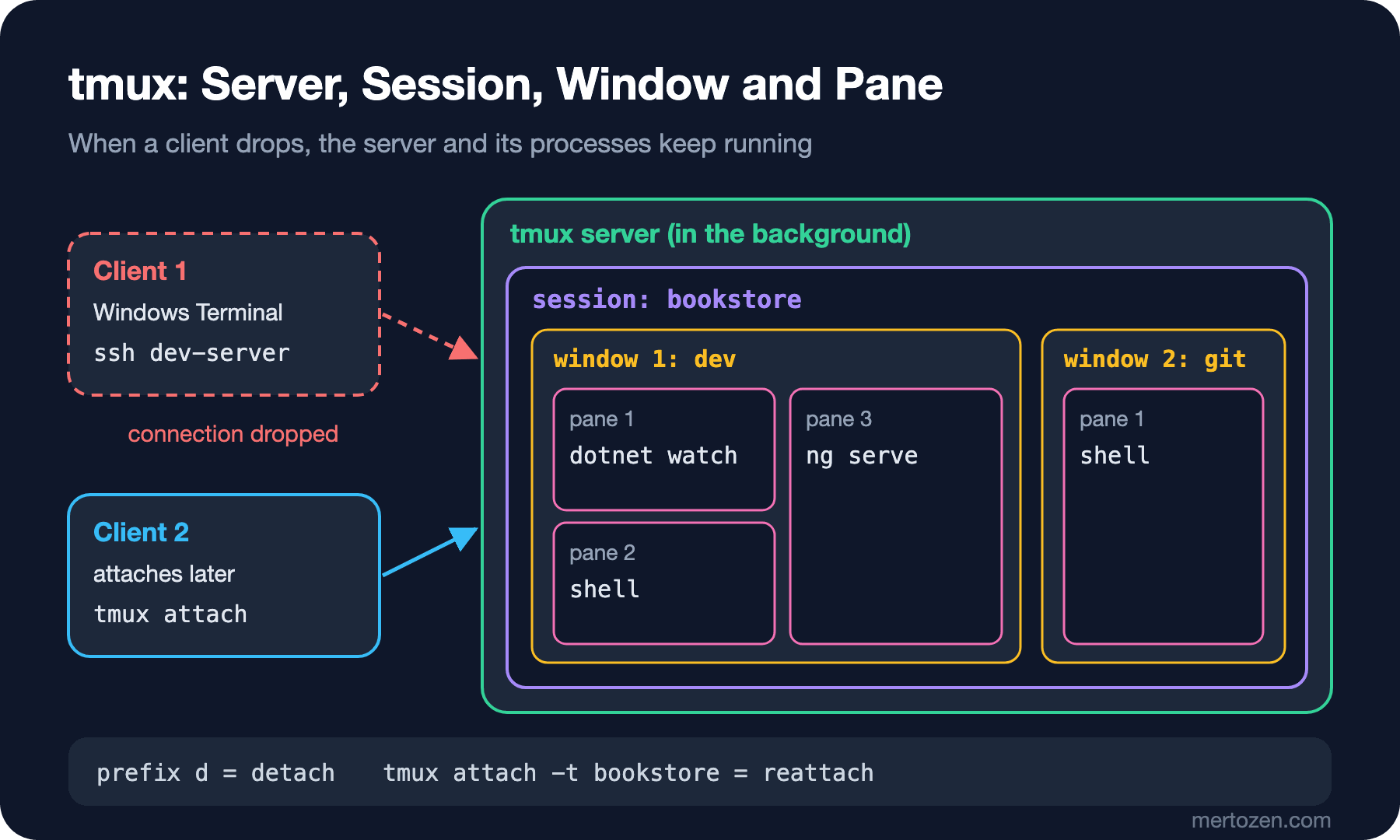
Inside the server there are three levels. A session is a working context; I open one for Bookstore. A window is like a tab inside the session; it shows in the status line as 1:dev, 2:git. A pane is each of the parts a window is split into, and a separate shell runs in each pane. The terminal, PTY and shell relationship from the first post applies here too: each pane has its own PTY, and tmux takes the role of terminal emulator.
$ tmux new -s bookstore
$ tmux ls
$ tmux attach -t bookstore
$ tmux new -A -s bookstore
$ tmux kill-session -t bookstore
In order: open a new session and attach to it, list sessions, reattach to an existing one, attach if it exists or create it otherwise, and close the session. If you try to open a second session with the same name, tmux gives a clear error: duplicate session: bookstore. With -A it attaches to the existing one instead of failing; useful in scripts and aliases.
The Prefix Key and Basic Shortcuts
To give tmux a command you first press the prefix key, then the command's key. The default prefix is Ctrl-b; below, C-b % means "press Ctrl-b, release, then press %". The ones you'll use most, from tmux 3.8's default bindings (tmux list-keys -T prefix):
| Key | tmux command | Action |
|---|---|---|
C-b % | split-window -h | Split the pane to the right |
C-b " | split-window | Split the pane downwards |
C-b + arrow key | select-pane -U/-D/-L/-R | Move between panes |
C-b z | resize-pane -Z | Zoom the pane / undo |
C-b c, C-b n, C-b p | new-window, next-window, previous-window | Open a window, go to next / previous |
C-b d | detach-client | Leave the session, everything keeps running |
C-b s, C-b w | choose-tree | Pick from the session / window list |
C-b [ | copy-mode | Move through history, search, copy |
C-b x | kill-pane (asks first) | Close the pane |
C-b ? | list-keys -N | Show all shortcuts |
Every shortcut runs a tmux command behind the scenes. That's why you can do the same things from the shell, from a script and from the command line opened with C-b :; shortly we'll build the Bookstore layout with these commands.
Jobs That Survive a Dropped SSH Connection
The answer to the guess. I ran the experiment by connecting to an SSH server and killing the ssh client process with kill -9 in the middle of the connection; it's the same as the Wi-Fi going away, the server sees the other side disappear. The import script writes import batch N lines to /tmp/import.log for 30 seconds. The connection dropped in the 4th second, and 4 seconds later I looked at the log and the process list:
== without tmux
import batch 4
job gone
== inside tmux
import batch 8
job still running
import: 1 windows (created Sat Nov 14 04:12:18 2026)
Without tmux, the script died with the connection. When the SSH server closes the session it closes the PTY, and the processes attached to that PTY get SIGHUP; the script's default behaviour is to die on that signal. With tmux, the one that got SIGHUP and died was the client. Because the script runs in the tmux server's PTY, it noticed nothing, kept writing the log and finished a few seconds later with import batch 30. When you reconnect, tmux attach -t import shows the screen where you left it.
nohup ./import.sh & also keeps the job alive by ignoring SIGHUP, but you can never reach the output and the interaction again; with tmux you come back to the same screen. Something that must run continuously on a server (an API, a worker) should run neither in tmux nor with nohup; it belongs in a systemd service or a container. This distinction is covered in the Linux and Shell series post on processes and systemd.
The Bookstore Development Layout: Three Panes with One Command
While working on Bookstore locally I watch three things at once: the API running under dotnet watch and its logs, the Angular app running under ng serve, and a free shell for git and test commands. Instead of splitting this by hand every morning, I put a script in the repo:
#!/usr/bin/env bash
# Opens (or re-attaches to) the Bookstore development session:
# window "dev": API (dotnet watch) | Angular (ng serve) / free shell
set -euo pipefail

session=bookstore
root=$(git -C "$(dirname "$0")" rev-parse --show-toplevel)

if ! tmux has-session -t "$session" 2>/dev/null; then
    api=$(tmux new-session -d -s "$session" -n dev -c "$root" -P -F '#{pane_id}')
    web=$(tmux split-window -h -t "$api" -c "$root/web/bookstore-web" -P -F '#{pane_id}')
    shell=$(tmux split-window -v -t "$api" -c "$root" -P -F '#{pane_id}')

    tmux send-keys -t "$api" 'dotnet watch --project src/Bookstore.Api' C-m
    tmux send-keys -t "$web" 'ng serve' C-m
    tmux send-keys -t "$shell" 'git status -sb' C-m

    tmux new-window -d -t "$session" -n git -c "$root"
    tmux select-pane -t "$shell"
fi

if [ -n "${TMUX:-}" ]; then
    tmux switch-client -t "$session"
else
    tmux attach -t "$session"
fi
There are a few design decisions. I target panes not by numbers like 0.1, 0.2 but by the IDs tmux returns when creating them (-P -F '#{pane_id}', like %0); that way, starting numbering at 1 in .tmux.conf doesn't break the script. send-keys ... C-m types the command into the pane's shell and presses Enter, so the command also lands in the shell's history; you can stop it with Ctrl-C and restart it with up arrow and Enter. If the session already exists, the script only attaches and doesn't create it twice. When run from inside tmux it uses switch-client instead of attach, to avoid nesting tmux.
Part of the screen ./scripts/dev-tmux.sh opened (in a 120-column terminal):
info: Microsoft.Hosting.Lifetime[14]                        │                    | Initial total | 48.16 kB
      Now listening on: http://localhost:5080               │
info: Microsoft.Hosting.Lifetime[0]                         │Application bundle generation complete. [0.582 seconds] - 2
      Application started. Press Ctrl+C to shut down.       │026-11-14T04:17:16.680Z
info: Microsoft.Hosting.Lifetime[0]                         │
      Hosting environment: Development                      │Watch mode enabled. Watching for file changes...
info: Microsoft.Hosting.Lifetime[0]                         │NOTE: Raw file sizes do not reflect development server per-
      Content root path: /home/ada/bookstore/src/Bookstore.A│request transformations.
pi                                                          │  ➜  Local:   http://localhost:4200/
                                                            │  ➜  press h + enter to show help
────────────────────────────────────────────────────────────┤
5                                                           │
ada@dev:~/bookstore$                                        │
[bookstore1:dev* 2:git                                                                             "dev" 04:17 14-Nov-26
Top left the API, on the right Angular, bottom left the answer of curl -s localhost:5080/api/books | jq length (5). The status line at the bottom shows the session, the windows and the active window (*). A dump of the panes:
$ tmux list-panes -s -t bookstore -F "#{window_index}.#{pane_index} #{window_name} #{pane_current_command} #{pane_current_path}"
1.1 dev dotnet /home/ada/bookstore
1.2 dev bash /home/ada/bookstore
1.3 dev ng /home/ada/bookstore/web/bookstore-web
(The list continues with 2.1 git bash /home/ada/bookstore.) When you leave with C-b d, the terminal prints [detached (from session bookstore)] and the API and Angular keep running; running the script again brings you back to the same screen without restarting anything.
I hit a surprise on the first try: the ng serve pane never started, because in a fresh home the Angular CLI was asking whether to set up completion on its first run and waiting for an answer. The question we saw in the second post stops the work in an automatically started command. After answering once (Ok, you won't be prompted again) it doesn't ask again. Keep in mind that any interactive tool started by a script may ask a question on its first run.
Copy Mode and Scrollback
Inside tmux, the terminal's own scrollbar can't see each pane separately; to look at history there is copy mode. You enter with C-b [, move with the arrow keys and Page Up/Down, and leave with q. With mode-keys vi on in .tmux.conf, ? searches backwards and / forwards; Space starts a selection, Enter copies, C-b ] pastes. With the default Emacs keys, search is C-r and C-s.
Each pane's history is limited to history-limit lines; the default in tmux 3.8 is 2000. That's very little for long build logs; I set it to 50000. To get a pane's whole history into a file:
$ tmux capture-pane -p -S - -t bookstore:dev.1 > /tmp/api-pane.log
$ wc -l < /tmp/api-pane.log
33
$ grep -c "Microsoft.Hosting.Lifetime" /tmp/api-pane.log
4
-S - means start from the very beginning of history. To attach the full output of an error to an issue or send it to a teammate, this is more reliable than selecting and copying from the screen.
A Minimal .tmux.conf
Since tmux 3.1 the settings file can also be ~/.config/tmux/tmux.conf. The short file I use:
# Keep the default prefix C-b: C-a is "beginning of line" in the shell

# Defaults that changed in newer tmux; set them for older versions too
set -g mouse on
set -sg escape-time 10

set -g history-limit 50000
set -g base-index 1
setw -g pane-base-index 1
set -g renumber-windows on
setw -g mode-keys vi

# Colours: tell tmux the outer terminal supports 24-bit colour
set -g default-terminal "tmux-256color"
set -as terminal-features ",xterm-256color:RGB"

# Splits and new windows open in the current pane's folder
bind | split-window -h -c "#{pane_current_path}"
bind - split-window -v -c "#{pane_current_path}"
bind c new-window -c "#{pane_current_path}"

bind r source-file ~/.config/tmux/tmux.conf \; display-message "tmux.conf reloaded"
The reason for the first two lines is version differences. According to tmux's change log, the default escape-time dropped to 10 ms in 3.5, and in 3.8 mouse is on by default. The tmux Ubuntu 24.04 installs from apt, however, is 3.4, where both are still the old way: the same commands returned off for mouse and 500 for escape-time on 3.4. 500 ms is a delay you feel when pressing Escape to go to normal mode in vim. Writing them explicitly in the settings file makes the old tmux in WSL and the new tmux on macOS behave the same. 3.7 and 3.8 also brought floating panes that sit above the layout; older versions don't have this feature.
My reason for not changing the prefix relates to the second post. Most .tmux.conf examples online set the prefix to C-a; but Ctrl-A means going to the start of the line in bash, zsh and PSReadLine's Emacs mode. Once it's the prefix, you have to press it twice every time you go to the start of a line. If C-b bothers you, pick a key the shell doesn't use, such as C-Space.
Alternatives: Windows Terminal and iTerm2 Panes, zellij
If all you need is seeing several terminals at once locally, the terminal emulator's own panes may be enough. According to the Windows Terminal documentation, Alt+Shift+Plus splits to the right, Alt+Shift+Minus splits downwards, Alt+Shift+D splits by duplicating the current profile, Alt+arrow keys move between panes, Alt+Shift+arrow resizes, and Ctrl+Shift+W closes the pane. Zooming a pane isn't bound to a key by default; it's done from the command palette opened with Ctrl+Shift+P. On macOS, iTerm2 splits to the right with Cmd+D and downwards with Cmd+Shift+D.
The fundamental difference from tmux is that these panes don't detach: closing the window closes everything in it, and when SSH drops the work goes too. They also differ per machine, while tmux works with the same keys on a server, in WSL and on macOS. There is no native tmux on Windows; you use it inside WSL. iTerm2's integration mode, opened with tmux -CC, shows tmux windows as iTerm2's own tabs and windows; look into it if you want both tmux's persistence and iTerm2's interface.
zellij is a newer multiplexer written in Rust (latest release 0.46): it shows shortcuts at the bottom of the screen, defines layouts in KDL files and is easier to learn than tmux. Because it doesn't always come installed on a server and most teams know tmux, I stay on tmux; but if you'll only use it on your own machine, it's worth a try.
In Production
tmux is not a process manager. If the server reboots, all sessions are gone; if the tmux server dies because of a bug, everything in it goes with it. tmux is the right tool for starting a database migration or an import by hand and watching it; leaving something that must run continuously in tmux is the cause of incidents that start with "someone started it in tmux last year". Long-lived jobs are the job of systemd or a container orchestrator.
Scrollback lives in memory and can be written to a file with capture-pane. A connection string or token printed to the screen stays in the pane history even after you delete it from shell history; on a shared server other users can't reach your socket, but anyone who connects as the same user can see your screen with tmux attach. Know this on shared accounts, and clear the history with C-b : and clear-history when you're done.
Common Pitfalls
The first is nested tmux. If you're inside tmux on your laptop and SSH into a server that also uses tmux, both tmuxes wait for C-b and the outer one always gets the key. With the default bindings, C-b C-b passes the prefix inwards (bind-key -T prefix C-b send-prefix), so to detach from the inner tmux you type C-b C-b d. If you do this often, pick different prefixes for the outer and inner one.
The second is colours and TERM. Inside tmux, TERM is tmux-256color; in my test, echo $TERM in a pane returned exactly that. If the remote machine you connect to doesn't have this terminfo entry, tools like less, vim and htop complain about an "unknown terminal" or the colours break; according to tmux's FAQ, the screen entry is available almost everywhere, so TERM=screen-256color is the more portable choice on that machine, at the cost of a few features such as italics. If 24-bit colours look washed out, the terminal-features line above is missing.
The third is every pane opening a login shell. By default tmux starts a login shell in each new pane; echo $0 in a pane returned -bash, and the leading dash means login shell. According to the table in the first post, that means .bash_profile or .zprofile is read again in every pane. Lines that add to PATH run again in each pane; that's why typeset -U path matters in zsh. The fourth is trying to open a second session with the same name and seeing the duplicate session error: tmux new -A or the has-session check in the script above solves it.
A Small Experiment
★☆☆ Open a session with tmux new -s bookstore, split the pane first to the right and then downwards, run a different command in each pane, zoom one with C-b z, leave with C-b d and come back with tmux attach.
★★☆ Run scripts/dev-tmux.sh in your own Bookstore repo. Add a third window that runs dotnet watch test --project tests/Bookstore.Api.Tests, and see the result there when you break a test. Search for the error message in copy mode and save it to a file with capture-pane.
★★★ In WSL or on a test server, repeat this post's SSH experiment yourself: start a long-running command once directly and once inside tmux, and drop the connection. Then, while inside tmux on your laptop, connect to tmux on the same server and solve the nested prefix problem with send-prefix or with two different prefixes.
With this post the Terminal and Command Line series is complete: we told terminal, shell and prompt apart, got fast from the keyboard, configured zsh and PowerShell, and added modern tools and tmux. Versioning these settings, installing them on a new machine with one command and keeping them in sync across machines is the subject of the Productivity and Automation series.