

Terminal, Shell, Console and Prompt: Telling Them Apart and the Right Setup for Each OS
The terminal emulator draws the window, the shell interprets the line you type, and the PTY in between carries keys and signals; they are separate programs, so you install and update them separately. We show with a real experiment which settings file bash, zsh and PowerShell read and when, and give a decision table for PowerShell 7.6 + Windows Terminal + WSL 2 on Windows and zsh on macOS, plus where the repo should live.
Version note: The commands in this post were run on Ubuntu 24.04 with bash 5.2, zsh 5.9 and PowerShell 7.6.10, in a clean environment with the .NET 10 SDK and Node.js 24 installed. Behaviour specific to Windows Terminal, WSL 2 and macOS comes from Microsoft's and Apple's official documentation; those parts were not run on Windows or macOS.
Guess First
An empty home folder contains seven files: .bash_profile, .bashrc, .profile, .zshenv, .zprofile, .zshrc, .zlogin. Each one only prints its own name. For PowerShell, Microsoft.PowerShell_profile.ps1 does the same. Now you run these commands one after another:
$ bash -c true
$ bash -i -c true
$ bash -l -c true
$ zsh -i -c true
$ zsh -l -c true
$ pwsh -c 0
Which files does each line read? Answer two questions in particular: does bash -l read both .bash_profile and .profile, and does a non-interactive command like pwsh -c load the profile? The answers are in the table in the middle of the post. That table explains most complaints of the "I put PATH in .zshrc but the VS Code task doesn't see it" or "the alias doesn't work in CI" kind.
Four Concepts: Terminal, Shell, Console and TTY
In everyday talk, "open the terminal", "type it in the shell" and "run it in the console" are used as if they meant the same thing. During setup and troubleshooting the difference matters, because each one is a separate program and a separate settings file.
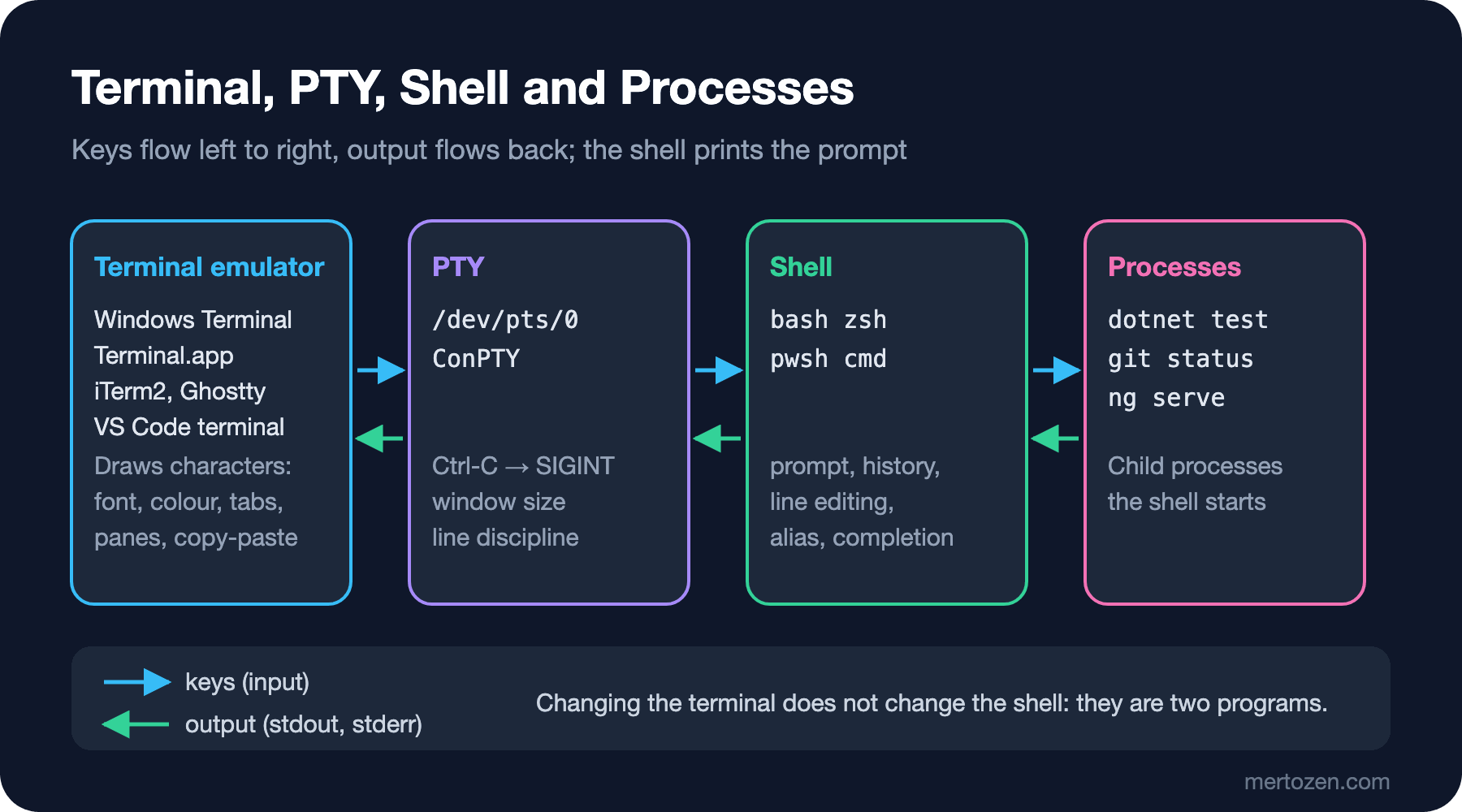
The terminal emulator is the window on the screen: Windows Terminal, Terminal.app on macOS, iTerm2, Ghostty or the VS Code integrated terminal. Its job is to draw characters, manage the font and colours, open tabs and panes and handle copy-paste. It does not run commands, keep history or know what cd is.
The shell is the program that runs inside the terminal and interprets the line you type: bash, zsh, fish, PowerShell (pwsh) or the old Windows cmd.exe. It prints the prompt, lets you edit the line, manages history and completion, then starts new processes to run the command.
Between the two sits a layer the operating system provides. On Unix this is the PTY, the pseudo-terminal. Its name comes from the old TTY, the teletypewriter. This layer is what sends SIGINT to the running process when you press Ctrl-C and what tells programs the window size. On Windows, ConPTY has done the same job since Windows 10.
The word console depends on context. On Windows, conhost.exe, which used to draw the black window, was called the "console host"; in .NET, Console.WriteLine means writing to standard output. In this series, console means "a program's standard input and output".
To keep this from staying theoretical, I opened a terminal, started three nested shells and looked at the processes attached to the same PTY:
$ tty
/dev/pts/0
$ zsh -f
dev% pwsh -NoProfile -NoLogo
PS /home/ada/bookstore> ps -o pid,ppid,tty,comm --forest -t (tty)
    PID    PPID TT       COMMAND
     22      21 pts/0    bash
     44      22 pts/0     \_ zsh
     51      44 pts/0         \_ pwsh
     78      51 pts/0             \_ ps
Four processes are attached to the same /dev/pts/0, and each is a child of the one before. The terminal emulator is not in the list because it sits on the other end of the PTY. If you repeat the experiment in a WSL tab in Windows Terminal or in macOS Terminal, the result is the same. The practical lesson: updating Windows Terminal does not update PowerShell, and moving to iTerm2 does not change your zsh settings. They are separate programs, with separate versions and separate settings files.
There is also a common misconception: the $SHELL variable shows the user's default login shell, not the shell you are in right now. Checking from inside the zsh above:
dev% echo $SHELL; echo $0; ps -p $$ -o comm=
/bin/bash
zsh
zsh
To find out which shell you are in, use echo $0 or ps -p $$; in PowerShell, $PSVersionTable.PSEdition and $PSVersionTable.PSVersion tell you both the version and whether it is Windows PowerShell or PowerShell 7.
The Prompt: the Shell's Question to You
The prompt is the text the shell prints to say "I'm waiting for a command". The shell produces it, not the terminal, so each shell has its own definition. Here are the three shells with no configuration at all:
$ bash -ic 'echo "$PS1"'
${debian_chroot:+($debian_chroot)}\u@\h:\w\$
$ zsh -f -ic 'print -r -- $PROMPT'
%m%#
$ pwsh -NoProfile -c '(Get-Command prompt).Definition.Trim().Split([char]10)[0]'
"PS $($executionContext.SessionState.Path.CurrentLocation)$('>' * ($nestedPromptLevel + 1)) ";
In bash the prompt is the PS1 variable; \u is the user, \h the host name, \w the working directory. In zsh it is the PROMPT (or PS1) variable: %m prints the host name and %# prints % for a normal user and # for root. The % sign you see when you open a new terminal on macOS comes from here. In PowerShell the prompt is not a variable but a function called prompt; whatever it returns is printed. Enriching the prompt with the git branch and the .NET version is the subject of this series' zsh and PowerShell posts.
In this post bash/zsh commands start with $ and PowerShell commands with PS>; instead of my own machine's user name or paths, the output shows the values of a clean environment (ada@dev, /home/ada).
Login and Interactive Shells: Which File Is Read When
When a shell starts, it decides which settings files to read by asking two questions. Is it interactive, meaning a person is typing at the prompt? Is it a login shell, meaning the first shell of this session? -i means interactive, -l means login. The real result of the experiment from the start:
$ bash -c true
$ bash -i -c true
  -> .bashrc
$ bash -l -c true
  -> .bash_profile
$ zsh -c true
  -> .zshenv
$ zsh -i -c true
  -> .zshenv
  -> .zshrc
$ zsh -l -c true
  -> .zshenv
  -> .zprofile
  -> .zlogin
$ zsh -il -c true
  -> .zshenv
  -> .zprofile
  -> .zshrc
  -> .zlogin
$ pwsh -c 0
  -> Microsoft.PowerShell_profile.ps1
0
$ pwsh -NoProfile -c 0
0
Put into a table, the rule becomes clear:
| Started as | bash | zsh | PowerShell 7 |
|---|---|---|---|
| Script, non-interactive | none | .zshenv | $PROFILE (unless -NoProfile) |
| Interactive | .bashrc | .zshenv, .zshrc | $PROFILE |
| Login | first found: .bash_profile, .bash_login, .profile | .zshenv, .zprofile, .zlogin | no login concept |
| Login + interactive | still only the login file | all four | $PROFILE |
The answers to the guesses: when bash starts as a login shell it reads only the first one it finds among .bash_profile, .bash_login and .profile. Ubuntu's stock .profile calls .bashrc from inside; if one day you create a .bash_profile, .profile is no longer read at all and your aliases disappear. PowerShell has no login/interactive distinction: without -NoProfile, even a one-line command run with pwsh -c loads your profile. Because GitHub Actions runs shell: pwsh steps as pwsh -command ". '{0}'", a profile on the runner is loaded as well.
In practice: terminals on a Linux desktop usually open a non-login interactive shell, while SSH sessions are login shells. Because Ubuntu's stock .profile calls .bashrc, bash settings belong in .bashrc in both cases. On macOS, Terminal.app and iTerm2 open a login shell in every window by default; since zsh is then login + interactive, it reads all four files. So the zsh rule is simple: PATH and environment variables go in .zprofile; aliases, functions, the prompt and completion go in .zshrc. .zshenv is read by every zsh invocation, even scripts, so don't put anything slow or anything that prints there.
macOS: zsh Is the Default, bash 3.2 Is Old
According to Apple's support page, zsh has been the default login and interactive shell for new user accounts since macOS Catalina (10.15). The bash that ships with the system is still there but stuck at version 3.2; bash 4 and later are licensed under GPLv3, so Apple doesn't put newer versions into the system. The current bash is 5.3 (July 2025). When you open bash on macOS you see a notice saying the default shell is now zsh; Apple explains how to silence it with BASH_SILENCE_DEPRECATION_WARNING=1.
My advice is to stay on zsh on macOS and need bash only to run scripts. If your scripts need bash 4+ features (associative arrays, mapfile), install a current bash with Homebrew:
$ brew install bash zsh git
$ /opt/homebrew/bin/bash --version | head -1
Homebrew installs under /opt/homebrew on Apple Silicon Macs and /usr/local on Intel Macs, and it doesn't touch system files. The default shell is changed with chsh -s; according to Apple, the path you give must be listed in /etc/shells. If you start scripts with #!/usr/bin/env bash instead of #!/bin/bash, the current bash on PATH is used. The details of writing scripts are the subject of the Bash Scripting series.
Windows: Windows PowerShell 5.1, PowerShell 7.6 and Windows Terminal
Windows has two separate PowerShells, and most of the confusion starts here. Windows PowerShell 5.1 (powershell.exe) is part of Windows, runs on .NET Framework and no longer gets new features; its support follows the Windows lifecycle. PowerShell 7 (pwsh.exe) is the separately installed, open-source, cross-platform version. According to Microsoft's support page, the current LTS is PowerShell 7.6: released on 18 March 2026, it runs on .NET 10 and is supported until 14 November 2028. Support for 7.4, the previous LTS, and for the interim 7.5 ended on 10 November 2026. Installing takes one winget line:
PS> winget install --id Microsoft.PowerShell --source winget
PS> winget install --id Microsoft.WindowsTerminal --source winget
The two PowerShells live side by side; installing one doesn't remove the other. Their profile files are separate too: 5.1 uses Documents\WindowsPowerShell, 7 uses Documents\PowerShell. To check which one you are in:
PS> $PSVersionTable.PSVersion.ToString(); $PSVersionTable.PSEdition
7.6.10
Core
In 5.1, PSEdition is Desktop. Since the 22H2 update, the default terminal application on Windows 11 is Windows Terminal. Windows Terminal detects the installed shells and creates a profile for each automatically: Windows PowerShell, Command Prompt, PowerShell 7 and every installed WSL distribution. You need to do two things: make PowerShell 7 the default profile under Startup in Settings, and set each profile's starting directory. The same settings look like this in settings.json (with the field names from the Windows Terminal documentation, guids shortened):
{
  "defaultProfile": "{574e775e-...}",
  "profiles": {
    "list": [
      {
        "guid": "{574e775e-...}",
        "name": "PowerShell 7",
        "commandline": "pwsh.exe -NoLogo",
        "startingDirectory": "%USERPROFILE%\\source\\bookstore"
      },
      {
        "name": "Ubuntu",
        "commandline": "wsl.exe -d Ubuntu"
      }
    ]
  }
}
The VS Code integrated terminal is another terminal emulator with its own default profile setting (terminal.integrated.defaultProfile.windows). Picking PowerShell 7 in Windows Terminal while VS Code stays on 5.1 is a common situation; check both.
WSL 2: the Linux Toolchain and Where to Keep the Repo
WSL 2 gives a .NET + Angular developer a Linux environment without leaving Windows. Docker Desktop, Linux containers and bash scripts run naturally there. Installation is one command in a PowerShell opened as administrator; according to the documentation the default distribution is Ubuntu:
PS> wsl --install
PS> wsl --list --verbose
The most important decision after installing is which file system the code lives on. Microsoft's WSL documentation says it plainly: if you work in the Linux command line, keep files in the WSL file system (/home/ada/bookstore); if you work with Windows tools, keep them in the Windows file system (C:\Users\...); avoid working across operating systems. From inside WSL, a folder under /mnt/c reaches the Windows disk through a bridge, and jobs that touch thousands of small files (npm install, dotnet restore, git status) slow down noticeably.
For Bookstore, the online bookstore used as the shared example across this site's series, the practical rule is:
- If you work with Visual Studio 2026 and the Windows
dotnet/ng, the repo lives inC:\Users\...\source\bookstoreand the shell is PowerShell 7. - If you work with bash/zsh in WSL and the Linux
dotnetandnode, the repo lives in/home/ada/bookstore; open VS Code from inside WSL withcode .. - From Windows Explorer you reach WSL files through
\\wsl.localhost\Ubuntu\home\ada, or by typingexplorer.exe .inside WSL.
Don't try to use the same repo from both sides at once: native and platform-specific files in node_modules and bin/obj get mixed up, and packages installed on Windows don't run on Linux.
Decision Table: Which Shell on Which Operating System
The table I use myself and recommend to teams for .NET + Angular developers:
| Machine | Terminal | Default shell | When to use a second shell |
|---|---|---|---|
| Windows 11, mostly Visual Studio | Windows Terminal | PowerShell 7.6 | WSL 2 Ubuntu (bash) for Docker/Linux scripts |
| Windows 11, mostly VS Code + containers | Windows Terminal | bash or zsh inside WSL 2 Ubuntu | PowerShell 7.6 for Windows-specific work (winget, IIS, registry) |
| macOS | Terminal.app, iTerm2 or Ghostty | zsh | PowerShell 7.6 for scripts shared with Windows teammates (brew install powershell) |
| Linux desktop | The distribution's terminal or Ghostty | bash (or zsh) | pwsh if the team uses PowerShell scripts |
The core idea of the table: the file system the code lives on and the tools you use decide the default shell, not personal taste. There is no reason today to make cmd.exe the default for development; it still exists to run old .bat files. Ghostty runs on macOS and Linux, iTerm2 only on macOS; the shell decision, not terminal features, should drive the choice.
In Production
This series covers the developer machine, but knowing where settings files are read also matters in CI and containers. In GitHub Actions, a run step with no shell runs on Linux as bash -e {0}, and with shell: bash as bash --noprofile --norc -eo pipefail {0}. Neither is interactive, so the aliases, functions and PATH additions from .bashrc are not there. RUN lines in a Dockerfile run with /bin/sh -c too. The rule is simple: if a command must also work in CI or a container, don't rely on an alias or on .bashrc; write the full command.
On the PowerShell side it is the opposite: without -NoProfile the profile is always loaded. If your profile has a slow module import or a line that prints something, every script and every build step that calls it is affected. Make it a habit to call scripts and build steps as pwsh -NoProfile -File build.ps1.
Some "works on my machine" arguments in a team come from version differences. The first checklist for a newcomer is short: is $PSVersionTable.PSVersion 7.6, does dotnet --list-sdks match the repo's global.json, is node -v in the range the Angular CLI wants.
Common Pitfalls
The first is working on /mnt/c in WSL. Cloning the repo on the Windows side, entering it from WSL with cd /mnt/c/Users/.../bookstore and running npm install works, but it is slow; file watching (ng serve, dotnet watch) also doesn't always catch changes on the Windows disk. The fix is to clone the repo under /home.
The second is two copies of the same tool on PATH. In WSL, the Windows PATH is appended to the Linux PATH by default; the Windows node.exe or dotnet.exe can end up ahead of the Linux one. It happens on Linux too: install Node from the official package and then also run apt install nodejs, and you have two Nodes. I produced this on purpose in the clean environment:
$ type -a node
node is /usr/local/bin/node
node is /usr/bin/node
node is /bin/node
$ node -v; /usr/bin/node -v
v24.22.3
v18.19.1
$ PATH=/usr/bin:$PATH; hash -r; ng version | head -2
Node.js version v18.19.1 detected.
The Angular CLI requires a minimum Node.js version of v22.22.3 or v24.15.0 or v26.0.0.
The order of PATH decides which copy runs; hash -r clears bash's command path cache. In PowerShell the same check is Get-Command node -All, and with the classic Windows tool where.exe node. For .NET, dotnet --list-sdks and the "Base Path" line in dotnet --info tell you which installation is in use.
The third is creating .bash_profile and being surprised that .bashrc is no longer read; the table above explains it. The fourth is Windows Terminal's default profile still being Windows PowerShell 5.1: you install PowerShell 7, think you did everything right, and don't notice that the modules, the profile and the behaviour all come from 5.1.
A Small Experiment
★☆☆ On your own machine run echo $0 (in PowerShell $PSVersionTable.PSEdition), echo $SHELL and tty. Write down separately the name of your terminal emulator, your default shell and the shell you are in right now.
★★☆ Make an empty test folder your HOME (for example HOME=/tmp/h1 bash -l -c true) and repeat the file-reading experiment from the post in your own bash or zsh. Then delete .bash_profile, keep only .profile and see how the result changes. In PowerShell, list the four profile paths with $PROFILE | Select-Object *.
★★★ If you use WSL, clone the Bookstore repo first under /mnt/c, then under /home, and run time npm ci and time dotnet restore in both places. Note the difference and decide which side to work on. Also check with type -a dotnet node git whether PATH has more than one copy of the same tool.
You now know which program does what and where settings are read from. In the next post we start getting faster inside these shells: line editing shortcuts, history search, keeping secrets out of history, and tab completion for dotnet, ng and git.