

Your First PowerShell Script: .ps1, Ways to Run It, #Requires, Comment-Based Help and pwsh vs powershell.exe
Called from inside PowerShell, a script runs in the same process in its own scope; called with pwsh -File, it runs in a new process and reports its result through the exit code, and Write-Error alone does not change that code. With Test-BookstoreHealth.ps1, which checks the Bookstore API, we show &, dot-sourcing, -File vs -Command, the shebang on Linux, #Requires, comment-based help, the differences between Windows PowerShell 5.1 and 7.6 LTS, and the BOM and CRLF traps.
Version note: The examples in this post were run with PowerShell 7.6.10 (LTS) and PowerShell 7.7.0 on Ubuntu 24.04 with the .NET 10 SDK (10.0.404) installed. Cmdlets and their output are the same on Windows; only paths start with C:\. Windows PowerShell 5.1 and Windows-specific behaviour are described from the Microsoft Learn documentation; those parts were not run.
Guess First
Someone on the team added a small check to the deploy pipeline. It asks the Bookstore API health endpoint and writes an error if the answer is not Healthy:
$r = Invoke-RestMethod http://127.0.0.1:5080/health -SkipHttpErrorCheck
if ($r.status -ne 'Healthy') {
    Write-Error "Bookstore API is unhealthy: $($r.status)"
}
The CI step calls the script as pwsh -NoProfile -File ./check-health.ps1. At that moment the API returns 503 and Unhealthy. You will certainly see a red error line on the screen; the real question is this: which exit code does pwsh return, and does the CI step turn red? The answer comes right after the "Ways to Run a Script" section.
This post starts the PowerShell Scripting series. The fourth post of the Terminal and Command Line series set up PowerShell 7 for interactive use: the object pipeline, $PROFILE, PSReadLine, execution policy and the Bash equivalents are all there. This series is about moving the same shell into scripts and modules that live in files, behave the same way every time and are tested. If you read the Bash Scripting series the structure will look familiar: eight posts, the same blocks, the same Bookstore jobs. Readers work on Windows, so the scripts are written with pwsh on Windows in mind first, but the goal is for the same file to run on a Linux CI runner too. The first post builds the skeleton: the .ps1 file, the ways to run it, exit codes, #Requires, comment-based help and which PowerShell to target.
The First Script: Checking the Bookstore API Health Endpoint
The API of Bookstore, the online bookstore used as the shared example across this site's series, listens on 127.0.0.1:5080 in the lab; /health returns 200 and {"status":"Healthy"} when all is well, and 503 and Unhealthy when something is wrong. Throughout the series we keep the scripts in the repo's scripts/ folder. The first one is Test-BookstoreHealth.ps1:
#!/usr/bin/env pwsh
#Requires -Version 7.6

<#
.SYNOPSIS
    Checks the health endpoint of the Bookstore API.

.DESCRIPTION
    Calls /health on Bookstore.Api and prints one status line.
    The exit code is the contract for CI pipelines, deploy scripts and monitoring tools.

.PARAMETER BaseUrl
    Base address of the API, without /health.

.PARAMETER TimeoutSec
    How long to wait for the API, in seconds.

.EXAMPLE
    ./Test-BookstoreHealth.ps1

    Checks the local API at http://127.0.0.1:5080.

.EXAMPLE
    ./Test-BookstoreHealth.ps1 -BaseUrl https://staging.bookstore.test -TimeoutSec 10

    Checks the staging API and waits up to 10 seconds.

.OUTPUTS
    None. The result is the exit code: 0 healthy, 1 unhealthy or unreachable.
#>
param(
    [string] $BaseUrl = 'http://127.0.0.1:5080',
    [int] $TimeoutSec = 5
)

$url = "$($BaseUrl.TrimEnd('/'))/health"

try {
    $response = Invoke-RestMethod -Uri $url -TimeoutSec $TimeoutSec -SkipHttpErrorCheck -StatusCodeVariable statusCode
}
catch {
    Write-Output "FAIL $url ($($_.Exception.Message))"
    exit 1
}

if ($statusCode -eq 200 -and $response.status -eq 'Healthy') {
    Write-Output "OK $url"
    exit 0
}

Write-Output "FAIL $url (HTTP $statusCode, status: $($response.status))"
exit 1
From the top: the first line will act as a shebang on Linux and is an ordinary comment on Windows. #Requires says which PowerShell the script needs. The <# ... #> block is comment-based help, which Get-Help will read. The param() block gives the script typed parameters with default values: -BaseUrl is a string, -TimeoutSec an int. Pass -TimeoutSec abc and you get an error during parameter binding, before the script runs.
By default Invoke-RestMethod turns 4xx and 5xx responses into exceptions. -SkipHttpErrorCheck switches that off and -StatusCodeVariable statusCode writes the HTTP status into the $statusCode variable; both arrived with PowerShell 7. This lets us handle a 503 with a plain if instead of catching an exception. The try/catch only comes into play when no connection can be made or the time runs out. Error types in detail are the subject of the fourth post; the one thing to know here is that every path of the script ends with a deliberate exit.
Lab note: The output in this post comes from a small version of Bookstore.Api that serves the /health and /api/books endpoints; while the file /tmp/bookstore-unhealthy exists, health returns 503. Port 5099 runs a test service that accepts connections and never answers.
PS> ./scripts/Test-BookstoreHealth.ps1; $LASTEXITCODE
OK http://127.0.0.1:5080/health
0
PS> ./scripts/Test-BookstoreHealth.ps1; $LASTEXITCODE
FAIL http://127.0.0.1:5080/health (HTTP 503, status: Unhealthy)
1
PS> ./scripts/Test-BookstoreHealth.ps1 -BaseUrl http://127.0.0.1:5098; $LASTEXITCODE
FAIL http://127.0.0.1:5098/health (Connection refused (127.0.0.1:5098))
1
PS> ./scripts/Test-BookstoreHealth.ps1 -BaseUrl http://127.0.0.1:5099 -TimeoutSec 2; $LASTEXITCODE
FAIL http://127.0.0.1:5099/health (The request was canceled due to the configured HttpClient.Timeout of 2 seconds elapsing.)
1
Four cases, two results: 0 when healthy, 1 otherwise. For the caller, an API that is down, one that returns 503 and one that waits without answering all mean the same thing. We will come back to the 2-second limit on the last line in the In Production section.
Ways to Run a Script: ./, &, Dot-Sourcing and pwsh -File
In bash, ./script.sh always starts a new process. PowerShell is different: when you call a .ps1 file from inside PowerShell it runs in the same process, but in a new scope. A small script that sets a variable, changes folder and prints its own PID is enough to see the difference:
PS> "shell: pid=$PID location=$PWD"
shell: pid=1879 location=/home/user/bookstore
PS> & ./lab/where.ps1
script: pid=1879 location=/tmp deployTarget=staging
PS> "after &: location=$PWD deployTarget=$deployTarget"
after &: location=/tmp deployTarget=
PS> Set-Location /home/user/bookstore
PS> . ./lab/where.ps1
script: pid=1879 location=/tmp deployTarget=staging
PS> "after dot-sourcing: location=$PWD deployTarget=$deployTarget"
after dot-sourcing: location=/tmp deployTarget=staging
PS> Set-Location /home/user/bookstore
PS> Remove-Variable deployTarget
PS> pwsh -NoProfile -File ./lab/where.ps1
script: pid=1905 location=/tmp deployTarget=staging
PS> "after pwsh -File: location=$PWD deployTarget=$deployTarget"
after pwsh -File: location=/home/user/bookstore deployTarget=
PS> . ./lab/bye.ps1; "after dot-sourcing bye.ps1, LASTEXITCODE=$LASTEXITCODE"
loading settings
after dot-sourcing bye.ps1, LASTEXITCODE=3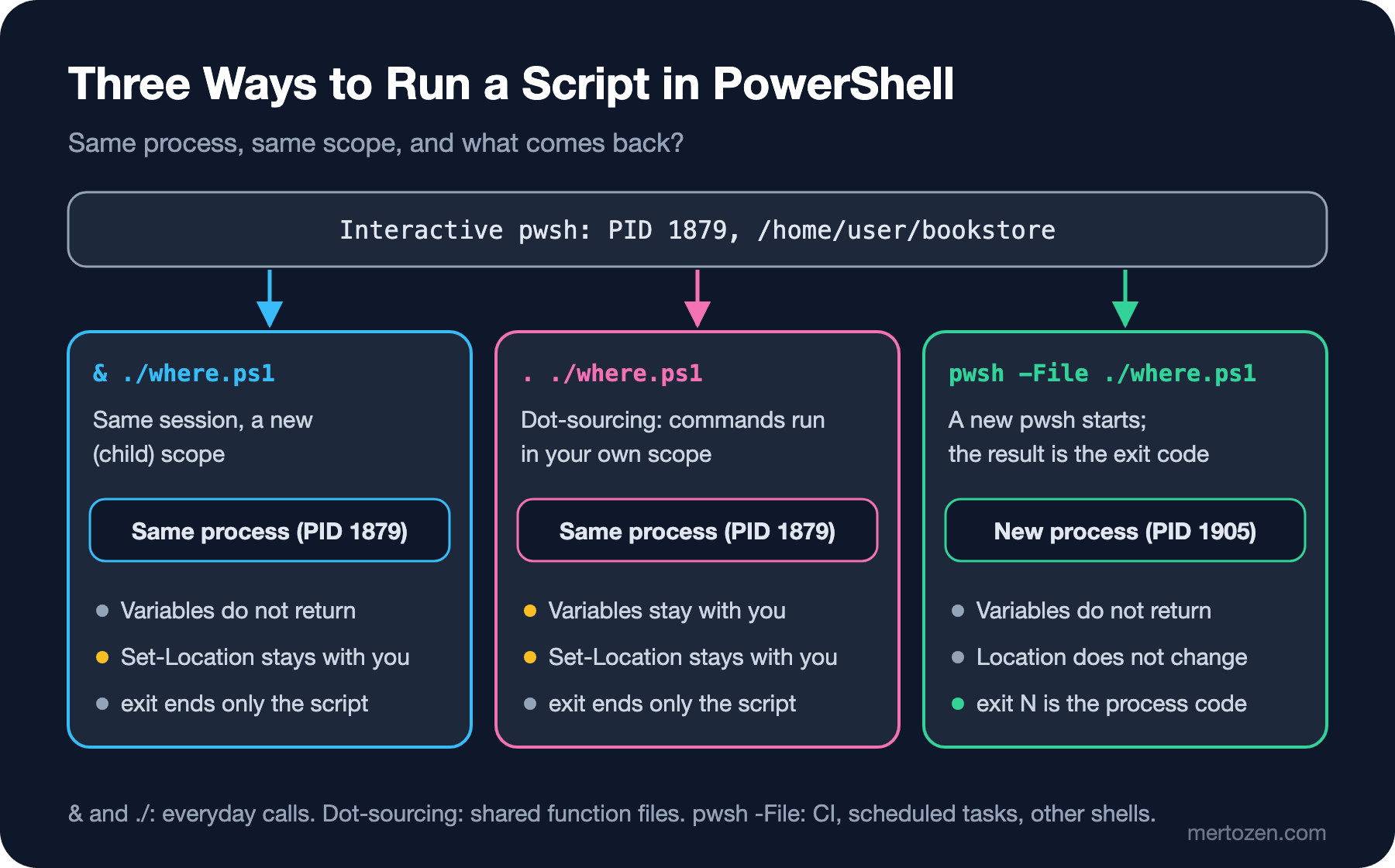
& ./lab/where.ps1 (the call operator) and ./lab/where.ps1 do the same thing; you need & when the path is in a variable or contains spaces: & "C:\Bookstore Tools\Test-BookstoreHealth.ps1". Because the script runs in its own scope, $deployTarget did not come back. But note: Set-Location did not stay behind, it stayed with you. The location belongs to the session, not to the scope; the cd that stays in a child process in bash changes the caller's location in PowerShell. That is why scripts that change folder should use Push-Location and Pop-Location inside a try/finally.
Dot-sourcing (. ./lab/where.ps1, a dot and a space) runs the script in your scope: variables and functions stay with you. It is the counterpart of bash's source, used to collect shared functions in a common.ps1 and dot-source it at the top of scripts. The cleaner way to do that is a module, which we move to in the fifth post. pwsh -File, on the other hand, really starts a new process (PID 1905), and only the exit code is left when the script ends. Every call from outside PowerShell, such as CI, a scheduled task, cmd.exe or bash, uses this route.
The last line surprises people coming from bash: exit in a dot-sourced script did not close the session. In PowerShell, exit in a script file ends only that script and writes its value to $LASTEXITCODE; the exit that closes the session is the one typed directly at the prompt.
The Answer: The Exit Code Difference Between -File and -Command
The real output of the script from Guess First:
PS> pwsh -NoProfile -File ./lab/check-health.ps1; "exit code: $LASTEXITCODE"
Write-Error: Bookstore API is unhealthy: Unhealthy
exit code: 0
PS> pwsh -NoProfile -Command ./lab/check-health.ps1; "exit code: $LASTEXITCODE"
Write-Error: Bookstore API is unhealthy: Unhealthy
exit code: 0
The error is on the screen, but the exit code is 0: the CI step stays green and the deploy goes on. Write-Error produces a non-terminating error; the error is recorded and printed, but the script keeps running and ends normally. According to the about_Pwsh documentation, a script run with -File that ends normally always exits with 0; for any other value you either set it yourself with exit or the script must stop with a terminating error (then it is 1). That is why Test-BookstoreHealth.ps1 reports its result with exit, not with Write-Error.
Calling with -Command adds another trap. In this mode the process exit code is 0 or 1 depending on whether the last command succeeded; the value the script gives with exit 3 is reduced to 1:
$ pwsh -NoProfile -File ./lab/bye.ps1; echo "exit=$?"
loading settings
exit=3
$ pwsh -NoProfile -Command ./lab/bye.ps1; echo "exit=$?"
loading settings
exit=1
$ pwsh -NoProfile -Command './lab/bye.ps1; exit $LASTEXITCODE'; echo "exit=$?"
loading settings
exit=3
$ pwsh ./lab/bye.ps1; echo "exit=$?"
loading settings
exit=3
The rule is simple: when another program calls your script, use pwsh -NoProfile -File. If -Command is a must, add exit $LASTEXITCODE at the end. pwsh ./lab/bye.ps1 written without a parameter name also counts as -File; since PowerShell 6 the first positional parameter is -File, not -Command. In Windows PowerShell 5.1's powershell.exe the default is still -Command.
Running with a Shebang on Linux
The #!/usr/bin/env pwsh line at the top of the script lets you run the file directly from bash or cron on Linux and macOS. The rules from the first post of the Bash Scripting series apply here too: you need execute permission and the first two bytes must be #!.
$ ls -l scripts/Test-BookstoreHealth.ps1
-rw-r--r-- 1 user user 1262 Nov 15 05:05 scripts/Test-BookstoreHealth.ps1
$ ./scripts/Test-BookstoreHealth.ps1
bash: ./scripts/Test-BookstoreHealth.ps1: Permission denied
$ chmod +x scripts/Test-BookstoreHealth.ps1 lab/bom.ps1 lab/utf16.ps1 lab/crlf.ps1
$ ./scripts/Test-BookstoreHealth.ps1; echo "exit=$?"
OK http://127.0.0.1:5080/health
exit=0
$ head -c 24 scripts/Test-BookstoreHealth.ps1 | od -c | head -2
0000000   #   !   /   u   s   r   /   b   i   n   /   e   n   v       p
0000020   w   s   h  \n   #   R   e   q
Since # starts a comment in PowerShell, the same line is harmless on Windows. Running through the shebang gives the same result as calling pwsh in -File mode; the exit code is passed through unchanged.
#Requires: Writing Down the Script's Prerequisites
#Requires lines are checked before the script runs. If a condition is not met, not a single line of the script runs. According to the documentation the line can be anywhere in the script and always applies to the whole script; put it at the top for readability. Three lab scripts, each with one condition:
#Requires -Version 7.7
#Requires -PSEdition Desktop
#Requires -Modules @{ ModuleName = "Pester"; ModuleVersion = "6.0.0" }
PS> ./lab/req77.ps1
./lab/req77.ps1: The script 'req77.ps1' cannot be run because it contained a "#requires" statement for PowerShell 7.7. The version of PowerShell that is required by the script does not match the currently running version of PowerShell 7.6.10.
PS> ./lab/reqdesk.ps1
./lab/reqdesk.ps1: The script 'reqdesk.ps1' cannot be run because it contained a "#requires" statement for PowerShell editions 'Desktop'. The edition of PowerShell that is required by the script does not match the currently running PowerShell Core edition.
PS> ./lab/reqmod.ps1
./lab/reqmod.ps1: The script 'reqmod.ps1' cannot be run because the following modules that are specified by the "#requires" statements of the script are missing: The module 'Pester' cannot be found with ModuleVersion '6.0.0'..
PS> $PSVersionTable.PSEdition
CoreThe same req77.ps1 runs on PowerShell 7.7.0; -Version sets the minimum version, not an upper bound:
PS> ./lab/req77.ps1
running on 7.7.0
PS> $PSVersionTable.PSVersion.ToString()
7.7.0
-Version 7.6 is the line you will use most: instead of the script running by accident on Windows PowerShell 5.1 and failing halfway with odd errors, it stops up front with a clear message. -PSEdition Core says the same thing regardless of version (5.1's edition is Desktop). -Modules tries to import a missing module and stops if it cannot; that is exactly what you want in a script that runs Pester tests. -RunAsAdministrator only means something on Windows; according to the documentation it is ignored on other operating systems. We will use it in scripts that manage IIS or Windows Services.
pwsh or powershell.exe?
There are two different PowerShells on Windows. powershell.exe is Windows PowerShell 5.1: it runs on the .NET Framework, is part of Windows and gets no new features. pwsh.exe is PowerShell 7: it runs on .NET, is the same on Windows, Linux and macOS, and is installed separately. The differences you run into most when writing scripts:
| Topic | Windows PowerShell 5.1 | PowerShell 7.6 / 7.7 |
|---|---|---|
| Default encoding when writing files | Depends on the cmdlet (> and Out-File UTF-16LE, Set-Content ANSI) | UTF-8 without BOM everywhere |
&& and || | Not available, parse error | Since 7.0 |
Ternary a ? b : c | Not available | Since 7.0 |
??, ??=, ?. | Not available | ?? since 7.0, ?. since 7.1 |
ForEach-Object -Parallel | Not available | Since 7.0 |
Invoke-RestMethod -SkipHttpErrorCheck | Not available, 4xx/5xx always throw | Since 7.0 |
| Platform | Windows only | Windows, Linux, macOS |
| Support | Tied to the Windows lifecycle, no new features | 7.6 LTS until 14 November 2028 |
The PowerShell 7 rows ran in the lab:
PS> $r = Invoke-RestMethod http://127.0.0.1:5080/health
PS> $r.status -eq 'Healthy' ? 'deploy can continue' : 'stop'
deploy can continue
PS> $version = $env:BOOKSTORE_VERSION ?? '0.0.0-local'
PS> $version
0.0.0-local
PS> $r?.status
PS> ${r}?.status
Healthy
PS> dotnet --version && 'sdk found'
10.0.404
sdk found
PS> dotnet build --nologo -v q ./NoSuch.csproj > $null || "build failed with exit code $LASTEXITCODE"
build failed with exit code 1
PS> $OutputEncoding.WebName
utf-8
$r?.status returning nothing is not a bug: since ? can be part of a variable name in PowerShell, this expression reads an undefined variable called $r?. For the null-conditional operator you have to write the variable name in braces: ${r}?.status. The documentation states this rule explicitly. && and || look at $? for cmdlets and at the exit code for native commands; the dotnet build line above is an example of the latter.
Which one to target? PowerShell 7.6 LTS for every new script. According to Microsoft's support page, 7.6 shipped on 18 March 2026 on .NET 10 and is supported until 14 November 2028. 7.7, released on 10 November 2026, is a stable release on .NET 11; the same page says such releases are supported for about six months after the next LTS ships. Moving servers from LTS to LTS every two years is less work. As long as your scripts use nothing specific to 7.7, #Requires -Version 7.6 runs on both. Target Windows PowerShell 5.1 only for small bootstrap scripts that must run on a server without pwsh, for example the script that installs pwsh itself. We come back to these version differences and to moving from 5.1 to 7 in the last post of the series.
Verb-Noun Naming and Comment-Based Help
PowerShell commands are named Verb-Noun, and the verb comes from the approved list. The script is called Test-BookstoreHealth.ps1, not Check-BookstoreHealth.ps1, because Check is not on the list:
PS> Get-Verb -Verb Test, Check, Verify | Format-Table -AutoSize

Verb AliasPrefix Group      Description
---- ----------- -----      -----------
Test t           Diagnostic Verifies the operation or consistency of a resource
PS> (Get-Verb).Count
100
PS> Get-Verb | Group-Object Group | Sort-Object Count -Descending | Format-Table Count, Name -AutoSize

Count Name
----- ----
   34 Common
   24 Data
   22 Lifecycle
    7 Diagnostic
    6 Communications
    6 Security
    1 Other
The list has 100 verbs. Test is reserved for "does this work correctly"; Get reads, Set changes, Invoke starts an operation, and Restart and Start come from the Lifecycle group. The rule is not enforced for scripts, but when we move functions into a module in the fifth post, unapproved verbs will cause a warning on import. Starting with the right name lets readers guess what a command does from its name. On the noun side, use the singular and your own prefix: BookstoreHealth, BookstoreBackup.
Here is the payoff of comment-based help: learning how to use the script without reading its code.
PS> Get-Help ./scripts/Test-BookstoreHealth.ps1 -Parameter TimeoutSec

-TimeoutSec <Int32>
    How long to wait for the API, in seconds.

    Required?                    false
    Position?                    2
    Default value                5
    Accept pipeline input?       false
    Aliases
    Accept wildcard characters?  false

PS> Get-Help ./scripts/Test-BookstoreHealth.ps1 -Examples

NAME
    /home/user/bookstore/scripts/Test-BookstoreHealth.ps1

SYNOPSIS
    Checks the health endpoint of the Bookstore API.

    -------------------------- EXAMPLE 1 --------------------------

    PS > ./Test-BookstoreHealth.ps1

    Checks the local API at http://127.0.0.1:5080.

    -------------------------- EXAMPLE 2 --------------------------

    PS > ./Test-BookstoreHealth.ps1 -BaseUrl https://staging.bookstore.test -TimeoutSec 10

    Checks the staging API and waits up to 10 seconds.
Get-Help ./scripts/Test-BookstoreHealth.ps1 -Full shows all sections, and ./scripts/Test-BookstoreHealth.ps1 -? shows the short summary. Parameter descriptions come from the .PARAMETER keywords and default values straight from the param() block. Note the Position? 2 line: script parameters are positional by default, so ./Test-BookstoreHealth.ps1 http://127.0.0.1:5080 10 works too. We will see in the fifth post why relying on that is a bad idea.
In Production
When another program calls a script, always use pwsh -NoProfile -NonInteractive -File. -NoProfile keeps a line someone added to their profile on the server from affecting your script; the fourth post of the Terminal and Command Line series showed a side effect of exactly that. According to the documentation, -NonInteractive makes the script fail instead of waiting forever when it reaches something that waits for a user, such as Read-Host or a confirmation prompt; exactly what you want from a scheduled task that runs at night.
Put a time limit on every network call. Since PowerShell 7.4, the -TimeoutSec parameter of Invoke-RestMethod is an alias of -ConnectionTimeoutSeconds, and its default value is 0, which means no limit. In the lab above, the script that connected to the silent service with a 2-second limit finished in 2 seconds; without the limit the deploy pipeline would have waited with it. For long downloads there is also -OperationTimeoutSeconds, which limits the wait between two pieces of data in the stream.
The exit code is the script's contract. Use documented codes (here 0 healthy, 1 unhealthy), make sure every path ends with a deliberate exit, and check that the side calling the script with -File really looks at the code. In scripts that change folder, restore the location with Push-Location/Pop-Location, and build file paths relative to the script's own folder rather than the working directory; we will do that in detail with $PSScriptRoot in the sixth post.
Common Pitfalls
Encoding and line endings. In Windows PowerShell 5.1, a script produced with > or Out-File is UTF-16LE, and files saved by some editors are UTF-8 with a BOM. CRLF line endings are close to the default on Windows. pwsh reads all three, but when you run through a shebang the Linux kernel looks at the first two bytes, and all three break:
$ file lab/bom.ps1 lab/utf16.ps1 lab/crlf.ps1
lab/bom.ps1:   a pwsh script, Unicode text, UTF-8 (with BOM) text executable
lab/utf16.ps1: a pwsh script, Unicode text, UTF-16, little-endian text executable
lab/crlf.ps1:  a pwsh script, ASCII text executable, with CRLF line terminators
$ ./lab/bom.ps1; echo "exit=$?"
./lab/bom.ps1: line 1: #!/usr/bin/env: No such file or directory
./lab/bom.ps1: line 4: syntax error near unexpected token `newline'
./lab/bom.ps1: line 4: `<#'
exit=2
$ ./lab/utf16.ps1; echo "exit=$?"
bash: ./lab/utf16.ps1: cannot execute binary file: Exec format error
exit=126
$ ./lab/crlf.ps1; echo "exit=$?"
/usr/bin/env: ‘pwsh\r’: No such file or directory
/usr/bin/env: use -[v]S to pass options in shebang lines
exit=127
$ pwsh -NoProfile -File lab/utf16.ps1; echo "exit=$?"
OK http://127.0.0.1:5080/health
exit=0
$ pwsh -NoProfile -File lab/crlf.ps1; echo "exit=$?"
OK http://127.0.0.1:5080/health
exit=0
With the BOM the kernel did not recognize the shebang, and bash tried to interpret the file as a shell script itself. The UTF-16 file counted as "binary". With CRLF the interpreter name became pwsh\r. In all three cases running with pwsh -File works fine. For encoding, the fix is to save files as UTF-8 without a BOM (pwsh's default); for line endings, the lasting fix is a .gitattributes in the repo:
# PowerShell files keep LF line endings so the shebang also works on Linux
*.ps1 text eol=lf
*.psm1 text eol=lf
*.psd1 text eol=lf
In the fourth post of the Terminal and Command Line series we suggested eol=crlf for *.ps1; that advice only holds for scripts that run on Windows alone. If the same file will also run on Linux through a shebang, choose LF; pwsh reads both line endings without trouble (the CRLF file above ran with -File). Run a script that will also be used on 5.1 once in Windows PowerShell to check it; 5.1 was not run for this post. A script with non-ASCII characters that must also run on 5.1 may need to be UTF-8 with a BOM; according to Microsoft's encoding documentation, 5.1 reads a file without a BOM using the system's ANSI code page. Throughout the series we avoid the problem up front by keeping scripts ASCII only.
Where the help block goes. If a comment that is not part of the help comes before comment-based help, you need at least one blank line between them. Delete the blank line between the #Requires line and <# and the help disappears completely; Get-Help shows only the generated syntax:
PS> Get-Help ./lab/nohelp.ps1
nohelp.ps1 [[-BaseUrl] <string>] [[-TimeoutSec] <int>]
Treating execution policy as a security boundary. On Windows the "running scripts is disabled" error comes from execution policy; the fourth post of the Terminal and Command Line series explains what it protects and what it does not. In short: it is a safety setting that makes running scripts by accident harder, not a security decision. Instead of opening everything with pwsh -ExecutionPolicy Bypass, sign your own scripts or work with RemoteSigned. According to the documentation this parameter is ignored outside Windows.
Only .ps1 on Windows. According to about_Pwsh, since PowerShell 7.2 -File on Windows accepts only files with the .ps1 extension. On Linux a file without an extension, such as bookstore-health, also runs, but if you use the same script on both platforms, keep the extension.
A Small Experiment
★☆☆ Fix check-health.ps1 so that it exits with 1 when the API is unhealthy, call it with pwsh -NoProfile -File and check $LASTEXITCODE. Then call the same script with -Command and see what changes when you write exit 4 instead of exit 1.
★★☆ Add a [switch] $Quiet parameter to Test-BookstoreHealth.ps1: when it is given, the script prints nothing and only returns the exit code. Add .PARAMETER Quiet and a third .EXAMPLE to the help block and check it with Get-Help -Examples. On Linux, what does ./scripts/Test-BookstoreHealth.ps1 -Quiet && echo up print in bash?
★★★ Add Set-Location (Split-Path $PSCommandPath) at the top of the script, call it with & and check which folder you are in afterwards. Write a Push-Location/try/finally/Pop-Location version that does the same job without moving you, and verify that the location comes back even when there is an exit 1 in the middle of the script.
The skeleton of the script is ready, but we have not yet looked at the variables in it, the $() expressions inside strings, or types. The next post continues with variables, types and collections: [type] casts, arrays, hashtables, PSCustomObject, splatting and strings. While building a per-publisher report from Bookstore's book CSV, we will also see how PowerShell reads numbers under a Turkish culture.