

Managing Remote Servers: SSH-Based Remoting, Invoke-Command, Sessions and Keeping Credentials Out of Scripts

In PowerShell remoting, the objects returned by Invoke-Command are serialized copies: properties come back, methods do not; do the remote work inside the script block. SSH-based remoting, $using:, sessions, the second hop, reading secrets from a vault with SecretManagement, and a rollout script that deploys Bookstore.Api to two servers one by one and stops at the first failure.
Version note: The examples in this post were run with PowerShell 7.6.10 (LTS) and PowerShell 7.7.0 in two Linux containers running Ubuntu 24.04 and OpenSSH; SecretManagement 1.1.2 and SecretStore 1.0.6 were used. WinRM, the OpenSSH setup on Windows, JEA and the Azure Key Vault part come from the Microsoft Learn documentation and were not run.
Guess First
The API of Bookstore, the online bookstore used as the shared example across this site's series, runs on two servers: web1 and web2. Before a deploy you want a copy of the dll on web2, so you run Get-Item on the remote server:
$dll = Invoke-Command -HostName web2 -UserName user -ScriptBlock { Get-Item -Path ~/site/Bookstore.Api.dll }
'{0} {1:N0} bytes' -f $dll.Name, $dll.Length
$dll.CopyTo('/tmp/copy.dll')
Do the file name and size appear on the screen? Where does CopyTo copy the file: to /tmp on web2, or to your machine?
The deploy script from the previous post worked on a single server. In this post we apply the same script to two servers one after the other with PowerShell remoting over SSH. Along the way we cover Invoke-Command, sessions, $using:, why objects coming back from a remote machine are different, Copy-Item -ToSession, and using credentials without embedding them in scripts.
WinRM or SSH?
PowerShell remoting has two transports. WinRM has been around since Windows PowerShell and is still the most common one on Windows servers in a domain. SSH-based remoting arrived with PowerShell 6 and works the same way across Windows, Linux and macOS:
| Topic | WinRM | SSH |
|---|---|---|
| Parameters | -ComputerName, -Credential | -HostName, -UserName, -KeyFilePath |
| Port | 5985 (HTTP), 5986 (HTTPS) | 22 |
| Authentication | Kerberos in a domain, NTLM or certificates outside | SSH key or password; SSH does the work |
| Platform | Windows | Windows, Linux, macOS |
| Endpoint configuration and JEA | Yes | No |
| Second hop | Needs Kerberos delegation | Needs a key on the remote machine too |
According to the documentation, SSH remoting starts PowerShell on the remote machine as an SSH subsystem; it leaves authentication entirely to SSH and does not support endpoint configuration or JEA. On the server side, all you need is a subsystem line in sshd_config:
# /etc/ssh/sshd_config.d/pwsh.conf on the Linux servers (lab)
PasswordAuthentication no
PubkeyAuthentication yes
Subsystem powershell /usr/bin/pwsh -sshs -NoLogo

# %ProgramData%\ssh\sshd_config on Windows (from the docs, not run): 8.3 path because of the space
PubkeyAuthentication yes
Subsystem powershell c:/progra~1/powershell/7/pwsh.exe -sshs
The lab has two Ubuntu containers: web1 and web2. Authentication is key-only, passwords are off. I run the commands from the first container, which also carries the name web1, so the web1 connection goes back to the same machine over SSH. On Windows, OpenSSH Server can be installed as a Windows feature since Windows Server 2019 and Windows 10 1809; the 8.3 short path in the documentation is needed because of a bug in OpenSSH with spaces in the subsystem path (not run).
Invoke-Command and $using:
Invoke-Command runs the script block on every given server in parallel and collects the results. Each result gets a PSComputerName that tells which server it came from:
PS> $servers = 'web1', 'web2'
PS> Invoke-Command -HostName $servers -UserName user -ScriptBlock { [pscustomobject]@{ Pwsh = $PSVersionTable.PSVersion.ToString(); Health = (Invoke-RestMethod -Uri http://127.0.0.1:5082/health).status } } | Select-Object PSComputerName, Pwsh, Health

PSComputerName Pwsh   Health
-------------- ----   ------
web1           7.6.10 Healthy
web2           7.6.10 Healthy
It connected to both servers at once and asked each for its PowerShell version and its own health endpoint. The order of the results is not guaranteed: when I ran the same command with PowerShell 7.7, web2 came first. If the order matters, sort by PSComputerName.
Since the script block runs on the remote machine, it does not see local variables. $using:, which we saw for ForEach-Object -Parallel in the third post, does the same job here:
PS> $timeoutSec = 3
PS> Invoke-Command -HostName web2 -UserName user -ScriptBlock { "with using: $using:timeoutSec, without: [$timeoutSec]" }
with using: 3, without: []
$using:timeoutSec carried the value into the block; the plain $timeoutSec is empty on the remote side. The value travels as a copy: changing it on the remote side does not change the local variable.
Objects Coming Back from Remote: Deserialized
The answer to the guess:
PS> $dll = Invoke-Command -HostName web2 -UserName user -ScriptBlock { Get-Item -Path ~/site/Bookstore.Api.dll }
PS> $dll.pstypenames[0]
Deserialized.System.IO.FileInfo
PS> '{0} {1:N0} bytes' -f $dll.Name, $dll.Length
Bookstore.Api.dll 16,896 bytes
PS> $dll.CopyTo('/tmp/copy.dll')
InvalidOperation: Method invocation failed because [Deserialized.System.IO.FileInfo] does not contain a method named 'CopyTo'.
PS> $dll | Get-Member -MemberType Method | Select-Object -ExpandProperty Name
GetType
ToString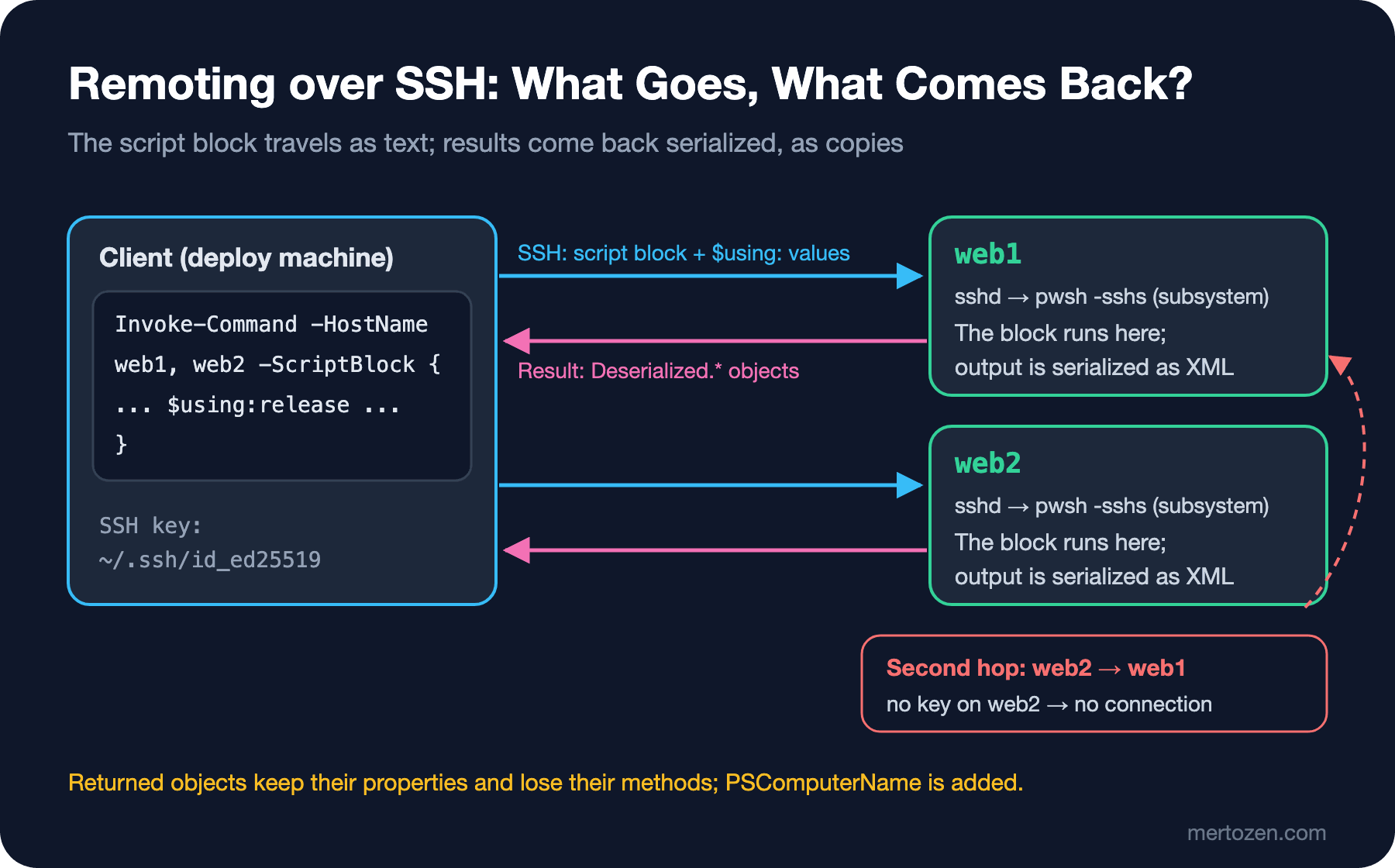
The name and size came back, but CopyTo copied nothing anywhere. On the remote side Get-Item returned a real FileInfo; that object was serialized as XML, sent over the connection and rebuilt on your side as a copy that carries the property values. Its type name is Deserialized.System.IO.FileInfo, and the only methods left are GetType and ToString. This copy is a snapshot of the file's state on web2 at that moment; it is not connected to the remote file. If you need to do something with a remote object, do it inside the script block and return only the result. In the previous post we said that IISAdministration returns objects without methods when used with -UseWindowsPowerShell; the reason is the same, because it uses a remoting session in the background.
Sessions and the Second Hop
Every Invoke-Command -HostName opens and closes a new SSH connection. If you send several commands to the same server, open a session and reuse it; variables in the session survive between commands:
PS> $sessions = New-PSSession -HostName web1, web2 -UserName user
PS> $sessions | Format-Table Id, Name, ComputerName, Transport, State

Id Name      ComputerName Transport  State
-- ----      ------------ ---------  -----
 4 Runspace1 web1         SSH       Opened
 3 Runspace2 web2         SSH       Opened
PS> Invoke-Command -Session $sessions -ScriptBlock { $deployCount++; "deploy count: $deployCount" }
deploy count: 1
deploy count: 1
PS> Invoke-Command -Session $sessions -ScriptBlock { $deployCount++; "deploy count: $deployCount" }
deploy count: 2
deploy count: 2
PS> $web2 = $sessions | Where-Object ComputerName -eq web2
PS> Invoke-Command -Session $web2 -ScriptBlock { Invoke-Command -HostName web1 -ScriptBlock { 'second hop' } }
OpenError: [web1] The SSH client session has ended with error message: The SSH transport process has abruptly terminated causing this remote session to break.
PS> Invoke-Command -Session $web2 -ScriptBlock { $message = ssh -o BatchMode=yes web1 true 2>&1; "ssh exit code $LASTEXITCODE`: $message" }
ssh exit code 255: Host key verification failed.
PS> Remove-PSSession -Session $sessions
Since the sessions stayed open, $deployCount was kept between the two calls. The order in the $sessions list also changes with the order in which the connections opened; pick a specific server by ComputerName, not by index. Close sessions with Remove-PSSession when you are done, otherwise a pwsh process stays open on the remote side.
The last two commands show the second hop problem: we tried to connect to web1 from the session on web2. PowerShell's message only says that the SSH process ended unexpectedly; trying the same connection with ssh showed the real reason: web2 does not know web1's host key, and there is no private key on web2 either. With WinRM the same problem comes from Kerberos not passing the credential on to the second machine, and the documentation describes options such as CredSSP, Kerberos constrained delegation or JEA (not run). The best fix is often not to need a second hop at all: instead of pulling a file from the second machine, send it from the client to both machines separately.
Keeping Credentials Out of Scripts: SecretManagement
The SSH key solves connecting to the servers, but the deploy needs other secrets too: the connection string for the migration bundle and the API's admin token. To keep them out of the script and off the command line, Microsoft's SecretManagement module gives access to different secret stores through the same cmdlets (Get-Secret, Set-Secret). SecretStore is an encrypted vault on the local machine. In the lab, a test vault just for this:
PS> Reset-SecretStore -Authentication None -Interaction None -Force
WARNING: !!This operation completely removes all SecretStore module secrets and resets configuration settings to new values!!
PS> Register-SecretVault -Name BookstoreLab -ModuleName Microsoft.PowerShell.SecretStore -DefaultVault
PS> Set-Secret -Name BookstoreDbConnection -Secret 'Data Source=/home/user/data/bookstore.db'
PS> Get-SecretInfo | Format-Table Name, Type, VaultName

Name                    Type VaultName
----                    ---- ---------
BookstoreDbConnection String BookstoreLab
PS> $connection = Get-Secret -Name BookstoreDbConnection
PS> $connection
System.Security.SecureString
PS> $connection.GetType().Name
SecureString
PS> (Get-Secret -Name BookstoreDbConnection -AsPlainText).Length
40
PS> Get-SecretStoreConfiguration

      Scope Authentication PasswordTimeout Interaction
      ----- -------------- --------------- -----------
CurrentUser           None             900        None
Get-Secret returns string secrets as SecureString by default; when you need plain text, you ask for it explicitly with -AsPlainText. In the lab I set up the vault with -Authentication None, so no password is asked to open it; that is for testing only. The automation guide on Microsoft Learn protects the vault with a password, takes the password from a file encrypted with DPAPI on Windows or from the CI system's secrets, and opens the vault with Unlock-SecretStore. The same page has an important note: the PowerShell team considers the Secret modules feature complete, they are no longer actively developed, only security and critical bug fixes will come, and the code repository has been archived. The latest versions are 1.1.2 and 1.0.6.
For secrets shared within a team, an extension vault is used instead of a local vault. Az.KeyVault has included a SecretManagement extension since 3.3.0; a Key Vault registered with Register-SecretVault -ModuleName Az.KeyVault -VaultParameters @{ AZKVaultName = '...'; SubscriptionId = '...' } is read with the same Get-Secret (not run). Comparing secret stores and rotation is covered in the Configuration and Secret Management series.
Get-Credential asks for a password in interactive use and returns a PSCredential; with WinRM this object goes to -Credential. Writing the password as plain text into ConvertTo-SecureString -AsPlainText in a script is the same as embedding the password in the script.
Bookstore: Deploying to Two Servers One by One
The rollout script goes through the servers in order: it opens a session, copies the scripts, the module and the package with Copy-Item -ToSession, runs Deploy-BookstoreApi.ps1 from the previous post there and checks its exit code. If a server fails, it stops and does not touch the remaining servers. The migration bundle runs only on the first server; the connection string comes from the vault and reaches the remote side through $using::
#!/usr/bin/env pwsh
#Requires -Version 7.6
#Requires -Modules Microsoft.PowerShell.SecretManagement

[CmdletBinding()]
param(
    [Parameter(Mandatory)]
    [string[]] $ComputerName,

    [Parameter(Mandatory)]
    [string] $UserName,

    [Parameter(Mandatory)]
    [string] $SitePath,

    [ValidatePattern('^https?://')]
    [string] $HealthUrl = 'http://127.0.0.1:5080',

    [string] $PackagePath = (Join-Path -Path (Split-Path -Path $PSScriptRoot -Parent) -ChildPath 'artifacts', 'api'),

    [string] $MigrationBundle
)

Set-StrictMode -Version Latest
$ErrorActionPreference = 'Stop'

$root = Split-Path -Path $PSScriptRoot -Parent
$release = 'bookstore-{0:yyyyMMdd-HHmmss}' -f [datetime]::UtcNow
$connection = Get-Secret -Name BookstoreDbConnection -AsPlainText

for ($i = 0; $i -lt $ComputerName.Count; $i++) {
    $server = $ComputerName[$i]
    Write-Information "=== $server ($($i + 1)/$($ComputerName.Count))" -InformationAction Continue
    $session = New-PSSession -HostName $server -UserName $UserName
    try {
        # A fresh release folder on the server; the path comes back as a plain string
        $remoteDir = Invoke-Command -Session $session -ScriptBlock {
            (New-Item -Path (Join-Path -Path ([System.IO.Path]::GetTempPath()) -ChildPath $using:release) -ItemType Directory).FullName
        }
        Copy-Item -Path (Join-Path -Path $root -ChildPath 'scripts'), (Join-Path -Path $root -ChildPath 'modules') -Destination $remoteDir -ToSession $session -Recurse
        Copy-Item -Path $PackagePath -Destination "$remoteDir/package" -ToSession $session -Recurse
        $runMigrations = $MigrationBundle -and $i -eq 0
        if ($runMigrations) {
            Copy-Item -Path $MigrationBundle -Destination "$remoteDir/efbundle" -ToSession $session
        }

        $exitCode = Invoke-Command -Session $session -ScriptBlock {
            $deploy = @{
                PackagePath = "$using:remoteDir/package"
                SitePath    = $using:SitePath
                HealthUrl   = $using:HealthUrl
                BackupPath  = Join-Path -Path (Split-Path -Path $using:SitePath -Parent) -ChildPath 'bookstore-backups'
            }
            if ($using:runMigrations) {
                $deploy.MigrationBundle = "$using:remoteDir/efbundle"
                # Copy-Item -ToSession does not keep the executable bit on Linux
                if (-not $IsWindows) { chmod +x $deploy.MigrationBundle }
                $env:BOOKSTORE_DB_CONNECTION = $using:connection
            }
            & "$using:remoteDir/scripts/Deploy-BookstoreApi.ps1" @deploy | ForEach-Object { "    $_" }
            $LASTEXITCODE
        } | ForEach-Object {
            # Strings are progress lines, the int is the exit code of the deploy script
            if ($_ -is [int]) { $_ } else { Write-Information "[$server]$_" -InformationAction Continue }
        }
        if ($exitCode -ne 0) { throw "Deploy failed on $server (exit code $exitCode); the remaining servers were not touched." }
    }
    finally {
        Remove-PSSession -Session $session
    }
}
Write-Output "Rollout OK: $($ComputerName -join ', ')"
The code the deploy script gives with exit is written to $LASTEXITCODE in the remote session and comes back as the last value of the block. That is why I added an exit 0 to the end of the deploy script, on the success path as well; otherwise, on web2 no native command runs, $LASTEXITCODE stays empty and the rollout treats that as a failure (I tried it separately with a script without exit). Progress lines come through the information stream and do not mix with the result. The first run, before the chmod line existed:
$ pwsh -NoProfile -Command './scripts/Invoke-BookstoreRollout.ps1 -ComputerName web1, web2 -UserName user -SitePath /home/user/site -HealthUrl http://127.0.0.1:5082 -MigrationBundle ./artifacts/efbundle'; echo "exit=$?"
=== web1 (1/2)
[web1]    ==> backup: bookstore-20261115-061926.zip
[web1]    ==> app_offline.htm written
[web1]    ==> copied 9 files
[web1]    ==> migrations
[web1]    FAILED at step 'migrate': Program 'efbundle' failed to run: An error occurred trying to start process '/tmp/bookstore-20261115-061924/efbundle' with working directory '/home/user'. No such file or directoryAt /tmp/bookstore-20261115-061924/scripts/Deploy-BookstoreApi.ps1:91 char:9
+         & $MigrationBundle --connection $env:BOOKSTORE_DB_CONNECTION
+         ~~~~~~~~~~~~~~~~~~~~~~~~~~~~~~~~~~~~~~~~~~~~~~~~~~~~~~~~~~~~.
[web1]    Restored /home/user/site from bookstore-20261115-061926.zip
Exception: /home/user/bookstore/scripts/Invoke-BookstoreRollout.ps1:92
Line |
  92 |  … de -ne 0) { throw "Deploy failed on $server (exit code $exitCode); th …
     |                ~~~~~~~~~~~~~~~~~~~~~~~~~~~~~~~~~~~~~~~~~~~~~~~~~~~~~~~~~
     | Deploy failed on web1 (exit code 1); the remaining servers were not
     | touched.
exit=1
A real lesson as well: Copy-Item -ToSession did not keep the file's executable permission on Linux, and the migration bundle could not be started. The deploy script restored the files from the backup, the rollout stopped at web1 and web2 was never touched. On Windows there is no such permission for an .exe; after adding the chmod line for Linux servers:
$ pwsh -NoProfile -Command './scripts/Invoke-BookstoreRollout.ps1 -ComputerName web1, web2 -UserName user -SitePath /home/user/site -HealthUrl http://127.0.0.1:5082 -MigrationBundle ./artifacts/efbundle'; echo "exit=$?"
=== web1 (1/2)
[web1]    ==> backup: bookstore-20261115-061941.zip
[web1]    ==> app_offline.htm written
[web1]    ==> copied 9 files
[web1]    ==> migrations
[web1]    Acquiring an exclusive lock for migration application. See https://aka.ms/efcore-docs-migrations-lock for more information if this takes too long.
[web1]    Applying migration '20261115060804_Initial'.
[web1]    Done.
[web1]    ==> app_offline.htm removed
    health attempt 1: HTTP 200 Healthy
[web1]    Deploy OK
=== web2 (2/2)
[web2]    ==> backup: bookstore-20261115-061942.zip
[web2]    ==> app_offline.htm written
[web2]    ==> copied 9 files
[web2]    ==> app_offline.htm removed
    health attempt 1: HTTP 200 Healthy
[web2]    Deploy OK
Rollout OK: web1, web2
exit=0
The migration ran only on web1, the two servers were updated one after the other, and each passed its own health check. In a real environment each server has to be taken out of the load balancer before its deploy and put back afterwards; this is the PowerShell version of the flow in the "Rolling Deployment" post of the Deployment Strategies series.
In Production
Use a separate account and a separate key for deploys. Keep the key only on the deploy machine or in the CI secret store, and define it in authorized_keys on the servers only for this account. Deploying with your personal account makes it impossible to tell from the logs who changed what.
Verify host keys up front. The "authenticity of host" question on the first connection cannot be answered in CI; add the servers' host keys to known_hosts on purpose. Turning verification off (StrictHostKeyChecking no) also turns off the protection against someone redirecting the connection to another machine.
Keep remoting results small. Every returned object is serialized and sent over the network; instead of pulling the Get-ChildItem result of thousands of files to the client, do the counting, filtering and summarizing on the remote side and return only the result.
Common Pitfalls
Array parameters with pwsh -File. Calling the rollout from bash with -File and a comma-separated server list:
$ pwsh -NoProfile -File ./scripts/Invoke-BookstoreRollout.ps1 -ComputerName web1,web2 -UserName user -SitePath /home/user/site -HealthUrl http://127.0.0.1:5082 -MigrationBundle ./artifacts/efbundle; echo "exit=$?"
=== web1,web2 (1/1)
New-PSSession: /home/user/bookstore/scripts/Invoke-BookstoreRollout.ps1:62
Line |
  62 |      $session = New-PSSession -HostName $server -UserName $UserName
     |                 ~~~~~~~~~~~~~~~~~~~~~~~~~~~~~~~~~~~~~~~~~~~~~~~~~~~
     | One or more computer names are not valid. If you are trying to pass a
     | URI, use the -ConnectionUri parameter, or pass URI objects instead of
     | strings.
exit=1
As about_Pwsh also states, -File does not support parameters that expect an array: web1,web2 arrived as a single string. That is why I used -Command in the runs above; the other option is to split the parameter on commas inside the script.
Calling methods on a deserialized object. An object returned from a remote machine has no methods, and it stands for a copy of the remote thing at that moment, not the thing itself. Make the change inside the script block.
Forgetting $using: in a script block. A local variable is $null on the remote side and causes no error; in a line like Remove-Item -Path "$folder/*" this can turn into a very different path than expected. You can also use Set-StrictMode -Version Latest in remote blocks.
A Small Experiment
★☆☆ Return the total size of the ~/site folder on both servers with Invoke-Command -HostName web1, web2. First pull the whole Get-ChildItem result to the client and add it up, then compute the total on the remote side. Compare the amount of data that comes back with Measure-Command.
★★☆ Add -WhatIf support to the rollout script: for every server it should run the deploy script with -WhatIf and copy nothing. Remember the module trap from the previous post: how will you pass -WhatIf to the remote script?
★★★ Add a -RollbackOnFailure switch: if one of the two servers fails its health check, also return the server that was already updated successfully to the previous version. Where are the deploy script's backups on the server, and what information do you need to keep for the rollback?
These scripts now touch servers; a mistake has serious consequences. In the last post of the series we put all of them under test: unit tests and mocks with Pester 6, PSScriptAnalyzer rules, the same scripts on Windows and Ubuntu runners in GitHub Actions, and moving from Windows PowerShell 5.1 to 7.x.