

What Is Blazor? The Blazor Web App, Render Modes and When to Choose It over Angular or MVC
Blazor lets you write interactive web UI with C# and Razor components, and since .NET 8 a render mode decides where each component runs: Static SSR, Interactive Server, Interactive WebAssembly or Auto. We run the same component in all four modes side by side and show the prerendered output, the SignalR circuit, the 2.2 MB downloaded on the first visit and the Blazor-versus-Angular decision for Bookstore's admin panel with real measurements.
Version note: The code in this post was built and run with .NET 10 (SDK 10.0.404, ASP.NET Core 10.0.15); browser observations were made with Playwright 1.65's headless Chromium and the Angular comparison with Angular 22.2.
Predict First
You put the same Razor component on a page four times. The code is identical: a heading, a line that says where the component is running and a counter that goes up on every click. The only difference is that each of the four copies gets a different render mode. Two questions. First: when you request the page from a terminal with curl, a client that runs no JavaScript, what does the "where am I running" line say for each of the four components? Second: when you open the same page in a browser and click each of the four buttons once, which counters show 1 and which stay at 0? Write your answer down; we will compare it with real output shortly.
What Is Blazor and Where Did It Come From?
Blazor is ASP.NET Core's UI framework for writing interactive browser UI in C# and Razor instead of JavaScript. Its building block is the Razor component: a class in a .razor file that holds HTML and C# together, takes parameters, reacts to events and can re-render itself. Think of it as the counterpart of an Angular component; the difference is that the template language is Razor, the logic is C#, and the same component can run on the server or in the browser.
Blazor started out as two separate hosting models. Blazor Server arrived in 2019 with .NET Core 3.0: components run on the server, the browser carries only a thin JavaScript layer, a user's click travels to the server over a SignalR connection, and the server sends back the computed difference for the DOM. That long-lived connection, together with the user state kept on the server, is called a circuit. Blazor WebAssembly followed in 2020: the .NET runtime, compiled to WebAssembly, is downloaded to the browser together with the app's assemblies, and the components run entirely on the user's machine. The server only serves files, just like for a SPA.
For a long time the two models meant separate templates, separate project layouts and a single up-front decision: everything on the server or everything in the browser. .NET 8 changed that. It brought a single Blazor Web App template, and the render mode concept turned the question "how is the app hosted?" into "where does this component run?". In one app, a page can now be produced on the server as plain HTML, a single grid on another page can be interactive over SignalR, and a calculator panel can run in the browser on WebAssembly. Most of this series is about using that flexibility well.
Bookstore, the online bookstore used as the shared example across this site's series, gets an admin panel in this series: Bookstore.Admin. Book and author CRUD screens, an order list and low-stock alerts, all built with Blazor on top of the existing Bookstore API. The storefront customers see stays in Angular; the admin panel is the scenario where Blazor is strongest: internal users, form-heavy screens, a team that knows C#.
Creating the Project
We will open up the template options and the generated files one by one in the next post. For now, a project that can use all four render modes is enough. In the root of the Bookstore repository:
dotnet new blazor -int Auto -n Bookstore.Admin -o srcThe command produces two projects: the server-side src/Bookstore.Admin and src/Bookstore.Admin.Client, which carries the code that will be downloaded to the browser. Because Bookstore uses central package management, I removed the Version attributes the template writes into the csproj files and moved the versions to Directory.Packages.props; otherwise restore fails, and we will see why in 02:
  <ItemGroup>
    <PackageVersion Include="Microsoft.AspNetCore.OpenApi" Version="10.0.15" />
    <PackageVersion Include="Microsoft.EntityFrameworkCore.SqlServer" Version="10.0.15" />
    <PackageVersion Include="Microsoft.EntityFrameworkCore.Design" Version="10.0.15" />
    <PackageVersion Include="Microsoft.AspNetCore.Mvc.Testing" Version="10.0.15" />
    <PackageVersion Include="Microsoft.AspNetCore.Components.WebAssembly" Version="10.0.15" />
    <PackageVersion Include="Microsoft.AspNetCore.Components.WebAssembly.Server" Version="10.0.15" />
    <PackageVersion Include="xunit.v3" Version="4.0.3" />
  </ItemGroup>
For the actual experiment I add a small component to the .Client project. It prints its own RendererInfo and AssignedRenderMode properties; every component has had these two properties since .NET 9:
<div class="probe">
    <h3>@Label</h3>
    <p>Renderer: <code>@RendererInfo.Name</code>, interactive: <code>@RendererInfo.IsInteractive</code></p>
    <p>Assigned mode: <code>@(AssignedRenderMode?.GetType().Name ?? "none")</code></p>
    <button @onclick="() => clicks++">Clicked @clicks times</button>
</div>

@code {
    private int clicks;

    [Parameter, EditorRequired]
    public string Label { get; set; } = "";
}
The component has to live in the .Client project: any component that will run with WebAssembly or Auto must be compiled there so it can be downloaded to the browser. The server project references .Client, so it can use the same component on the server too. Now a page in the server project that puts four copies side by side:
@page "/diagnostics/render-modes"
@using Bookstore.Admin.Client.Diagnostics

<PageTitle>Render modes</PageTitle>

<h1>One component, four render modes</h1>

<RenderModeProbe Label="Static SSR" />
<RenderModeProbe Label="Interactive Server" @rendermode="InteractiveServer" />
<RenderModeProbe Label="Interactive WebAssembly" @rendermode="InteractiveWebAssembly" />
<RenderModeProbe Label="Interactive Auto" @rendermode="InteractiveAuto" />
The first copy has no @rendermode. The page itself has no render mode either, so this copy runs with Static SSR: it is rendered once on the server and sent as plain HTML. The other three choose their own mode with the @rendermode directive.
Four Render Modes, One Page
First, what a client without JavaScript sees. The heading and the "Renderer" line of each component in the curl response:
<h3>Static SSR</h3>
<p>Renderer: <code>Static</code>, interactive: <code>False</code></p>
<h3>Interactive Server</h3>
<p>Renderer: <code>Static</code>, interactive: <code>False</code></p>
<h3>Interactive WebAssembly</h3>
<p>Renderer: <code>Static</code>, interactive: <code>False</code></p>
<h3>Interactive Auto</h3>
<p>Renderer: <code>Static</code>, interactive: <code>False</code></p>
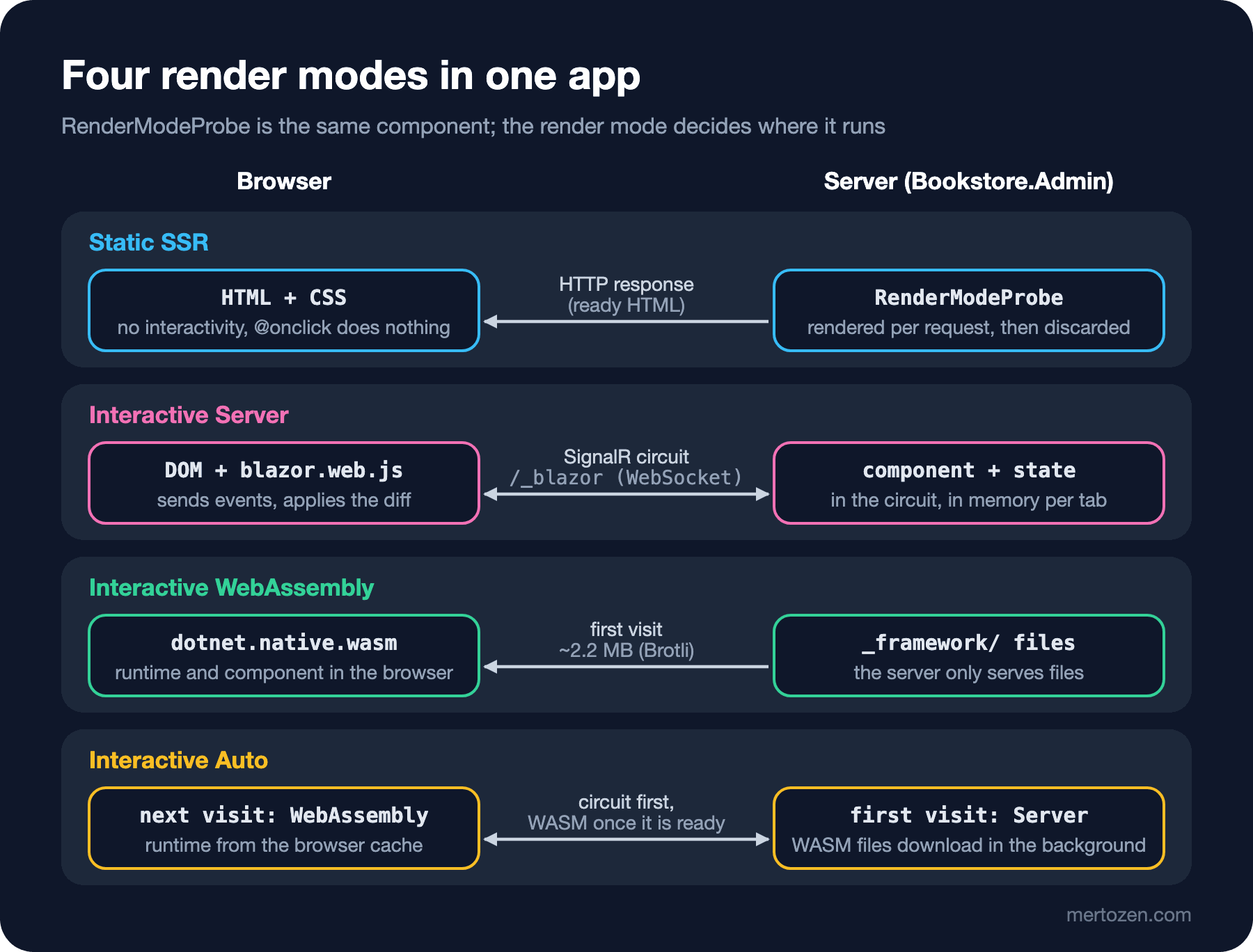
All four say Static and False. If you predicted "Server on the second line, WebAssembly on the third", you left prerendering out. Interactive render modes are first rendered once, statically, on the server by default, and that HTML arrives in the first response, so the user sees content instead of an empty page. Becoming interactive starts later, when blazor.web.js runs in the browser. Next to every interactive copy the response contains an HTML comment marked <!--Blazor:{"type":"server",...}-->, "type":"webassembly" or "type":"auto"; the script learns from these markers which component to bring to life and where.
Now the output of a small script that opens the same page with Playwright in headless Chromium, waits a few seconds and clicks every button once:
--- first visit
Static SSR | Renderer: Static, interactive: False | Assigned mode: none | Clicked 0 times
Interactive Server | Renderer: Server, interactive: True | Assigned mode: InteractiveServerRenderMode | Clicked 0 times
Interactive WebAssembly | Renderer: WebAssembly, interactive: True | Assigned mode: InteractiveWebAssemblyRenderMode | Clicked 0 times
Interactive Auto | Renderer: WebAssembly, interactive: True | Assigned mode: InteractiveWebAssemblyRenderMode | Clicked 0 times
after one click on each: Clicked 0 times / Clicked 1 times / Clicked 1 times / Clicked 1 times
websockets: /_blazor | _framework files: 202
--- second visit (same browser, cached)
Static SSR | Renderer: Static, interactive: False | Assigned mode: none | Clicked 0 times
Interactive Server | Renderer: Server, interactive: True | Assigned mode: InteractiveServerRenderMode | Clicked 0 times
Interactive WebAssembly | Renderer: WebAssembly, interactive: True | Assigned mode: InteractiveWebAssemblyRenderMode | Clicked 0 times
Interactive Auto | Renderer: WebAssembly, interactive: True | Assigned mode: InteractiveWebAssemblyRenderMode | Clicked 0 times
websockets: /_blazor
Here is the answer to the second question. The Static SSR copy's counter stayed at 0: the server produced that HTML and was done with it, and there is no event handler for the button in the browser at all. The Interactive Server copy now says Server; the click travelled to the server over the WebSocket connection at /_blazor, the counter went up in the server's memory and the changed piece of HTML came back. For the Interactive WebAssembly copy the browser downloaded 202 files (this is a Debug build; we will look at the Release numbers below), and the click was handled in the browser without touching the network.
The Auto copy is the interesting one: it chose WebAssembly even on the first visit. The reason is that the page already has a WebAssembly component. According to Microsoft's render modes documentation, Auto looks at the interactive components already running on the page when it decides, and prefers the same runtime where it can, so that two separate .NET runtimes that know nothing of each other are not started on the same page. One more detail: the Auto copy's AssignedRenderMode was InteractiveAutoRenderMode during prerendering and became the actual chosen mode once it was interactive.
Auto: Server First, Then the Browser
To see Auto's real behaviour I put it on a page of its own (/diagnostics/auto, containing only <RenderModeProbe Label="Interactive Auto" @rendermode="InteractiveAuto" />) and opened it twice in the same browser:
--- first visit
Interactive Auto | Renderer: Server, interactive: True | Assigned mode: InteractiveServerRenderMode | Clicked 0 times
after one click on each: Clicked 1 times
websockets: /_blazor | _framework files: 202
--- second visit (same browser, cached)
Interactive Auto | Renderer: WebAssembly, interactive: True | Assigned mode: InteractiveWebAssemblyRenderMode | Clicked 0 times
websockets: none
On the first visit the WebAssembly files were not in the browser yet, so Auto chose Interactive Server: a circuit opened, the component became interactive right away and the WebAssembly files downloaded in the background. On the second visit the files were in the cache, so the same component ran in the browser and no WebSocket was opened at all. That is Auto's promise: Server's fast start on the first visit, WebAssembly that puts no load on the server on later visits. It has a cost too: the component must be written so that it can run in both environments. Code that can reach the database directly on the server cannot do so in the browser; we will solve that split in posts 04 and 09.
The Cost: Download Size and an Open Connection
Every interactive mode comes with a cost, and the decision is about which cost you can live with. On the WebAssembly side the cost is download size. I published the project with dotnet publish -c Release, opened the same Auto page in an empty browser and added up the real bytes that crossed the network:
requests: 47, total: 2220 KB, _framework: 38 files, 2182 KB
   954 KB  br  /_framework/dotnet.native.wasm
   473 KB  br  /_framework/System.Private.CoreLib.wasm
   141 KB  br  /_framework/icudt_EFIGS.dat
   122 KB  br  /_framework/System.Text.Json.wasm
    61 KB  br  /_framework/Microsoft.AspNetCore.Components.wasm
A Release build has trimming and Brotli compression switched on, and still about 2.2 MB is downloaded on the first visit, almost half of it the .NET runtime itself (dotnet.native.wasm). For comparison, the production build output of Bookstore's Angular client:
Initial chunk files | Names         |  Raw size | Estimated transfer size
main-BDBHRKZT.js    | main          | 264.83 kB |                73.11 kB
styles-S5NLN6H7.css | styles        | 930 bytes |               930 bytes

                    | Initial total | 265.76 kB |                74.05 kB
Angular's initial bundle has an estimated transfer size of 74 KB. The same page produced with Static SSR is about 12 KB of HTML and can be read without downloading any script. The files are fingerprinted and cacheable, so a user usually pays the 2.2 MB once; but for a customer who arrives at the storefront for the first time on mobile data, the difference is noticeable.
Interactive Server's cost lies elsewhere. Every click goes to the server and back; if the latency between the user and the server is 150 ms, every interaction takes at least that long. Every open tab is a circuit on the server with its state in memory; a thousand concurrent users means a thousand circuits. If the connection drops (the Wi-Fi changed, the laptop went to sleep) the user sees the ReconnectModal dialog that ships with the .NET 10 template, and if the circuit is gone, the page has to be reloaded. The circuit itself and how it scales were covered from the SignalR side in the Real-time Applications series; in this series we only look at the part that concerns Blazor.
When Blazor, When Angular or MVC?
The first post of the ASP.NET Core MVC and Razor Pages series, "When Server-Side Rendering?", discussed the decision to render on the server between MVC, Razor Pages and Angular; I will not repeat that discussion here. This post's question is narrower: you need an interactive UI, Blazor or Angular?
| Situation | Better fit | Why |
|---|---|---|
| Internal app, admin panel, form- and grid-heavy screens | Blazor (Server or Auto) | Limited number of users, network inside the company; validation and models are written once in C# |
| The team knows C# and there is no separate frontend team | Blazor | One language, one build, one debugging experience; no TypeScript and npm toolchain needed |
| Large public SPA where first load and SEO are critical | Angular, or Static SSR / MVC for content pages | The first-load gap between 74 KB and 2.2 MB and the HTML bots see both matter |
| Heavy reliance on the JavaScript ecosystem (maps, editors, chart libraries) | Angular | In Blazor these are wrapped with JS interop; with many libraries that extra work adds up |
| Offline use, users without a constant connection to the server | Blazor WebAssembly or Angular | Interactive Server cannot work without an open connection |
| Many concurrent anonymous users | Static SSR, WebAssembly or Angular | With Interactive Server every tab holds memory and a connection on the server |
If SEO and TTFB come first, Blazor also has its Static SSR mode; post 05 is entirely about it. So there is no rule that says "if I pick Blazor, everything has to be interactive". For Bookstore the decision is made: the customer storefront stays in Angular and the admin panel is written in Blazor. The panel's users are store and warehouse staff, they number in the tens, and most screens are a "list, filter, edit, save" loop.
A note: Blazor components can also run in desktop and mobile apps inside .NET MAUI with BlazorWebView. That is Blazor Hybrid, and RendererInfo.Name returns WebView there. There is no WebAssembly in that setup; the code runs directly on .NET on the device. This series focuses on the web; for mobile, look at the upcoming Flutter for Mobile series.
In Production
Choose the render mode by measuring, not by instinct. For WebAssembly, measure the total transfer on the first visit as above and the time the browser needs to start the runtime; both must be measured on a Release publish, because the 202-file picture of a Debug build does not reflect reality. For Interactive Server, measure the number of concurrent circuits, the memory per circuit and your users' latency to the server. If ten people use the admin panel from the office in Istanbul against a server in Frankfurt, Server is fine; if the same panel is opened to resellers abroad, the latency of every click comes back as complaints.
The second point is server resources. With Static SSR the server produces HTML per request and forgets it; like MVC it is stateless, and adding instances behind a load balancer is enough. Interactive Server is stateful: whichever server holds the user's circuit must also receive the following messages, which means sticky sessions. We will come back to circuit options, reconnection and the Azure SignalR Service option in post 12.
The third is the security boundary. Everything you put in the .Client project is downloaded to the browser: code, constants, wwwroot/appsettings.json. Even in the prerendered output, a WebAssembly component's parameters sit there in base64, in the clear, while a Server component's marker carries an encrypted descriptor. We will show this in detail in post 04; for now remember the rule: no secrets in .Client.
Common Pitfalls
Hunting for why the button in a Static SSR component does nothing. Like the first copy above, @onclick in a component without a render mode does nothing and raises no error either. Everyone who opens a new page in the template and writes an event handler hits this wall once. Either give the page an interactive render mode or solve the interaction with a form post.
Taking prerendered output for the real state. An interactive component that loads data in OnInitializedAsync runs it once during prerendering and once more when it becomes interactive. Do not be surprised by two lines in the log; we will observe this double load in 03 and solve it with persistent state in 06.
Using Auto because "it is the best, I will always pick it". Auto carries the cost of both runtimes: the component must be able to run on the server and in the browser, data access must be abstracted for both environments, and the first visit still opens a circuit. If you do not really need the advantages of both environments, picking either Server or WebAssembly is simpler.
Seeing Blazor as "Angular in C#". The component model looks similar, but the execution model is different: with Interactive Server your code runs on the server, not in the browser, and the state lives in the server's memory. For someone coming from Angular, that is the biggest mental shift.
A Small Experiment
★☆☆ Delete the WebAssembly copy from RenderModes.razor and open the page in a fresh browser profile. Which mode does the Auto copy choose now? Then delete only the Server copy; what changed?
★★☆ Give the Auto copy @rendermode="new InteractiveAutoRenderMode(prerender: false)" and look at the curl output again. Is that component's HTML still in the response? How would a user notice?
★★★ Publish the project with dotnet publish -c Release, open the Network tab in the browser's developer tools and load /diagnostics/auto with an empty cache. Do the compressed sizes of dotnet.native.wasm and System.Private.CoreLib match the numbers above? Repeat the measurement on a Debug build and try to explain the difference.
We created the project with a single command and saw the four render modes side by side. In the next post we go behind that command: the template's other options, Program.cs, App.razor, Routes.razor and the layouts, routing with @page and hot reload; at the end we add Bookstore.Admin to the Bookstore solution and build the panel's skeleton.