

Getting Started with OpenAI Codex: Desktop App, CLI, IDE Extension, Cloud and Installation on Windows
The first decision when starting with Codex is the sign-in method: Codex Cloud and GitHub code review work only with a ChatGPT account, while an API key gives local use only. Installing on Windows with the standalone installer, npm and WSL 2, the difference between the desktop app, CLI, IDE extension and cloud surfaces, why you should open the session at the repo root, and a first small, test-verified change in Bookstore.
Version note: This post describes Codex CLI 0.169.0 (13 November 2026) and the Codex mode in the ChatGPT desktop app; installation, sign-in, surface, model and plan details were checked on 15 November 2026 against the Codex CLI, Authentication, ChatGPT desktop app for Windows, Codex IDE extension, Codex Cloud, Models and Pricing pages at learn.chatgpt.com/docs, and the version against the github.com/openai/codex releases on the same day. This post is based on the official documentation. Commands are given for Windows 11 and PowerShell; Codex CLI ships a new release almost every week, so details on your screen may differ slightly.
Guess First
Ayşe is a developer on Bookstore, the online bookstore used as the shared example across this site's series. The team decided to try Codex alongside Claude Code. Ayşe installed Codex CLI with npm, put an API key from her personal OpenAI Platform account into her PowerShell profile as OPENAI_API_KEY, and started codex in C:\src, the folder where she keeps all her repos. Her first impression was mixed: Codex did not know Bookstore's build commands and asked for approval before editing a file. In the evening, at home, she wanted to give Codex Cloud a task from her phone and could not find the option in her account.
What is your guess? Why did Codex not see the project rules, and why did it ask for approval to edit? Why did the cloud task not open? The first answer is in the first session section, the second in the sign-in section.
This series covers OpenAI's coding agent Codex as the counterpart of the Claude Code series and on the same Bookstore repo: surfaces and installation, AGENTS.md and config.toml, the sandbox and approval model, the local workflow, Codex Cloud, code review and CI on GitHub, the Codex SDK and cost. If you have read the Claude Code series, the best starting point for comparison is "Getting Started with Claude Code: Installation, First Session and Understanding the Agentic Loop" (/blog/claude-code-kurulum-ilk-session-agentic-loop). ChatGPT's Chat and Work modes are covered in the Working with ChatGPT series post "Getting Started with ChatGPT in 2026: Chat, ChatGPT Work and Codex Modes, Surfaces and Plans" (/blog/chatgpt-chat-work-codex-yuzeyler-planlar); here we look only at what is specific to Codex.
Where Does Codex Run?
Codex is an agent that reads your codebase, edits files, runs commands and tries to verify the result itself. In 2026 the product has no separate app; when you pick Codex in the product selector of the ChatGPT desktop app, you switch to the developer view. It helps to split the surfaces in the documentation into two groups: those that run on your machine and those that run in OpenAI's cloud.
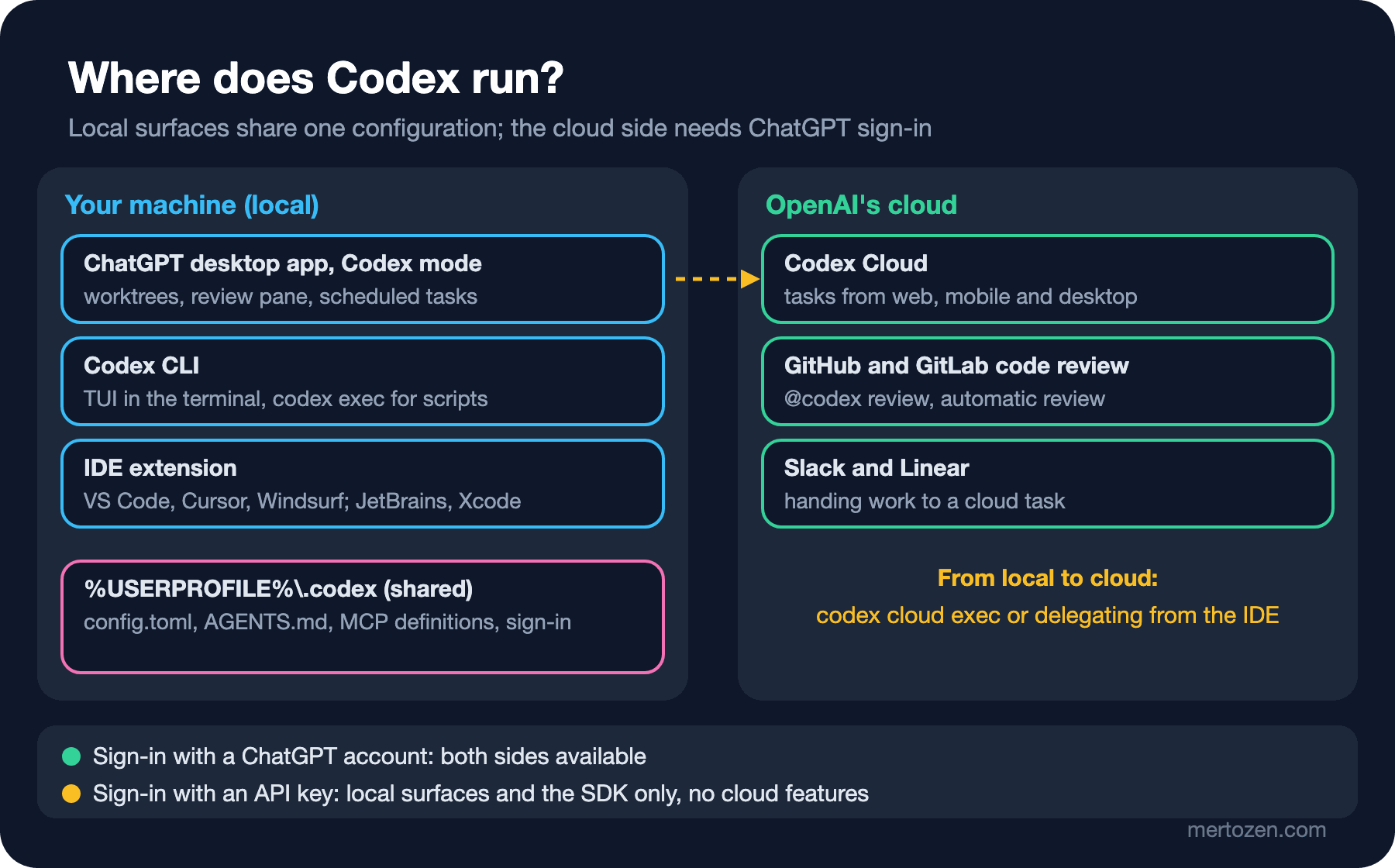
There are three local surfaces. The Codex mode in the ChatGPT desktop app offers parallel chats, worktrees, a diff and review pane, an integrated terminal and scheduled tasks; on Windows it runs the agent with PowerShell and the native Windows sandbox. Codex CLI is the TUI that runs in the terminal, plus codex exec for scripts. The IDE extension works in Visual Studio Code, Cursor and Windsurf with the same extension; in JetBrains IDEs Codex is an agent in AI Chat, and in Xcode you pick it inside its own coding assistant. All three share the same configuration on one machine: config.toml in the %USERPROFILE%\.codex folder on Windows, the MCP server definitions and the stored sign-in.
On the cloud side there is Codex Cloud: when you choose Work in > Cloud on the web or in the desktop app, or open Codex on mobile, the task runs in an isolated workspace managed by OpenAI and keeps going even while your computer sleeps. Code review on GitHub and GitLab and handing work over from Slack and Linear also belong to this side. Then there are the programmatic surfaces: the TypeScript and Python Codex SDK, and the app server for embedding Codex in your own product. These are the topics of posts five, six and seven.
Installation: Which Route on Windows?
For Codex CLI, the route the documentation recommends on Windows is the standalone PowerShell installer. You run the command in a new PowerShell window; the same command updates it:
# In PowerShell, in a new window
powershell -ExecutionPolicy ByPass -c "irm https://chatgpt.com/codex/install.ps1 | iex"

# Alternative: npm (Node.js must be installed)
npm install -g @openai/codex

# ChatGPT desktop app (the Codex mode lives inside it)
winget install --id 9PLM9XGG6VKS -s msstore

# After installation, in a NEW terminal window
Get-Command codex
codex --version
According to the Windows deployment guide, the standalone installer puts its runtime files in the user profile, places the codex command in %LOCALAPPDATA%\Programs\OpenAI\Codex\bin and adds that folder to the user's PATH. It needs no administrator rights, so in the new window after installation Get-Command codex should show the command resolving from that folder. Two warnings in the guide matter for teams: without a version the installer installs latest, and copying only codex.exe out of the folder is an incomplete installation.
| Route | Updates | When |
|---|---|---|
Standalone installer (install.ps1) | Run the same command again | The default for most developers |
Download the installer and run it with -Release | Change the approved version | When everyone on the team should stay on the same version |
npm global package @openai/codex | npm install -g @openai/codex@<version> | When Node.js is already managed |
install.sh inside WSL 2 | Run the same command again | When the repo and toolchain already live in Linux |
There is a limit on the WSL side: since Codex 0.115 the Linux sandbox uses bubblewrap and WSL 1 is no longer supported; only WSL 2. For a repo like Bookstore, developed on Windows with Visual Studio and SQL Server, the native installation is the natural choice. The desktop app also uses the Windows-native agent by default; you can move the agent to WSL in the settings, which requires restarting the app. If you also run the CLI inside WSL, note that the ~/.codex folder on the Linux side is not the same as the one on Windows; to share settings, the documentation suggests pointing CODEX_HOME in WSL at the Windows folder.
Sign-in: ChatGPT Account or API Key?
There are two ways into Codex: with a ChatGPT account, which means subscription usage, or with an API key from OpenAI Platform, which means usage-based billing. The desktop app, the CLI and the IDE extension support both; Codex Cloud works only with ChatGPT sign-in. The route you choose decides not only the bill but also which admin controls and data policy apply: with ChatGPT sign-in your workspace permissions and retention settings apply, with an API key the settings of the API organization.
# With a ChatGPT account: a browser opens, the credentials return to the CLI
codex login

# With an API key: pass the key on stdin, never on the command line
$env:OPENAI_API_KEY | codex login --with-api-key

# See the active sign-in method, sign out
codex login status
codex logout
The answer to the second question from the guess is here. The API key card on the Pricing page is clear: with an API key Codex works in the CLI, the SDK and the IDE extension, but cloud-based features such as GitHub code review and Slack are not available, and the models follow the key's API access. Ayşe not being able to open a cloud task from her phone is not a bug but a consequence of the sign-in route she picked. On the subscription side, as of 15 November 2026 the Free and Go plans have Codex only in the desktop app and with GPT-6 Luna, subject to rollout. Plus (20 dollars a month) includes Codex on the web, in the CLI, in the IDE extension and on iOS, the cloud-based integrations, and GPT-6.1 Sol and GPT-6 Luna; Pro comes in tiers of 100, 200 and 500 dollars a month. Business is 20 dollars per user per month (billed annually, at least 2 users). Detailed limits come in post seven.
The sign-in is stored, and the CLI and the extension use the same stored credentials. According to the documentation they live either as plain text in ~/.codex/auth.json or in the operating system's credential store; you choose with cli_auth_credentials_store in config.toml (file, keyring, auto, ephemeral). If you use auth.json, protect it like a password: it contains access tokens, must not be committed and must not be pasted into a ticket. Accounts that sign in with email and password must set up MFA before they can use Codex Cloud.
First Session: Getting to Know Bookstore
The answer to the first question from the guess lies in the folder where you start. By default Codex treats the directory that contains .git as the project root and looks for both the project instructions (the AGENTS.md chain, post two) and the project configuration from the root down to the working directory. C:\src is not a Git repo, so Codex found no project root and looked only at that folder itself; Bookstore's AGENTS.md was never read. According to the documentation Codex also checks at launch whether the folder is under version control: in a Git repo it recommends the Auto preset, which combines the workspace-write sandbox with on-request approvals, and in a folder outside version control it recommends read-only. That is where Ayşe's approval prompts came from.
# The right place: the root of the repo
cd C:\src\bookstore
codex

# Or give the working directory from another folder
codex -C C:\src\bookstore
Once the session is open, the first thing to run is /status: the active model, the sign-in method, the directories in the workspace and, with ChatGPT sign-in, the remaining usage limits appear here. Bookstore's layout is the same as in the Claude Code series: Bookstore.Api and Bookstore.Contracts under src/, test projects under tests/, the Angular app under web/bookstore-web, and a SQL Server database. The first prompt is not a change but a way to see how Codex reads the repo:
Explain how this solution is layered: list the projects under src/ and tests/,
what each one depends on, and where the Ordering endpoints are registered.
Then explain the route structure of the Angular app in web/bookstore-web.
Name the files you used for each claim. Do not change any file.
Asking it to name the files it relied on makes the answer verifiable, and "do not change any file" keeps an edit from slipping in during exploration. If you want a hard boundary instead of a prompt, switch to read-only with /permissions; details in post three. Typing @ in the prompt searches the workspace for a file and inserts its path. While Codex is working, a message sent with Enter goes into the current turn as an instruction, and one sent with Tab is queued for the next turn.
First Change: Paging for the Order List
The first change should be small, clearly bounded and verifiable with tests. In Bookstore the order list endpoint returns every order at once; adding paging parameters fits that size:
Add optional page and pageSize query parameters to the GET /orders endpoint
in src/Bookstore.Api. Default to page 1 and pageSize 20, reject pageSize above
100 with a ProblemDetails response, and keep the existing ordering by CreatedAt.
Update the tests in tests/Bookstore.Api.Tests. If the change needs a new
migration, stop and ask me first. Run dotnet test when you are done.
The prompt states what changes (two parameters and one validation rule), where it changes (the API and the test project) and where to stop (ask if a migration is needed). In the Auto preset Codex can edit files inside the workspace and run commands without approval; writing outside the workspace or going to the network needs approval. Because Bookstore's API tests connect to SQL Server, we discuss how dotnet test behaves inside the sandbox in post three.
When Codex says "the tests passed", the job is not done. Inside the session /diff shows the changed files, and /review runs a separate review over the working tree changes without touching the files. But make the decision with your own run. The documentation also recommends taking a Git checkpoint before and after a task:
git switch -c feature/order-paging
git diff --stat
git diff src/Bookstore.Api
dotnet test
What you expect in the diff: two parameters and a validation in the endpoint, Skip and Take in the query, boundary values in the tests. A new package, a change that touches another endpoint or a deleted test is a question for the review.
Model Choice and Everyday Commands
As of 15 November 2026 the recommendations on the Models page are: GPT-6 Astra for the hardest end-to-end work, GPT-6.1 Sol for long and repeated work because it gives near-Astra performance at a lower cost, GPT-6.1 Terra for writing, visual and computer use work, and GPT-6 Luna for clearly scoped, high-volume work. In the CLI /model changes the model and the reasoning effort; you set the default with the model key in config.toml. We look at model and effort choice in detail in post four.
| Command | What it does |
|---|---|
codex / codex "task" | Opens an interactive session; the second starts with a first prompt |
codex exec "task" | A one-off, non-interactive run (scripts and CI; post six) |
codex resume | Returns to an earlier chat in this repo |
/status, /model, /permissions | Session status and limits / model and effort / sandbox and approvals |
/diff, /review | Shows the changes / reviews the working tree |
/new, /init | Opens a new chat in the same session / generates an AGENTS.md scaffold |
codex doctor | Reports installation, configuration, sign-in and Git health |
In Production
Version differences on a team cause surprises. Codex CLI shipped two stable releases (0.168.0 and 0.169.0) on the same day, 13 November; one person on latest and another on a three-week-old npm installation means the same configuration can behave differently on two machines. The Windows deployment guide recommends giving the version explicitly for team installations: download the installer and run it with -Release, or write @openai/codex@<version> with npm.
Watch your environment variables. An OPENAI_API_KEY written into your PowerShell profile for some other job can make Codex run on the API bill without you noticing; check the active method with codex login status. On a company repo, work with the company's ChatGPT Business or Enterprise workspace; admins can use forced_login_method and forced_chatgpt_workspace_id to require that sign-in belongs to a specific workspace.
If the corporate network has a proxy that inspects TLS traffic, sign-in and requests can fail with certificate errors. According to the documentation the CODEX_CA_CERTIFICATE environment variable points at the company's root certificate bundle and applies the same way to sign-in, HTTPS and WebSocket connections. If installation or sign-in gets stuck, the first step is codex doctor.
Common Pitfalls
Starting outside the project root. A session opened in a parent folder sees neither AGENTS.md nor the project's .codex/config.toml. Start at the root of the repo or pass the directory with -C.
Signing in with the wrong account. An API key has no cloud features; company code under a personal account sits outside the company's policy. Check which identity you work with in your first session.
Looking for features from old blog posts. Custom prompts under ~/.codex/prompts/ are deprecated and replaced by skills; the codex mcp-server command was removed and integrations should move to the app server; codex exec --full-auto no longer exists; approval_policy = "untrusted" is retired; since 0.134 profiles live in separate files, not inside config.toml. Before copying the configuration from a 2025 guide, compare it with the documentation.
Trying it on WSL 1. Since 0.115 the Linux sandbox runs only on WSL 2.
A Small Experiment
★☆☆ Install Codex CLI with the standalone installer and, in a new window, note with Get-Command codex and codex --version where it runs from and which version it is. Open a session and check the sign-in method and the workspace directories in /status.
★★☆ Run the same prompt once at the root of the repo and once in the parent folder that contains the repo. How did the workspace in /status and the recommended permission mode differ between the two?
★★★ In your own repo, ask for a small change like the paging one, with a stop condition. Create a branch before the change, run /review when Codex is done, then compare it with your own reading of git diff. Did the review catch something you missed, or the other way round?
Codex starts every session knowing nothing about Bookstore. If you don't want to write the build commands, layer rules and bans such as "never edit an existing migration" again every time, you need to put them somewhere permanent. In post two we look at the AGENTS.md chain, the config.toml layers, skills and MCP server definitions.