

Dotfiles: Keeping Your Settings in Git, Syncing with chezmoi or Stow and Not Leaking Secrets

There are three ways to keep dotfiles in Git: a bare repo, GNU Stow and chezmoi; with several operating systems and secrets, chezmoi leaves the least manual work. We try all three in a fake home folder: the add -A trap in a bare repo, Stow folding the .config folder and --adopt overwriting the repo, templates and .chezmoiignore in chezmoi, previewing Windows output with --override-data, age encryption and a made-up token gitleaks didn't catch.
Version note: The examples in this post were run with chezmoi 2.74.1, GNU Stow 2.4.1, Git 2.54 and gitleaks 8.30.1, without touching the real home folder, in a separate test home folder containing fake dotfiles.
Guess First
You manage your Starship settings with GNU Stow: the repo has starship/.config/starship/starship.toml, you run stow starship, and there is no .config folder in your home folder yet. The next day the GitHub CLI runs for the first time and writes its settings to ~/.config/gh/config.yml.
Where does this file land on disk? A hint: running git status in your dotfiles repo may bring a surprise. The answer is in the GNU Stow section.
What Should You Version?
Dotfiles is the common name for the settings files in your home folder whose names start with a dot: .zshrc, .gitconfig, .tmux.conf, the files under ~/.config. On Windows the equivalents are PowerShell's $PROFILE file and Windows Terminal's settings.json. Keeping these files in a Git repo gives you two things: a history of changes and the same environment on a new machine within minutes.
What goes into the repo: shell settings (.zshrc, $PROFILE), .gitconfig, the prompt configuration (starship.toml), terminal and tmux settings, tool-independent files such as .editorconfig. The content of these files, meaning aliases, functions, the prompt and plugin choices, is the subject of the Terminal and Command Line series; this post only covers how to version and distribute them. Git aliases are in the "Looking at Git History" post of the Git & GitHub series.
What stays out: history files, caches, settings the IDE carries with its own Settings Sync (covered in the "IDE Extensions" post of the IDEs series; two mechanisms managing the same file produce conflicts), machine-specific paths and, of course, secrets.
Below we try three approaches with the same fake files: .zshrc, .gitconfig (user name Ada Lovelace, e-mail ada@example.com) and the Starship settings.
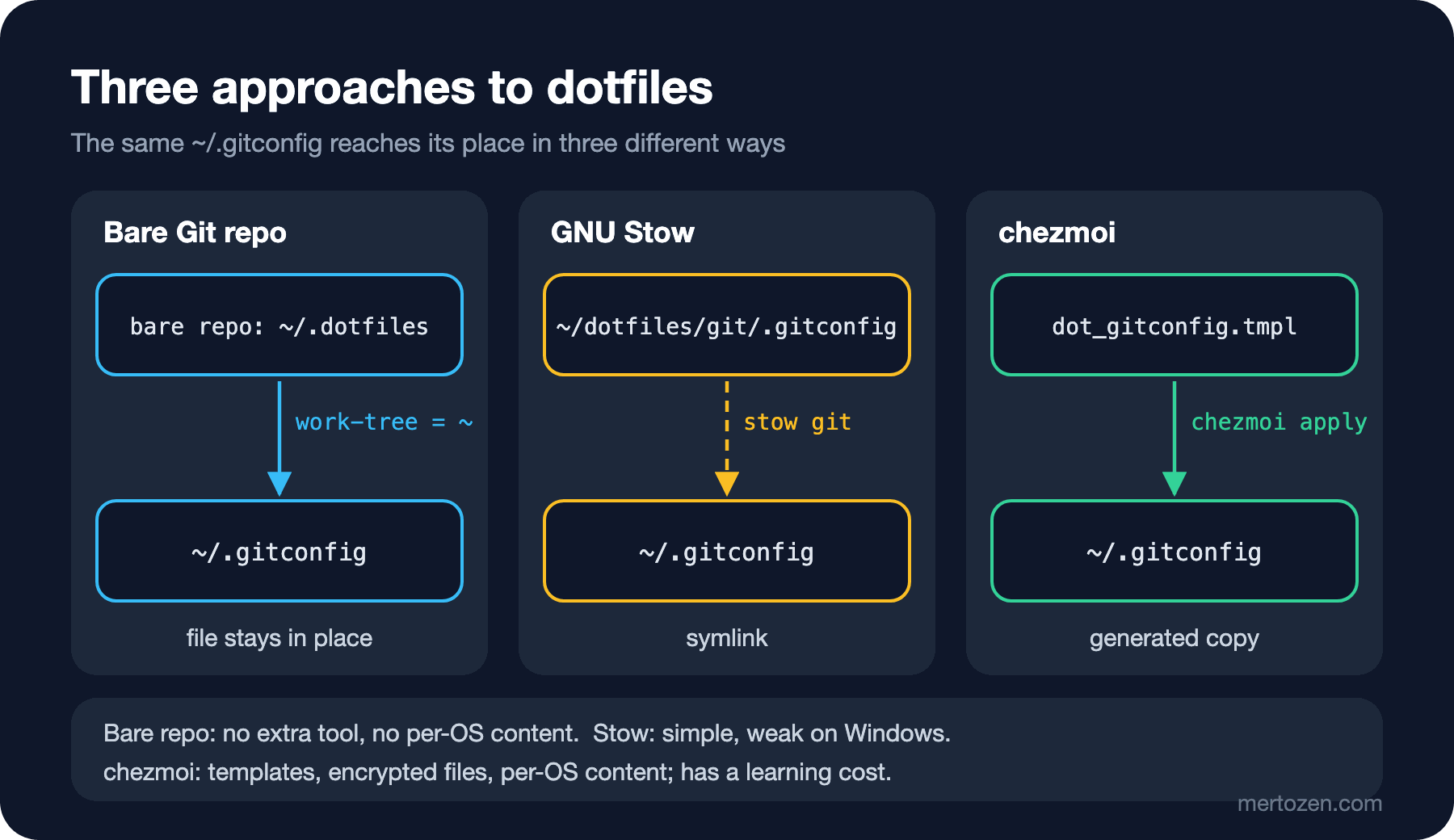
Approach 1: A Bare Git Repo
The way with the fewest tools: a bare repo that uses the home folder itself as its work tree. No extra program, no symlinks; the files stay in place and Git only knows which ones it tracks.
# zsh and bash
alias dot='git --git-dir=$HOME/.dotfiles --work-tree=$HOME'

# PowerShell
function dot { git --git-dir="$HOME/.dotfiles" --work-tree="$HOME" @args }
After creating the repo, the first status shows the problem right away: everything in the home folder is untracked.
$ git init --bare $HOME/.dotfiles
$ dot status --short
?? .config/
?? .dotfiles/
?? .gitconfig
?? .zshrc
?? Downloads/
In a real home folder this list runs to hundreds of lines. You hide untracked files and add only the files you want:
$ dot config status.showUntrackedFiles no
$ dot add .zshrc .gitconfig .config/starship/starship.toml
$ dot commit -m "Add zsh, git and starship settings"
$ dot ls-files
.config/starship/starship.toml
.gitconfig
.zshrc
The trap in this approach is typing dot add -A out of habit. Since status no longer shows untracked files, you don't see what would be added; I checked with --dry-run:
$ dot add -A --dry-run
add '.dotfiles/COMMIT_EDITMSG'
add '.dotfiles/HEAD'
add '.dotfiles/config'
...
add '.dotfiles/refs/heads/main'
add 'Downloads/book.pdf'
The repo is ready to add its own internal files and the downloads folder. Writing the .dotfiles folder into the repo's info/exclude file and adding only by file name are the essential rules of this method. Another limit of the bare repo is that it can't produce per-OS content: lines that must differ between macOS and Windows need either two files or an if inside the shell.
Approach 2: GNU Stow
Stow is a "symlink farm" manager. The dotfiles repo is split into packages, and the inside of each package mirrors the structure of the home folder. stow git creates symlinks in home for the files in the git package:
$ find dotfiles -type f | sort
dotfiles/git/.gitconfig
dotfiles/starship/.config/starship/starship.toml
dotfiles/zsh/.zshrc
With a .gitconfig already in home, I first checked what would happen with -n (do nothing) and -v:
$ stow -d dotfiles -t home -n -v zsh git starship
LINK: .zshrc => ../dotfiles/zsh/.zshrc
LINK: .config => ../dotfiles/starship/.config
WARNING! stowing git would cause conflicts:
  * cannot stow ../dotfiles/git/.gitconfig over existing target .gitconfig since neither a link nor a directory and --adopt not specified
All operations aborted.
Stow doesn't overwrite an existing file, and when one package conflicts it applies none of them. After removing the old file:
$ stow -d dotfiles -t home zsh git starship
$ ls -la home
.config -> ../dotfiles/starship/.config
.gitconfig -> ../dotfiles/git/.gitconfig
.zshrc -> ../dotfiles/zsh/.zshrc
The answer to Guess First is on the second line. Because there was no .config folder in home, Stow made the whole .config folder a symlink to the repo instead of linking individual files (the documentation calls this "tree folding"). When the GitHub CLI writes its settings:
$ git -C dotfiles status --short
?? starship/.config/gh/
Another application's settings, maybe even its token, were written into the dotfiles repo. The fix is --no-folding: Stow creates folders as real folders and links only the files.
$ stow -d dotfiles -t home --no-folding starship
$ ls -la home/.config/starship
starship.toml -> ../../../dotfiles/starship/.config/starship/starship.toml--adopt, the option that comes to mind for resolving the conflict, overwrites in the other direction: it moves the file from home into the repo, replacing the repo's version.
$ stow -d dotfiles -t home --adopt git
$ git -C dotfiles diff
--- a/git/.gitconfig
+++ b/git/.gitconfig
@@ -1,3 +1,3 @@
-[user]
-    name = Ada Lovelace
-    email = ada@example.com
+# old local file
+[core]
+    autocrlf = true
Use --adopt only in a committed, clean repo, and check with git diff right after. Stow is written in Perl; on Windows, symlinks need developer mode or administrator rights, and Stow is rarely used there. If anyone on the team uses Windows, Stow alone isn't enough.
Approach 3: chezmoi
chezmoi doesn't symlink files; it generates and copies them from a "source state". The source folder is its own Git repo, and file names say what to do: dot_zshrc becomes .zshrc in home, the .tmpl extension means a template, and the encrypted_ prefix means an encrypted file. I ran the experiments in the fake home folder with the --source, --destination and --config options; below I leave these options out for brevity.
$ chezmoi init
$ chezmoi add ~/.zshrc
$ chezmoi add --template ~/.gitconfig
$ find src -type f -not -path '*/.git/*' | sort
src/dot_gitconfig.tmpl
src/dot_zshrc
Templates use Go's text/template syntax. Machine-specific values come from the [data] section of chezmoi's configuration file; that file is separate on each machine and doesn't go into the repo:
[data]
    email = "ada@example.com"
    work = true
[user]
name = Ada Lovelace
email = {{ .email }}
[core]
{{- if eq .chezmoi.os "windows" }}
autocrlf = true
{{- else }}
autocrlf = input
{{- end }}
{{- if .work }}
[includeIf "gitdir:~/src/work/"]
path = ~/.gitconfig-work
{{- end }}After changing work from false to true, chezmoi diff shows what will change before applying it:
$ chezmoi diff
diff --git a/.gitconfig b/.gitconfig
index 2cf1464a3f4842e0ef731b116dd5a5304a418f50..b167194813d7770782a9ed9aaec130a0172960c2 100644
--- a/.gitconfig
+++ b/.gitconfig
@@ -3,3 +3,5 @@     name = Ada Lovelace
     email = ada@example.com
 [core]
     autocrlf = input
+[includeIf "gitdir:~/src/work/"]
+    path = ~/.gitconfig-work
chezmoi apply writes the change, and chezmoi status returns empty afterwards. On a new machine one command is enough: chezmoi init --apply <repo-url> clones the repo and applies it. If you want to look first, run chezmoi init, chezmoi diff and chezmoi apply separately. To ask for values such as the e-mail on first setup, you can put a .chezmoi.toml.tmpl into the source and use promptStringOnce; we'll use that in the bootstrap in the next post.
One Set of Dotfiles Across macOS, Windows and WSL
In chezmoi the OS difference is handled in two places: inside a file with a .chezmoi.os condition as above, and whether a file exists at all with .chezmoiignore. That file is a template too, written as "ignore this unless the OS is ...":
{{ if ne .chezmoi.os "windows" }}
Documents
{{ end }}
{{ if eq .chezmoi.os "windows" }}
.zshrc
{{ end }}
PowerShell 7's profile lives at Documents\PowerShell\Microsoft.PowerShell_profile.ps1 on Windows; in the source it sits under Documents/PowerShell/. The managed files on macOS:
$ chezmoi managed
.config
.config/bookstore
.config/bookstore/feed.env
.gitconfig
.zshrc
You don't need a Windows machine to see what happens on Windows. --override-data changes the template data temporarily:
$ chezmoi --override-data '{"chezmoi":{"os":"windows"}}' cat ~/.gitconfig
[user]
    name = Ada Lovelace
    email = ada@example.com
[core]
    autocrlf = true
[includeIf "gitdir:~/src/work/"]
    path = ~/.gitconfig-work
$ chezmoi --override-data '{"chezmoi":{"os":"windows"}}' managed
.config
.config/bookstore
.config/bookstore/feed.env
.gitconfig
Documents
Documents/PowerShell
Documents/PowerShell/Microsoft.PowerShell_profile.ps1
To chezmoi, WSL looks like linux. The chezmoi documentation suggests telling WSL apart by checking whether "microsoft" appears in .chezmoi.kernel.osrelease. For line endings, putting a .gitattributes into the dotfiles repo is a good idea; shell files should be eol=lf. A .zshrc cloned on Windows with core.autocrlf=true arrives with CRLF line endings, and zsh doesn't even raise an error about it. I sourced a file with CRLF and looked inside the variable:
$ zsh -f -c 'source ./crlf.zsh; echo "EDITOR=[$EDITOR]" | od -c | head -2'
0000000    E   D   I   T   O   R   =   [   c   o   d   e  \r   ]  \n
0000017
The value of EDITOR has silently become code\r; a tool that uses this variable looks for a program named code\r and doesn't find it. Because the character doesn't show up in the error message, this takes a long time to track down.
Keeping Secrets Out
The safest secret is the one that never gets written into a dotfile. npm is a good example: in .npmrc you can keep the name of an environment variable instead of the value, and npm reads the value at run time:
//registry.example.com/:_authToken=${NPM_TOKEN}If the value has to live in a file, chezmoi can encrypt it. I tried age encryption with the age implementation built into chezmoi (generating a key with chezmoi age-keygen and writing it into the configuration). Adding a file with a fake value:
$ chezmoi add --encrypt ~/.config/bookstore/feed.env
$ find src -name 'encrypted_*'
src/dot_config/bookstore/encrypted_feed.env.age
$ head -1 src/dot_config/bookstore/encrypted_feed.env.age
-----BEGIN AGE ENCRYPTED FILE-----
$ chezmoi cat ~/.config/bookstore/feed.env
BOOKSTORE_FEED_TOKEN=example-secret-not-real
Only the encrypted file goes into the repo; when I checked with grep, the plain text wasn't in the source. The key file never goes into the repo; it is carried to each machine separately. The third way is a password manager: chezmoi templates can read values from 1Password, Bitwarden and other tools; for example the onepasswordRead "op://..." function calls the 1Password CLI behind the scenes. In that case the value isn't in the repo even in encrypted form; it comes from the password manager during apply.
The last line of defence is a secret scan before commit (covered in the hooks and commit signing post of the Git & GitHub series). But don't stop paying attention because you trust the scanner: I staged a made-up token starting with fake- into the dotfiles repo, ran gitleaks with its default rules, and it didn't catch it.
$ gitleaks git --pre-commit --staged
3:26PM INF 0 commits scanned.
3:26PM INF scanned ~132 bytes (132 bytes) in 68.5ms
3:26PM INF no leaks found
Scanners look for the token formats of known providers and certain patterns; your internal feed's token may not match them.
Decision Table
| Bare Git repo | GNU Stow | chezmoi | |
|---|---|---|---|
| Extra tool | none | Perl + Stow | single binary |
| File in home | the real file | symlink | generated copy |
| Per-OS content | none | with separate packages | templates and .chezmoiignore |
| Windows | works with Git | weak | supported directly |
| Secrets | by hand | by hand | encryption, password managers |
| New machine | clone + checkout | clone + stow | chezmoi init --apply |
If you work on one operating system with a few files, a bare repo or Stow is enough. If you move between macOS, Windows and WSL and at least some files differ per machine, chezmoi's learning cost pays for itself quickly.
Production Notes
Most dotfiles repos are public; learning from other people's settings is the nice part of this ecosystem. But before making yours public, read the whole history (git log -p), not just the latest state. Things that commonly leak: the work e-mail in .gitconfig, customer or project names in includeIf paths, internal server names and IP addresses in .ssh/config, commands copied from shell history, feed tokens in .npmrc or NuGet.Config. For a secret that was pushed once, cleaning the history isn't enough; you have to revoke the secret and issue a new one.
chezmoi's configuration file (chezmoi.toml) is machine-specific and doesn't go into the repo; neither do the age key or the password manager session. These should be the only secret pieces you carry to a new machine.
Common Pitfalls
The first is copying someone else's dotfiles without understanding them. A .zshrc taken from a popular repo calls tools that aren't on your machine, starts slowly, or silently binds rm to another command. Don't take a setting you don't understand line by line; if you take it, add it to your own repo in small pieces with the source in the commit message.
The second is overwriting a local change in a conflict. When I added an alias to .zshrc locally and also changed the source, chezmoi showed the state as MM and apply asked a question:
$ chezmoi status
MM .zshrc
$ chezmoi apply
.zshrc has changed since chezmoi last wrote it (diff/overwrite/all-overwrite/skip/Skip-conflicts/quit)?
chezmoi apply --force, on the other hand, writes without asking, and the local alias gs="git status" line was gone. The right way is chezmoi diff first, then chezmoi re-add or chezmoi merge to bring the local change into the source. The Stow equivalent was --adopt overwriting the repo. The third is Stow's tree folding; if you didn't use --no-folding, look for folders you don't recognise in git status.
A Small Experiment
★☆☆ List five files in your own home folder that you want to version, and answer for each: does it contain a secret, does it have a machine-specific line?
★★☆ Create an empty test folder, point HOME at it, and set up this post's .gitconfig template with chezmoi --source ... --destination .... See the Windows output with --override-data.
★★★ Manage the same three files with Stow, then move them to chezmoi. Watch with ls -la how the symlinks turn back into real files during the move, and note the order you need to work in to make the switch reversible.
Our settings are now in a repo and can be applied with one command. What's missing are the tools these settings run: Git, the .NET SDK, Node.js, just, chezmoi itself. In the last post of the series we write a bootstrap that installs them on an empty Mac and an empty Windows machine with a Brewfile, WinGet Configuration and mise, applies the dotfiles and brings Bookstore up to just dev.