

Setting Up a New Machine with One Command: Brewfile, WinGet Configuration, Runtime Versions with mise and Bootstrapping
The way to set up a new machine with one command is to split the job into layers: a Brewfile or WinGet Configuration installs machine tools, mise pins project versions with global.json and mise.toml, chezmoi applies dotfiles and just setup prepares the project. We show Bookstore's rerunnable bootstrap scripts, schema validation of the WinGet file, mise's trust question and mise exec installing missing tools by itself.
Version note: The mise and just steps in this post were run with .NET 10 (SDK 10.0.404), mise 2026.11.8, just 1.59.0 and Node.js 24.22. The Brewfile and the WinGet Configuration file were written from the Homebrew and Microsoft Learn documentation, and their syntax and schema were validated offline.
Guess First
In the mise.toml file of Bookstore, the online bookstore used as the shared example across this site's series, there are Node.js and just, and the .NET SDK version is read from global.json. On a clean machine you install only Node.js: mise install node. Then you run mise exec -- node --version.
Will you see just v24.22.3, or an error? How do the two tools that aren't installed affect this command? The answer is in the "Runtime Versions" section.
Which Tool Installs What?
In the earlier posts of the series we collected commands in a justfile and put personal settings into a dotfiles repo. Where a newcomer still spends half a day is installing the tools to run them. Splitting this job into four layers instead of loading it onto one tool makes maintenance easier:
- Machine tools: Git, mise, chezmoi, Docker Desktop, VS Code. The operating system's package manager installs them: Homebrew on macOS, WinGet on Windows, apt on Linux.
- Project versions: the .NET SDK, Node.js, just. Pinned per project and installed by mise; the version is written in files in the repo.
- Personal settings: shell, prompt,
.gitconfig. chezmoi applies them from the dotfiles repo. - Project setup: restoring packages, seed data.
just setupdoes it.
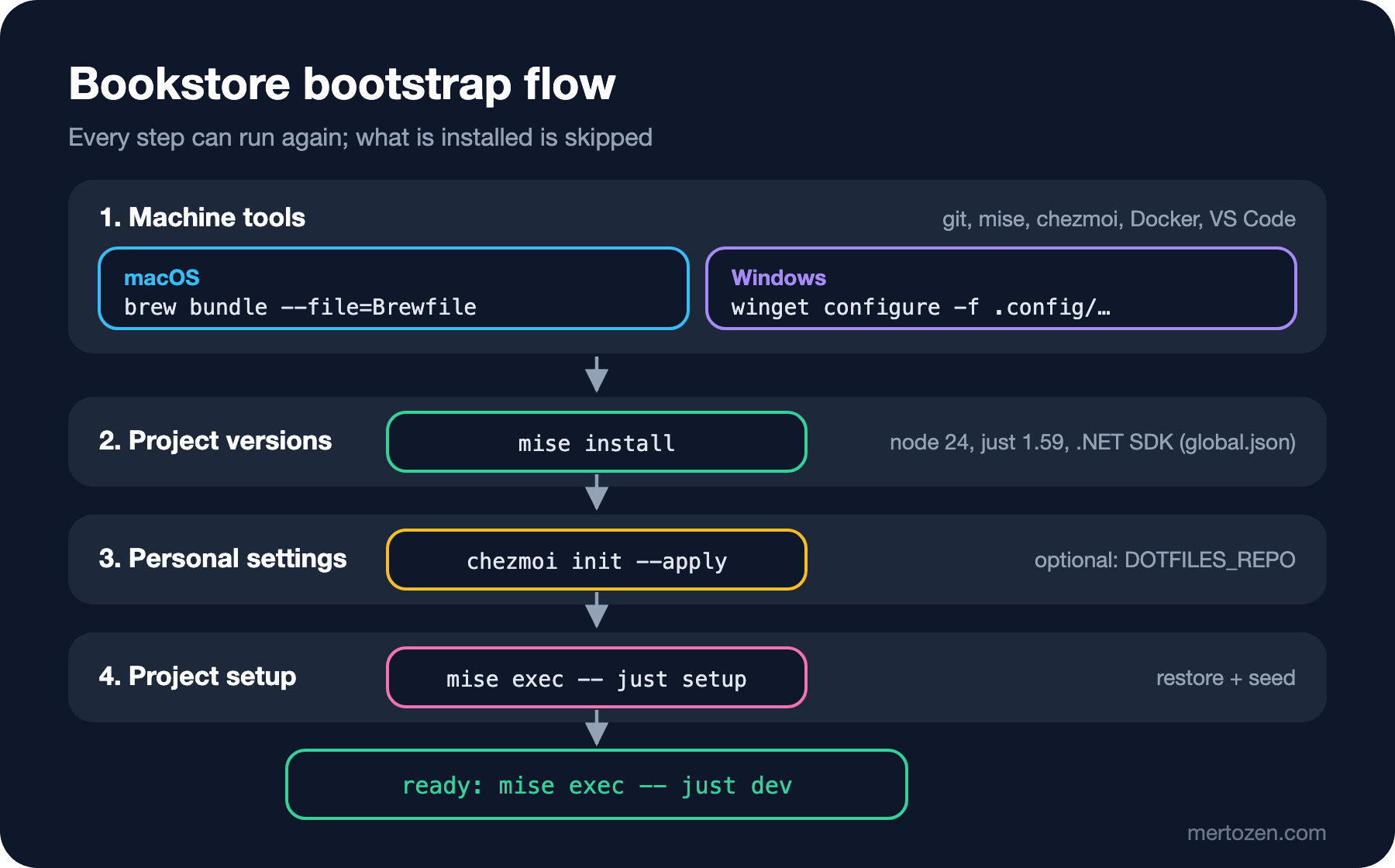
The reason for the split is version ownership. Homebrew and WinGet always install the current version and aren't designed to keep old ones. The .NET SDK and Node.js versions the project builds with are the project's decision, not the machine's.
macOS: Brewfile and brew bundle
A Brewfile is a Ruby-based list for Homebrew:
# Machine tools for Bookstore on macOS. Project runtimes (.NET SDK, Node.js, just) come from mise.
brew "git"
brew "mise"
brew "chezmoi"
cask "docker-desktop"
cask "visual-studio-code"
brew installs command-line tools and cask installs applications; the list can also have tap, mas (Mac App Store) and vscode (VS Code extensions) lines. Because the file is Ruby you can write conditions, but keep it simple. You can check the syntax with Ruby itself, without running Homebrew:
$ ruby -c Brewfile
Syntax OK
brew bundle installs what is in the list but not installed and skips what is installed, so it can be run again and again. According to the documentation it also upgrades outdated versions by default; if you don't want surprise upgrades during bootstrap, add --no-upgrade. brew bundle check checks whether anything would be done, and brew bundle dump generates a Brewfile from what is installed. brew bundle cleanup --force, on the other hand, removes packages that aren't in the list; running it on a personal machine with the team Brewfile means deleting everything that isn't on the team's list.
The documentation states one limit clearly: a Brewfile has no lock file and won't have one. Homebrew is a rolling release and doesn't support installing an arbitrary older version. pin: true only protects a package from upgrades. That's why we leave everything whose version matters to mise.
This section is based on the official documentation.
Windows: WinGet Configuration
The Windows equivalent is a YAML-based configuration file run with winget configure. By the naming convention in the documentation, the default location in Git repos is .config/configuration.winget:
# yaml-language-server: $schema=https://aka.ms/configuration-dsc-schema/0.2
# Machine tools for Bookstore on Windows. Project runtimes (.NET SDK, Node.js, just) come from mise.
properties:
  configurationVersion: 0.2.0
  assertions:
    - resource: Microsoft.Windows.Developer/OsVersion
      directives:
        description: Verify minimum OS version
        allowPrerelease: true
      settings:
        MinVersion: '10.0.22000'
  resources:
    - resource: Microsoft.WinGet.DSC/WinGetPackage
      id: git
      directives:
        description: Install Git
      settings:
        id: Git.Git
        source: winget
    - resource: Microsoft.WinGet.DSC/WinGetPackage
      id: pwsh
      directives:
        description: Install PowerShell 7
      settings:
        id: Microsoft.PowerShell
        source: winget
    - resource: Microsoft.WinGet.DSC/WinGetPackage
      id: mise
      directives:
        description: Install mise
      settings:
        id: jdx.mise
        source: winget
    - resource: Microsoft.WinGet.DSC/WinGetPackage
      id: chezmoi
      directives:
        description: Install chezmoi
      settings:
        id: twpayne.chezmoi
        source: winget
    - resource: Microsoft.WinGet.DSC/WinGetPackage
      id: docker
      directives:
        description: Install Docker Desktop
        securityContext: elevated
      settings:
        id: Docker.DockerDesktop
        source: winget
    - resource: Microsoft.WinGet.DSC/WinGetPackage
      id: vscode
      directives:
        description: Install Visual Studio Code
      settings:
        id: Microsoft.VisualStudioCode
        source: winget
The file isn't a list of commands but a description of the desired state. PowerShell DSC resources run behind it. assertions are preconditions and resources the desired state; with dependsOn you can tie one resource to another, the order of the rest doesn't matter and some may run in parallel. If an assertion fails, the resources depending on it are skipped and the others continue. securityContext: elevated marks resources that need administrator rights; WinGet asks for one UAC approval at the start. I checked each package ID in the winget-pkgs repo; Casey.Just is there too, but we left just to mise.
The commands: winget configure show -f <file> shows the content, winget configure validate validates the file, winget configure test tells whether the machine is in the desired state, and winget configure -f <file> applies it. Before applying, a warning has to be accepted; --accept-configuration-agreements skips it. Use it only when you have read the file and the repo is yours.
Since I don't have a Windows machine, I validated the file against the JSON Schema Microsoft publishes. To see how easy it is to make a mistake, I prepared a copy with two small changes:
$ python validate_winget.py schema/0.2.json .config/configuration.winget
6 resources, 0 schema errors
$ python validate_winget.py schema/0.2.json bad.winget
ERROR ['properties', 'configurationVersion'] 0.2 is not of type 'string'
ERROR ['properties', 'resources', 4, 'directives', 'securityContext'] 'admin' is not one of ['current', 'restricted', 'elevated']
6 resources, 2 schema errors
The first error is YAML's classic trap: an unquoted 0.2 is read as a number, not a string (covered in detail in the JSON, YAML and Configuration Formats series). In VS Code, Red Hat's YAML extension reads the yaml-language-server comment on the first line and does the same check while you type.
This section is based on the official documentation.
Linux and WSL: An apt List
On Linux, WSL included, leaving machine tools to the distribution's package manager is the simplest way. In Bookstore, scripts/apt-packages.txt holds one package name per line, and the bootstrap script installs them with xargs -a scripts/apt-packages.txt sudo apt-get install -y. The script doesn't try to install mise and chezmoi; both document several install methods for Linux, and the team picks one in the README. If a tool is missing, the script says so and stops. Homebrew also runs on Linux, so you can use the same Brewfile there if you like; cask lines are skipped on Linux.
Runtime Versions: global.json and mise
The .NET SDK version is already written in global.json (covered in the second post of the ASP.NET Core Web API series). To pin the Node.js version and just in the repo too, mise.toml:
# Runtime versions for Bookstore. The .NET SDK version is read from global.json.
[tools]
node = "24"
just = "1.59.0"

[settings]
idiomatic_version_file_enable_tools = ["dotnet"]
idiomatic_version_file_enable_tools tells mise to read global.json, so the SDK version stays in one place. In the mise registry dotnet is a core backend, and so is node. node = "24" resolves to the newest release of the 24 line. Looking at the Node range Angular 22 supports, 24.15 and later in the 24 line is fine:
$ npm view @angular/core@22.2.6 engines.node
^22.22.3 || ^24.15.0 || >=26.0.0
When I cloned the repo and ran mise ls for the first time, mise stopped:
$ mise ls
mise ERROR error parsing config file: ~/src/bookstore/mise.toml
mise ERROR Config files in ~/src/bookstore/mise.toml are not trusted.
Trust them with `mise trust`. See https://mise.jdx.dev/cli/trust.html for more information.
This is a good default: mise.toml can define environment variables and run tasks, so a file from a repo on the internet can behave like code. After reading the file:
$ mise trust
mise trusted ~/src/bookstore
$ mise ls
dotnet  10.0.404 (missing)  ~/src/bookstore/global.json  10.0.404
just    1.59.0 (missing)    ~/src/bookstore/mise.toml    1.59.0
node    24.22.3 (missing)   ~/src/bookstore/mise.toml    24
$ mise install node
...
mise ✓ node@24.22.3  5.0s  node-v24.22.3-darwin-arm64.tar.gz
mise ████████████████ 1/1 · installed 1 tool in 5.0s
mise verifies the Node.js archive against nodejs.org's SHASUMS256.txt file and its signature. The answer to Guess First:
$ mise exec -- node --version
mise by @jdx – installing 2 tools
mise dotnet@10.0.404 dotnet-install: .NET Core SDK with version '10.0.404' is already installed.
mise ✓ dotnet@10.0.404  2.0s
mise ✓ just@1.59.0      2.0s  just-1.59.0-aarch64-apple-darwin.tar.gz
mise ████████████████ 2/2 · installed 2 tools in 2.0s
v24.22.3
mise exec installed the missing tools itself and then ran the command. The .NET SDK was already on this machine; mise used the folder in the DOTNET_ROOT environment variable as the shared root and didn't download it again. According to the documentation this is the default "shared" mode; there is a dotnet.isolated setting to put each SDK in its own folder. The bootstrap relies on this behaviour, but runs mise install first anyway to be explicit.
If you hook mise into your shell with activate, versions switch automatically when you enter a folder. I didn't, and used mise exec -- everywhere; that's more predictable for scripts and CI. Alternatives: nvm manages only Node.js and its Windows version is a separate project; fnm works on both platforms but is also only for Node.js. If you want to manage the .NET SDK and Node.js from the same file, mise does the job as a single tool.
The Bootstrap Script
A bootstrap has two rules: it must be a single entry point, and it must reach the same result however many times it runs. The tools that skip what's installed (brew bundle, winget configure, mise install, chezmoi) already do most of this work; the script only manages the order and the platform difference. For macOS, Linux and WSL, scripts/bootstrap.sh:
#!/usr/bin/env bash
# Bootstrap a macOS, Linux or WSL machine for Bookstore. Safe to run more than once.
set -euo pipefail

cd "$(dirname "$0")/.."

case "$(uname -s)" in
  Darwin)
    if ! command -v brew >/dev/null 2>&1; then
      echo "Homebrew is missing. Install it from https://brew.sh and run this script again." >&2
      exit 1
    fi
    echo "==> Machine tools (Brewfile)"
    brew bundle --file=Brewfile --no-upgrade
    ;;
  Linux)
    echo "==> Machine tools (scripts/apt-packages.txt)"
    sudo apt-get update
    xargs -a scripts/apt-packages.txt sudo apt-get install -y
    for tool in mise chezmoi; do
      if ! command -v "$tool" >/dev/null 2>&1; then
        echo "$tool is missing. See the install steps in README.md." >&2
        exit 1
      fi
    done
    ;;
  *)
    echo "Unsupported OS: $(uname -s). On Windows use scripts/bootstrap.ps1." >&2
    exit 1
    ;;
esac

echo "==> Project runtimes (mise.toml, global.json)"
mise install

if [[ -n "${DOTFILES_REPO:-}" ]]; then
  echo "==> Dotfiles"
  if [[ -d "${XDG_DATA_HOME:-$HOME/.local/share}/chezmoi" ]]; then
    chezmoi update
  else
    chezmoi init --apply "$DOTFILES_REPO"
  fi
fi

echo "==> Project setup"
mise exec -- just setup

echo "Done. Start Bookstore with: mise exec -- just dev"
If Homebrew is missing, the script doesn't download and run it from the internet; it shows the address and stops, so the developer decides what gets installed on the machine. Dotfiles are personal, so they're optional: without DOTFILES_REPO the step is skipped. I tried the flow by putting small stub scripts that only print their arguments in place of brew, mise and chezmoi:
$ DOTFILES_REPO=https://git.example.com/ada/dotfiles.git ./scripts/bootstrap.sh
==> Machine tools (Brewfile)
[stub] brew bundle --file=Brewfile --no-upgrade
==> Project runtimes (mise.toml, global.json)
[stub] mise install
==> Dotfiles
[stub] chezmoi init --apply https://git.example.com/ada/dotfiles.git
==> Project setup
[stub] mise exec -- just setup
Done. Start Bookstore with: mise exec -- just dev
The last step I ran with the real tools. The setup recipe added to the justfile consists of just two dependencies: setup: restore seed.
$ mise exec -- just setup
dotnet tool restore
Tool 'dotnet-ef' (version '10.0.15') was restored. Available commands: dotnet-ef
Restore was successful.
dotnet restore
  Determining projects to restore...
  All projects are up-to-date for restore.
npm --prefix web/bookstore-web ci
added 294 packages, and audited 296 packages in 3s
...
dotnet run tools/seed.cs -- --count 10
Wrote 10 books to data/books.json
For Windows, scripts/bootstrap.ps1 follows the same steps:
# Bootstrap a Windows machine for Bookstore. Safe to run more than once.
# Runs on Windows PowerShell 5.1, because PowerShell 7 is installed by this script.
[CmdletBinding()]
param(
    [switch] $AcceptConfigurationAgreements
)

$ErrorActionPreference = 'Stop'
Set-Location (Join-Path $PSScriptRoot '..')

if (-not (Get-Command winget -ErrorAction SilentlyContinue)) {
    throw 'winget is missing. Install or update App Installer from the Microsoft Store.'
}

Write-Host '==> Machine tools (.config/configuration.winget)'
$wingetArgs = @('configure', '--file', '.config/configuration.winget', '--disable-interactivity')
if ($AcceptConfigurationAgreements) {
    $wingetArgs += '--accept-configuration-agreements'
}
winget @wingetArgs
if ($LASTEXITCODE -ne 0) {
    throw "winget configure failed with exit code $LASTEXITCODE"
}

# Tools installed above are on the PATH of new processes only; reload it for this session.
$env:Path = [Environment]::GetEnvironmentVariable('Path', 'Machine') + ';' +
    [Environment]::GetEnvironmentVariable('Path', 'User')

Write-Host '==> Project runtimes (mise.toml, global.json)'
mise install

if ($env:DOTFILES_REPO) {
    Write-Host '==> Dotfiles'
    if (Test-Path (Join-Path $HOME '.local/share/chezmoi')) {
        chezmoi update
    } else {
        chezmoi init --apply $env:DOTFILES_REPO
    }
}

Write-Host '==> Project setup'
mise exec -- just setup

Write-Host 'Done. Start Bookstore with: mise exec -- just dev'
There are two Windows-specific details. An empty Windows has only Windows PowerShell 5.1; since this script installs PowerShell 7, putting #Requires -Version 7 at the top would make the first run impossible. Second, tools installed by WinGet don't enter the PATH of the session that is already open; the script rereads PATH from the machine and user values. I parsed the script with the PowerShell 7.7 parser and got no errors; that's also why I avoided automatic variable names such as $args ($wingetArgs).
From an Empty Machine to just dev
The steps needed to run Bookstore on an empty Windows machine:
- Install Git with
winget install --id Git.Git --exact; nothing else is needed to clone the repo. - Clone the repo and read the
.config/configuration.wingetfile. - Run
.\scripts\bootstrap.ps1in Windows PowerShell and accept the configuration warning. - Open a new terminal and start the API and Angular with
mise exec -- just dev.
On macOS the first step is the Xcode Command Line Tools (xcode-select --install, which brings Git) and Homebrew; after that ./scripts/bootstrap.sh and the same just dev. The first steps are manual on purpose: installing a package manager on a machine should be a decision the developer makes knowingly. The bootstrap doesn't start the dev recipe either; it only gets things ready.
Production Notes
CI and developer machines should use the same versions. The workflow from the third post of the series read the .NET SDK from global.json but wrote the Node.js version (24) and the just version (1.59.0) separately; that's two places where mise.toml and the workflow can drift apart. Either use mise's own GitHub Action in the workflow so it reads the same file, or at least make it a rule to change both files in the same pull request.
Test the bootstrap too. The Brewfile and the configuration file rarely change, and when they do, nobody sets up a new machine, so a mistake goes unnoticed for months. At a minimum, run the syntax and schema checks in CI on every change (ruby -c Brewfile, schema validation of the configuration). The documentation recommends trying configuration files in an isolated environment before running them on a real machine; Windows Sandbox fits that purpose.
Common Pitfalls
The first is "latest". If everything is installed at the newest version, two machines set up two weeks apart build with different SDKs and the "works on my machine" conversation starts. That's acceptable for machine tools, not for project runtimes. Versions should change in global.json and mise.toml, in the repo and through review.
The second is running a configuration downloaded from the internet without reading it. A WinGet Configuration file can download modules from the PowerShell Gallery and run them with administrator rights; an install script run with curl ... | sh carries the same risk. Read the file, check its source, and try it in an isolated environment first if you can. mise's trust question and WinGet's agreement warning exist for this; accepting them automatically out of habit turns the protection off.
The third is treating the bootstrap as a one-off. If the script only runs on the first day, it will be broken for the next newcomer. Since it's written to be rerun, you can also run it after a project update; that's the easiest way when a new tool or version is added. The fourth is mixing personal and team settings: personal applications shouldn't go into the team's Brewfile, and the team's tools shouldn't go into dotfiles.
A Small Experiment
★☆☆ Write the "which tool installs what" split for your own project as a four-row table. Which tool's version matters to the project, and which doesn't?
★★☆ Run this post's bootstrap.sh with stub scripts in your own folder, then make one stub return an error (exit 1). Check where the script stops thanks to set -euo pipefail and which message appears.
★★★ In Windows Sandbox (or a virtual machine), bring Bookstore from an empty Windows to the mise exec -- just dev stage. Note how long it takes and every step where you had to intervene by hand; each one is a candidate for the script.
With this post the Productivity and Automation series ends. We automated the boilerplate inside a single file with snippets, a new service's skeleton with a dotnet new template, project commands with a justfile, personal settings with dotfiles and the machine itself with a bootstrap. The common idea was always the same: move repeated work into the repo, into a file that is versioned and reviewed. To improve the content of these files, the Terminal and Command Line series covers the shell side, the Bash Scripting series covers writing scripts, and the AI-Assisted Development series covers another way of producing code.