

Your First Bash Script: Shebang, Execute Permission, Exit Codes and When Not to Write a Script

A Bash script picks its interpreter with the shebang line, runs thanks to execute permission and talks to its caller through the exit code. With a 10-line script that checks the Bookstore API health endpoint we show the shebang and the dash difference, ./script.sh vs bash vs source, exit codes, the PATH, a script skeleton, the CRLF trap and when a job belongs to Python, PowerShell or a .NET 10 file-based app.
Version note: The examples in this post were run on Ubuntu 24.04 LTS with Bash 5.2.21 (the Ubuntu package) and Bash 5.3.20 built from source, using dash 0.5.12, curl 8.5 and .NET SDK 10.0.115.
Guess First
A colleague wrote a small check script on the server. Run by hand, it works fine:
$ cat check.sh
#!/bin/sh
if [[ -f /etc/os-release ]]; then echo "found"; fi
$ bash check.sh
found
They run chmod +x on the same file and start it as ./check.sh. What do you think appears on the screen, and what does echo $? print? The answer is in the shebang section; a hint: the second number is more dangerous than the first.
This post starts the Bash Scripting series. You already use the command line; the published Linux and the Shell series covered the filesystem, permissions, processes and systemd on a server, interactively. This series is about writing those commands into files and turning them into readable, maintainable scripts that behave the same way every time. In this first post we build the skeleton: the shebang, execute permission, the three ways to run a script, exit codes and the standard shape of a script. In the last section we look at when a job belongs not to Bash but to Python, PowerShell or a single-file C# app.
A First Script: Checking Bookstore's Health Endpoint
The API of Bookstore, the online bookstore used as the shared example across this site's series, listens on 127.0.0.1:5000 on the server from the Linux and the Shell series and returns {"status":"Healthy"} from /health. Let's write a 10-line script that asks "is the API up?" after a deploy, from cron or from a monitoring tool. Throughout the series we keep the scripts in a folder called bookstore-ops, under scripts/:
#!/usr/bin/env bash
# Checks the Bookstore API health endpoint; exit code 0 means healthy.
url="${1:-http://127.0.0.1:5000/health}"

if curl -fsS --max-time 5 -o /dev/null "$url"; then
    echo "OK $url"
else
    echo "FAIL $url" >&2
    exit 1
fi
The first line is the shebang; it says which program interprets the script. The url variable takes the first argument, or the default address when there is none (we cover the ${1:-...} form in detail in the next post). The curl flags matter here: -f makes curl exit with an error code on an HTTP 4xx/5xx response, -sS turns off the progress bar but keeps error messages, --max-time 5 caps the total time and -o /dev/null throws the response body away. The if looks directly at curl's exit code. The error message goes to stderr with >&2; we discuss why that matters in the In Production section.
Lab note: the outputs in this post were taken on Ubuntu 24.04 with a small test service that gives the same answer as Bookstore.Api on 127.0.0.1:5000/health; it returns 503 while the file /tmp/bookstore-unhealthy exists.
$ ls -l scripts/bookstore-health.sh
-rw-r--r-- 1 user user 248 Nov 15 03:30 scripts/bookstore-health.sh
$ ./scripts/bookstore-health.sh
bash: ./scripts/bookstore-health.sh: Permission denied
$ echo $?
126
$ chmod +x scripts/bookstore-health.sh
$ ./scripts/bookstore-health.sh
OK http://127.0.0.1:5000/health
$ echo $?
0
A file you create in an editor has no execute permission (x); you need chmod +x before you can run it with ./. Permissions in detail, umask and chown are in the third post of the Linux and the Shell series. Now let's try two failure cases: a port nobody listens on and an API that returns 503.
$ ./scripts/bookstore-health.sh http://127.0.0.1:5099/health
curl: (7) Failed to connect to 127.0.0.1 port 5099 after 0 ms: Couldn't connect to server
FAIL http://127.0.0.1:5099/health
$ echo $?
1
$ touch /tmp/bookstore-unhealthy
$ ./scripts/bookstore-health.sh
curl: (22) The requested URL returned error: 503
FAIL http://127.0.0.1:5000/health
$ echo $?
1
curl exits with a different code in each case (7: could not connect, 22: HTTP error), while the script reduces both to one meaning: 1, unhealthy. That is the contract for whoever calls the script.
The Shebang: Who Runs the Script?
When you type ./check.sh, bash does not open the file; the kernel does. If the file starts with #!, the kernel takes the rest of the line as the interpreter and passes the script to it as an argument. The script in Guess First has the shebang #!/bin/sh, and on Ubuntu /bin/sh is not bash:
$ ./check.sh
./check.sh: 2: [[: not found
$ echo $?
0
$ ls -l /bin/sh
lrwxrwxrwx 1 root root 4 Mar 31  2024 /bin/sh -> dash
On Ubuntu and Debian, /bin/sh points to dash, a small, fast shell that stays close to the POSIX standard. [[ ]] is a bash extension, a so-called bashism; dash does not know it, looks for a command named [[ and does not find one. The really dangerous part is the exit code: the if condition fails, so the body is skipped, the last command of the script is the if and the script ends with 0, "success". The check never ran, and nobody noticed. bash check.sh worked because in that case you picked the interpreter and the shebang was skipped as an ordinary comment.
There are three common choices for the shebang:
#!/usr/bin/env bash:envfinds the firstbashon the PATH and runs it. It also finds the right bash on systems where bash lives outside/bin(Homebrew bash on macOS, the BSDs, NixOS). This is the default in this series.#!/bin/bash: a fixed path; since it does not depend on the PATH, it is preferred for system scripts that run as root and should not trust the PATH. On Linux distributions bash is almost always here.#!/bin/sh: a promise that you only use POSIX shell features. If you are going to write anything bash-specific ([[ ]], arrays,${var//a/b}), do not use this shebang.
The Bash Reference Manual notes that how the arguments after the interpreter name are split varies between systems, so relying on more than one argument is not portable. In practice a line such as #!/usr/bin/env bash -e does not work on Linux; we set shell options inside the script rather than in the shebang.
Three Ways to Run It: ./script.sh, bash script.sh and source
To see the difference, a two-line script that changes its directory and prints its own PID is enough:
$ cat where.sh
#!/usr/bin/env bash
cd /opt
echo "script: pid=$$ pwd=$PWD"
$ echo "shell: pid=$$ pwd=$PWD"
shell: pid=10454 pwd=/home/user/lab
$ ./where.sh
script: pid=10457 pwd=/opt
$ bash where.sh
script: pid=10459 pwd=/opt
$ pwd
/home/user/lab
$ source where.sh
script: pid=10454 pwd=/opt
$ pwd
/opt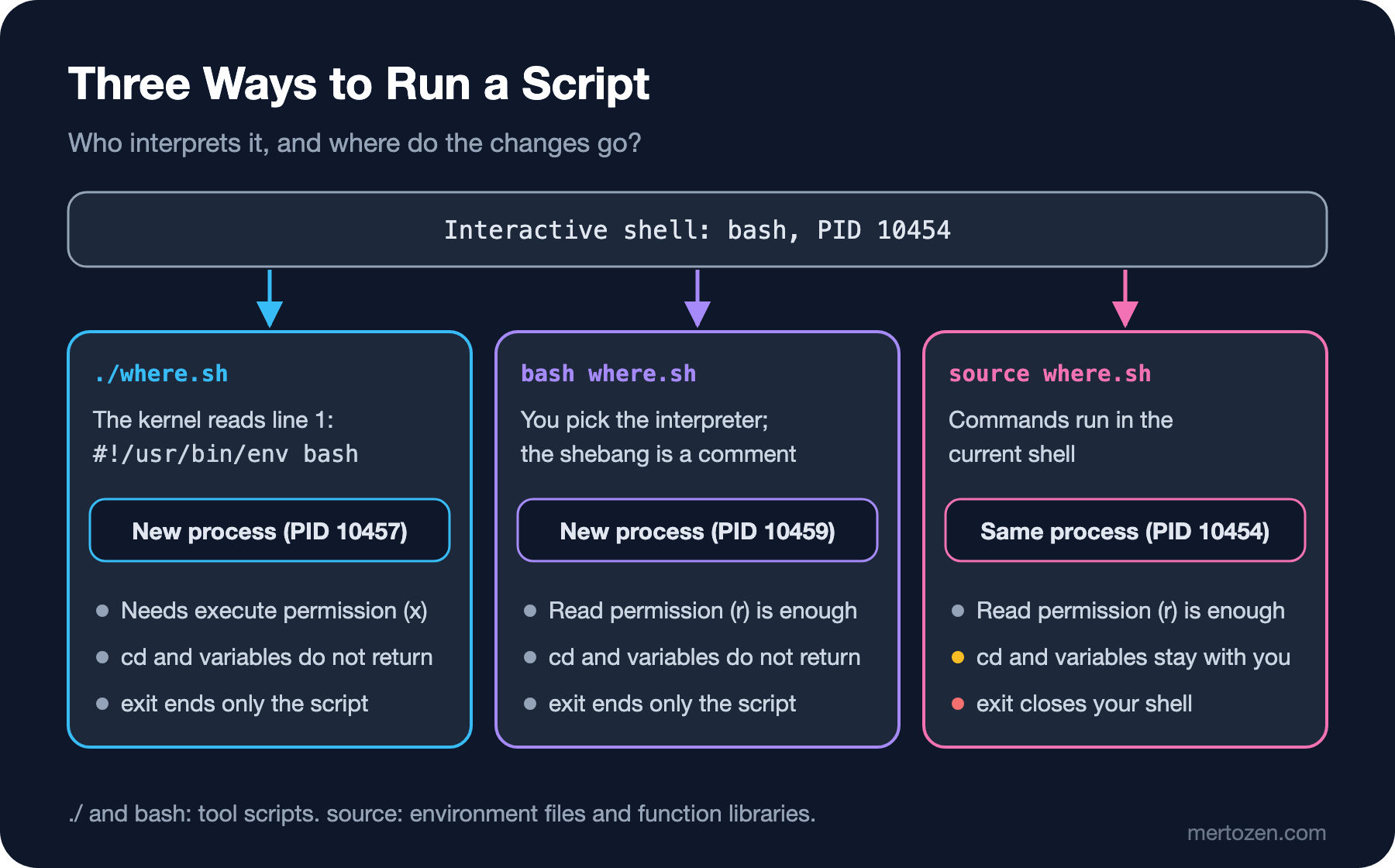
./where.sh and bash where.sh start a new process; the cd inside the script stays in that process and you are still in the old directory. source (short form .) runs the file's commands in your shell, with the same PID: the cd and any variables it defines stay with you. That is why source exists for environment files and function libraries; tool scripts should always run in their own process. An exit in a sourced file exits you, not the script:
$ cat bye.sh
echo "loading settings"
exit 3
$ bash -c 'source ./bye.sh; echo "after source"'
loading settings
$ echo $?
3
$ bash -c './bye.sh; echo "after ./bye.sh"'
loading settings
after ./bye.sh
In the first command after source was never printed: exit 3 ended the calling shell. Do the same in an interactive terminal and your terminal window or SSH session closes.
To watch what a script does step by step, bash -x prints every command, with expansions already applied and a + in front; bash -n only checks the syntax without running anything:
$ bash -x scripts/bookstore-health.sh
+ DEFAULT_URL=http://127.0.0.1:5000/health
+ main
+ '[' 0 -gt 1 ']'
+ local url=http://127.0.0.1:5000/health
+ curl -fsS --max-time 5 -o /dev/null http://127.0.0.1:5000/health
+ echo 'OK http://127.0.0.1:5000/health'
OK http://127.0.0.1:5000/health
+ exit
$ bash -n scripts/bookstore-health.sh; echo "syntax exit=$?"
syntax exit=0
This output comes from the final version of the script that we see shortly; the main function is explained in the skeleton section.
Exit Codes: The Script's One-Word Answer
Every command returns a number between 0 and 255 when it finishes; bash keeps the value of the last command in $?. 0 is success, everything else is failure. The Bash Reference Manual gives a few values a special meaning: a command that is not found returns 127, a command that is found but cannot be executed returns 126, and a command killed by signal N returns 128+N. We saw 126 (no permission) above; calling a script by name when it is not on the PATH gives 127. Only the low 8 bits of the value you pass to exit survive:
$ bash -c 'exit 3'; echo $?
3
$ bash -c 'exit 256'; echo $?
0
$ bash -c 'exit 300'; echo $?
44
$ bash -c 'exit -1'; echo $?
255
$ bash -c 'sleep 30 & kill -TERM $!; wait $!; echo $?'
143
$ timeout 1 sleep 5; echo $?
124
exit 256 becoming 0 means a script that "returns the number of errors as its exit code" looks successful after 256 errors. The sleep killed with SIGTERM (15) gave 143 (128+15); timeout returns its own code, 124, when the time runs out. These numbers are worth memorising so that you know what happened when you see them in a deploy log.
The shortest way to act on an exit code is && and ||: && runs the command on its right only if the left one succeeded, || only if it failed.
$ ./scripts/bookstore-health.sh && echo "deploy can continue"
OK http://127.0.0.1:5000/health
deploy can continue
$ ./scripts/bookstore-health.sh http://127.0.0.1:5099/health || echo "health check failed, rolling back"
curl: (7) Failed to connect to 127.0.0.1 port 5099 after 0 ms: Couldn't connect to server
FAIL http://127.0.0.1:5099/health
health check failed, rolling back
Use meaningful, documented codes in your own scripts: 0 for success, 1 for a general error, 2 for incorrect usage (bash builtins also return 2 on incorrect usage). If you need more, write them in the comment at the top of the script.
Putting It on the PATH
To run the script from any directory without typing ./, put it in a directory on the PATH. ~/.local/bin is a good place for your own user, /usr/local/bin for everyone on the server (with sudo install). Dropping the .sh extension is a common habit; the Google Shell Style Guide accepts either a .sh extension or none for executables, and requires .sh for library files that are sourced.
$ mkdir -p ~/.local/bin && install -m 755 scripts/bookstore-health.sh ~/.local/bin/bookstore-health
$ echo "$PATH"
/usr/local/sbin:/usr/local/bin:/usr/sbin:/usr/bin:/sbin:/bin
$ PATH="$HOME/.local/bin:$PATH"
$ command -v bookstore-health
/home/user/.local/bin/bookstore-health
$ bookstore-health
OK http://127.0.0.1:5000/health
install copies and sets the mode in one step. Ubuntu's default ~/.profile adds ~/.local/bin to the PATH at login if the directory exists; if you have just created it, add it by hand until you log in again. command -v shows what a name resolves to; it is the first thing to check when you suspect that a stale copy runs instead of your script.
A Script Skeleton: Header, main and "$@"
The 10-line script works, but as it grows it gets argument checks, help text and functions. All scripts in this series use the same skeleton:
#!/usr/bin/env bash
#
# bookstore-health.sh - checks the Bookstore API health endpoint.
#
# Usage:      bookstore-health.sh [URL]
# Default:    http://127.0.0.1:5000/health
# Exit codes: 0 healthy, 1 unhealthy or unreachable, 2 usage error

DEFAULT_URL="http://127.0.0.1:5000/health"

usage() {
    echo "Usage: ${0##*/} [URL]" >&2
}

main() {
    if [ "$#" -gt 1 ]; then
        usage
        exit 2
    fi
    local url="${1:-$DEFAULT_URL}"

    if curl -fsS --max-time 5 -o /dev/null "$url"; then
        echo "OK $url"
    else
        echo "FAIL $url" >&2
        exit 1
    fi
}

main "$@"; exit
The header comment answers three questions: what the script does, how to call it and what each exit code means. Whoever opens this file in six months (most likely you) should know that much without reading the code. Constants go at the top, the work goes into the main function, and the last line of the file is main "$@"; exit. "$@" passes every argument of the script to main one by one and intact, even when they contain spaces (why it is quoted is the topic of the next post). local makes a variable belong to the function. The Google Shell Style Guide also asks for a main function in scripts that contain at least one other function.
$ ./scripts/bookstore-health.sh http://127.0.0.1:5000/health extra; echo "exit=$?"
Usage: bookstore-health.sh [URL]
exit=2
The ; exit on the last line may look redundant; we see why it is there in Common Pitfalls, when we overwrite a running script. One thing is deliberately missing from the skeleton: set -euo pipefail. Many templates start with that line, but its behaviour is not as simple as it seems; we add it in the sixth post after seeing how it really behaves.
When Not to Write a Script
Bash is very good at gluing commands and files together: it is installed on the server, starts in milliseconds and calls every tool directly. It struggles with data. According to the Google Shell Style Guide, a script that grows past 100 lines or gets complicated control flow should be moved to a more structured language. In practice the decision looks like this:
| Tool | Where it helps most | Where it struggles |
|---|---|---|
| Bash | Orchestrating commands and files, deploy/backup steps, a few dozen lines | JSON and nested data, complex error handling, Windows |
| Python | JSON/CSV/HTTP processing, complex logic, a large standard library | The Python version and dependency management on the server |
| PowerShell 7 | The object pipeline, Windows administration, teams already on Windows | Usually not installed on Linux servers |
| .NET 10 file-based app | Teams that know C#, type safety, NuGet packages, sharing code with Bookstore | Needs the SDK, compiles on the first run |
PowerShell itself is covered in the fourth post of the Terminal and Command Line series. The file-based apps that came with .NET 10 make the last row interesting: a single .cs file can run with a shebang, without a project file. Here is the same check in C#:
#!/usr/bin/env dotnet
// health.cs - the same check as a .NET 10 file-based app
using System.Net.Http.Json;
using System.Text.Json;
using System.Text.Json.Serialization;

var url = args.Length > 0 ? args[0] : "http://127.0.0.1:5000/health";
using var http = new HttpClient { Timeout = TimeSpan.FromSeconds(5) };
try
{
    Health? health = await http.GetFromJsonAsync(url, HealthJson.Default.Health);
    Console.WriteLine($"{health?.Status} {url}");
    return health?.Status == "Healthy" ? 0 : 1;
}
catch (Exception ex) when (ex is HttpRequestException or TaskCanceledException)
{
    Console.Error.WriteLine($"FAIL {url}: {ex.Message}");
    return 1;
}

record Health(string Status);

[JsonSourceGenerationOptions(JsonSerializerDefaults.Web)]
[JsonSerializable(typeof(Health))]
partial class HealthJson : JsonSerializerContext;
$ chmod +x health.cs
$ ./health.cs; echo "exit=$?"
Healthy http://127.0.0.1:5000/health
exit=0
$ ./health.cs http://127.0.0.1:5099/health; echo "exit=$?"
FAIL http://127.0.0.1:5099/health: Connection refused (127.0.0.1:5099)
exit=1
$ time ./health.cs
Healthy http://127.0.0.1:5000/health
real 0m0.126s
user 0m0.114s
sys 0m0.021sIt talks through exit codes just like the Bash version, but it actually reads the JSON and checks Status; the bash script only looked at the HTTP code. On my first attempt I wrote GetFromJsonAsync<Health>(url) and got a "Reflection-based serialization has been disabled" exception: in .NET 10, file-based apps target native AOT by default and reflection-based JSON serialization is turned off. The fix is a source generator as above, or adding #:property PublishAot=false to the file. As for time, the first run in the lab (including the build) took about 6 seconds, later runs reuse the compiled output and take 0.13 seconds; the bash script finishes in 0.04 seconds. As a rule: if the steps are calling commands, use Bash; if you need to understand the data, use Python or C#.
In Production
Running a script by hand is easy; where it really runs is cron, a systemd timer, a CI job or a deploy tool. Those environments differ from your terminal: the PATH is shorter, ~/.bashrc is not read, and the working directory is not where you expect. The systemd and cron post of the Linux and the Shell series shows these differences. Inside the script, use full paths to commands or set the PATH yourself at the top, and do not rely on relative paths.
The exit code is the script's contract with its caller. systemd considers a service failed based on its exit code, a CI step turns red on a non-zero code, a monitoring tool raises an alert. A script that exits with 0 on failure is worse than a script that never ran, because it hides the problem. The check.sh from Guess First did exactly that.
Put a time limit on every command that goes over the network. By default curl sets no limit on the total time; a health check script connecting to an API that never answers also holds up the deploy that called it. --max-time, the timeout command or the tool's own timeout setting do the job here. Finally, split the output in two: results go to stdout, errors and log messages to stderr. That way, when you pipe the script's output into another command, error messages do not get mixed into the data; we use this split in detail in the fifth post.
Common Pitfalls
CRLF line endings in a file edited on Windows. If the editor or Git turns the line endings into \r\n, the kernel reads the interpreter name in the shebang as bash\r. The error message depends on the shebang:
$ ./crlf.sh
/usr/bin/env: ‘bash\r’: No such file or directory
/usr/bin/env: use -[v]S to pass options in shebang lines
$ ./crlf2.sh
bash: ./crlf2.sh: cannot execute: required file not found
$ file crlf.sh
crlf.sh: Bourne-Again shell script, ASCII text executable, with CRLF line terminators
$ bash crlf3.sh
crlf3.sh: line 2: cd: $'/opt/bookstore\r': No such file or directory
now in /home/user/lab
The second message is Bash 5.2's; run the same file from Bash 5.3 and the familiar message is back: bash: ./crlf2.sh: /bin/bash^M: bad interpreter: No such file or directory. The third example is sneakier: with bash crlf3.sh the shebang is skipped, the \r sticks to the end of every line, cd fails and the script carries on in the wrong directory. sed -i 's/\r$//' crlf.sh is enough to fix the file. The permanent fix is a .gitattributes in the repository:
# Shell scripts must keep LF line endings, even when edited on Windows
*.sh text eol=lf
A script without a shebang. If the file has no #! line, it still works when you run it from bash, because bash interprets the file itself when the kernel answers "this is not an executable format". Things change when another program runs the same file:
$ ./noshebang.sh
bash ran me
$ sh -c ./noshebang.sh
./noshebang.sh: 1: [[: not found
$ python3 -c 'import subprocess; subprocess.run(["./noshebang.sh"])' 2>&1 | tail -n 1
OSError: [Errno 8] Exec format error: './noshebang.sh'
A script started by cron, systemd or an application does not run in the bash of your terminal. Always write the shebang.
Overwriting a running script. Bash does not read the whole script and then run it; it reads it line by line and remembers its position in the file. If you change the file in place while the script runs, bash keeps reading the new file from the old position:
$ cat live-v1.sh
#!/usr/bin/env bash
echo "step 1: stop service"
sleep 2
echo "step 2: copy files"
echo "step 3: start service"
$ ./live.sh & sleep 1; cp live-v2.sh live.sh; wait
[1] 10975
step 1: stop service
./live.sh: line 4: dded: command not found
step 1: stop service
step 2: copy files
step 3: start service
$ cp live-v1.sh live.sh
$ ./live.sh & sleep 1; cp live-v2.sh live.new && mv live.new live.sh; wait
[1] 10984
step 1: stop service
step 2: copy files
step 3: start service
live-v2.sh is the same script with a single comment line added at the top. cp changed the file in place; bash continued from the middle of a line, ran a meaningless command and did the "stop service" step a second time. mv replaced the file with a new inode, so the running bash kept reading the old file. Do not edit scripts in place on a server; write the new version next to it and swap it in with mv. The main function in the skeleton helps too: a function body is read completely before it is called, so it is not affected if the file changes while it runs. But on its own it is not enough; when I repeated the experiment with a script ending in main "$@", bash went on reading the new version of the file after main returned, ran the "step 3" line a second time and reported a syntax error. With main "$@"; exit as the last line, the whole line has already been read, bash exits as soon as main returns and the problem disappears.
Running a tool script with source. If you source a script that contains exit or cd, your SSH session closes or you end up in a different directory. source is only for environment and library files.
A Small Experiment
★☆☆ Fix check.sh with #!/usr/bin/env bash, then change the [[ -f /etc/os-release ]] condition to a file that does not exist and check the script's exit code. Why does the script still return 0 when the condition is false, and what should the correct behaviour be?
★★☆ Add a second parameter to bookstore-health.sh: a timeout in seconds. Make the default 5 and pass the value to --max-time. To open a port that accepts the connection but never answers, run nc -l 127.0.0.1 5098 in another terminal, then explain which exit code you see for timeout 3 ./scripts/bookstore-health.sh http://127.0.0.1:5098/health 10 and why.
★★★ Install health.cs without an extension as ~/.local/bin/bookstore-health-cs and run it from any directory. Then run the bash and C# versions 20 times each in a loop and compare them with time. In which scenario would you pick the C# version?
The skeleton is ready, but we have not yet explained the quotes in "$url", ${1:-...} or ${0##*/}. In the next post we move on to variables, quoting and expansion: the order in which bash transforms a line before running it, how word splitting breaks file names that contain spaces, and what the line rm -rf "$DIR/"* turns into when the variable is empty.