

ASP.NET Core on IIS: Hosting Bundle, ASP.NET Core Module, In-Process and Out-of-Process
On IIS, ASP.NET Core is run by the ASP.NET Core Module; if the Hosting Bundle is installed before IIS it must be repaired, otherwise you get a 500.19 and not a single line of the app runs. We cover the web.config that publish produces, in-process versus out-of-process, app pool and ApplicationPoolIdentity permissions, and where errors such as 500.30, 500.31, 500.38 and 502.5 point you; IIS wasn't run on this Mac, the web.config outputs come from real publishes.
Version note: The publish outputs and web.config files in this post were produced with the .NET 10 SDK (Software Development Kit) 10.0.402. Since IIS (Internet Information Services) runs only on Windows, the IIS-side steps (installation, PowerShell commands, error pages) weren't tried for this post; they're based on Microsoft Learn's ASP.NET Core on IIS documentation (November 2026).
Guess First
You're moving Bookstore.Api to Windows Server 2025. The server is new; first you install the .NET Hosting Bundle, then you add the IIS role from Server Manager, create the site and copy the publish folder. When you open the site in the browser you get an IIS error page instead of the app: 500.19, "the related configuration data for the page is invalid".
Guess: is there a typo in web.config? What does the app's log say? And does restarting the server help?
How Do IIS and ASP.NET Core Talk?
IIS is Windows' own web server; it accepts HTTP (Hypertext Transfer Protocol) traffic with a driver in the kernel. Classic ASP.NET (.NET Framework) apps ran directly in the CLR (Common Language Runtime) inside IIS. ASP.NET Core works differently: IIS knows nothing about the app itself, and the bridge in between is the ASP.NET Core Module (ANCM). ANCM is a native module plugged into IIS; it takes the incoming request and either hands it to ASP.NET Core running in the same process or starts Kestrel in a separate process and forwards the request to it. This is the third of the five topologies from the first post of the series.
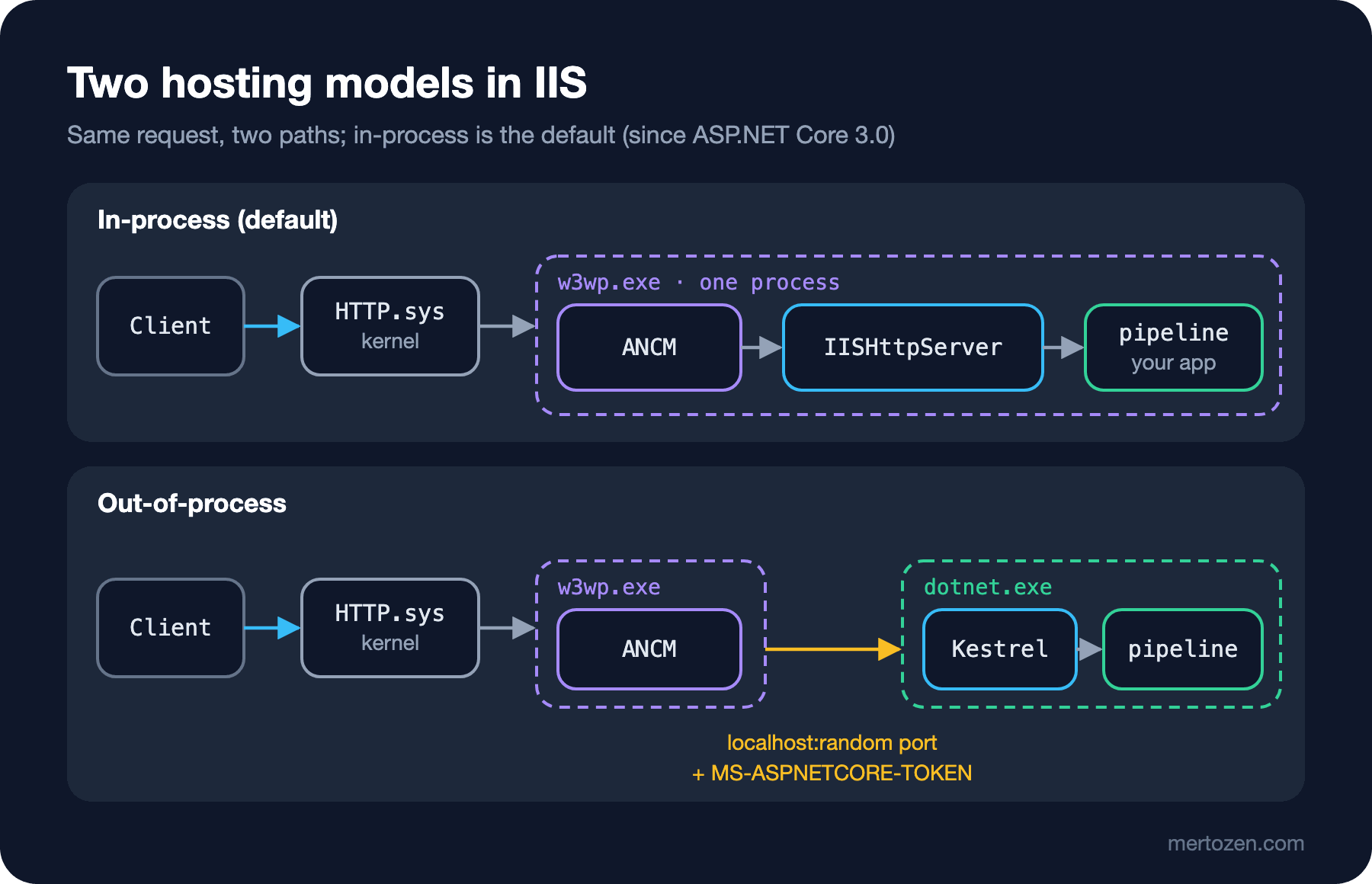
A request's path: the HTTP.sys driver in the Windows kernel accepts the client's connection and hands the request to the site's application pool, that is the w3wp.exe worker process. What happens next depends on the hosting model.
The Hosting Bundle: Installation Order and Options
The server needs two things: the .NET runtime and ANCM. The package that installs both is the .NET Hosting Bundle. The "Install the .NET Hosting Bundle" page on Microsoft Learn gives a clear warning about the order: if the Hosting Bundle was installed before IIS, the installation must be repaired; run the Hosting Bundle again after adding IIS. That's the answer to the guess. When the bundle was installed IIS wasn't there, so ANCM couldn't register with IIS; the AspNetCoreModuleV2 handler in web.config is an unknown module to IIS, and IIS reports that as "configuration data is invalid". Microsoft's error reference lists 500.19 for exactly this case: wrong role, ANCM not installed or a permission problem; no entry in the Application Event Log, and the stdout log is never created. Since not a single line of the app runs, looking in its log is pointless, and restarting the server changes nothing.
The right order and what comes after (PowerShell, as administrator; not run on this Mac):
# 1. The IIS role
Install-WindowsFeature -Name Web-Server -IncludeManagementTools

# 2. Hosting Bundle (after IIS; if installed earlier, run it again and choose Repair)
.\dotnet-hosting-10.0.x-win.exe /quiet /norestart

# 3. Restart IIS so worker processes see the new PATH
net stop was /y
net start w3svc
The installer accepts a few options: OPT_NO_ANCM=1 skips the module, OPT_NO_RUNTIME=1 and OPT_NO_SHAREDFX=1 skip the runtime (if the server hosts only self-contained apps), OPT_NO_X86=1 doesn't install the 32-bit runtimes. The documentation's note matters: the options are written to the registry, and later installs in the same Major.Minor band use the same options unless something else is given on the command line. A server once installed with OPT_NO_RUNTIME=1 doesn't get the runtime in later updates either.
You can read the installed ANCM version from the properties of %PROGRAMFILES%\IIS\Asp.Net Core Module\V2\aspnetcorev2.dll. ANCM is backward and forward compatible with supported .NET versions; installing the latest Hosting Bundle doesn't break older apps.
The web.config Produced at Publish
The file that tells IIS what to do with ANCM is web.config, and you don't write it; dotnet publish produces it. This part is platform-independent, so all the outputs below come from real publishes:
$ dotnet publish -c Release -o out/pub-fdd
$ cat out/pub-fdd/web.config
<?xml version="1.0" encoding="utf-8"?>
<configuration>
  <location path="." inheritInChildApplications="false">
    <system.webServer>
      <handlers>
        <add name="aspNetCore" path="*" verb="*" modules="AspNetCoreModuleV2" resourceType="Unspecified" />
      </handlers>
      <aspNetCore processPath="dotnet" arguments=".\Bookstore.Api.dll" stdoutLogEnabled="false" stdoutLogFile=".\logs\stdout" hostingModel="inprocess" />
    </system.webServer>
  </location>
</configuration>
The lines: hand all requests (path="*") to AspNetCoreModuleV2; start the app with dotnet .\Bookstore.Api.dll; hosting model inprocess; stdout log off. inheritInChildApplications="false" keeps these settings from being inherited by sub-applications added below; in the tenth post we'll see why that matters. In a self-contained Windows publish only processPath changes:
$ dotnet publish -c Release -r win-x64 --self-contained true -o out/pub-win-scd
$ grep "<aspNetCore" out/pub-win-scd/web.config
      <aspNetCore processPath=".\Bookstore.Api.exe" stdoutLogEnabled="false" stdoutLogFile=".\logs\stdout" hostingModel="inprocess" />
You can also bake the environment name in at publish; the EnvironmentName property adds an environment variable to web.config:
$ dotnet publish -c Release -p:EnvironmentName=Staging -o out/pub-staging
$ sed -n '/<aspNetCore/,/<\/aspNetCore>/p' out/pub-staging/web.config
      <aspNetCore processPath="dotnet" arguments=".\Bookstore.Api.dll" stdoutLogEnabled="false" stdoutLogFile=".\logs\stdout" hostingModel="inprocess">
        <environmentVariables>
          <environmentVariable name="ASPNETCORE_ENVIRONMENT" value="Staging" />
        </environmentVariables>
      </aspNetCore>
According to the docs, environmentVariables in web.config take precedence over system environment variables. Don't put secrets here: the file sits in the site folder and is regenerated on every publish.
In-Process and Out-of-Process
Since ASP.NET Core 3.0 the default is in-process. The app runs inside the IIS worker process (w3wp.exe) and Kestrel isn't used at all; instead IIS HTTP Server (IISHttpServer) converts the request from native to managed. Microsoft's documentation says the in-process model delivers significantly higher throughput because there's no proxying over loopback. It also lists the costs: each app must be in its own application pool, the app's bitness (x64 or x86) must match the app pool's, and the requestTimeout setting doesn't apply.
Out-of-process, ANCM starts dotnet Bookstore.Api.dll as a separate process, gives it a random port through the ASPNETCORE_PORT environment variable and forwards requests to http://localhost:{port} over HTTP. Kestrel runs in the app, and IIS integration turns on forwarded headers automatically; the KnownProxies setting from the third post isn't your job in this model. So that Kestrel accepts only requests from IIS, ANCM gives each process a pairing token (ASPNETCORE_TOKEN) and adds the MS-ASPNETCORE-TOKEN header to every request; requests whose token doesn't match are rejected. You pick the model in the project file:
<PropertyGroup>
  <AspNetCoreHostingModel>OutOfProcess</AspNetCoreHostingModel>
</PropertyGroup>
$ dotnet publish -c Release -p:AspNetCoreHostingModel=OutOfProcess -o out/pub-oop
$ grep "<aspNetCore" out/pub-oop/web.config
<aspNetCore processPath="dotnet" arguments=".\Bookstore.Api.dll" stdoutLogEnabled="false" stdoutLogFile=".\logs\stdout" hostingModel="OutOfProcess" />Which one when? The default in-process is the right choice for most apps. Consider out-of-process when the app uses a Kestrel-specific feature (for example Kestrel's connection middleware), when you must run several apps in the same app pool (in-process doesn't support that and gives a 500.35), or when you don't want a crash of the app to affect the IIS worker process. A single-file publish doesn't work with in-process at all; that's 500.38 in the error table below.
Site, Binding and Application Pool
You can create the site from IIS Manager or with PowerShell's WebAdministration module. For Bookstore (not run on this Mac):
Import-Module WebAdministration

# app pool: .NET CLR Version "No Managed Code"
New-WebAppPool -Name "BookstoreApi"
Set-ItemProperty IIS:\AppPools\BookstoreApi -Name managedRuntimeVersion -Value ""

# site: physical folder, binding and app pool
New-Website -Name "BookstoreApi" -PhysicalPath "C:\sites\bookstore-api" `
    -ApplicationPool "BookstoreApi" -HostHeader "api.bookstore.example" -Port 80

# read and execute permission on the folder for the app pool identity
ICACLS C:\sites\bookstore-api /grant "IIS AppPool\BookstoreApi:(OI)(CI)RX"
"No Managed Code" (an empty managedRuntimeVersion) tells the app pool not to load the .NET Framework CLR; ASP.NET Core boots its own runtime (CoreCLR). The binding decides which IP (Internet Protocol) address, port and host name the site matches; the counterpart of listen and server_name in Nginx. For an HTTPS (HTTP Secure) binding you put the certificate in the Windows certificate store and select it on the binding; TLS (Transport Layer Security) ends here in IIS, that is in HTTP.sys.
The default app pool identity is ApplicationPoolIdentity: IIS creates a virtual account named IIS AppPool\{name} for each app pool. It isn't a real user, but it can be used in folder permissions. The app must be able to read the site folder; if it writes to a log folder, the Data Protection keys folder or an upload folder, those folders need write permission too. The same idea as the systemd user in the eighth post: the app runs under its own identity with only the rights it needs.
A Troubleshooting Table: 500.30, 500.31, 502.5, 500.19
When an ASP.NET Core app doesn't come up on IIS, the code you see in the browser tells you where the problem is. The most common ones from the "Troubleshoot ASP.NET Core on Azure App Service and IIS" page on Microsoft Learn:
| Code | Meaning | Look first at |
|---|---|---|
| 500.19 | IIS couldn't read the config: ANCM not installed, IIS role missing, a permission problem or duplicate handlers in a sub-app | Repair the Hosting Bundle; no Event Log entry |
| 500.30 | In-process startup failure: the CLR started but the app couldn't come up | Application Event Log and the stdout log |
| 500.31 | ANCM couldn't find the required runtime (Microsoft.NETCore.App or Microsoft.AspNetCore.App missing) | Runtime versions on the server; self-contained publish |
| 500.32 | DLL (Dynamic Link Library) couldn't be loaded; usually an x86 app pool with an x64 publish | The app pool's "Enable 32-Bit Applications" setting |
| 500.34 / 500.35 | Mixed hosting models or several in-process apps in the same app pool | A separate app pool per app |
| 500.37 | The app couldn't start within startupTimeLimit (120 seconds by default) | Slow work at startup: migrations, cache warm-up |
| 500.38 | A single-file publish can't be loaded in-process | Turn off PublishSingleFile or switch to out-of-process |
| 502.5 | Out-of-process: the process couldn't be started or crashed right away | Application Event Log and the stdout log |
A small experiment for 500.38: I took a single-file publish for win-x64. The SDK gave no warning and still wrote hostingModel="inprocess" into web.config:
$ dotnet publish -c Release -r win-x64 --self-contained true -p:PublishSingleFile=true -o out/pub-win-single
$ grep -o 'processPath="[^"]*"\|hostingModel="[^"]*"' out/pub-win-single/web.config
processPath=".\Bookstore.Api.exe"
hostingModel="inprocess"
So this output looks fine at build time and the error appears for the first time on the server, as a 500.38. If you're going to use single-file, put OutOfProcess as AspNetCoreHostingModel in the project file.
There are three log sources. Entries from the IIS AspNetCore Module V2 source in the Application Event Log summarise startup errors. The stdout log writes the app's console output to a file: set stdoutLogEnabled="true" in web.config, create the logs folder and give the app pool identity write permission. The documentation's warning is clear: the stdout log has no limit on size or number of files, turn it off once the problem is solved. To dig deeper, ANCM's own debug log:
<aspNetCore ...>
  <handlerSettings>
    <handlerSetting name="debugLevel" value="file" />
    <handlerSetting name="debugFile" value="c:\temp\ancm.log" />
  </handlerSettings>
</aspNetCore>
The last resort is running the app from the command line on the server: dotnet .\Bookstore.Api.dll in the site folder. The exception lands right on the screen and usually turns out to be a missing configuration value or an unreachable database.
In Production
Put Hosting Bundle updates on the maintenance calendar. Security patches come to the runtime; installing a new Hosting Bundle updates every framework-dependent app. You may need to restart IIS after installing, which means the sites go down briefly.
Give each app its own app pool. It's mandatory for in-process and recommended for out-of-process; one app crashing or leaking memory doesn't affect the others, and folder permissions are separated per app.
Settle 32-bit versus 64-bit up front. The RID (Runtime Identifier) in the publish, the runtime on the server and the app pool's "Enable 32-Bit Applications" setting must say the same thing; a mismatch shows up as 500.32 or as error code 0x800700c1 in the Event Log.
Common Pitfalls
Installing the Hosting Bundle before IIS. 500.19, no Event Log entry, no stdout log; the fix is repairing the bundle.
Leaving the stdout log on. Files that grow without limit fill the disk and can stop the server; for permanent logs use a logging library that rotates.
Putting several in-process apps into the same app pool. 500.35; that's why IIS Manager suggests a separate pool per site when you add one.
Trying a single-file publish with in-process. Clean build, 500.38 on the server.
Forgetting the app pool identity's write permission. When the app can't write logs or keys, the error happens inside the app and often shows up as 500.30.
A Small Experiment
★☆☆ Run dotnet publish on your own project and examine web.config. Set AspNetCoreHostingModel to OutOfProcess and publish again; which single line changes? What changes when you add -r win-x64 --self-contained?
★★☆ If you have a Windows machine or VM (virtual machine), install IIS after the Hosting Bundle and produce the 500.19 yourself. Then repair the Hosting Bundle and open the same site. Which entries appear in the Event Log meanwhile?
★★★ On the same machine run the app first in-process, then out-of-process, and compare requests per second for /api/books with a simple load test (for example bombardier or k6). Out-of-process, log the MS-ASPNETCORE-TOKEN header of requests reaching Kestrel inside the app; what happens when you send a request without the token straight to Kestrel's port?
The app runs on IIS. But on the second deploy the files are locked, the first request is slow and Angular's deep links return 404. In the next post we cover IIS in production: Web Deploy and app_offline.htm, shadow copy, Application Initialization, Data Protection, sub-applications and Angular with URL (Uniform Resource Locator) Rewrite.