

Claude Connectors and MCP: Connecting Google Drive, GitHub, Slack and Your Own MCP Server
Because custom connector connections in Claude come from Anthropic's cloud rather than your computer, your MCP server must be reachable from the public internet over HTTPS on port 443; a localhost address does not work. The Connectors Directory, the Google Drive, GitHub and Slack connectors, the Always allow, Needs approval and Blocked permissions, and connecting the Bookstore MCP server with read tools only.
Version note: This post covers connectors and custom connectors in Claude as of 15 November 2026; plan rules, settings and network requirements were checked the same day in the Claude Help Center (support.claude.com), on claude.com/docs and in the Claude Code documentation. This post is based on the official documentation. Anthropic rolls new features out to accounts gradually, so some of what is described here may not show up in your account yet.
Guess First
Ayşe is running, on her own computer, the MCP server we wrote in the AI Agents and MCP series for Bookstore, the online bookstore used as the shared example across this site's series; its book search, stock and order status tools are open at http://localhost:19850/mcp. In Claude Desktop on the same computer she tried to add this address as a custom connector from Customize > Connectors; the connection failed. The server is running, and Desktop is on the same machine.
Two questions: why does the connection fail? If it had connected, which permission would you choose for the clear_basket tool that empties a basket: "Always allow", "Needs approval" or "Blocked"? The answer to the first question is a single sentence in the custom connector article; we will answer the second together in the table in the middle of this post.
What a Connector Is and Where You Add It
According to the Help Center article "Use connectors to extend Claude's capabilities" (https://support.claude.com/en/articles/11176164), connectors let Claude access your apps and services, read the data there and take actions in those services. The most important rule is in the same article: Claude inherits your permissions in the connected service. If you cannot see a Drive folder, neither can Claude; if you can, so can Claude.
Connectors are added from the Connectors Directory. There are two ways to reach it: in a conversation, the "+" menu > Connectors > Manage connectors, or Customize > Connectors. Each entry's page shows use cases, read and write capabilities and which plans it is on. Web connectors are available to all users, Desktop extensions in Claude Desktop, and custom connectors based on a remote MCP server on every plan from Free to Enterprise; Free users can add one custom connector. On Team and Enterprise, an organization owner has to enable a connector first; enabling it does not grant access, and each person connects separately with their own account.
A connected connector does not have to be used in every conversation. In a conversation, hover over Connectors in the "+" menu and choose which services are on for that conversation. Some connectors also show live interfaces such as dashboards, task boards or design tools inside the conversation; in the Directory they carry an "Interactive" label. According to the release notes, since 25 March 2026 the iOS and Android apps can show these interactive connectors too. Services you connect on the web or Desktop are available on mobile as well; installing a connector directly from mobile is in beta.
Ready-Made Connectors: Google Drive, GitHub and Slack
Google Drive, Gmail and Google Calendar are covered in the Help Center article "Use Google Workspace connectors" (https://support.claude.com/en/articles/10166901). In Drive, Claude can search and read documents; it also reads Sheets, Slides, PDF and Office files, but it extracts only the text from a file and does not process images inside documents. On the write side there is sharing, moving and trashing files and saving files Claude creates to Drive. By default Claude asks for approval before sending, replying to or forwarding e-mail and before sharing, moving or trashing files in Drive; on Team and Enterprise, owners decide whether members may let these actions run without asking each time. Data read through the connector is stored tied to its conversation and deleted when the conversation is deleted.
On the GitHub side, the "GitHub integration" page on claude.com/docs (https://claude.com/docs/connectors/github) draws a clear line: the integration reads file names and contents on a branch; it does not see commit history, pull requests, issues or repository metadata. It is on every plan, including Free; adding it to a project works only in private projects that are not shared, and the selected files have to fit in the context window. In the unified experience, adding a repository to a conversation with "Add from GitHub" is not supported. Editing code, running commands and opening pull requests is Claude Code's job; the page itself points there, and that topic belongs to the upcoming Claude Code series.
For Slack, according to the "Slack integration" page on claude.com/docs (https://claude.com/docs/connectors/slack), the Slack connector is on the Team and Enterprise plans and needs Claude's Slack app to be installed in the workspace first. An Owner enables the connector under Organization settings > Connectors, each member connects their own account under Customize > Connectors, and after that Claude can search the workspace's channels, direct messages and files from a conversation in claude.ai. The page also notes that it describes the earlier per-user version of the app and that the current product is Claude Tag, which we mentioned in the first post.
Tool Permissions and Context
A connector is made of several tools; in the Bookstore server, the tool that searches books and the tool that empties a basket sit in the same connector. On Team and Enterprise, owners set permissions by category (for example read-only, or write and delete) or per tool, with one of three options: "Always allow", "Needs approval" or "Blocked". These restrictions apply to the whole organization and users cannot override them; they can only narrow access and never grant more than the source system allows. On an individual account too, when Claude asks for approval before calling a tool, an "Allow always" option appears; the custom connector article recommends using it only for servers and tools you trust and turning off tools you do not need from the "Search and tools" menu.
The number of connectors has a cost: the definition of every enabled tool takes space in Claude's context. According to the article, the default of the tool access setting that decides how connectors load is "Auto", which is enough for most users; with 10 or more connectors on, switching to "On demand" is recommended to leave more room for the conversation. Keeping two connectors that do the same job on at once both bloats the context and raises the chance that Claude picks the wrong one.
A reminder from the seventh post: during Research, connector tools run without asking for approval on each use. A write tool you set to "Needs approval" loses that protection if you start Research in a conversation where it is on. That is why keeping write tools off per conversation matters as much as the permission setting.
Custom Connector: Your Own MCP Server
A custom connector means giving Claude the address of your own remote MCP server. According to the Help Center article "Get started with custom connectors using remote MCP" (https://support.claude.com/en/articles/11175166), on Pro and Max the steps are: Customize > Connectors, "+ Add", "Add custom connector"; you enter a name and the full URL from the server's documentation (path included), then review the detected authentication settings. For authentication you choose "Sign in now", "Sign in when needed" or "No sign in". As the OAuth client you can use Claude's published identity (recommended), automatic registration or your own OAuth client; with your own client you enter the Client ID and, if one was issued, the Client Secret, and register https://claude.ai/api/mcp/auth_callback as the redirect URL. If a fixed API key or bearer token is needed, you use Request headers, and Claude sends them with every request. On Team, the Owner and Primary Owner add the connector under Organization settings > Connectors; members then select "Connect" one by one.
The answer to the first Guess First question is in the article's network section. Custom connector connections start from Anthropic's cloud infrastructure, not from your device, whatever client you use; the same holds in Cowork and Claude Desktop. The server must be reachable from the public internet over HTTPS on port 443; URLs with another port, such as :8443, do not connect. Ayşe's localhost:19850 address means nothing to Anthropic's servers. If the server is on a private network, you need to allow Anthropic's IP ranges; the current list is on the "IP addresses" page of the platform documentation (https://platform.claude.com/docs/en/api/ip-addresses).
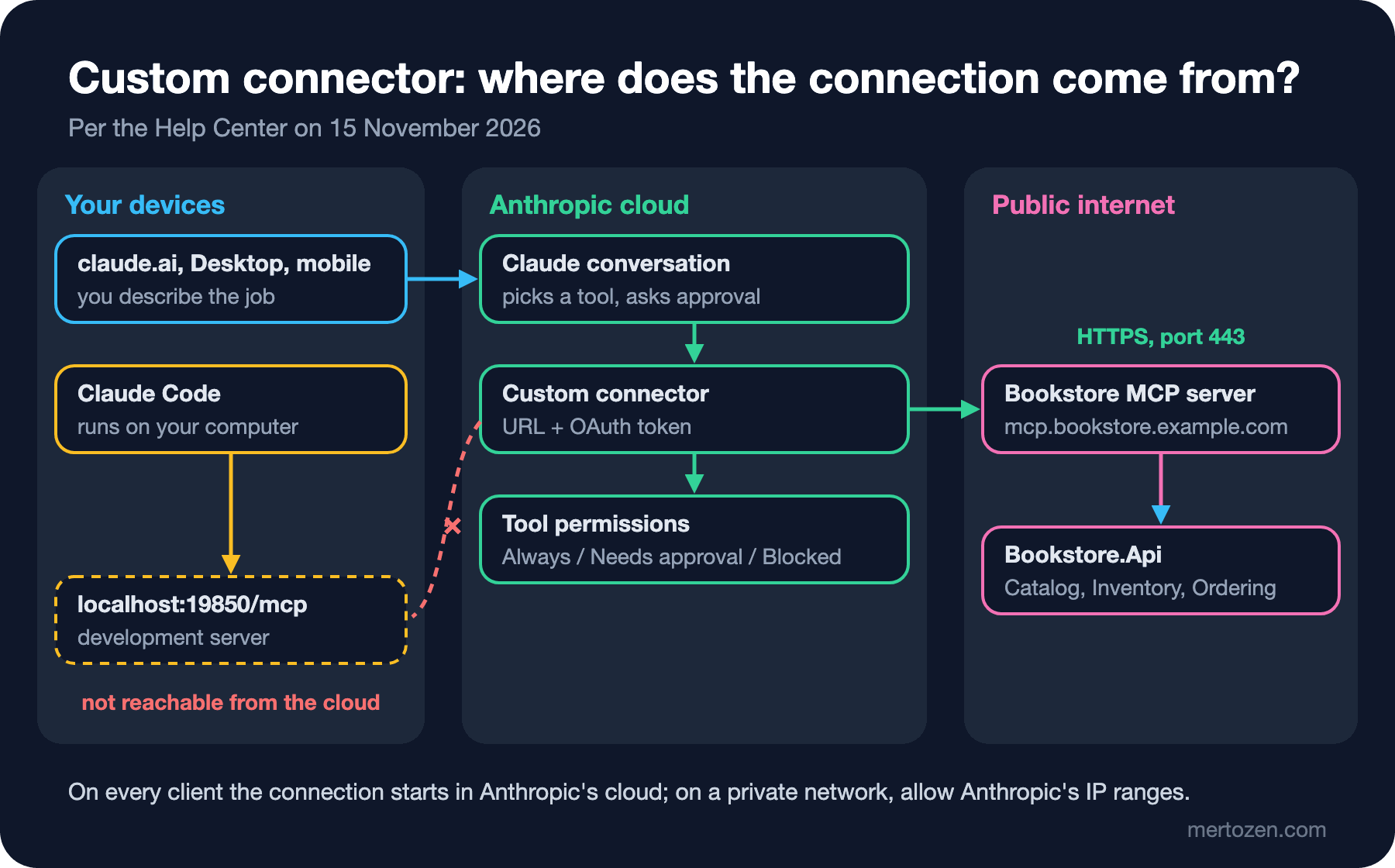
Local MCP servers are a separate path. Local servers defined with claude_desktop_config.json use your network; they do not show up in claude.ai or in Cowork sessions running in the cloud, and only a session running locally in Desktop can use them. The MCP tunnels feature in the platform documentation is not a way around this either: it is in research preview and, according to the documentation, tunnels created in the Console are not available as connectors in claude.ai. The right place to try the server on your own computer during development is Claude Code; according to the Claude Code documentation (https://code.claude.com/docs/en/mcp), an HTTP server is added with a single command:
claude mcp add --transport http bookstore http://localhost:19850/mcpFor servers that need OAuth, authentication is done from the browser with the /mcp command inside Claude Code. The whole flow is covered in the upcoming Claude Code series post "Connecting MCP Servers to Claude Code: The Bookstore MCP Server, the Database and the Browser".
Bookstore: Connecting the MCP Server with Read Tools Only
In the AI Agents and MCP series we wrote the server's read tools in "Building an MCP Server in C#: ModelContextProtocol SDK 2.x, [McpServerTool] and stdio", and in "Remote MCP Servers in ASP.NET Core: Streamable HTTP, Stateless Mode, State Handles and Authorization" we moved the same tools to HTTP and added the basket tools. For the team to use this server in claude.ai, three things are needed. First, the server has to be live at a public HTTPS address on port 443, for example https://mcp.bookstore.example.com/mcp. Second, authorization: in that post we set the server up as an OAuth resource server; for claude.ai to connect as its OAuth client, Claude's redirect URL has to be registered with the authorization server, or Claude's published identity has to be accepted. Third, tool permissions; here is the table we recommend for the first day:
| Tool | What it does | First day | Later |
|---|---|---|---|
search_books | Searches the catalog | Always allow | Always allow |
check_stock | Reads warehouse stock | Always allow | Always allow |
get_order_status | Reads an order's status | Needs approval | Always allow, after reviewing the log |
create_basket, add_to_cart | Creates a basket, adds items | Blocked | Needs approval |
clear_basket | Empties a basket | Blocked | Blocked |
get_order_status is a read tool but needs approval on the first day because it returns customer data; it is safer to relax the setting after Gül's support team has followed in the log for a few days which orders are being queried. clear_basket changes a user's basket irreversibly, so it is not a tool that should be called from claude.ai; the answer to the second Guess First question is "Blocked".
Two short prompts are enough to try the connection:
Use the Bookstore connector only. Find "Dune" in the catalog and tell me
the stock level in each warehouse. Do not call any tool that changes data.

Check the status of order 10412 and tell me which tool you called
and with which arguments.
The expected behavior for the first prompt is that Claude calls search_books first, then check_stock with the id of the book it found, and gives a list per warehouse. For the second, an approval prompt for get_order_status should appear; once you approve, Claude should write which tool it called with which arguments. To check the result:
- Read the tool and arguments Claude called from the tool call details in the conversation; was any tool called beyond what the prompt asked for?
- Find the same call in the server log; look at whose token the request came with.
- Compare the returned stock figure with Bookstore.Api's own endpoint.
- Try a prompt that asks Claude to call a Blocked tool; see that Claude cannot do it and says why.
Permissions and Security
A connector works with your permissions; if a custom connector uses a shared credential, everyone works with that credential's permissions. The Help Center writes that fixed credentials entered as Request headers are stored encrypted, but on Team and Enterprise everyone using a shared credential gets all of that credential's access, so a narrowly scoped credential should be chosen. With OAuth, review the requested scopes as well and deny the ones you do not need. In Bookstore, tying the basket tools to the bookstore.basket scope makes it possible never to grant that scope for read work.
Custom connectors are not verified by Anthropic. The article lists three risks separately: a malicious server can hide a prompt injection in a tool's output, the server's developer can change tool behavior without notice, and the server can read and delete data on your behalf. The details of tool definitions changing later, tool poisoning and least privilege are in the AI Agents and MCP series post "MCP and Agent Security: Tool Poisoning, Confused Deputy, Least Privilege and Sandboxing". If you spot a malicious server, the article asks you to report it through Anthropic's vulnerability disclosure program on HackerOne.
Team and Enterprise have a few more settings. Member connector requests are on by default on Team and off on Enterprise; owners approve, decline, or decline and block them. Since 28 May 2026, custom roles can decide per role which connectors and which tools can be used. If the "Share chats that use connectors" setting is turned off, conversations that use connectors cannot be shared. One more note: third-party services process data under their own terms, possibly outside the US; settings on the Claude side such as US-only inference do not change where those services run.
In Production
Putting the server on the internet is a deployment decision. Putting an MCP server without auth on the public internet means opening Bookstore's stock and order data to everyone. Protect the server at least as seriously as an API: mandatory authorization, rate limiting, and a log entry for every tool call recording who, when and with which arguments.
Keep tool output small. Everything returned to Claude goes into the context and becomes part of the conversation. get_order_status does not need to return the customer's address or phone number; the status, date and shipping details are enough. This reduces both the context and the data risk in shared conversations.
Version your tools. When a tool's name or parameters change, Claude's calls change too, and the team's permission settings may have been made for the old definition. Note the changes and review the permission table after every change.
Common Pitfalls
Turning on write tools on day one. Start with read tools, watch the log, turn write tools on one at a time and behind approval; never turn on the irreversible ones.
Trying to add a localhost address as a custom connector. The connection comes from Anthropic's cloud; try a local server in Claude Code or in Desktop's local configuration.
Turning on many connectors that do the same job. The context bloats and Claude can pick the wrong tool. Turn on only the connectors a conversation needs; with ten or more connectors, switch to "On demand".
Saying "Allow always" to every tool. The approval prompt can feel tedious, but for write and delete actions it is the last checkpoint. Keep "Allow always" for the read tools of servers you trust.
Opening an MCP server without auth on the public internet. The existence of a "No sign in" option does not mean the server has to be unprotected; on a server that returns real data, like Bookstore's, use OAuth.
A Small Experiment
★☆☆ Open Customize > Connectors and list your connected connectors. For each one, find on its Directory page which tools can write; remove a connector you do not use.
★★☆ For a connector you use in your own work, prepare a permission table like the one in this post: a first-day and a later setting for each tool, with the reason. If you use Team or Enterprise, review the table with your organization owner.
★★★ Connect the Bookstore MCP server from the AI Agents and MCP series to Claude Code first and try the read tools. Then write down the steps needed to publish the server at a public HTTPS address with OAuth (certificate, redirect URL on the authorization server, rate limiting, logging) and mark which one is missing.
Connectors tell Claude what it can access, not how a job should be done. In the ninth post we move on to the skills and plugins that fill that gap: teaching Claude how Bookstore writes release notes with a SKILL.md file.