

Claude Projects: A Persistent Workspace with Project Knowledge, Instructions and RAG
When Claude seems not to "see" a file in a large project, the reason is usually RAG: on paid plans, once knowledge approaches the context window, Claude reads the relevant passages it finds by search rather than every file. Project instructions, knowledge limits, project memory, sharing, and file naming and questioning rules for Bookstore's technical documentation project.
Version note: This post covers Claude Projects as of 15 November 2026; creating projects, file limits, RAG behavior and sharing settings were checked the same day in the Claude Help Center (support.claude.com). This post is based on the official documentation. Some menus may look different between accounts that have moved to the unified Claude experience and those that have not.
Guess First
Ayşe opened a Claude project for Bookstore, the online bookstore used as the shared example across this site's series, and uploaded 60 files into it: architecture decision records, the API definition, code conventions and the support team's frequent questions. For the first weeks everything was fine. Then one day she asked "when is stock released when an order is cancelled?" and Claude gave a general answer without ever mentioning the document that clearly states it. Ayşe is sure the file is there.
What is your guess? Why did Claude not "see" the file? Is the file broken, was a project limit exceeded, or does Claude read files in a project of this size in a different way? And how could Ayşe have asked so that reaching the right document was more likely? The answer is in the Help Center article on RAG in projects.
When to Open a Project
In the Help Center's definition, a project is a way to group conversations around a shared context (https://support.claude.com/en/articles/9519177). It helps in two cases: when you need the same documents and rules again and again, and when a job spreads over several conversations. Opening a project for a one-off question is unnecessary; but if you ask questions about the same architecture documents every week, those documents belong in a project.
To create a project you go to the Projects section on the left or to claude.ai/projects, click "+ New Project" at the top right and enter a name and description. One detail stands out: according to the Help Center, Claude cannot see the project's name and description. Everything Claude needs to know must go into the instructions or the knowledge. The Free plan allows at most five projects; on Team and Enterprise you can choose, when creating the project, to keep it private or share it with the organization.
You can also move an existing conversation into a project: "Add to project" in the menu next to the conversation's name. From the same menu you can remove the conversation from the project or move it to another one.
The Parts of a Project
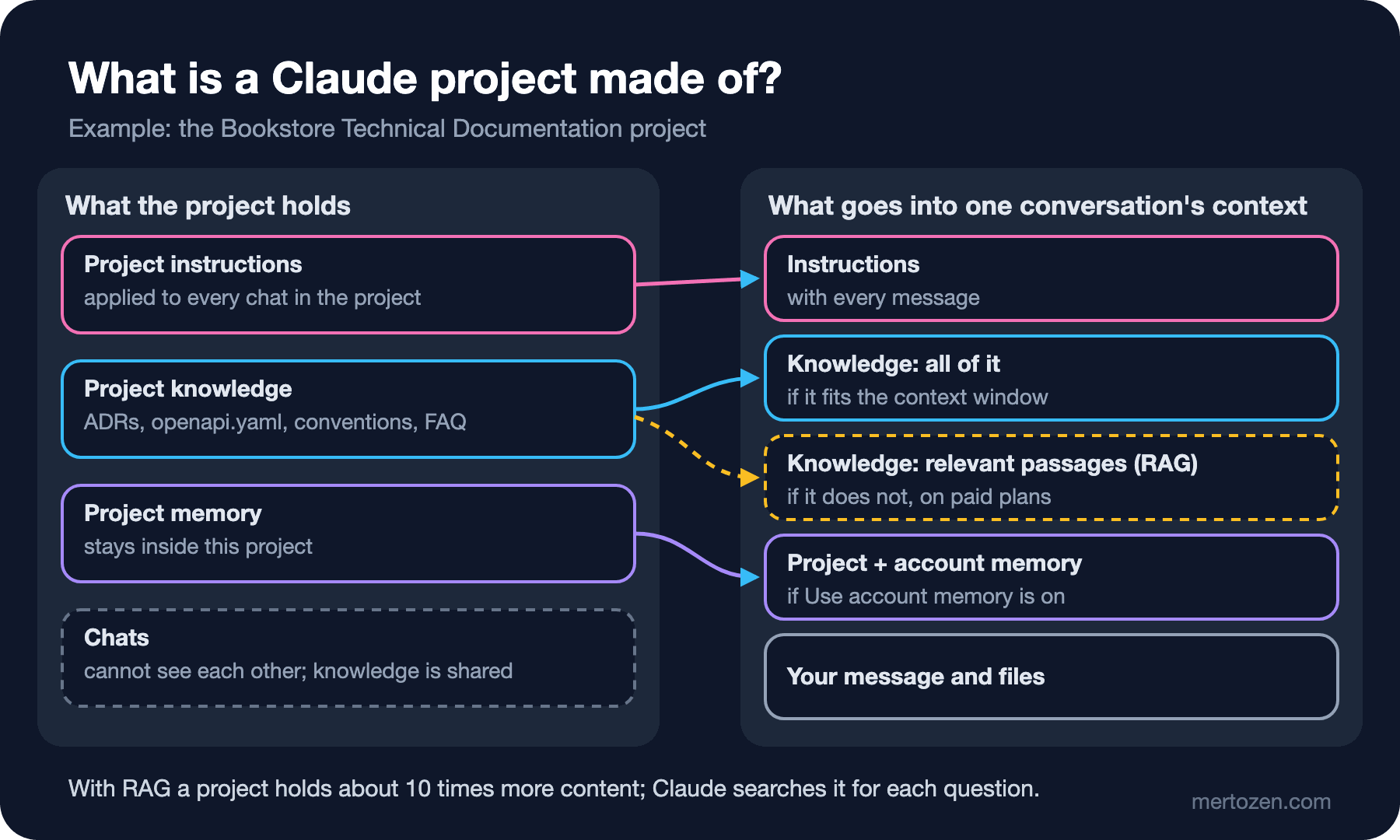
A project has four parts. Project instructions are what you write in the "Set project instructions" field and they apply to every conversation in the project: which role Claude takes, which rules it follows, the shape of the answer. The Instructions for Claude we saw in the third post applied to the whole account; project instructions apply only to this project.
Project knowledge is the documents, text files and code snippets you upload; they can be used in every conversation in the project. Conversations, on the other hand, cannot see each other: according to the Help Center, context in one conversation does not pass to the others unless it is added to the knowledge. If you want a decision reached in one conversation to be known in the others, put it into the knowledge as a file.
The fourth part is project memory. Each project has its own memory; inside a project Claude uses this memory together with the account memory that comes from conversations outside projects, but not the memory of other projects. If you want to separate the project completely, you turn off "Use account memory" in the Memory section of the project page. We cover memory in detail in the fifth post.
In accounts that have moved to the unified experience, projects also group tasks. According to the article "Organize your tasks with projects in Claude Cowork" (https://support.claude.com/en/articles/14116274), a project can have its own scheduled tasks and, as context, a folder on your computer or a URL; files and instructions can be imported from an existing chat project.
Project Knowledge: What to Upload, What Are the Limits?
The Help Center article "Upload files to Claude" (https://support.claude.com/en/articles/8241126, updated 23 July 2026) gives these limits for project files: 30 MB per file, no fixed limit on the number of files, but the total content has to fit Claude's context window. Only text is extracted from project files; the exception is PDFs, which can be processed with their visuals. The limits for files attached directly to a chat are different: 500 MB per file, 20 files per conversation, visual analysis for PDFs up to 100 pages and text only up to 1,000 pages. Supported types include PDF, DOCX, CSV, TXT, HTML, JSON and XLSX; XLSX needs code execution and file creation to be turned on in the account.
Project knowledge also has a usage advantage: as we saw in the first post, project content is cached and counts less when it is reused. The cache expires after a period of inactivity; after a long break the first question makes the content count in full again.
When Knowledge Grows: RAG in Projects
The rule "the total content has to fit the context window" has a sequel on paid plans. According to the Help Center article "Retrieval augmented generation (RAG) for projects" (https://support.claude.com/en/articles/11473015), on the Pro, Max, Ultra, Team and Enterprise plans Claude switches to RAG mode automatically when project knowledge approaches the context window limit. In this mode a project can hold about 10 times more content than the context window allows. Instead of reading all files for each question, Claude uses a project knowledge search tool and takes only the most relevant passages. The interface shows a marker when a project is in RAG mode; if the content drops below the threshold, it goes back to standard mode. There is no setting to turn it on or off; the switch happens on its own based on the size of the content.
This is most likely the explanation for the situation in Guess First. In a project of 60 files, Claude no longer reads everything at once; it searches by the words of the question and takes the passages it finds most relevant. If Ayşe's question asks "when is stock released", but the document describes the same thing as "cancelling the reservation", the search may not bring that passage to the top. The first post of the RAG series, "Production RAG Architecture: Ingestion and Query Pipelines, and Why Minimal RAG Breaks", and the LLM Fundamentals post "LLMs and RAG: Answering with Data the Model Has Never Seen" explained this mechanism with our own code; here the same thing happens with a search tool you do not control.
The Help Center's advice targets exactly this problem: upload the relevant files up front, give files clear and descriptive names, keep related documents in the same project and name a specific document in your question. Let us add one item from our own practice: split long documents into sections with headings. The more a passage found by the search tool focuses on a single topic, the better it carries into the answer. The article says RAG works together with web search, extended thinking and Research, and that answer quality stays consistent with standard processing.
Bookstore: The Technical Documentation Project
Let us set Ayşe's project up again from the start, following these rules. Its name is "Bookstore Technical Documentation". What goes into the knowledge:
- Architecture decision records: each in a separate file, with a number and the topic in the name; for example
ADR-007-order-cancellation-and-stock-release.md. One decision per ADR. - The OpenAPI definition of
Bookstore.Api:openapi-bookstore-api-v1.yaml. - Code conventions:
CONVENTIONS-backend.mdandCONVENTIONS-angular.md, two separate files. - The support team's frequent questions:
support-faq-2026-q3.md, with customer names, addresses and order numbers removed.
Project instructions:
You answer questions about Bookstore's backend and API for the development team.

Sources: use the project files first. For every claim, name the file and the
heading it comes from. If the files do not answer the question, say so before
using general knowledge, and label that part as general knowledge.

Decisions: ADR files are the source for architecture decisions. If an ADR and
the OpenAPI file disagree, point out the conflict instead of choosing one.

Code: follow CONVENTIONS-backend.md for C# and CONVENTIONS-angular.md for Angular.
Language: answer in Turkish; keep code, identifiers and technical terms in English.
Three lines of this text are especially useful in RAG mode. Asking for the file and the heading for every claim lets you see which passage the answer rests on; if there is no file name, the answer most likely comes from general knowledge, not from the knowledge base. The rule "if the files do not answer, say so first" makes visible the case where the searched passage was not found. The rule to flag conflicts is a way to spot a stale document.
Ayşe's question can also be asked better with this structure:
According to ADR-007-order-cancellation-and-stock-release.md and the
cancel endpoint in openapi-bookstore-api-v1.yaml: when an order is cancelled,
when is the reserved stock released, and which status transitions are allowed?
Quote the heading of each part you use.
Naming the document is exactly what the Help Center recommends, and it points the search tool at the right file. The answer expected for this question explains the decision in the ADR and the status transitions in the OpenAPI file, says which heading each part comes from, and flags any difference between the two.
Sharing, Archiving and Deleting
On the Team and Enterprise plans projects can be shared with the team. With the "Share project" button inside the project you add people by name, by e-mail or with a bulk list of addresses; if the admin has turned sharing off, the button does not work. There are two permission levels: "Can view" can chat in the project but cannot change the instructions or the knowledge; "Can edit" can change the instructions and the knowledge and manage members. The Projects page has the tabs "Your projects", "Organization" and "Shared with you". In the unified experience, projects that hold tasks are shared the same way.
Archiving a finished project is usually better than deleting it: in the archive, sharing, members and knowledge are kept, and the conversations remain accessible. An archived project cannot be deleted directly; it has to be unarchived first. Deleting is permanent. You can star projects you use often to pin them in the left panel.
In Production
Give the knowledge an owner. The most common problem in team projects is a stale document: the ADR has been updated, the copy in the project is old. Limit edit permission on the project to one or two people and make updating the file in the project part of the workflow when documents change; uploading the new version without deleting the old one leaves two conflicting files.
Split projects by job, not by team. Instead of a "Backend team" project that holds everything, projects with a clear purpose such as "Bookstore Technical Documentation" and "Bookstore Support Answers" make both search and permissions easier.
Do not put changing data in as files. Constantly changing data such as stock levels, daily sales or open bug reports goes stale on the day it is uploaded. Its place is connectors; in the eighth post we see how to connect to Bookstore's own data through an MCP server.
Common Pitfalls
Zipping the whole repository and uploading it. Projects are for working with documents, not for browsing a codebase; in the unified experience "Add from GitHub" is not supported either. If you want an agent that works inside the code, its place is Claude Code, covered in its own series.
Meaningless file names. Names like doc1.pdf or final-v2.docx make both the search and reading the source in the answer harder in RAG mode.
Putting secret and personal data into the knowledge. In a shared project, project knowledge goes into everyone's conversations. Clean any file with customer names, addresses, API keys or passwords before uploading it.
Thinking the project name and description reach Claude. They do not; write what Claude needs to know into the instructions.
Assuming conversations see each other. A decision in one conversation is not known in another unless it is written into the knowledge; memory may carry some of it, but that is not a guarantee.
A Small Experiment
★☆☆ Open a project with three documents you use often, add the rule "for every claim write the file name and the heading" to the instructions, and ask the same question inside and outside the project. What is the difference in how the answers cite sources?
★★☆ Change the file names in a project to descriptive names and split a long document into sections with headings. Before and after the change, ask the same three questions without naming the document; which answers referred to the right file?
★★★ Design two projects for your team: one for technical documentation, one for support answers. For each, prepare a one-page rule text listing the knowledge, the instructions text, who gets "Can edit" permission and on which event the documents get updated.
We mentioned project memory briefly. In the fifth post we look at how Claude's memory is structured in 2026, what it remembers and what it does not, chat search, and incognito for sensitive work, through the Bookstore team's daily work.