

Semantic HTML and Landmarks: header, nav, main, article, section, aside, footer and search
Semantic elements turn into landmarks in the accessibility tree; but an unnamed section does not become a region, a header inside an article does not become a banner, and an h1 inside a section is still level one. In this post we move Bookstore's book detail page from div soup to a semantic structure, read every step from Chromium's accessibility tree, and settle the section/article/div decision, the search element, the single main rule and heading hierarchy without an outline algorithm.
Version note: This post follows the HTML (HyperText Markup Language) Living Standard and Baseline as of November 2026; the examples were run with Chrome 158, WebKit 27.2 (Playwright 1.65) and Nu Html Checker 26.11.9.
Guess First
Bookstore's book detail page has been written like this for years: div.header on the outside, div.content in the middle with div.book and div.sidebar inside, and div.footer at the bottom. The page passes the Nu Html Checker without a single error. Two questions: when a screen reader user presses the "move between landmarks" shortcut, how many landmarks will they find on this page? And when we rewrite the page with semantic elements, does the <header> we put inside the book's own <article> also become a "banner" landmark like the page's top bar?
In the first post we saw how HTML is parsed and why valid markup matters. This post goes one step further: being valid is not enough, the markup also has to carry meaning. We will answer the questions not by guessing but by reading Chromium's accessibility tree.
Div Soup: Valid but Meaningless
The starting point is a page that carries no meaning beyond its class names:
<!doctype html>
<html lang="en">
<head>
    <meta charset="utf-8">
    <title>Clean Architecture | Bookstore</title>
</head>
<body>
    <div class="header">
        <div class="logo">Bookstore</div>
        <div class="menu">
            <a href="/books">Books</a>
            <a href="/authors">Authors</a>
            <a href="/cart">Cart</a>
        </div>
        <div class="search-box">
            <form action="/search">
                <input type="search" name="q" aria-label="Search books">
                <button>Search</button>
            </form>
        </div>
    </div>
    <div class="content">
        <div class="book">
            <div class="title">Clean Architecture</div>
            <div class="author">Robert C. Martin</div>
            <div class="section-title">Description</div>
            <div class="text">A guide to software structure and design.</div>
            <div class="section-title">Reviews</div>
            <div class="review">
                <div class="review-title">Worth reading twice</div>
                <div class="text">The chapters on boundaries changed how I split modules.</div>
            </div>
        </div>
        <div class="sidebar">
            <div class="section-title">Customers also bought</div>
            <a href="/books/refactoring">Refactoring</a>
        </div>
    </div>
    <div class="footer">© 2026 Bookstore</div>
</body>
</html>
With CSS (Cascading Style Sheets) you can make this page look perfect. But screen readers, browser extensions, automation tools and AI (Artificial Intelligence) agents do not read the page with eyes; they read the accessibility tree the browser derives from the DOM (Document Object Model). To see that tree, I wrote a small script that asks Chromium for the full tree through CDP (Chrome DevTools Protocol) and prints only landmark and heading nodes:
const { chromium } = require('playwright');
const fs = require('fs');

const source = fs.readFileSync(process.argv[2], 'utf8');
const show = new Set(['banner', 'navigation', 'search', 'main', 'article', 'region',
  'complementary', 'contentinfo', 'heading', 'sectionheader', 'sectionfooter']);

(async () => {
  const browser = await chromium.launch();
  const page = await browser.newPage();
  await page.setContent(source);
  const cdp = await page.context().newCDPSession(page);
  // The full accessibility tree as computed by the browser
  const { nodes } = await cdp.send('Accessibility.getFullAXTree');
  const byId = new Map(nodes.map(n => [n.nodeId, n]));
  const walk = (n, depth) => {
    const role = n.role?.value;
    const visible = !n.ignored && show.has(role);
    if (visible) {
      const level = n.properties?.find(p => p.name === 'level');
      const label = n.name?.value ? ` "${n.name.value}"` : '';
      console.log(`${'  '.repeat(depth)}${role}${label}${level ? ' level=' + level.value.value : ''}`);
    }
    for (const id of n.childIds ?? []) walk(byId.get(id), visible ? depth + 1 : depth);
  };
  walk(nodes[0], 0);
  await browser.close();
})();
For the div soup page, node axtree.js soup.html prints no lines at all. Zero landmarks, zero headings. Both the "Clean Architecture" title and the "Reviews" title are plain text to a screen reader. The user cannot jump to the main content or move between headings; they have to listen to the page from top to bottom. That is the first answer: zero.
Refactoring to a Semantic Structure
The same content, this time with each part in an element chosen for its meaning:
<!doctype html>
<html lang="en">
<head>
    <meta charset="utf-8">
    <title>Clean Architecture | Bookstore</title>
</head>
<body>
    <header>
        <a href="/en/">Bookstore</a>
        <nav aria-label="Main">
            <ul>
                <li><a href="/books">Books</a></li>
                <li><a href="/authors">Authors</a></li>
                <li><a href="/cart">Cart</a></li>
            </ul>
        </nav>
        <search>
            <form action="/search">
                <label for="q">Search books</label>
                <input type="search" id="q" name="q">
                <button>Search</button>
            </form>
        </search>
    </header>
    <main>
        <article>
            <header>
                <h1>Clean Architecture</h1>
                <p>Robert C. Martin</p>
            </header>
            <section aria-labelledby="description">
                <h2 id="description">Description</h2>
                <p>A guide to software structure and design.</p>
            </section>
            <section aria-labelledby="reviews">
                <h2 id="reviews">Reviews</h2>
                <article>
                    <h3>Worth reading twice</h3>
                    <p>The chapters on boundaries changed how I split modules.</p>
                </article>
            </section>
        </article>
        <aside aria-labelledby="also-bought">
            <h2 id="also-bought">Customers also bought</h2>
            <a href="/books/refactoring">Refactoring</a>
        </aside>
    </main>
    <footer>
        <p>© 2026 Bookstore</p>
    </footer>
</body>
</html>
> node axtree.js semantic.html
banner
navigation "Main"
search
main
article
sectionheader
heading "Clean Architecture" level=1
region "Description"
heading "Description" level=2
region "Reviews"
heading "Reviews" level=2
article
heading "Worth reading twice" level=3
complementary "Customers also bought"
heading "Customers also bought" level=2
contentinfo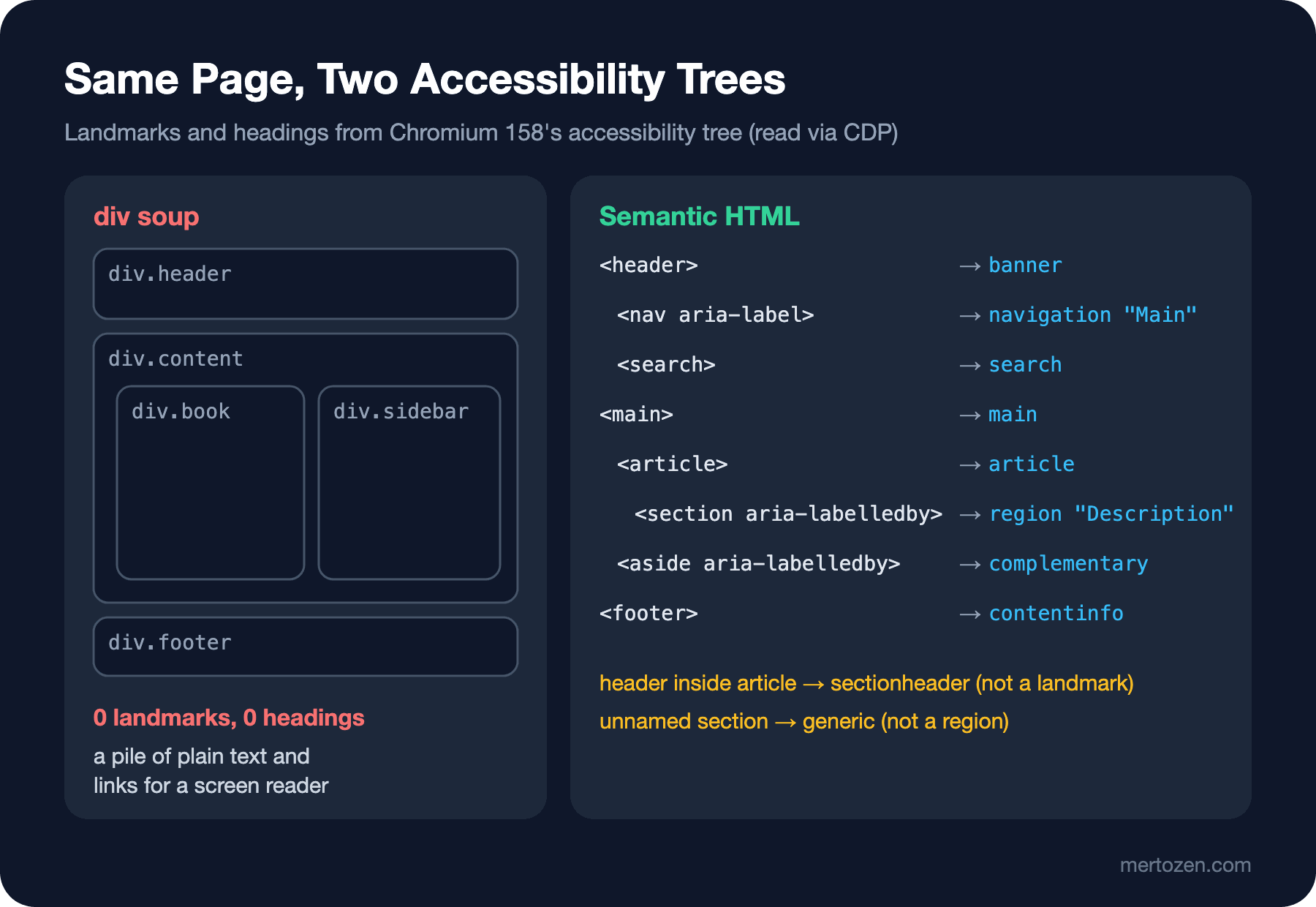
Now the tree has a skeleton. The page-level header became banner, nav became navigation, search became search, main became main, aside became complementary and the page-level footer became contentinfo. These six roles are ARIA (Accessible Rich Internet Applications) landmark roles; screen readers show them in a separate list and let users jump between them with one key. I did not write a role attribute anywhere: these mappings are the elements' implicit roles, and the W3C's (World Wide Web Consortium) ARIA in HTML document lists them one by one.
The answer to the second question is in the output too: the header inside the book's article did not become banner but sectionheader. Chromium 158 uses ARIA 1.3's new sectionheader role here, and that role is not a landmark. The page has exactly one banner, which is what it should have.
Choosing the element is not all that makes the mapping work. I gave the nav an aria-label="Main", because if the page gets a second nav (for example legal links in the footer), the user must be able to tell them apart by name. I also tied the section and aside elements to their own headings with aria-labelledby; the next section shows why that is needed.
From Element to Landmark: When It Happens and When It Does Not
Not every semantic element is a landmark under every condition. To see the rules, I prepared a deliberately "half-done" page (the doctype and head are the same as on the previous page; only the main is shown here):
<main>
    <section>
        <h1>Shipping</h1>
        <p>Free over 50 USD.</p>
    </section>
    <article>
        <h1>Clean Architecture</h1>
        <aside>
            <p>Also available as an e-book.</p>
        </aside>
        <footer>
            <p>Published 2017</p>
        </footer>
    </article>
    <aside>
        <p>Gift wrapping available.</p>
    </aside>
</main>
> node axtree.js variants.html
main
heading "Shipping" level=1
article
heading "Clean Architecture" level=1
sectionfooter
complementaryFour lessons. First, the section without a name does not even show up in the tree; its role is generic, no different from a div. A section becomes a region landmark only when it gets an accessible name; the cleanest way is to tie it to its own heading with aria-labelledby. Second, the unnamed aside inside the article disappeared as well: an aside inside sectioning content (article, section, nav, aside) becomes complementary only if it has a name. An aside directly inside main is complementary even without a name. Third, the footer inside the article is not contentinfo but sectionfooter. The same rule applies to a header and footer inside main; a custom element such as Angular's <app-root>, on the other hand, does not affect this rule, and a page-level header inside it is still banner. Fourth, the h1 inside the section is still level=1; we will come back to that in the headings section.
The practical result: you can use header and footer inside every article without worry; they do not clash with the page-level landmarks. If you write a section, give it a heading and tie it with aria-labelledby; if you cannot, you probably want a div.
section, article or div?
This is the most debated trio. I put the spec's definitions into my own words and turned them into a decision list with Bookstore examples:
- Does the part make sense on its own, would it still be understandable if moved to another page or a feed? A book card, a user review, a blog post, an order summary:
article. - Is the part a section of a larger whole, with its own heading? "Description", "Reviews", "Table of contents" on the book detail page:
sectionwith a heading inside. - Is the part just a box for styling, layout or JavaScript? A grid wrapper, an inner box for a card shadow:
div. - Is the part related to the main content but separable from it? "Customers also bought", a short box about the author:
aside. - Is the part a group of links but not the main navigation? Legal links in the footer: a second
navwith a separate name; a single "Read more" link does not need anav.
The test I use to keep the first two apart is simple: if the content still makes sense when you copy it into another page, it is an article; if it is incomplete without the context of the page it sits in, it is a section. A review is still a review when taken out of the book's page; a part titled "Description" means nothing unless you know which book it describes. That is why on the page above the book is an article, its description is a section, and the review is again an article. Nested article elements are perfectly valid; in the spec's own examples, comments are article elements inside the post.
The Nu Html Checker helps you check these decisions too. This is its output for a section and an article without headings:
:4.7-4.15: info warning: Section lacks heading. Consider using “h2”-“h6” elements to add identifying headings to all sections, or else use a “div” element instead for any cases where no heading is needed.
:4.46-4.54: info warning: Article lacks heading. Consider using “h2”-“h6” elements to add identifying headings to all articles.
A warning, not an error; but the message says exactly the rule above: a section without a heading should probably be a div.
The search Element and the Single main Rule
The newest element in the list is <search>. We used to mark a search form with <form role="search"> or <div role="search">; now there is an element for it, with search as its implicit role. It became Baseline newly available in October 2023 with Safari 17, Firefox 118 and Chrome 118, and moved to widely available in April 2026; so today you can use it without thinking about fallbacks. One important detail: search does not replace the form, it wraps it. Submitting is still the job of the form inside. It is also only for searching and filtering, not for the search results themselves; on Bookstore's catalog page the filter panel is a search, the result list below it is not.
The rule for main is stricter: a document may have only one visible main. Write two and the checker flags it as an error:
:5.1-5.6: error: A document must not include more than one visible “main” element.The third, <main hidden>, in the same file produced no error: the spec leaves main elements with the hidden attribute out of this count. That exception exists for single-page applications (SPA, Single-Page Application) that keep several views in the DOM and show only one. In Angular the router renders only one view anyway, so writing main once in the layout component that wraps <router-outlet> is enough; in ASP.NET Core its place is around @RenderBody() in _Layout.cshtml. In teams that also write a main into every view, this is exactly where the two-main error comes from.
Heading Hierarchy: The Document Outline Never Arrived
The most persistent myth of the HTML5 (the fifth generation of HTML) era is the document outline algorithm. The idea was: every section and article resets its heading level, you happily write h1 in every section, and the browser computes the real level from the nesting. Many tutorials, and for a while even the spec's own examples, recommended this approach.
The problem is that no browser and no screen reader ever implemented the algorithm. After more than a decade, the spec caught up: the WHATWG (Web Hypertext Application Technology Working Group) removed the sectioning-based outline algorithm in a change merged in July 2022 and replaced it with a simple definition that looks only at heading levels. The variants.html output above shows the situation today: both the h1 inside the section and the h1 inside the article are level=1 for Chromium. In a screen reader user's heading list, the page has three first-level headings and no way to tell which one is the real title.
The fix is boring but reliable: build the levels correctly by hand. Have one h1 on the page that states the topic of the page; on the book detail page, the book's title. Sections get h2, their subsections h3. Avoid skipping levels: jumping from h2 straight to h4 gives a screen reader user the impression of having missed a section. Do not choose a heading for its visual size; if you need a small-looking heading, choose the right level and make it smaller with CSS. Work is under way to add a new attribute named headingoffset to the spec, which shifts heading levels in a subtree; but as of November 2026 it is far from Baseline and Chrome 158 does not have it. Today the only reliable method is writing the levels by hand.
The rule gets harder with components: if the same book card component sits under an h2 on the home page and under an h1 in search results, what level should the card's title be? The practical fix is to pass the level to the component as an input and choose its default from the most common use. In Angular that is an input, in Razor a partial parameter; a few lines either way.
Why It Matters: Screen Readers, Tests, Search Engines and AI Agents
The first beneficiaries of semantic HTML are screen reader users: landmark and heading lists are their "table of contents" of the page. The depth of ARIA, keyboard interaction and screen reader behaviour is in the Accessibility (a11y) series; what you need to know here is that choosing the right element does most of that work for free.
The second beneficiary is your tests. Tools such as Playwright and Testing Library recommend finding elements by their role and name in the accessibility tree rather than by CSS classes. On a semantic page these queries write themselves:
const { chromium } = require('playwright');
const fs = require('fs');

(async () => {
  const browser = await chromium.launch();
  const page = await browser.newPage();
  await page.setContent(fs.readFileSync('semantic.html', 'utf8'));
  const reviews = page.getByRole('region', { name: 'Reviews' });
  console.log('review headings:', await reviews.getByRole('heading', { level: 3 }).allTextContents());
  const related = page.getByRole('complementary', { name: 'Customers also bought' });
  console.log('related links:', await related.getByRole('link').allTextContents());
  console.log('banners:', await page.getByRole('banner').count());
  await browser.close();
})();
review headings: [ 'Worth reading twice' ]
related links: [ 'Refactoring' ]
banners: 1None of these queries work on the div soup page; you would have to tie the test to a CSS selector such as .sidebar a, and the test breaks the day a designer renames the class. Because a role-based locator tests the structure the screen reader sees, it is also a small accessibility check.
The third beneficiary is machines. Browser reading views, search engine crawlers and AI agents all have to separate the page's actual content from navigation, ads and the footer. main, article and correct headings state that separation explicitly. In the GEO (Generative Engine Optimization) series post "Building Sites for AI Agents: Semantic HTML, the Accessibility Tree and Lighthouse Agentic Browsing" we saw that browser agents largely understand a page through the accessibility tree, and that the structure a screen reader needs is nearly the same as the one an agent needs. The difference between the two trees in this post is the difference between an agent finding the "Customers also bought" box or not.
In Production
Build the landmark structure at the layout level, not page by page. In Bookstore, header, nav, main and footer should live in one place: _Layout.cshtml in ASP.NET Core, the shell component in Angular; pages only fill the inside of main. That stops the "two main" and "two banner" errors at the source.
There are two quick ways to measure. In DevTools, the Accessibility tab in the Elements panel shows the role and name of the selected element; we looked at this panel in detail in the Browser DevTools series. For an automated check, run a script like axtree.js above or Playwright's ariaSnapshot() on critical pages and keep the output as a snapshot test; if someone deletes the main or changes a heading level, you will see it in the diff.
Finally, keep the number of landmarks reasonable. A page that turns every box into section aria-labelledby and produces twenty region landmarks makes the landmark list as useless as zero landmarks. Landmarks are for large areas the user wants to jump to: usually one banner, one or two navigation landmarks, one search, one main, a few complementary landmarks and one contentinfo are enough.
Common Pitfalls
First, using section as a fancy div. An unnamed section is no different from a div in the accessibility tree; write a div for a styling box.
Second, using h1 in every section and expecting the outline algorithm to fix the levels. The algorithm was never implemented and was removed from the spec in 2022; build the levels by hand.
Third, leaving several nav elements unnamed. The screen reader list shows two "navigation" entries and the user has to guess which is the main menu. Give them names such as "Main", "Footer", "Breadcrumb" with aria-label.
Fourth, using search for search results or forgetting to put a form inside it. search is only a landmark; the form still sends the query parameter to the server.
Fifth, leaving old role attributes in place when adding semantic elements: <nav role="navigation"> or <main role="main">. Harmless but redundant; the checker gives warnings such as "The “navigation” role is unnecessary for element “nav”." because the native element already carries the same role.
A Small Experiment
★☆☆ Save soup.html and semantic.html from this post, open both in Chrome and, in DevTools, turn on the "Enable full-page accessibility tree" option in the Accessibility tab of the Elements panel. Compare the two trees and check the mapping in the figure with your own eyes.
★★☆ Add a second nav with "Privacy" and "Terms" links to the footer of semantic.html. Leave it unnamed first and look at the axtree.js output; then give it aria-label="Footer" and note the difference. While you are at it, delete the aria-labelledby of one of the section elements and watch the region disappear.
★★★ Take the rendered HTML of a page from your own project and run axtree.js on it. Draw the landmarks and heading levels on paper: is there exactly one main, does the h1 state the topic of the page, are levels skipped? Plan how you would fix the problems you find at the layout and component level.
Landmarks named the big blocks of the page. In the next post we go inside those blocks: text semantics. The difference between strong and b, time, abbr, a book's bibliographic details with dl, and the most frequently wrong decision of all: link or button?