

Network Commands: ip, ss, ping, curl, dig and nc for "Is the Port Open, Who Is Listening, Why Can't I Reach It?"
When a service cannot be reached you go layer by layer: the name with getent, the path and firewall with ping and nc -zv (refused means nothing listens, timeout means packets are dropped), who listens on which address with ss -tlnp, then curl and the error log. We show ip, ss, lsof, curl, traceroute, dig and resolvectl on the Bookstore server, solve a real case where a stale hosts entry, ufw and a wrong port stack up, and look at proxy and IPv6 pitfalls.
Version note: The commands in this post were run on a test VM with Ubuntu Server 24.04.5 LTS (iproute2 6.1, systemd-resolved 255, ufw 0.36, Nginx 1.24, curl 8.5, OpenBSD netcat) and on an Ubuntu 24.04 client on the same network; Bookstore.Api was built with .NET SDK 10.0.402 and run on the ASP.NET Core 10.0.15 runtime.
Guess First
The API of Bookstore, the online bookstore used as the shared example across this site's series, is running on the server and answers when you ask from inside the server. The firewall is off. From your own machine you go to the same port:
$ curl -sS -m 5 http://10.20.30.10:5000/health
curl: (7) Failed to connect to 10.20.30.10 port 5000 after 3 ms: Couldn't connect to server
$ nc -zv -w 3 10.20.30.10 5000
nc: connect to 10.20.30.10 port 5000 (tcp) failed: Connection refused
The process is running, the port is right, there is no firewall. Why is the connection refused within 3 milliseconds? We saw the same error in the first post and left the answer for here; it is in the second section.
In this post we look at the commands for "is the port open, who is listening, why can't I reach it": ip, ss, lsof, ping, nc, curl, traceroute, dig and resolvectl. Then we put them together and solve, layer by layer, a case where three faults are stacked on top of each other. The theory of IP, ports and NAT is in the second post of the How Networking and HTTP Work series, DNS theory in the fourth post of the same series; here you get what to type once your hands are on the server's keyboard.
Knowing Your Own Address and Route: ip
$ ip -br a
lo               UNKNOWN        127.0.0.1/8 ::1/128
enp0s2           UP             10.20.30.10/24 fe80::5054:ff:fe3a:1c0a/64
$ ip r
default via 10.20.30.1 dev enp0s2 proto static
10.20.30.0/24 dev enp0s2 proto kernel scope link src 10.20.30.10
$ ip route get 1.1.1.1
1.1.1.1 via 10.20.30.1 dev enp0s2 src 10.20.30.10 uid 1000
    cache
$ ip neigh
10.20.30.5 dev enp0s2 lladdr da:14:ec:1d:33:d8 REACHABLE
10.20.30.1 dev enp0s2 lladdr d2:3c:2c:25:a1:33 STALE
ip -br a (brief address) gives each interface on a single line with its address: lo is the loopback, enp0s2 the real network card with the address 10.20.30.10/24; the IPv6 address starting with fe80:: is a link-local address valid only on this network segment. ip r is the route table: 10.20.30.0/24 is directly on this card, everything else (default) goes to the 10.20.30.1 gateway. The one-command answer to "which card and which source IP does a packet to this address leave from" is ip route get; very useful on servers with several cards or a VPN. ip neigh is the ARP table, i.e. the IP-to-MAC mapping; it shows whether you are really talking to machines on the same network; if you see FAILED, the other side is not answering on this network.
ifconfig, netstat and route from older sources are in the net-tools package, which is not installed on the Ubuntu 24.04 server image:
$ ifconfig
Command 'ifconfig' not found, but can be installed with:
sudo apt install net-tools
Equivalents: ip a instead of ifconfig, ip r instead of route -n, ip neigh instead of arp -n, ss -tlnp instead of netstat -tlnp. Reading old servers is the topic of the thirteenth post.
Who Is Listening: ss and lsof
$ sudo ss -tlnp
State  Recv-Q Send-Q Local Address:Port Peer Address:PortProcess
LISTEN 0      512        127.0.0.1:5000      0.0.0.0:*    users:(("dotnet",pid=4181,fd=176))
LISTEN 0      511          0.0.0.0:80        0.0.0.0:*    users:(("nginx",pid=3601,fd=7),("nginx",pid=3600,fd=7),("nginx",pid=711,fd=7))
LISTEN 0      4096         0.0.0.0:22        0.0.0.0:*    users:(("sshd",pid=813,fd=3),("systemd",pid=1,fd=188))
LISTEN 0      4096   127.0.0.53%lo:53        0.0.0.0:*    users:(("systemd-resolve",pid=491,fd=15))
LISTEN 0      4096      127.0.0.54:53        0.0.0.0:*    users:(("systemd-resolve",pid=491,fd=17))
LISTEN 0      4096            [::]:22           [::]:*    users:(("sshd",pid=813,fd=4),("systemd",pid=1,fd=193))
$ sudo lsof -nP -i :5000
COMMAND  PID      USER   FD   TYPE DEVICE SIZE/OFF NODE NAME
dotnet  4181 bookstore  176u  IPv4  45731      0t0  TCP 127.0.0.1:5000 (LISTEN)
The flags: -t TCP, -l listeners only (LISTEN), -n do not resolve names (write 80 instead of http), -p process. -p only shows other users' processes with sudo; without sudo the Process column stays empty and you cannot see who holds the port. lsof -i :5000 gives the same information from the process side and also shows the user name: the port is held by the dotnet process of the bookstore user.
The answer to the guess is in the Local Address column. Nginx listens on 0.0.0.0:80: "on all IPv4 addresses of this machine". Bookstore.Api listens on 127.0.0.1:5000: on the loopback only. When a packet arrives for 10.20.30.10:5000, no socket is listening on that address and port pair, and the kernel refuses the connection immediately: it sends a TCP RST. This is not a bug; it is what we did on purpose in the fifth post by writing ASPNETCORE_URLS=http://127.0.0.1:5000 in the unit: only Nginx on the same machine should reach the application. [::]:22 means all IPv6 addresses; 127.0.0.53%lo:53 is systemd-resolved's local DNS stub (below). systemd (PID 1) shows up next to sshd on port 22 because SSH has used socket activation on Ubuntu since 22.10: systemd opens the port first.
For established connections rather than listeners, drop -l. I sent 200 requests to Nginx and counted the connections in TIME_WAIT:
$ for i in $(seq 1 200); do curl -s -o /dev/null http://127.0.0.1/health; done; ss -tan state time-wait | wc -l
403
$ ss -tan state time-wait | head -n 4
Recv-Q Send-Q Local Address:Port  Peer Address:Port Process
0      0          127.0.0.1:5000     127.0.0.1:59640
0      0          127.0.0.1:5000     127.0.0.1:52560
0      0          127.0.0.1:37360    127.0.0.1:80
402 without the header line: each request opened and closed two connections, one from curl to Nginx and one from Nginx to Bookstore.Api. TIME_WAIT is a normal state that the side closing the connection first waits in for a while, so that delayed packets do not get mixed into a new connection. If you see thousands of them, something opens a new connection for every request: here, Nginx connecting to the upstream without keepalive by default. The .NET equivalent is creating a new HttpClient for every request and exhausting sockets; the TCP post of the How Networking and HTTP Work series covers it. ss -s gives a summary of the states, ss -tanp state established the open connections with their processes.
Testing the Connection: ping, nc, curl and traceroute
ping answers "is the host up and what is the latency" with ICMP. It does not tell you whether a port is open. For the port use nc -zv (-z send no data, only connect; -v print the result), and the result has three forms:
| nc result | Meaning | Next step |
|---|---|---|
succeeded | TCP connection established, someone is listening | Move to the application layer (curl) |
Connection refused | The packet arrived, nothing listens on that address and port | ss -tlnp on the server, bind address |
timed out | No answer; something in between drops the packet | Firewall, security group, route |
This distinction is half of the diagnosis: refused comes fast and proves you reached the server; a timeout comes slowly and usually points to a firewall. From Windows you can run the same test in PowerShell with Test-NetConnection 10.20.30.10 -Port 80, or with nc inside WSL 2.
If the port is open, HTTP is next. curl -v prints every step of the connection, and -w prints the timings:
$ curl -sS -o /dev/null -w "dns=%{time_namelookup} connect=%{time_connect} ttfb=%{time_starttransfer} total=%{time_total}\n" http://bookstore.test/api/orders/1042
dns=0.000123 connect=0.001588 ttfb=0.230408 total=0.230443
$ curl -sI http://bookstore.test/api/books
HTTP/1.1 405 Method Not Allowed
Server: nginx/1.24.0 (Ubuntu)
Date: Sat, 14 Nov 2026 16:13:27 GMT
Connection: keep-alive
Allow: GET
Name resolution and connection take under 2 ms, the first byte arrives at 230 ms: the time is spent in the application, not on the network. Reading timings with -w is covered in detail in the slow request post of the How Networking and HTTP Work series. The second command is a trap: curl -I sends HEAD, not GET, and MapGet in a minimal API returns 405 for HEAD. For a "is the site up" check, use curl -s -o /dev/null -w "%{http_code}" instead of -I.
For the network path there are traceroute and mtr. They show every router in between and its latency; in the lab the client and the server are on the same network, so the path is a single hop. It still teaches something: while the firewall on the server was on (in the case below), classic traceroute printed * * * for 30 lines, because it sends packets to high UDP ports and the firewall was silently dropping them. At the same time mtr (ICMP) and traceroute in TCP mode reached the target:
$ sudo traceroute -T -p 80 -n 10.20.30.10
traceroute to 10.20.30.10 (10.20.30.10), 30 hops max, 60 byte packets
 1  10.20.30.10  2.459 ms  2.590 ms  2.822 ms
Stars do not mean "the path is broken", they mean "no answer came for this kind of packet". Most routers on the internet do not answer these packets either. Testing with the port that real traffic uses (-T -p 443) gives a more meaningful result.
Name Resolution: resolv.conf, resolvectl, dig and getent
$ grep -v "^#" /etc/resolv.conf | grep -v "^$"
nameserver 127.0.0.53
options edns0 trust-ad
search .
$ resolvectl status enp0s2 | grep -E "DNS|Scopes"
    Current Scopes: DNS
         Protocols: +DefaultRoute -LLMNR -mDNS -DNSOverTLS DNSSEC=no/unsupported
Current DNS Server: 1.1.1.1
       DNS Servers: 1.1.1.1 9.9.9.9
$ dig example.com +noall +answer
example.com.        232    IN    A    104.20.23.154
example.com.        232    IN    A    172.66.147.243
On Ubuntu, /etc/resolv.conf does not point to the real DNS server but to systemd-resolved's local stub (127.0.0.53); the actual servers are in resolvectl status. Editing resolv.conf by hand does not help, the file gets rewritten; DNS is configured in netplan (on this server /etc/netplan/50-cloud-init.yaml). dig asks DNS directly and also shows the TTL (232 seconds); dig @9.9.9.9 ... asks a specific server.
An important distinction: applications and curl do not resolve names the way dig does. glibc first looks at /etc/nsswitch.conf, and because it says hosts: files dns there, it reads /etc/hosts first. To see the result the application sees, use getent hosts. In the case below, this difference is the problem itself.
Layered Diagnosis: "Bookstore Can't Be Reached from Outside"
In the lab I stacked three faults on purpose: an old IP for Bookstore in the client's /etc/hosts, a ufw (Ubuntu's firewall tool) on the server allowing only SSH, and a drop-in added to the unit that moves the application to 5001. The only thing the user sees is "the site does not open". In order, from the client towards the application:
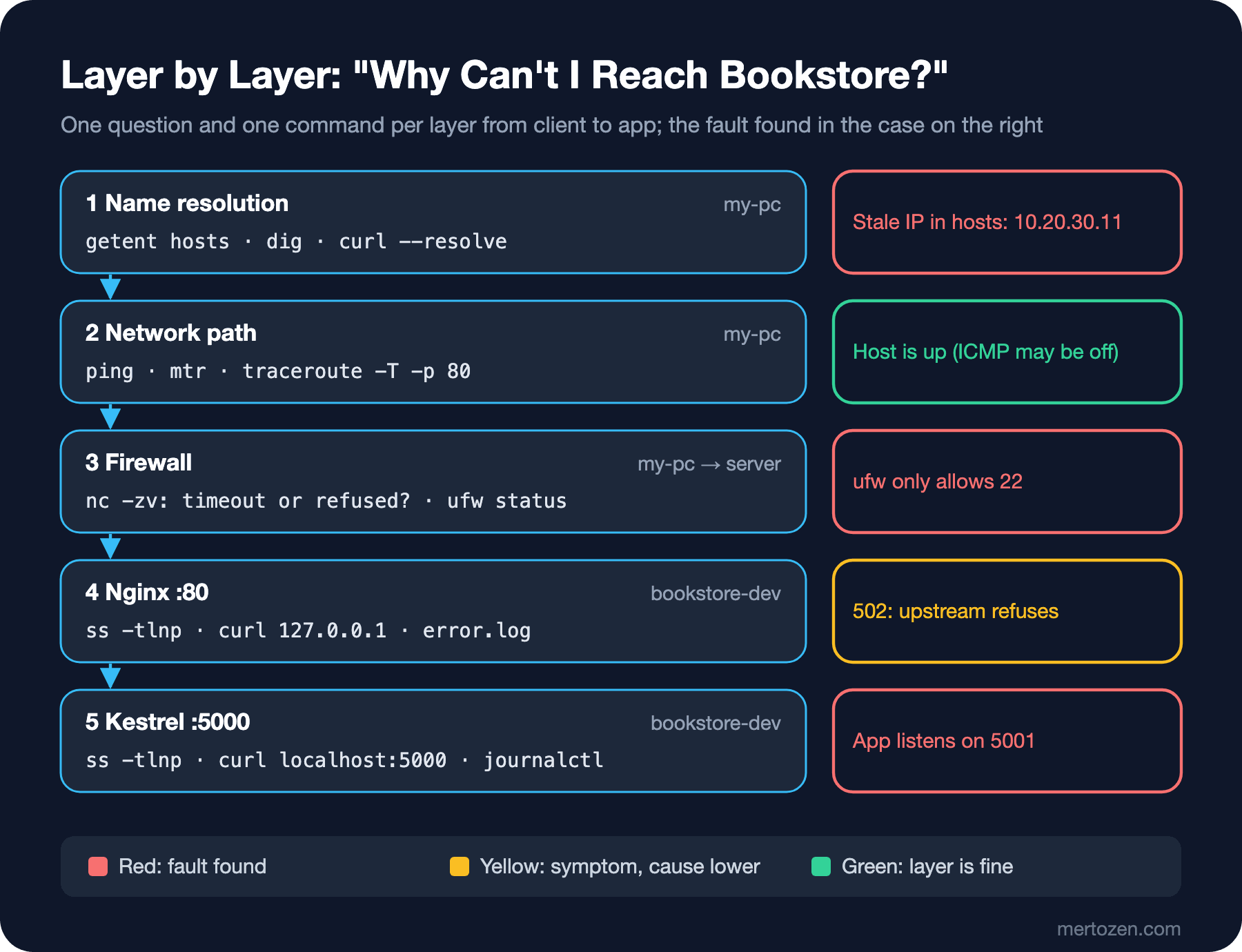
1. Name resolution (on the client my-pc):
$ curl -sS -m 5 http://bookstore.test/health
curl: (7) Failed to connect to bookstore.test port 80 after 3112 ms: Couldn't connect to server
$ getent hosts bookstore.test
10.20.30.11     bookstore.test
$ dig +short bookstore.test
$ curl -sS -m 5 --resolve bookstore.test:80:10.20.30.10 http://bookstore.test/health
curl: (28) Connection timed out after 5007 milliseconds
getent says 10.20.30.11, so the hosts file still has the address of the server from before the move. dig returns nothing because .test does not exist in real DNS and dig does not look at the hosts file; had you trusted only dig, you would never have found this line. curl --resolve skips DNS and pins the name to the right IP, so you can test the next layer without fixing the name first. We cannot connect with the right IP either, but this time the error is different: a timeout.
2 and 3. Network path and firewall:
$ ping -c 2 10.20.30.10
PING 10.20.30.10 (10.20.30.10) 56(84) bytes of data.
64 bytes from 10.20.30.10: icmp_seq=1 ttl=64 time=4.46 ms
64 bytes from 10.20.30.10: icmp_seq=2 ttl=64 time=1.22 ms

--- 10.20.30.10 ping statistics ---
2 packets transmitted, 2 received, 0% packet loss, time 1001ms
rtt min/avg/max/mdev = 1.219/2.837/4.455/1.618 ms
$ nc -zv -w 3 10.20.30.10 22
Connection to 10.20.30.10 22 port [tcp/*] succeeded!
$ nc -zv -w 3 10.20.30.10 80
nc: connect to 10.20.30.10 port 80 (tcp) timed out: Operation now in progress
The host is up, 22 is open, 80 times out. The third row of the table: something in between drops the packet. I logged in to the server with SSH and checked:
$ sudo ss -tlnp "sport = :80"
State  Recv-Q Send-Q Local Address:Port Peer Address:PortProcess
LISTEN 0      511          0.0.0.0:80        0.0.0.0:*    users:(("nginx",pid=3601,fd=7),("nginx",pid=3600,fd=7),("nginx",pid=711,fd=7))
$ curl -s -o /dev/null -w "%{http_code}\n" http://127.0.0.1/health
502
$ sudo ufw status verbose
Status: active
Logging: on (low)
Default: deny (incoming), allow (outgoing), disabled (routed)
New profiles: skip

To                         Action      From
--                         ------      ----
22/tcp                     ALLOW IN    Anywhere
22/tcp (v6)                ALLOW IN    Anywhere (v6)
$ journalctl -k --grep "UFW BLOCK" -n 1 --no-pager | grep -oE "IN=[^ ]+|SRC=[^ ]+|DST=[^ ]+|PROTO=[^ ]+|DPT=[^ ]+" | paste -sd" "
IN=enp0s2 SRC=10.20.30.5 DST=10.20.30.10 PROTO=TCP DPT=5000
$ sudo ufw allow 80/tcp
Rule added
Rule added (v6)
Nginx is listening and reachable from inside the server; ufw only allows 22. ufw writes the packets it blocks to the kernel log as [UFW BLOCK], and journalctl -k from the previous post shows them (the last blocked packet was my attempt on 5000). But the same commands also revealed a second problem: a 502 even from inside the server. Once the firewall is open, the user will see a 502 instead of a timeout.
4 and 5. Nginx and the application:
$ tail -n 1 /var/log/nginx/bookstore.error.log | cut -c1-150
2026/11/14 16:12:49 [error] 3601#3601: *12270 connect() failed (111: Connection refused) while connecting to upstream, client: 10.20.30.5, server: _,
$ curl -sS http://127.0.0.1:5000/health
curl: (7) Failed to connect to 127.0.0.1 port 5000 after 8 ms: Couldn't connect to server
$ sudo ss -tlnp | grep dotnet
LISTEN 0      512        127.0.0.1:5001      0.0.0.0:*    users:(("dotnet",pid=5670,fd=176))
$ systemctl cat bookstore-api --no-pager | tail -n 3
# /etc/systemd/system/bookstore-api.service.d/override.conf
[Service]
Environment=ASPNETCORE_URLS=http://127.0.0.1:5001
$ sudo systemctl revert bookstore-api
Removed "/etc/systemd/system/bookstore-api.service.d/override.conf".
Removed "/etc/systemd/system/bookstore-api.service.d".
$ sudo systemctl restart bookstore-api
$ sudo ss -tlnp | grep dotnet
LISTEN 0      512        127.0.0.1:5000      0.0.0.0:*    users:(("dotnet",pid=6062,fd=176))
Nginx goes to 5000, the application listens on 5001. systemctl cat showed the reason: someone's forgotten drop-in (in the fifth post we discussed why you should look at systemctl cat). After reverting the drop-in and fixing the client's hosts line:
$ getent hosts bookstore.test
10.20.30.10     bookstore.test
$ curl -sS http://bookstore.test/health; echo
{"status":"Healthy"}
Three faults, three different error messages: "Couldn't connect" (wrong IP), timeout (firewall), 502 (wrong port). At each layer we looked for the answer to a single question and did not move on without confirming a layer. To leave the lab clean for the next posts I turned ufw off with sudo ufw --force reset; we will set it up properly in the eleventh post.
Out of the Server: Outbound and Proxies
Sometimes the problem goes the other way: the application cannot reach an outside service (the payment provider, NuGet, an API). In corporate networks outbound traffic often goes through a proxy, and the proxy is given with environment variables:
$ curl -sS -m 5 -o /dev/null https://api.nuget.org/v3/index.json; echo "exit=$?"
exit=0
$ export HTTPS_PROXY=http://10.20.30.99:3128
$ curl -sS -m 5 -o /dev/null https://api.nuget.org/v3/index.json; echo "exit=$?"
curl: (7) Failed to connect to 10.20.30.99 port 3128 after 3122 ms: Couldn't connect to server
exit=7
$ curl -v -m 5 -o /dev/null https://api.nuget.org/v3/index.json 2>&1 | grep -i proxy | head -n 3
* Uses proxy env variable HTTPS_PROXY == 'http://10.20.30.99:3128'
$ NO_PROXY=api.nuget.org curl -sS -m 5 -o /dev/null -w "%{http_code}\n" https://api.nuget.org/v3/index.json
200
The same command stopped working because of a variable forgotten in the shell; curl -v says plainly that it is using a proxy. In .NET, HttpClient on Linux also reads HTTP_PROXY, HTTPS_PROXY, ALL_PROXY and NO_PROXY (lowercase names first). But a service running under systemd does not see your shell's variables; the same trap as cron in the fifth post. Look at the service's real environment in the process itself:
$ sudo cat /proc/$(systemctl show -p MainPID --value bookstore-api)/environ | tr "\0" "\n" | grep -i proxy; echo "matches=$?"
matches=1
Bookstore.Api has no proxy defined. If it needs one, add Environment=HTTPS_PROXY=... and Environment=NO_PROXY=localhost,127.0.0.1 to the unit with a drop-in. Forgetting NO_PROXY makes the application try to go through the proxy even for a service on its own server.
Production Notes
The bind address is a security decision. Binding Kestrel to 0.0.0.0 or http://+:5000 opens a second door that skips the rate limiting, TLS and header settings in Nginx. When you install a new service on the server, explain every line in the sudo ss -tlnp output that starts with 0.0.0.0 or [::]; a port you cannot explain is a gap in your inventory. The cloud provider's security group and the firewall on the server are two separate layers; opening one and forgetting the other is the most common cause of timeouts.
Install the diagnostic tools on the server in advance. On a server without dig, nc, lsof and tcpdump, installing packages during an incident wastes time, and is impossible if outbound traffic is closed.
Common Pitfalls
Thinking the server is "down" because ICMP is closed. I added a rule on the server that stops answering ping:
$ sudo iptables -I ufw-before-input -p icmp --icmp-type echo-request -j DROP
$ ping -c 3 -W 1 10.20.30.10
PING 10.20.30.10 (10.20.30.10) 56(84) bytes of data.

--- 10.20.30.10 ping statistics ---
3 packets transmitted, 0 received, 100% packet loss, time 2082ms

$ curl -sS -m 5 http://bookstore.test/health; echo
{"status":"Healthy"}
100% loss, but the site works. Many cloud environments and corporate firewalls block ICMP. No answer to ping is a hint, not a verdict; nc -zv and curl give the verdict.
Assuming localhost is IPv4:
$ curl -sv http://localhost:5000/health 2>&1 | grep -E "Trying|connect to|Connected|HTTP/1.1 200"
*   Trying [::1]:5000...
* connect to ::1 port 5000 from ::1 port 41328 failed: Connection refused
*   Trying 127.0.0.1:5000...
* Connected to localhost (127.0.0.1) port 5000
< HTTP/1.1 200 OK
localhost resolves to both ::1 and 127.0.0.1, and curl tried IPv6 first. Because the application listens only on IPv4, the first attempt was refused and curl moved on to the second address. curl made up for it silently, but not every client does: some libraries stop at the first address or try IPv6 first and wait on every request. In configs, write the address being listened on (127.0.0.1) explicitly instead of localhost; that is why proxy_pass http://127.0.0.1:5000 in Nginx uses the IP.
Taking dig's answer for the answer the application sees. As in the case, a line in /etc/hosts changes everything; check with getent hosts. Containers and WSL 2 also have their own hosts files and DNS settings.
Treating refused and timeout as the same thing. One means "nothing is listening", the other "packets are being dropped"; for one you look at the server, for the other at the firewall.
A Small Experiment
★☆☆ On your own server, for each line in the sudo ss -tlnp output, write down which process listens on which address and whether it needs to be reachable from outside.
★★☆ Temporarily bind Bookstore.Api to http://0.0.0.0:5000 and confirm from another machine with nc -zv that 5000 is now open. Then open only 22 and 80 with ufw and repeat the test: refused or timeout?
★★★ Ask a colleague to put a wrong line in /etc/hosts on the client, a ufw rule on the server and a wrong port in the unit; following the order in the figure and using only the commands in this post, find all three and note each one's error message.
The tools on the network side are ready. In the next post we install software on the server: apt, repositories, the deb822 format, signed-by keys, and not mixing feeds when installing .NET and Node on a server.