

The Linux Filesystem Hierarchy: /etc, /var, /opt, /srv, /home, /proc and "Everything Is a File"
On Linux, programs live in /usr or /opt, configuration in /etc and changing data in /var; for Bookstore that means /opt/bookstore/releases, /etc/bookstore, /var/log/bookstore and /var/lib/bookstore. With real output we cover find, cp -a and rm -r, hard links vs symlinks, how ln -sf silently creates the link in the wrong place when switching the current symlink, inspecting a running .NET process through /proc/<pid>, and why appsettings.production.json is ignored on Linux.
Version note: The commands in this post were run on a test VM with Ubuntu Server 24.04.5 LTS (kernel 6.8, coreutils 9.4, bash 5.2) and the ASP.NET Core 10.0.15 runtime.
Guess First
On the server you put every release of the API of Bookstore, the online bookstore used as the shared example across this site's series, in its own folder, and a symlink named /opt/bookstore/current points to the release that is running. You copied the new release and typed this to switch the link:
$ ls -l /opt/bookstore
total 4
lrwxrwxrwx 1 root root   36 Nov 14 14:38 current -> /opt/bookstore/releases/2026-11-14-1
drwxr-xr-x 4 root root 4096 Nov 14 14:31 releases
$ sudo ln -sf /opt/bookstore/releases/2026-11-14-2 /opt/bookstore/current
$ readlink /opt/bookstore/current
What does the last command print? -f means "overwrite if it exists"; you expect the link to point to the new release. The command gave no error. The answer is in the middle of the post, where we talk about hard links and symlinks.
In the first post we logged in to the server with a key and copied Bookstore.Api into our home folder. The home folder is fine for trying things out, but it is not where an application belongs on a server. In this post we cover the logic of the Linux directory layout, where Bookstore's files should go, the navigation and file commands, links, and files that are not on disk.
FHS: Everything Has a Place
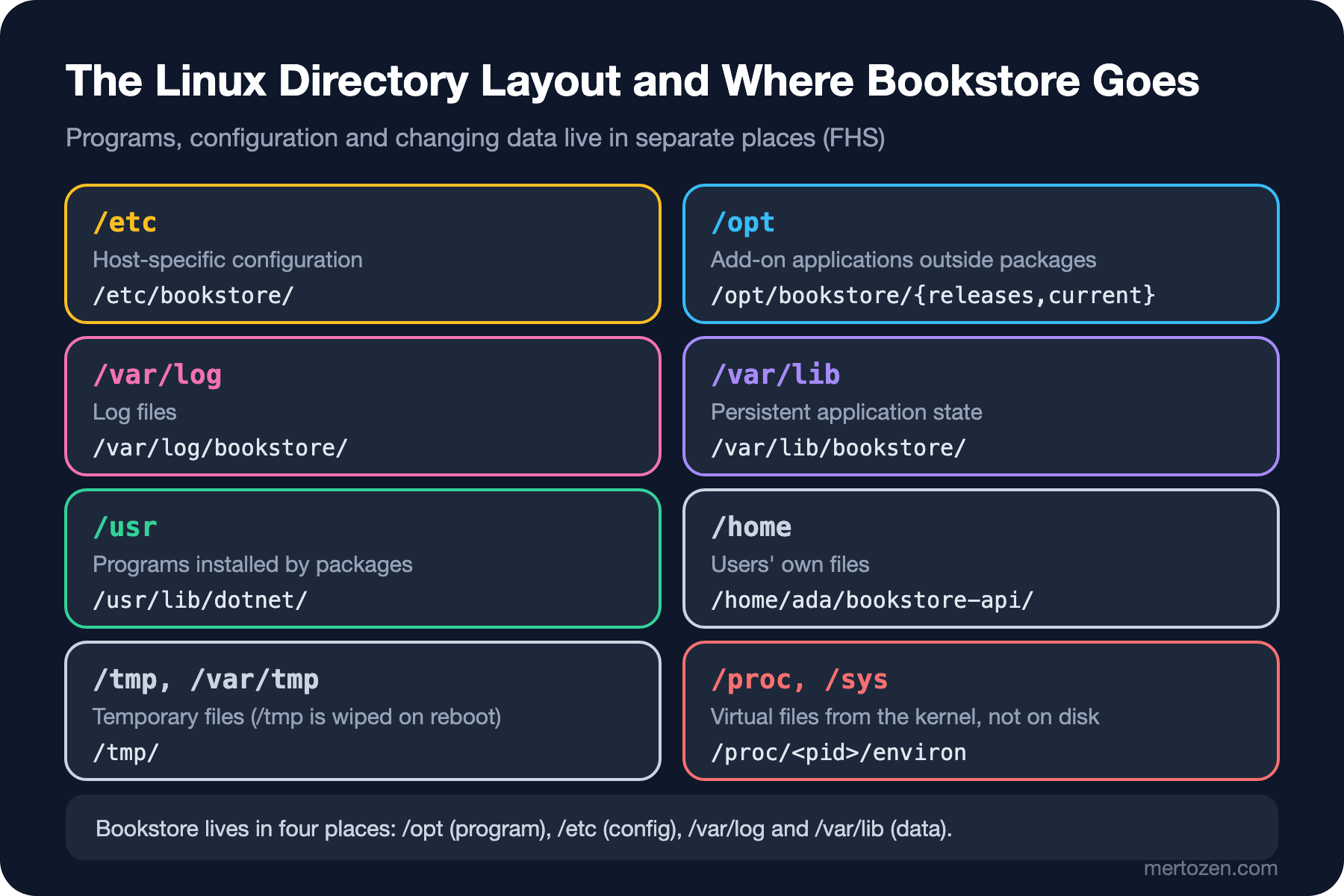
Linux has a single tree and its root is /. There are no drive letters like C:\ and D:\ on Windows; a second disk is also attached (mounted) to a folder inside this tree. Which folder is for what is defined by the Filesystem Hierarchy Standard, FHS for short. The main idea: programs that do not change, host-specific configuration and data that changes at run time live in separate places. That way you do not touch the configuration when you remove and reinstall a program, and you do not touch programs when you take a backup.
$ ls /
bin                dev   lib                lost+found  opt   run                 snap  tmp
bin.usr-is-merged  etc   lib.usr-is-merged  media       proc  sbin                srv   usr
boot               home  lib64              mnt         root  sbin.usr-is-merged  sys   var
$ ls -l / | grep -- "->"
lrwxrwxrwx   1 root root     7 Apr 22  2024 bin -> usr/bin
lrwxrwxrwx   1 root root     7 Apr 22  2024 lib -> usr/lib
lrwxrwxrwx   1 root root     9 Apr 22  2024 lib64 -> usr/lib64
lrwxrwxrwx   1 root root     8 Apr 22  2024 sbin -> usr/sbin
Do not be surprised if older sources explain the difference between /bin and /usr/bin: on Ubuntu, /bin, /lib and /sbin are now symlinks, and all programs live under /usr. The folders that matter to a developer are:
/etc: host-specific configuration. Nginx'snginx.conf, SSH'ssshd_config, and for Bookstore,/etc/bookstore/. No executable programs live here./usr: programs and libraries installed by the package manager. The .NET runtime we installed from the Ubuntu repository is in/usr/lib/dotnet. Do not put files here by hand;/usr/localis for tools you install yourself./opt: applications that come from outside the package system and live in their own folder. Bookstore.Api is exactly that:/opt/bookstore/./var: data that changes at run time./var/logfor logs,/var/libfor the persistent state of applications (database files, Data Protection keys),/var/cachefor data that can be regenerated if deleted./srv: data this machine serves to the outside (static site files, file shares exposed to the outside). The administrator decides its internal layout./home: users' own files./rootis the root user's home folder./tmp: temporary files. On Ubuntu 24.04, systemd-tmpfiles clears/tmpat every boot and deletes files older than 30 days; do not put anything permanent there./proc,/sys,/dev,/run: files that are not on disk, produced on the fly by the kernel and systemd. We look at them below.
A Layout for Bookstore
In this series we lay out Bookstore like this: the program under /opt/bookstore/releases/<release>, with the /opt/bookstore/current symlink pointing to the running release; configuration and secrets in /etc/bookstore/, log files in /var/log/bookstore/, and the state the application must keep in /var/lib/bookstore/. In the systemd post of the Web Servers and Hosting series we put releases under /var/www/bookstore; that is a common choice too. We use /opt here because it is closer to the FHS; which one you pick matters less than staying consistent with it.
$ sudo mkdir -p /opt/bookstore/releases /etc/bookstore /var/log/bookstore /var/lib/bookstore
$ sudo cp -a ~/bookstore-api /opt/bookstore/releases/2026-11-14-1
$ sudo ln -sfn /opt/bookstore/releases/2026-11-14-1 /opt/bookstore/current
$ tree -L 2 /opt/bookstore
/opt/bookstore
├── current -> /opt/bookstore/releases/2026-11-14-1
└── releases
    └── 2026-11-14-1

4 directories, 0 files
mkdir -p also creates missing parent folders and does not fail if the folder already exists. cp -a (archive) keeps subfolders, permissions, ownership, timestamps and links; a plain cp -r changes the owner of the files to the user who copies them. The files now sit in root-owned folders but their owner is still ada; which user the application runs as and who may write where is the topic of the next post. tree is not installed on Ubuntu by default and comes with sudo apt install tree; because -L 2 goes only two levels deep, the files inside the release are not listed.
Navigating: Absolute and Relative Paths
Every path that starts with / is absolute and points to the same place wherever you are. The others are relative and are resolved against the folder you are in: . is the current folder, .. the one above, ~ your home folder. Know that bash remembers the "logical" path when you go through symlinks:
$ cd /opt/bookstore/current
$ pwd
/opt/bookstore/current
$ pwd -P
/opt/bookstore/releases/2026-11-14-1
$ cd ../..; pwd
/opt
$ cd -
/opt/bookstore/current
$ cd ~; pwd
/home/ada
pwd shows the path you came by, pwd -P the real physical path. cd ../.. went up to /opt because bash works on the logical path; following the physical path we would have ended up in /opt/bookstore. cd - goes back to the previous folder. Using relative paths in scripts and configuration files makes them depend on the folder the command is run from; that is why we write absolute paths in systemd units and in cron (we will see this again in the fifth post).
File Operations and find
cp, mv, rm and mkdir look like their Windows counterparts, with two differences. First, rm does not send anything to a recycle bin: a folder deleted with rm -r is gone, and there is no standard way to get it back. In a line like sudo rm -rf $DIR/, if the variable is empty the command becomes /; in delete commands with variables, check what you are about to delete with ls first. Second, mv within the same file system does not copy the file, it only renames it; that is why it moves even a large folder instantly.
To search for a file, use find: the first argument is where to start, the rest are conditions.
$ find /opt/bookstore/releases -name "*.dll" -size +5k
/opt/bookstore/releases/2026-11-14-1/Bookstore.Api.dll
/opt/bookstore/releases/2026-11-14-2/Bookstore.Api.dll
$ sudo find /etc -name "*.conf" -newer /etc/hostname -type f
/etc/ssh/sshd_config.d/50-cloud-init.conf
$ sudo find /var/log -type f -mmin -60 | head -5
/var/log/dpkg.log
/var/log/wtmp
/var/log/kern.log
/var/log/alternatives.log
/var/log/apport.log
$ sudo find /var -xdev -type f -size +20M -exec ls -lh {} +
-rw-r--r-- 1 root root 25M Nov 10 22:07 /var/cache/apt/archives/dotnet-runtime-10.0_10.0.15-0ubuntu1~24.04.1_amd64.deb
-rw-r--r-- 1 root root 57M Nov 14 14:30 /var/cache/apt/pkgcache.bin
-rw-r--r-- 1 root root 57M Nov 14 14:10 /var/cache/apt/srcpkgcache.bin
-rw-r--r-- 1 root root 70M Apr 25  2024 /var/lib/apt/lists/archive.ubuntu.com_ubuntu_dists_noble_universe_binary-amd64_Packages
-rw-r--r-- 1 root root 31M Apr 25  2024 /var/lib/apt/lists/archive.ubuntu.com_ubuntu_dists_noble_universe_i18n_Translation-en
In order: by name and size (-size +5k is larger than 5 KB), newer than another file (-newer; a good answer to "which configuration changed after setup?"), changed in the last 60 minutes (-mmin -60; -mtime for days) and files larger than 20 MB. -xdev keeps the search from crossing into another file system, -exec ... {} + hands the found files to a command in batches. The last command is the first step of "why is the disk filling up"; we continue with du in the tenth post. Here all the large files are apt's cache and package lists.
Hard Links, Symlinks and the current Pattern
On Linux, a file's name and its content are separate things. The content and permissions live in an inode (the file's record on disk); the name in the folder is only a reference to that inode. A hard link is a second name for the same inode, while a symlink is a small file that contains another path:
$ echo "Dune,14.99" > books.csv
$ ln books.csv books-hard.csv
$ ln -s books.csv books-sym.csv
$ ls -li
262656 -rw-rw-r-- 2 ada ada 11 Nov 14 14:31 books-hard.csv
262657 lrwxrwxrwx 1 ada ada  9 Nov 14 14:31 books-sym.csv -> books.csv
262656 -rw-rw-r-- 2 ada ada 11 Nov 14 14:31 books.csv
$ rm books.csv
$ cat books-hard.csv
Dune,14.99
$ cat books-sym.csv
cat: books-sym.csv: No such file or directory
$ ls -l books-sym.csv
lrwxrwxrwx 1 ada ada 9 Nov 14 14:31 books-sym.csv -> books.csv
The first column is the inode number: books.csv and books-hard.csv share the same inode (262656) and the link count is 2. When we deleted the original name, the content lived on through the hard link; the symlink now points to a path that no longer exists (a dangling link), and ls still lists it. Hard links work only within the same file system and only for files; folders and other disks need symlinks. That is also why we use a symlink for deploys. Inodes, file descriptors and the page cache are covered in detail in the file system post of the Operating System Fundamentals series.
Now the answer to the guess:
$ sudo ln -sf /opt/bookstore/releases/2026-11-14-2 /opt/bookstore/current
$ readlink /opt/bookstore/current
/opt/bookstore/releases/2026-11-14-1
$ ls -l /opt/bookstore/releases/2026-11-14-1 | grep -- "->"
lrwxrwxrwx 1 root root    36 Nov 14 14:38 2026-11-14-2 -> /opt/bookstore/releases/2026-11-14-2
The link did not change. Because current is a symlink to a folder, ln treated it as the "target folder" and created the new link inside the old release, named 2026-11-14-2. No error, no warning; the application keeps running the old version and a strange link sits inside the old release. The fix is -n (--no-dereference): do not follow the link, replace the link itself.
$ sudo rm /opt/bookstore/releases/2026-11-14-1/2026-11-14-2
$ sudo ln -sfn /opt/bookstore/releases/2026-11-14-2 /opt/bookstore/current
$ readlink /opt/bookstore/current
/opt/bookstore/releases/2026-11-14-2
I checked with strace whether the switch is atomic: ln -sfn in GNU coreutils 9.4 first creates the link under a temporary name and then moves it over current with rename, so a reading process never sees the link missing. The deploy script in the Web Servers and Hosting series made this one step safer with ln -sfn ... current.tmp followed by mv -T current.tmp current; that works regardless of which ln implementation is in use. Rolling back is the same single command: point the link to the old release and restart the service.
Mount Points, /proc and /sys
Parts of the single tree come from different places. findmnt shows which folder is attached to what:
$ findmnt -l -o TARGET,SOURCE,FSTYPE | grep -E "^(/|/proc|/sys|/run|/boot) "
/sys                     sysfs       sysfs
/proc                    proc        proc
/run                     tmpfs       tmpfs
/                        /dev/vda1   ext4
/boot                    /dev/vda16  ext4
/ and /boot are on disk, /run is in memory (tmpfs), and /proc and /sys are nowhere: the kernel produces them the moment you read them. That is where the saying "on Linux, everything is a file" comes from; processes, hardware and kernel settings are read like files.
$ ls -l /proc/meminfo
-r--r--r-- 1 root root 0 Nov 14 14:04 /proc/meminfo
$ head -3 /proc/meminfo
MemTotal:        2013832 kB
MemFree:         1033912 kB
MemAvailable:    1704368 kB
We read data from a file that shows a size of 0; the free command reads this file too. More useful is the folder each process has under /proc/<pid>/. I started Bookstore.Api through current with ASPNETCORE_ENVIRONMENT=Production and looked at the process from outside:
$ PID=$(pgrep -f "^dotnet Bookstore.Api.dll")
$ ls -l /proc/$PID/cwd /proc/$PID/exe
lrwxrwxrwx 1 ada ada 0 Nov 14 14:31 /proc/5748/cwd -> /opt/bookstore/releases/2026-11-14-2
lrwxrwxrwx 1 ada ada 0 Nov 14 14:31 /proc/5748/exe -> /usr/lib/dotnet/dotnet
$ tr "\0" " " < /proc/$PID/cmdline; echo
dotnet Bookstore.Api.dll --urls http://127.0.0.1:5000
$ tr "\0" "\n" < /proc/$PID/environ | grep -E "^(ASPNETCORE_[A-Z]+|HOME|USER)="
ASPNETCORE_ENVIRONMENT=Production
HOME=/home/ada
USER=ada
$ grep -E "^(VmRSS|Threads)" /proc/$PID/status
VmRSS:	   71088 kB
Threads:	20
cwd is the process's working folder: we started it from current, but the process holds the resolved symlink, that is, the real release folder. This also explains why a running process stays on the old release after you switch the link: moving to the new release needs a restart. environ shows the environment variables the process received at start; it is the most reliable answer to "is the application running in Production, which environment variable did the connection string come from". Only the process owner and root can read this file, but that also means secrets you put in environment variables are visible to anyone who is root on the same server. /sys shows hardware and kernel objects; as a developer you will look there less often. In the fourth post we read processes through /proc in more detail.
Looking Inside a File
cat prints a file to the screen and is enough for small files. For large files, use less: move with the arrow keys and Space, search with /error, jump to the end with G, quit with q. head -n 20 gives the first 20 lines, tail -n 20 the last 20; we will use tail -f to follow a log live in the sixth post. For files whose extension may lie, use file, and for details, stat:
$ cd /opt/bookstore/current
$ file Bookstore.Api Bookstore.Api.dll Bookstore.Api.runtimeconfig.json
Bookstore.Api:                    ELF 64-bit LSB pie executable, x86-64, version 1 (SYSV), dynamically linked, interpreter /lib64/ld-linux-x86-64.so.2, for GNU/Linux 3.2.0, BuildID[sha1]=e5f3d821a5f950a680680dda9429cf9713469963, stripped
Bookstore.Api.dll:                PE32+ executable (console) x86-64 Mono/.Net assembly, for MS Windows, 2 sections
Bookstore.Api.runtimeconfig.json: JSON text data
$ stat Bookstore.Api.dll
  File: Bookstore.Api.dll
  Size: 8192      	Blocks: 16         IO Block: 4096   regular file
Device: 253,1	Inode: 262651      Links: 1
Access: (0644/-rw-r--r--)  Uid: ( 1000/     ada)   Gid: ( 1000/     ada)
Access: 2026-11-14 14:31:45.761240354 +0000
Modify: 2026-11-14 14:19:02.000000000 +0000
Change: 2026-11-14 14:31:21.247058926 +0000
 Birth: 2026-11-14 14:31:21.245058911 +0000
file looks at the first bytes of the content. Because we published for linux-x64, the extensionless Bookstore.Api is a Linux program (ELF) that can be run directly as ./Bookstore.Api; the .dll, even though it says for MS Windows, is a .NET assembly that runs with dotnet on every platform. Note the three times in stat: Modify is when the content changed (rsync and cp -a kept it from the source), Change is when metadata such as permissions or ownership changed, Access is the last read. When you ask "when did this file change", look at Modify.
Production Notes
Do not keep configuration inside the release folder. /opt/bookstore/releases/2026-11-14-2 will be old after the next deploy and deleted a few releases later; if the production connection string or an environment-specific setting lives there, it is lost or comes with the wrong version on every deploy. Everything environment-specific lives in /etc/bookstore/ and reaches the application through environment variables or systemd's EnvironmentFile= line. The same logic applies to data: everything the application writes should go to /var/lib/bookstore/, and the release folder should stay read-only. Then deleting a release or rolling back does not touch any data.
Clean up old releases, but not all of them. Keeping the last two or three is enough for a quick rollback; the rest fills the disk. ls -dt /opt/bookstore/releases/* sorts the folders from newest to oldest and you build the deletion on top of that; turning it into a script is a job for the Bash Scripting series.
Common Pitfalls
Upper and lower case. The Windows file system ignores case, the Linux one does not. If a project that runs fine on Windows has a file named appsettings.production.json, ASP.NET Core on Linux cannot find it and gives no warning. I tried it with a Urls setting in that file:
$ cat appsettings.production.json
{
  "Urls": "http://127.0.0.1:5080"
}
$ ASPNETCORE_ENVIRONMENT=Production dotnet Bookstore.Api.dll
      Now listening on: http://localhost:5000
$ mv appsettings.production.json appsettings.Production.json
$ ASPNETCORE_ENVIRONMENT=Production dotnet Bookstore.Api.dll
      Now listening on: http://127.0.0.1:5080
On the first run the file was ignored and the application bound to the default address; once the file name matched the environment name exactly, the setting took effect. We saw the same trap with a connection string in the systemd post of the Web Servers and Hosting series. The same rule applies to imports, Angular asset paths and COPY lines in a Dockerfile.
Trying to switch a folder symlink with ln -sf. As we saw above, it creates a link in the wrong place without any error. For links that point to folders, always use -n.
Spaces in file names and line endings from Windows. A name like Bookstore Reports.csv is split into two arguments on the command line; quote it. When you run a shell script that was written on Windows and copied to the server, bash 5.2 only says cannot execute: required file not found; the message is misleading because the file is there. The cause is CRLF line endings: the interpreter on the first line is read as /bin/bash\r. file shows it as "with CRLF line terminators", and sed -i 's/\r$//' deploy.sh fixes it.
Putting something permanent in /tmp. It is deleted on reboot. Everything the application will use again goes to /var/lib/bookstore.
A Small Experiment
★☆☆ On your own VM, create the /opt/bookstore, /etc/bookstore, /var/log/bookstore and /var/lib/bookstore folders, copy Bookstore.Api into two separate release folders and switch current between them with ln -sfn. Check with readlink each time.
★★☆ Start the application through current, look at /proc/<pid>/cwd, then switch current to the other release and look at cwd again. Which release is the application running? Read ASPNETCORE_ENVIRONMENT from /proc/<pid>/environ.
★★★ List the files that changed after you set up the VM with sudo find / -xdev -type f -newer /etc/hostname and separate those under /etc, /var and /home. Which are configuration and which are variable data? Count the output with wc -l and run the same command again after installing a package.
In this post we placed the files, but they all still belong either to root or to ada, and we run the application as our own user. In the next post we deal with users, groups and permissions, create a separate service user for Bookstore, separate the deploy user from it and make /etc/bookstore/secrets.env readable only by whoever needs to read it.