

Jenkins Agents: SSH Agents, Inbound Agents, Labels and Building Inside Docker Containers
With an SSH agent the controller opens the connection, with an inbound agent the agent does; you run the build on an agent chosen by label expressions or inside an SDK container with agent { docker }. Agent definitions with JCasC, real SSH and WebSocket connection logs, Docker Pipeline's workspace mount and the uid 1000 detail, disk usage with cleanWs, and a quick look at Kubernetes pod templates and Windows agents.
Version note: The examples in this post were run with Jenkins 2.580.2 LTS (Long-Term Support), the jenkins/ssh-agent and jenkins/inbound-agent (JDK 21) images, the Docker Pipeline plugin 653, Docker 29 and the .NET 10 SDK (10.0.403).
Guess First
The agent named docker-agent-1 is itself a container, running as the jenkins user (uid 1000). In the pipeline you run a stage inside the .NET SDK (Software Development Kit) container with agent { docker { image 'mcr.microsoft.com/dotnet/sdk:10.0' } } and print echo $HOME inside the stage. What do you see: /root, /home/jenkins, or something else entirely? The answer explains half of the permission problems you will meet with Docker agents.
Two Kinds of Permanent Agents: Who Calls Whom?
There are two ways to connect a permanent agent to the controller, and the difference is who opens the connection. With an SSH (Secure Shell) agent, the controller connects to the agent machine over SSH, copies remoting.jar and starts it; the agent only needs an SSH server and Java. With an inbound agent (formerly called a JNLP (Java Network Launch Protocol) agent) the direction is reversed: a process on the agent machine connects to the controller. This connection used to go through a separate TCP (Transmission Control Protocol) port (50000); today it can go over WebSocket through the controller's normal HTTP (Hypertext Transfer Protocol) port.
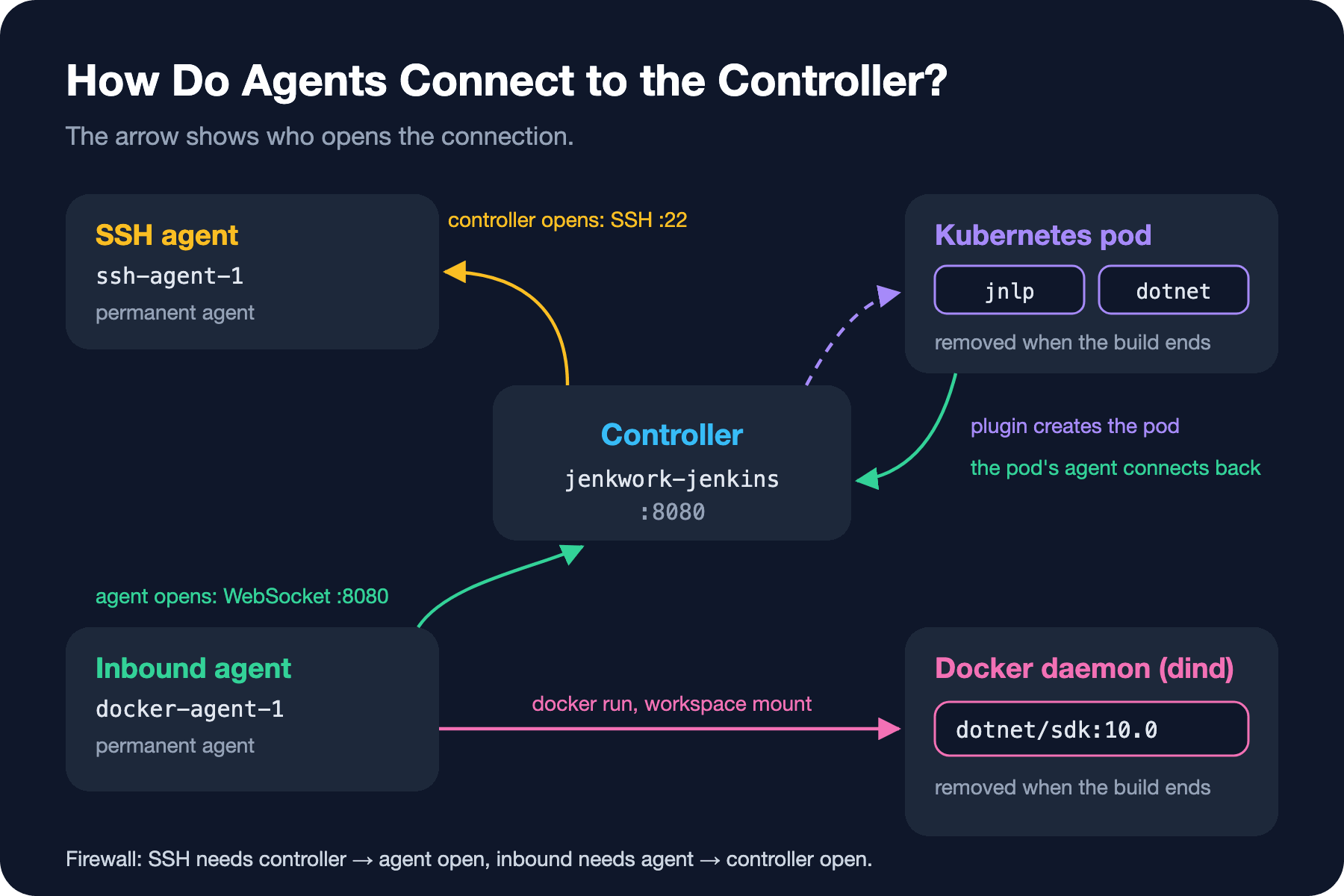
Which one you choose usually depends on the network. If the agent is on a network the controller can reach, SSH is simple and needs no service management on the agent side. If the agent is behind a firewall, in another data center, or the controller cannot reach it at all, an inbound agent solves it with a single outbound HTTPS (HTTP Secure) connection. I defined the two agents in this series with JCasC (Jenkins Configuration as Code) like this:
jenkins:
  nodes:
    - permanent:
        name: docker-agent-1
        labelString: "linux docker"
        remoteFS: /home/jenkins/agent
        numExecutors: 2
        mode: EXCLUSIVE
        launcher:
          inbound:
            webSocket: true
    - permanent:
        name: ssh-agent-1
        labelString: "linux ssh"
        remoteFS: /home/jenkins/agent
        numExecutors: 1
        mode: EXCLUSIVE
        launcher:
          ssh:
            host: jenkwork-ssh-agent
            port: 22
            credentialsId: agent-ssh-key
            sshHostKeyVerificationStrategy:
              manuallyTrustedKeyVerificationStrategy:
                requireInitialManualTrust: false
mode: EXCLUSIVE means only jobs that explicitly ask for this agent through its label go there; in NORMAL mode, jobs without a label can land there too. remoteFS is the root folder on the agent: workspaces, the remoting jar cache and logs live here.
The SSH Agent
For the SSH agent I used the jenkins/ssh-agent:latest-jdk21 image. The image writes the public key from the JENKINS_AGENT_SSH_PUBKEY environment variable into the jenkins user's authorized_keys. The private key is stored on the controller as a credential (agent-ssh-key). Selected lines from the controller's connection log:
[11/08/26 03:27:48] [SSH] Opening SSH connection to jenkwork-ssh-agent:22.
[11/08/26 03:27:48] [SSH] SSH host key matches key seen previously for this host. Connection will be allowed.
[11/08/26 03:27:48] [SSH] Authentication successful.
[11/08/26 03:27:48] [SSH] Starting sftp client.
[11/08/26 03:27:48] [SSH] Copying latest remoting.jar...
Source agent hash is E3CCA24233EF979BCEFF9192C9549D2F. Installed agent hash is E3CCA24233EF979BCEFF9192C9549D2F
Verified agent jar. No update is necessary.
[11/08/26 03:27:48] [SSH] Starting agent process: cd "/home/jenkins/agent" && java  -jar remoting.jar -workDir /home/jenkins/agent -jar-cache /home/jenkins/agent/remoting/jarCache
Remoting version: 3386.v353e57a_1b_ea_0
Launcher: SSHLauncher
Communication Protocol: Standard in/out
This is a Unix agent
Agent successfully connected and online
The flow is exactly as in the figure: the controller connects, verifies with a hash that remoting.jar is up to date, starts the agent process inside the SSH session, and communication runs over that session's standard input/output. The "Host key matches key seen previously" line comes from host key verification. manuallyTrustedKeyVerificationStrategy with requireInitialManualTrust: false trusts the first key it sees and rejects the connection if it changes later. Reasonable for a test environment; in production, verifying the key against a known known_hosts file with knownHostsFileKeyVerificationStrategy is more robust.
The Inbound Agent and WebSocket
For the inbound agent I added two things to the official jenkins/inbound-agent:latest-jdk21 image: the Docker CLI (Command Line Interface), because this agent will build inside Docker, and rsync for the deploy in the ninth post:
FROM jenkins/inbound-agent:latest-jdk21
USER root
RUN apt-get update \
    && apt-get install -y --no-install-recommends rsync \
    && rm -rf /var/lib/apt/lists/*
USER jenkins
COPY --from=docker:29.9.3-cli /usr/local/bin/docker /usr/local/bin/docker
The Compose definition:
  agent:
    build: ./agent
    image: jenkwork/inbound-agent-docker:jdk21
    container_name: jenkwork-agent
    environment:
      JENKINS_URL: http://jenkwork-jenkins:8080/
      JENKINS_AGENT_NAME: docker-agent-1
      JENKINS_SECRET: ${DOCKER_AGENT_SECRET}
      JENKINS_WEB_SOCKET: "true"
      DOCKER_HOST: tcp://docker:2376
      DOCKER_CERT_PATH: /certs/client
      DOCKER_TLS_VERIFY: "1"
    volumes:
      - agent-workspace:/home/jenkins/agent
      - docker-certs:/certs/client:ro
    networks: [ci]
JENKINS_SECRET is the agent's identity: the controller derives this value from the agent name and its own key, and does not let a process that does not know it connect under that agent's name. You get the value from the agent's page or from the script console with an authorized user; I kept it in my own .env file. The agent's startup log:
INFO: Setting up agent: docker-agent-1
INFO: Using Remoting version: 3395.v6e5377b_0fb_3c
WARNING: No Working Directory. Using the legacy JAR Cache location: /home/jenkins/.jenkins/cache/jars
INFO: WebSocket connection open
INFO: Connected
The WebSocket connection open line shows that the connection was established over 8080; we never opened port 50000. The WARNING line in between is harmless but interesting: since remoting was not given a -workDir, it keeps its jar cache in the user's home folder. With the SSH agent, Jenkins passes this parameter itself, so the same warning does not appear.
Labels and Label Expressions
Labels are the way to tag agents with capabilities: linux, docker, windows, dotnet10, gpu. On the pipeline side you can write an expression instead of a single label. A pipeline where, with agent none, I take no agent at the top level and give each stage its own agent:
pipeline {
    agent none
    stages {
        stage('On SSH agent') {
            agent { label 'linux && ssh' }
            steps {
                sh 'echo "$NODE_NAME: $(java -version 2>&1 | head -1)"'
            }
        }
        stage('In .NET SDK container') {
            agent {
                docker {
                    image 'mcr.microsoft.com/dotnet/sdk:10.0'
                    label 'docker'
                }
            }
            steps {
                sh 'echo "user: $(id -u):$(id -g) home: $HOME"'
                sh 'dotnet --version'
            }
        }
    }
}
You can build expressions with &&, ||, ! and parentheses: 'linux && !gpu', 'windows || (linux && mono)'. The output of the first stage:
Running on ssh-agent-1 in /home/jenkins/agent/workspace/agents
+ echo ssh-agent-1: openjdk version "21.0.13" 2026-10-20 LTS
ssh-agent-1: openjdk version "21.0.13" 2026-10-20 LTS
Running the Build Inside a Docker Container
The output of the second stage is more instructive. The Docker Pipeline plugin writes clearly to the log what it does (it masks environment variables as ********; I shortened them):
Running on docker-agent-1 in /home/jenkins/agent/workspace/agents
+ docker inspect -f . mcr.microsoft.com/dotnet/sdk:10.0
.
docker-agent-1 seems to be running inside container 4248414140b8c6e0ce7c843559a07ad95f8756e62b276734ceafe67695e66cd5
but /home/jenkins/agent/workspace/agents could not be found among []
but /home/jenkins/agent/workspace/agents@tmp could not be found among []
$ docker run -t -d -u 1000:1000 -w /home/jenkins/agent/workspace/agents -v /home/jenkins/agent/workspace/agents:/home/jenkins/agent/workspace/agents:rw,z -v /home/jenkins/agent/workspace/agents@tmp:/home/jenkins/agent/workspace/agents@tmp:rw,z -e ******** -e ******** ... mcr.microsoft.com/dotnet/sdk:10.0 cat
+ id -u
+ id -g
+ echo user: 1000:1000 home: /home/ubuntu
user: 1000:1000 home: /home/ubuntu
+ dotnet --version
10.0.403
$ docker stop --time=1 e8aaaa67a508913e91d344bf5379a98358b77d8915befeca3ee9ec661d25d958
$ docker rm -f --volumes e8aaaa67a508913e91d344bf5379a98358b77d8915befeca3ee9ec661d25d958
The plugin first takes an executor on the agent, checks whether the image is available locally, then keeps the container alive with the cat command and runs every sh step inside it with docker exec. When the build ends, the container is stopped and removed. There are three details to watch.
First, the workspace is mounted into the container with -v, and that path is resolved by the Docker daemon. Since the agent itself runs in a container, the plugin first checks "can I find the workspace among the agent container's volumes"; when it cannot (those two could not be found lines), it passes the path as is. In our environment this works, because I attached the same workspace volume to the Docker-in-Docker container at the same path. If you use the host's Docker socket inside the agent and do not share the workspace volume, you will see an empty folder inside the container and dotnet build will fail with "no project file".
Second, the container runs with -u 1000:1000, the agent's user, so that files written to the workspace belong to the agent. The answer to the opening question is here too: the .NET SDK image is Ubuntu-based and uid 1000 there is the ubuntu user, so HOME is /home/ubuntu. In another image where uid 1000 has no user at all, HOME becomes /, and you get a permission error when dotnet or npm tries to write to its cache. The fix is to point cache paths at the workspace or a writable volume with environment variables; we will do that in the seventh and eighth posts.
Third, label 'docker' is required. If the stage lands on an agent without the Docker CLI and access to a daemon, it breaks with docker: not found.
The real value of a Docker agent is that the toolchain is separated from the agent. You do not install the .NET SDK, Node.js or Playwright browsers on the agent machine; each pipeline states which version it wants through the image tag. A project moving from .NET 10 to .NET 11 changes only the tag in its own Jenkinsfile, and an old project using .NET 8 on the same agent is not affected.
A Quick Look at Kubernetes and Windows Agents
The Kubernetes plugin opens agents as pods on demand: when a build enters the queue, the plugin has the Kubernetes API (Application Programming Interface) create a pod, the jnlp container in the pod connects to the controller as an inbound agent, and the pod is deleted when the build ends. On the pipeline side the pod definition lives in the Jenkinsfile. This block was not run for this post (there is no Kubernetes cluster in the environment); the syntax is from the plugin documentation:
agent {
    kubernetes {
        yaml '''
apiVersion: v1
kind: Pod
spec:
  containers:
  - name: dotnet
    image: mcr.microsoft.com/dotnet/sdk:10.0
    command: ['sleep']
    args: ['infinity']
'''
        defaultContainer 'dotnet'
    }
}
We will discuss the cluster itself, namespaces and resource limits in the upcoming Kubernetes series. A Windows agent is still something you need: for .NET Framework projects, IIS (Internet Information Services) deploys or Windows-specific tests. On Windows the most practical way is to run the inbound agent over WebSocket, register it as a Windows service and give the agent a windows label. Since this machine has no Windows, I did not run a Windows agent here; I will cover the IIS deploy from the pipeline side in the ninth post.
In Production
Workspaces pile up on the agent disk. A workspace is not deleted after a build finishes; the next build reuses the same folder. That saves time, but in multibranch projects with hundreds of branches it fills the agent disk. Calling the Workspace Cleanup plugin's cleanWs() step inside post { cleanup { ... } } is the simplest fix:
pipeline {
    agent { label 'docker' }
    stages {
        stage('Build') {
            steps {
                sh 'mkdir -p out && head -c 52428800 /dev/urandom > out/Bookstore.Api.zip'
                sh 'du -sh "$WORKSPACE"'
            }
        }
    }
    post {
        cleanup {
            cleanWs()
        }
    }
}
+ du -sh /home/jenkins/agent/workspace/cleanws
51M /home/jenkins/agent/workspace/cleanws
[WS-CLEANUP] Deleting project workspace...
[WS-CLEANUP] Deferred wipeout is used...
[WS-CLEANUP] doneAfter the build I checked the agent with du: the cleanws folder was gone, but cleanws@tmp (4 KB) and the folders of the other jobs that were never cleaned were still there. @tmp folders are the temporary area Jenkins uses for steps, and they are not deleted on their own. An alert that watches agent disks and a periodic cleanup are still needed; Jenkins has a "Free Disk Space" threshold for every node and takes a node offline when it drops below it.
Size executor counts by the agent's resources, and remember that with Docker agents the containers share the same CPU (Central Processing Unit) and memory too. Think of agents not as pets but as cattle that can be deleted and rebuilt when needed: their images should be defined in code, with no tools installed on them by hand.
Common Pitfalls
Running builds on the controller. We have said it since the first post, but once more: the Built-In Node's executor count must be zero.
Mounting the Docker socket into the agent without sharing the workspace. The empty-folder problem described above, and in addition, every pipeline with access to the host socket can manage every container on that machine. A separate Docker daemon (dind) or Kubernetes is better isolated.
A uid mismatch. A step running as root in a Docker container leaves root-owned files in the workspace, and the next build cannot delete them. The plugin passes -u 1000:1000 to prevent exactly that; think twice before overriding it with args '-u root'.
Relying on persistent state on agents. "Node 18 is installed on this agent" becomes false one day. Ask for the tool version explicitly through the image tag or a label.
Waiting for the disk to fill. Workspaces, @tmp, the Docker image cache and NuGet/npm caches share the same disk; if you do not monitor it, your first warning will be red builds.
A Small Experiment
★☆☆ Add two more labels to your agents (for example dotnet10 and fast-disk) and select a stage with the expression 'linux && fast-disk'. Write an expression that matches nothing and watch the build wait in the queue.
★★☆ Write a Docker agent stage with the node:24-trixie image and look at the output of echo $HOME and npm config get cache. Which environment variable do you need to set to redirect the cache into the workspace?
★★★ Switch the SSH agent's host key verification to knownHostsFileKeyVerificationStrategy. Recreate the agent container to change its host key and see in the log that the controller rejects the connection.
The agents are ready. In the next post we move to the most sensitive part of the pipeline: credentials, withCredentials, the limits of masking and the real output of the Groovy string interpolation trap.