

Getting Started with Docker Compose: Bringing Up Bookstore with a Single compose.yaml
Docker Compose defines Bookstore's API, web and SQL Server containers, their network and volume in one compose.yaml and brings them all up together with docker compose up -d. With real output we look at the file's anatomy, build versus image, the project name, DNS by service name, the logs/exec/config commands, what down and down -v do to your data and why the version field is now obsolete.
Version note: The examples in this post were run with Docker Compose 5.7.1, Docker Engine 29.9.3, SQL Server 2025 (RTM-CU11), .NET 10 and Angular 22; Docker Desktop 4.99 ships Compose 5.7.0 and the commands here work the same there.
Guess First
Bookstore's API, Angular web app and SQL Server are defined in one compose.yaml. You loaded the books into the database, ran docker compose down, and the next morning brought everything back with docker compose up -d. Are the books still there? Ask the same question for docker compose down -v. One last question: the service is called api, but the nginx in the web container forwards requests to the name bookstore-api. Can the browser see the book list?
From Twelve README Steps to One File
In the Docker series we containerized the parts of Bookstore, the online bookstore used as the shared example across this site's series, one by one: a chiseled ASP.NET Core image for Bookstore.Api, unprivileged nginx for bookstore-web, SQL Server 2025 with a named volume for BookstoreDb. At the end of post 12, running all three together meant: create a network, create a volume, start the database with the right environment variables, run the scripts, start the API with its connection string, start the web app with the API address and its port. Each one a long docker run line. A new team member copies them from the README in order, and when one flag is forgotten, finding out what broke takes half a day.
Docker Compose turns all of those commands into one YAML file, a definition of the desired state. In this series we bring Bookstore up with that file: the skeleton in this post, then startup order and health checks, configuration and secrets, the development loop, multiple environments and production on a single server. Dockerfiles, images, volumes and networks themselves were covered in the Docker series; here we look at their counterparts in compose.yaml.
Anatomy of compose.yaml
We added this file to the root of the repo:
# Bookstore with one command: SQL Server, Bookstore.Api and bookstore-web
name: composeseries

services:
  db:
    image: mcr.microsoft.com/mssql/server:2025-latest
    environment:
      ACCEPT_EULA: "Y"
      MSSQL_SA_PASSWORD: ${MSSQL_SA_PASSWORD}
    volumes:
      - db-data:/var/opt/mssql
      - ./db:/scripts:ro
    ports:
      - "127.0.0.1:1433:1433"

  api:
    build:
      context: .
      dockerfile: src/Bookstore.Api/Dockerfile
    environment:
      ConnectionStrings__Default: "Server=db;Database=BookstoreDb;User Id=bookstore_app;Password=${BOOKSTORE_DB_PASSWORD};TrustServerCertificate=True"
    networks:
      default:
        aliases:
          - bookstore-api

  web:
    build: ./web
    environment:
      API_BASE_URL: /api
      APP_ENVIRONMENT: compose
    ports:
      - "8080:8080"

volumes:
  db-data:
There are three top-level elements. services defines the containers to run; each key is a service name. volumes lists the named volumes Compose manages. networks is not written here, because Compose opens a default network for every project on its own and attaches every service to it; you add this element when you need separate networks (for example, to isolate the database from the web tier). The networks.default.aliases under the API gives a service an extra DNS name on that network; we will come back to it shortly.
A service's image comes from one of two places. image: in db pulls a ready-made image from a registry. build: in api and web produces the image from a Dockerfile in the repo: the short form (build: ./web) only gives the context folder and uses the Dockerfile in it, the long form writes the context and the Dockerfile path separately. Bookstore.Api's Dockerfile also copies global.json, so its context has to be the repo root. Built images without an image: get the name <project>-<service> from Compose (composeseries-api); when both are written, the build result is tagged with that name. We will use that for production in post 6.
name: composeseries is the project name. Compose prefixes all its resources with it and treats resources carrying that name as "its own". The name comes from these places, in order: the -p flag, the COMPOSE_PROJECT_NAME environment variable, name: in the file, and finally the name of the folder that holds the file. Without name:, everyone who clones the repo into a bookstore folder gets bookstore, and someone who opens it in Bookstore-main gets another project name; if two copies need to run side by side on one machine, that may be exactly what you want. We pinned the name.
${MSSQL_SA_PASSWORD} and ${BOOKSTORE_DB_PASSWORD} are interpolation: Compose takes these values from the shell or from the .env file in the project folder while reading the file. We committed only an empty .env.example; the real .env is in .gitignore. The difference between the two mechanisms (.env and env_file) and moving passwords somewhere better than an environment variable come in post 3.
The First up: What Was Created?
# fill in both passwords
cp .env.example .env
docker compose build
docker compose up -d
Network composeseries_default Creating
Volume composeseries_db-data Creating
Volume composeseries_db-data Created
Network composeseries_default Created
Container composeseries-web-1 Creating
Container composeseries-db-1 Creating
Container composeseries-api-1 Creating
Container composeseries-db-1 Created
Container composeseries-api-1 Created
Container composeseries-web-1 Created
Container composeseries-web-1 Starting
Container composeseries-api-1 Starting
Container composeseries-db-1 Starting
Container composeseries-web-1 Started
Container composeseries-api-1 Started
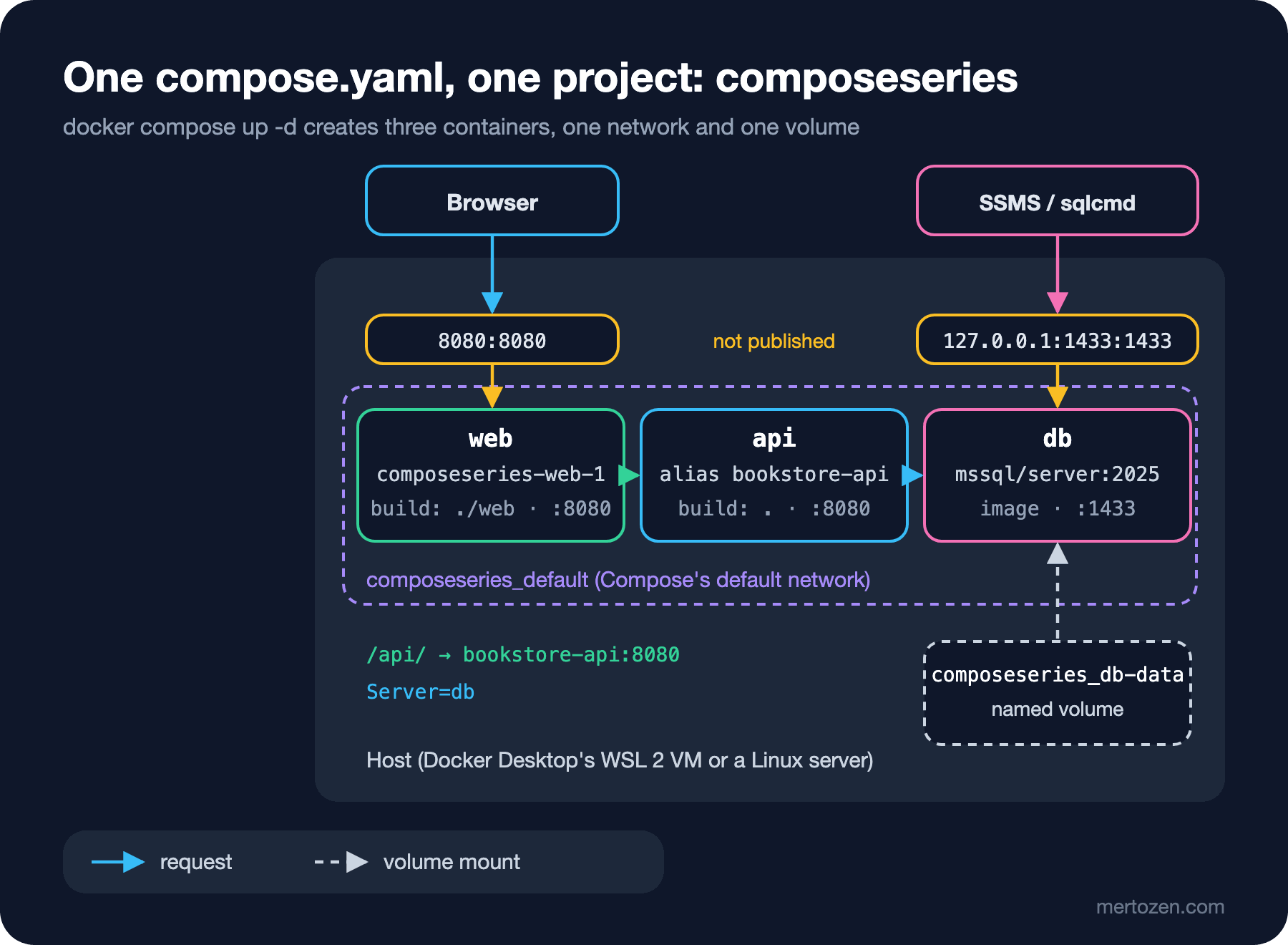
Container composeseries-db-1 Started docker compose build built the two images. Since Compose 5.0 there is no builder inside Compose; it hands the build to Bake, which we met in post 6 of the Docker series, so the output looks the same as docker buildx bake's. up -d created one network, one volume and three containers. The naming is regular: network and volume are <project>_<name>, containers are <project>-<service>-<index>. The trailing -1 is the replica number that grows when a service is scaled (--scale api=2). Without -d (detached), Compose streams every service's logs to the terminal and stops them all on Ctrl+C.
docker compose psNAME IMAGE COMMAND SERVICE CREATED STATUS PORTS
composeseries-api-1 composeseries-api "dotnet Bookstore.Ap…" api Less than a second ago Up Less than a second (health: starting) 8080/tcp
composeseries-db-1 mcr.microsoft.com/mssql/server:2025-latest "/opt/mssql/bin/laun…" db Less than a second ago Up Less than a second 127.0.0.1:1433->1433/tcp
composeseries-web-1 composeseries-web "/docker-entrypoint.…" web Less than a second ago Up Less than a second 0.0.0.0:8080->8080/tcp, [::]:8080->8080/tcp(health: starting) comes from the HEALTHCHECK in the Dockerfile; Compose uses it as is. The ports follow the rule from post 12 of the Docker series: only the entry point, web, is open to the outside; SQL Server is published only on 127.0.0.1 so it can be inspected from the host with SSMS or sqlcmd; the API is not published at all.
Services find each other by name. Compose's default network is a user-defined bridge, so Docker's embedded DNS resolves service names (and aliases). That is why Server=db in the API's connection string works. We looked from the web container:
docker compose exec web nslookup db | grep -A1 Name
docker compose exec web nslookup bookstore-api | grep -A1 Name
Name: db
Address: 172.19.0.4
Name: bookstore-api
Address: 172.19.0.3In the Docker series, bookstore-web's nginx config was written to forward /api/ requests to bookstore-api:8080. Instead of naming the service bookstore-api, we kept the short name and added an alias: the same container resolves under both names. So the answer to the last part of the first question is yes, but without the alias nginx would return 502 for every /api/ request.
Everyday Commands: logs, exec and config
When you open localhost:8080 in the browser, the page loads but shows "Catalog is not available" instead of the book list. The reason is in the log:
docker compose logs -f apiapi-1 | info: Microsoft.Hosting.Lifetime[14]
api-1 | Now listening on: http://[::]:8080
api-1 | info: Bookstore.Api[0]
api-1 | Catalog source: SqlBookSource
api-1 | Microsoft.Data.SqlClient.SqlException (0x80131904): Login failed for user 'bookstore_app'.logs merges the logs of all services, prefixed with the service name; with a service name after it you get only that one, -f follows the live stream and --tail 50 gives the last lines. The error is expected: the database is empty, the bookstore_app login and BookstoreDb do not exist yet. We run the two idempotent scripts from the Docker series (schema and 6 books; a read-only login) inside the db container:
# load the variables in .env into the shell
set -a; . ./.env; set +a
docker compose exec -e SQLCMDPASSWORD="$MSSQL_SA_PASSWORD" -e BOOKSTORE_DB_PASSWORD db \
    /opt/mssql-tools18/bin/sqlcmd -C -S localhost -U sa \
    -i /scripts/01-bookstore.sql -i /scripts/02-app-login.sql
curl -s localhost:8080/api/books | jq -r '.[0:3][] | "\(.title) | \(.priceTry)"'
Changed database context to 'BookstoreDb'.
(6 rows affected)
Changed database context to 'master'.
Changed database context to 'BookstoreDb'.
Çalıkuşu | 240.00
Dune | 420.00
Emma | 180.00docker compose exec is docker exec working with the service name: you do not need to know the container name (composeseries-db-1). Instead of putting the password on the command line with -P, we passed it through the SQLCMDPASSWORD environment variable; -e BOOKSTORE_DB_PASSWORD without a value carries the value from the shell, and the script reads it as $(BOOKSTORE_DB_PASSWORD). The ./db:/scripts:ro bind mount gives the scripts to the container read-only. In the next post we turn this manual step into a service.
The third everyday command is docker compose config: it prints the file with interpolations resolved, relative paths made absolute and short forms expanded to long ones. Once we start merging multiple files (post 5), it will be the tool we rely on most:
docker compose configname: composeseries
services:
api:
environment:
ConnectionStrings__Default: Server=db;Database=BookstoreDb;User Id=bookstore_app;Password=<app-password>;TrustServerCertificate=True
networks:
default:
aliases:
- bookstore-api
build:
context: /home/user/bookstore
dockerfile: src/Bookstore.Api/Dockerfile
db:
...
volumes:
- type: volume
source: db-data
target: /var/opt/mssql
volume: {}
- type: bind
source: /home/user/bookstore/db
target: /scripts
read_only: true
bind: {}
...
networks:
default:
name: composeseries_default
volumes:
db-data:
name: composeseries_db-dataPasswords are printed in clear text (we replaced them with placeholders here). Keep that in mind before pasting config output into an issue or a CI log.
down, down -v and the Lifetime of a Volume
When you change something in compose.yaml and run up -d again, Compose recreates only the service whose definition changed. We changed APP_ENVIRONMENT:
 Container composeseries-db-1 Running
 Container composeseries-api-1 Running
 Container composeseries-web-1 Recreate
 Container composeseries-web-1 Recreated
 Container composeseries-web-1 Starting
 Container composeseries-web-1 Started
Compose writes a hash of the definition as a label on every container and compares the desired state with the current one on up; the database and the API were not touched. Now the answer to the first question:
docker compose down
docker volume ls --filter name=composeseries
Container composeseries-api-1 Removed
Container composeseries-web-1 Removed
Container composeseries-db-1 Removed
Network composeseries_default Removed
DRIVER VOLUME NAME
local composeseries_db-datadown removes containers and the network but leaves named volumes alone. The next morning up -d attaches the new containers to the same volume and /api/books returns 6 books again. down -v removes the project's volumes too:
docker compose down -v
docker compose up -d
curl -s -o /dev/null -w "GET /api/books: %{http_code}\n" localhost:8080/api/books
Volume composeseries_db-data Removing
Network composeseries_default Removing
Volume composeseries_db-data Removed
Network composeseries_default Removed
GET /api/books: 500SQL Server started as an empty instance and the API got Login failed for user 'bookstore_app' again. On a local machine, down -v is exactly what you want for a "clean start"; on a production server it is a command that deletes all data. stop and start stop and start containers without removing them, restart restarts them but does not apply changes in compose.yaml; for changes, always up -d.
docker compose, docker-compose and the File Name
In older blog posts and READMEs you will see docker-compose up. That was the first Compose (v1), written in Python, and its support ended in June 2023. Today's Compose is a Docker CLI plugin written in Go and is called as docker compose (with a space). In Docker's official images and in Docker Desktop, the name docker-compose still exists as a compatibility name linked to the same binary:
docker-compose versionDocker Compose version v5.7.1So the hyphenated command is there so old scripts do not break, but v5 runs behind it, not v1. On a server installed from Ubuntu's own packages, however, docker-compose may still be the old Python version; post 2 of the Docker series covers that trap.
The file name precedence is compose.yaml, compose.yml, then, for backward compatibility, docker-compose.yaml and docker-compose.yml. When both exist, Compose warns and picks the new one:
WARN[0000] Found multiple config files with supported names: /home/user/bookstore/compose.yaml, /home/user/bookstore/docker-compose.yml
WARN[0000] Using /home/user/bookstore/compose.yaml
The version: "3.8" line at the top of old files means nothing anymore either. Compose implements a single schema today, the Compose Specification, and only warns when it sees the field:
WARN[0000] /home/user/bookstore/old-compose.yaml: the attribute `version` is obsolete, it will be ignored, please remove it to avoid potential confusionWe will read old files and convert them to today's format in detail in post 7.
In Production
This file defines a development environment; it is not meant to be carried to production as is. Production needs image: with immutable tags from a registry instead of build:, a restart policy, log rotation and resource limits; we add those in post 6. What already applies today: open only the entry point to the outside, and if you publish the database port, bind it to 127.0.0.1. Without an IP in front of the port, Docker publishes it on all interfaces and also bypasses the host's firewall rules (post 12 of the Docker series). Pinning name: also keeps two different projects on the same server from accidentally claiming the same containers: Compose decides whether a resource belongs to the project by looking at the com.docker.compose.project label.
Two ready-made commands help with measuring: docker compose top shows the services' processes, docker compose stats (since Compose 5.7 also the project total with --aggregate) shows CPU and memory usage.
Common Pitfalls
- Expecting
docker compose restartto apply a change incompose.yaml: restart restarts the existing container; a new definition needsup -d. - Writing the container name instead of the service name into the connection string (
Server=composeseries-db-1): it breaks when the project name changes; use the service name or an alias as the DNS name. - Using
localhostto reach another service:localhostinside a container is that container itself. .envnot being found when you run a file in another folder with-f: Compose looks for.envin the project folder; when we tried with/tmp/old.yamlwe got two warnings:The "MSSQL_SA_PASSWORD" variable is not set. Defaulting to a blank string.- Typing
down -vout of habit: even locally it takes hours of test data with it; on a server it is a disaster. - Running only
up -dafter a code change in a service withbuild:: if the image already exists, it is not rebuilt; useup -d --buildor rundocker compose buildfirst.
A Small Experiment
★☆☆ Run docker compose up -d --scale web=2. Read the error message and explain the cause: two replicas cannot ask for the same host port (8080). Change ports to the range "8080-8081:8080" and try again.
★★☆ Delete the name: line, copy the repo into a second folder called bookstore-copy and try to start both copies. Which resources collide and which do not? Can both run at the same time once you change the host port in the copy?
★★★ Write a one-line command that reads the output of docker compose config --format json with jq and lists all environment variable names of a service (without their values). If you put this in a CI step, what information have you kept out of the log?
In this post we loaded the database schema by hand with exec, and the API started before the database was ready. In the next post we define the startup order with depends_on and health check conditions, turn the schema step into a one-off migrate service and see why the application still needs retries.