

Environments, Approvals and Checks: Building a Release Process in YAML with Deployment Jobs
In Azure Pipelines, approvals and checks are defined on resources such as environments, not in the YAML, so whoever edits the pipeline file can't bypass them. We add dev, staging and production stages with deployment jobs to Bookstore, verify the release artifact, and cover the order of checks, going to production only from main with an approval, and the classic release counterparts.
Version note: The release verification script in this post, and the API and Angular output it checks, were run locally with .NET 10 (SDK 10.0.404), Angular 22 and Node.js 24; the pipeline and template files were parsed and checked with yq 4.54. How environments, deployment jobs, approvals and checks behave inside Azure Pipelines is based on the official documentation on Microsoft Learn (November 2026 versions).
Guess First
In this post we add three deploy stages to the pipeline of Bookstore, the online bookstore used as the shared example across this site's series: dev, staging and production. The production stage comes from the shared template, carries a condition that limits it to main, and Selin's approval sits in front of it. Ayşe is working on an urgent fix in feature/fast-checkout and doesn't want to wait: in her branch's azure-pipelines.yml she drops the shared skeleton, writes her own production stage without the condition, and starts the run by hand. Does her branch reach production without an approval?
It doesn't, and the reason is not in the YAML. Approvals, branch restrictions and the other controls are not defined in the pipeline file; the owners of the production environment define them in the web UI, on the resource itself. The documentation stresses exactly this: whoever edits the YAML file can't change the checks that run before a stage starts. As soon as Ayşe's stage uses the bookstore-production environment, Azure Pipelines pauses and waits for every check on that environment. The branch control check rejects every branch other than refs/heads/main, and the required template check rejects every pipeline that doesn't extends the shared skeleton; both run before the approval, so the stage fails before it is Selin's turn. The condition in the YAML states the pipeline author's intent; the check enforces the resource owner's rule.
The Environment Resource and Deployment History
An environment is the Azure Pipelines resource that represents a deployment target. You can add Kubernetes namespaces or virtual machines to it, but you can also use it empty; the documentation says it then works as a logical shell that records deployment history. Bookstore deploys to App Service, so our environments are empty: bookstore-dev, bookstore-staging and bookstore-production.
The first thing an environment gives you is deployment history. The Environments page under Pipelines lists, for each environment, which run of which pipeline deployed there; from a deployment you can open the Changes and Work items tabs to see the commits and work items that reached that environment for the first time with it. When several pipelines deploy to the same environment, this is where you find out which one changed it. The second thing is security: an environment has its own user roles (Creator, Reader, User, Administrator) and pipeline permissions that decide which pipelines may use it. The third is the subject of this post, approvals and checks.
One detail: environments don't exist in classic pipelines, where deployment groups are the counterpart. A stage-focused view, one screen that shows which run last executed a stage, hasn't shipped yet; it sits on the Azure DevOps roadmap as a planned item called "Stage-level traceability", and we come back to its date in the ninth post.
Deployment Jobs and Lifecycle Hooks
To tie a job to an environment you write it as deployment instead of job. Three things set a deployment job apart from a regular one: it records the run in the environment's history, it splits its steps into lifecycle hooks under a strategy, and it doesn't check out the source code automatically.
There are three strategies: runOnce, rolling and canary. With runOnce, the preDeploy, deploy, routeTraffic and postRouteTraffic hooks run once each, in order, followed by on: success or on: failure depending on the outcome. According to the documentation, rolling is currently supported only for virtual machine resources, and maxParallel decides how many targets are updated per iteration. canary takes a list such as increments: [10, 20] and repeats deploy, routeTraffic and postRouteTraffic for each percentage; the documentation's example does this for Kubernetes with KubernetesManifest@1. Rolling and canary themselves, and when to pick which, were covered in the Rolling Deployment and Canary Release posts of the Deployment Strategies series; here only their YAML counterparts matter.
Each hook runs as its own job and uses the deployment job's pool by default; with pool: server it becomes a server job that needs no agent. Artifact download is tied to a hook as well: according to the documentation, artifacts are downloaded automatically only in the deploy hook, and what gets downloaded is every artifact of the run and of every defined pipeline resource. That's why naming the artifact you want explicitly is a good habit.
Bookstore's Deploy Stages
In the fourth post, the Build stage ended with a single release artifact: the API's publish output, Angular's build output and a manifest.json. Here "build once, deploy many" means this: all three environments download that artifact and none of them compiles the code again. We added a stage template to the shared template repository (Bookstore/pipeline-templates):
# One deployment stage per environment. It deploys the release artifact built once in the Build stage.
# Approvals and checks are not defined here: the owners of the bookstore-<environment> environment add them in the web UI.
parameters:
  - name: environment
    type: string
    values:
      - dev
      - staging
      - production
  - name: dependsOn
    type: string
  - name: mainOnly
    type: boolean
    default: false

stages:
  - stage: Deploy_${{ parameters.environment }}
    displayName: Deploy to ${{ parameters.environment }}
    dependsOn: ${{ parameters.dependsOn }}
    ${{ if eq(parameters.mainOnly, true) }}:
      condition: and(succeeded(), eq(variables['Build.SourceBranch'], 'refs/heads/main'))
      lockBehavior: sequential
    ${{ else }}:
      condition: and(succeeded(), ne(variables['Build.Reason'], 'PullRequest'))
    pool:
      vmImage: ubuntu-24.04
    variables:
      - group: bookstore-${{ parameters.environment }}
    jobs:
      - deployment: Deploy
        displayName: Deploy release to ${{ parameters.environment }}
        environment: bookstore-${{ parameters.environment }}
        strategy:
          runOnce:
            deploy:
              steps:
                # Only the release artifact; api and web are already inside it.
                - download: current
                  artifact: release

                # Deployment jobs do not check out the repository; the scripts live there.
                - checkout: self
                  fetchDepth: 1

                - script: bash scripts/verify-release.sh $(Pipeline.Workspace)/release
                  displayName: Verify release artifact
                  env:
                    EXPECTED_COMMIT: $(Build.SourceVersion)
A few decisions are in there. The variable group is linked the way we saw in the second post: bookstore-${{ parameters.environment }} is resolved while the file is processed, because a variable group is a resource and is authorized before the stage starts. The environment name is produced by a template expression for the same reason. The documentation's troubleshooting section warns about the opposite explicitly: runtime parameters don't work when creating environments, because they are expanded only at run time. With download: current we ask only for release; otherwise api and web would be downloaded a second time. checkout: self is needed because the verification script lives in the repository.
The shared skeleton (pipelines/bookstore-ci.yml) calls this template three times after the Build stage, in a fixed order. The application pipeline can't change the order; it can only turn the deploy stages off with the deploy parameter:
  # Build once, deploy many: every environment gets the same release artifact, in a fixed order.
  - ${{ if eq(parameters.deploy, true) }}:
      - template: ../stages/deploy.yml
        parameters:
          environment: dev
          dependsOn: Build

      - template: ../stages/deploy.yml
        parameters:
          environment: staging
          dependsOn: Deploy_dev

      - template: ../stages/deploy.yml
        parameters:
          environment: production
          dependsOn: Deploy_staging
          mainOnly: true
The new template version is v1.3.0, and the application pipeline moves its ref to it. release/* branches go as far as dev and staging, main goes to all three, and pull request runs go to none.
The first step before any deployment checks that the downloaded artifact is complete and belongs to this run. The script compares the file counts and the commit in the manifest with the real content. Locally we built the API with dotnet publish and Angular with ng build, created a release folder with the manifest script from the fourth post, and tried three cases:
$ EXPECTED_COMMIT=3f6c2a1d9e8b7c6a5f4e3d2c1b0a9f8e7d6c5b4a bash scripts/verify-release.sh out/release
Release 1.0.0-main.1412 verified: commit 3f6c2a1d9e8b7c6a5f4e3d2c1b0a9f8e7d6c5b4a, api 59 files, web 4 files
$ EXPECTED_COMMIT=9a8b7c6d5e4f3a2b1c0d9e8f7a6b5c4d3e2f1a0b bash scripts/verify-release.sh out/release
##vso[task.logissue type=error]release was built from 3f6c2a1d9e8b7c6a5f4e3d2c1b0a9f8e7d6c5b4a, expected 9a8b7c6d5e4f3a2b1c0d9e8f7a6b5c4d3e2f1a0b
$ rm out/release/web/favicon.ico
$ bash scripts/verify-release.sh out/release
##vso[task.logissue type=error]web has 3 files, manifest says 4
With download: current the commit check always passes; its value shows up in the ninth post, when we redeploy the artifact of a different run.
Check Types and Their Order
Checks can be defined on environments, service connections, repositories, variable groups, secure files and agent pools. Before a stage starts, every check on every resource the stage uses must pass. The documentation lists five categories and their order:
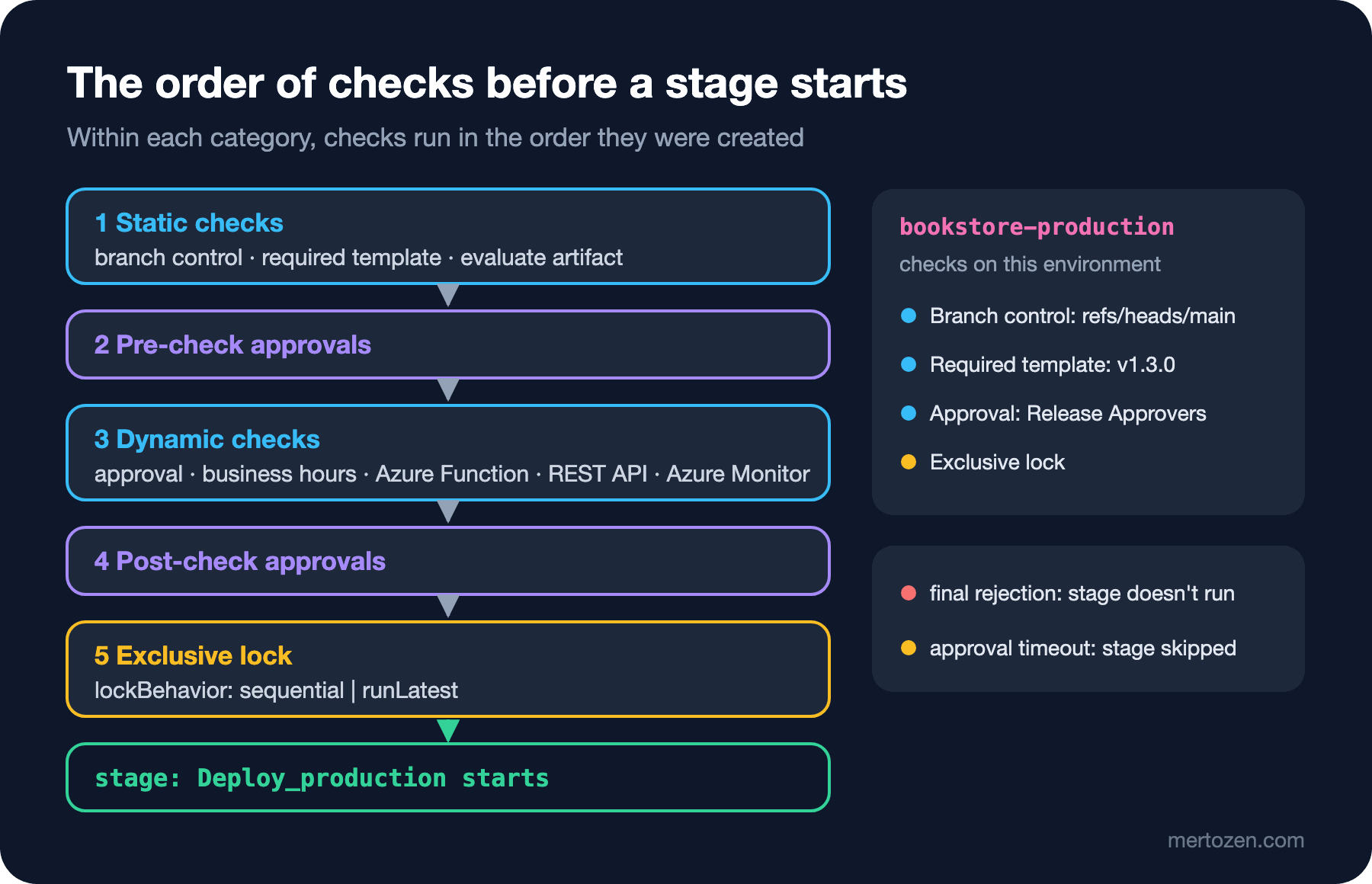
Static checks come first: branch control, which verifies that every resource linked to the run comes from allowed and, if required, protected branches; required template, which fails the run if the pipeline doesn't extends a given template; and evaluate artifact, which for now evaluates a policy only for container images. Pre-check approvals follow, then the dynamic checks: approval, business hours, which holds the stage until a time window, Invoke Azure Function, Invoke REST API and Query Azure Monitor alerts. Post-check approvals come after them and the exclusive lock comes last. Within each category the checks run in the order they were created, and the order is visible on the environment's Approvals and checks tab.
The practical consequence of this order: Selin never has to approve a run that won't pass branch control. If a check gives a final rejection, for example a rejected approval, the stage doesn't run. If an approval isn't given within its timeout, the stage is marked as skipped; according to the documentation, you can retry a stage after its approvals and checks time out.
To Production Only from main, and Only with an Approval
We added four checks on the Approvals and checks tab of the bookstore-production environment. Branch control takes refs/heads/main as the allowed branch; the documentation asks for fully qualified branch names. The "protected branch" requirement is on as well: a branch with at least one branch policy counts as protected. Required template points to the Bookstore/pipeline-templates repository, the refs/tags/v1.3.0 ref and the pipelines/bookstore-ci.yml path; the skeleton we built in the third post becomes mandatory here. Approval takes the "Bookstore Release Approvers" group as approvers; one person from the group is enough, and we tick the option that prevents whoever started the run from approving it. Last comes the exclusive lock.
The exclusive lock works together with lockBehavior: sequential in the template. With the lock in place, several runs of the same pipeline can't enter production at the same time. sequential lets the runs through one after another; the default, runLatest, gives the lock only to the latest run and skips the older waiting ones. We chose sequential behavior for production because every main run may carry a migration and we don't want any of them skipped.
The documentation also says the list of approvers is fixed when the checks start running. Someone added to the group later can't approve that run. If the moment of approval and the moment the deployment should start differ, for example when you want to deploy in the evening when traffic drops, "Defer approval" lets you choose when the approval becomes effective.
Their Counterparts in Classic Releases
For teams coming from classic release pipelines, the mapping looks like this:
| Classic release | YAML | Difference |
|---|---|---|
| Stage (environment) | stage + deployment job + environment resource | History lives on the environment and spans several pipelines |
| Pre-deployment approval | Approval check on the environment | On the resource, not the pipeline; the YAML author can't change it |
| Post-deployment approval | Approval on the environment the next stage uses | No direct counterpart; it moves to the entry of the next environment |
| Gate (REST API, Azure Function, Azure Monitor) | Invoke REST API, Invoke Azure Function, Query Azure Monitor alerts checks | The Query work items and Azure Policy gates have no check counterpart |
| Scheduled release / deployment window | Business hours check | The stage starts when the window opens |
| Deployment queue settings | Exclusive lock + lockBehavior | runLatest or sequential |
| Deployment group | Environment with virtual machine resources | Environments can't be used in classic |
There is a timeout difference too: in classic, an approval not given in time rejects the deployment, while in YAML the stage is skipped. According to the documentation, classic gates are re-evaluated until all of them succeed in the same sampling interval; for the Invoke REST API and Azure Function checks in YAML, the "Time between evaluations" setting does the same job.
In Production
The required template check is tied to a ref. While the check points to refs/tags/v1.3.0, a pipeline that moves its templates to v1.4.0 can't enter production. Upgrading the template version is therefore a two-step job: first add the new ref to the check (a resource can have several required templates), then upgrade the pipelines, and finally remove the old ref.
A run waiting for approval stays open, and with a sequential lock the runs behind it wait for it as well. The approver group must not be empty during holidays, and the approval timeout should match the team's real response time.
Putting checks only on the environment isn't enough. The stage that deploys to production will also use an Azure service connection; in the seventh post we add the same required template and branch control checks to that connection. Then, even if someone writes a separate pipeline that skips the environment and deploys straight through the same connection, the controls still apply.
Common Pitfalls
Assuming a deployment job checks out the repository. It doesn't. That's the most common reason a script breaks with "No such file or directory"; you need to add checkout: self.
Going to an environment that doesn't exist from a CI trigger. If a user saves the pipeline in the web editor, Azure Pipelines creates the environment automatically; but if the YAML changed in another editor and the run starts from a trigger, it isn't known on whose behalf to create it, so the job fails with "could not be found". Create environments by hand, before the pipeline.
Looking for checks in the YAML. There is no approval: key; checks belong to the resource owner and are managed in the web UI or through the Approvals and Checks REST API. When you review a pipeline as code, review its checks separately.
Ignoring the approval timeout. A stage that isn't approved in time is skipped, and the stages that depend on it don't run either; the run may not look failed, yet nothing reached production. You can retry the stage, as long as someone notices.
A Small Experiment
★☆☆ Add a line to verify-release.sh that checks the manifest's version isn't empty, and try it with an empty manifest.
★★☆ Add an on: failure hook to the deploy template: if the deployment fails, it writes a warning to the run that says which environment broke. Check in the documentation which agent this hook runs on.
★★★ Design a flow with a business hours check on bookstore-staging and a deferred approval on bookstore-production: staging deploys during working hours, production at 07:00 the next morning. Write down, as a table, which check sits on which resource.
The stages are ready, but they don't send anything to Azure yet. In the next post we fill in the deploy steps: a passwordless Azure service connection with workload identity federation, a deployment to the App Service staging slot, a smoke test and a swap, and an EF Core migration bundle that gets its connection from Key Vault.