

What Is Azure DevOps Pipelines? Organization, Project, YAML Pipelines and Your First CI Run
Azure Pipelines is the Azure DevOps CI/CD service that runs a YAML file in a project on triggers and executes its jobs on agents; the hierarchy is pipeline, stage, job and step. We write a first pipeline that restores, builds and runs Bookstore's SQL Server integration tests, and cover why Azure Repos validates pull requests through branch policies, the GitHub App connection and a GitHub Actions mapping.
Version note: The examples in this post were built and run locally with .NET 10 (SDK 10.0.404); the pipeline file was parsed and checked with yq 4.54. Azure Pipelines behaviour in this post is based on the official documentation on Microsoft Learn (November 2026 versions).
Guess First
Emre has moved the code of Bookstore, the online bookstore used as the shared example across this site's series, into an Azure Repos Git repository in the company's Azure DevOps organization. Used to GitHub Actions, he adds this azure-pipelines.yml to the repository root:
trigger:
  branches:
    include:
      - main

pr:
  branches:
    include:
      - main

pool:
  vmImage: ubuntu-24.04

steps:
  - script: dotnet build Bookstore.slnx
He creates the pipeline from this file and then opens a pull request from feature/cart-badge into main. The question: does a build start on the pull request? If not, when is the pr: block taken into account?
The answer: no build starts, and as long as this file lives in Azure Repos the pr: block is never taken into account. Azure Pipelines uses the pull request trigger in a YAML file only for GitHub and Bitbucket Cloud repositories. In Azure Repos Git, pull request validation is done with a branch policy: you add a "Build validation" policy to the target branch (main here) and pick this pipeline. Had the same file been in a GitHub repository, a run would have started the moment the pull request was opened. The "Build Azure Repos Git repositories" page on Microsoft Learn says this plainly in its troubleshooting section. In this post we will also look at differences like this one that trip up people coming from GitHub Actions in their first week.
The Parts of Azure DevOps and Where Pipelines Fits
Azure DevOps is not one product but a platform of five services that work together. Azure Boards does work tracking: backlogs, sprints, work items. Azure Repos hosts Git repositories and the older TFVC. Azure Pipelines runs builds, tests and deployments. Azure Test Plans manages manual and exploratory testing. Azure Artifacts provides feeds for NuGet, npm, Maven and Python packages. This series focuses on Pipelines and on Artifacts, which pipelines use directly; Boards, Repos and Test Plans are out of scope. Work tracking is the subject of the upcoming Jira and Project Tools series.
At the top sits the organization: an address such as dev.azure.com/bookstore-org, plus users, billing and parallel job capacity. Under the organization are projects. This series uses a single project: Bookstore. Repositories, pipelines, environments, service connections and most feeds live inside a project. A pipeline definition always belongs to a project; its code can sit in an Azure Repos repository in the same project or on GitHub.
There is also a hosting difference. Azure DevOps Services is the cloud version hosted by Microsoft; new features land there first and Microsoft-hosted agents exist only there. Azure DevOps Server is the on-premises version for organizations that install the same core services on their own servers: you run the infrastructure, the upgrades and the agents, and pipelines run on self-hosted agents. This series covers Services; we will come back to the differences in Server briefly in the last post.
The Hierarchy: Pipeline, Stage, Job and Step
Every Azure Pipelines concept sits on a four-level structure. Look at the diagram first, then we will go through the levels one by one.
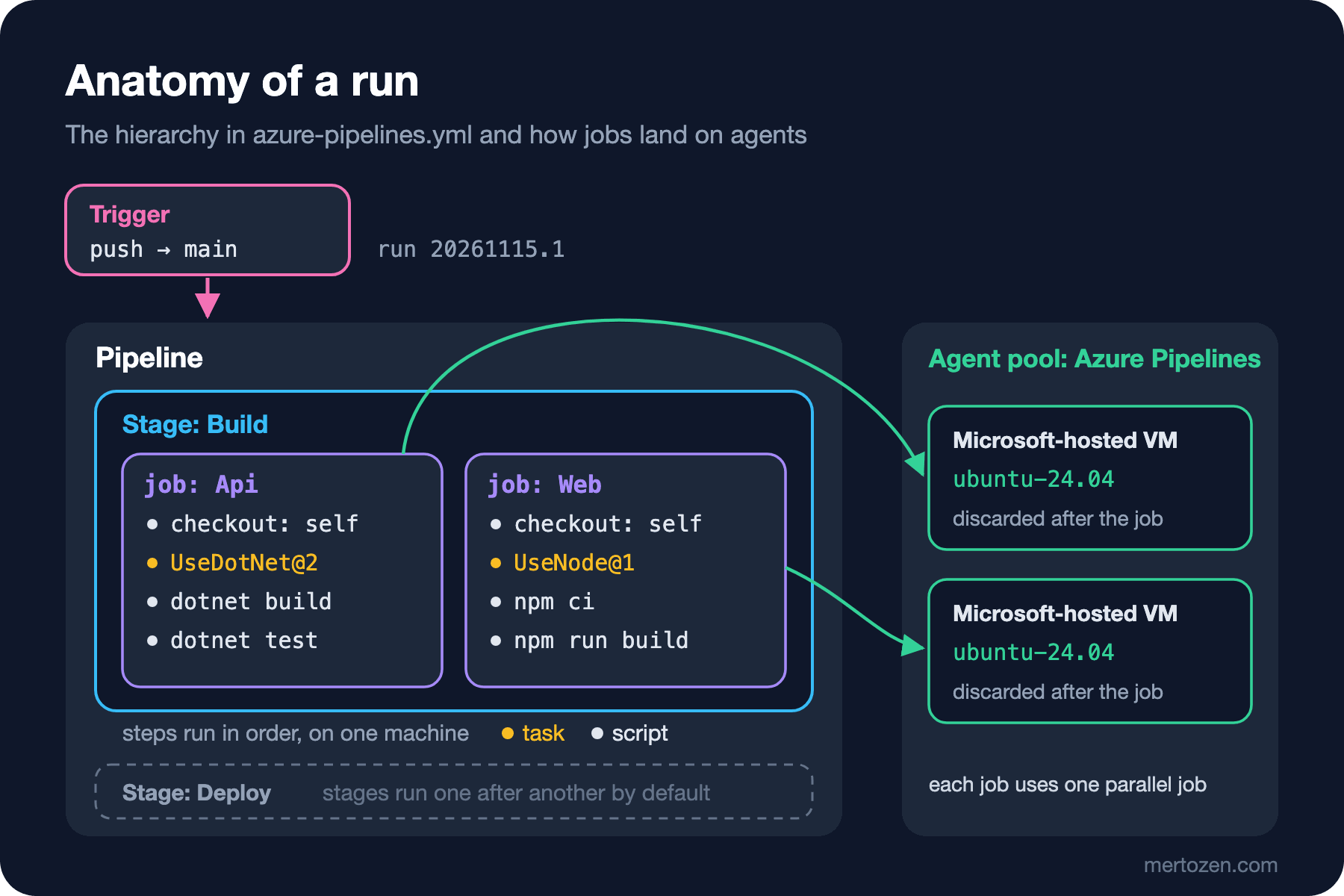
A trigger (a push, a schedule, another pipeline finishing or a manual start) starts a run of the pipeline. A pipeline has one or more stages. A stage is a logical boundary such as "build", "deploy to staging" or "deploy to production". Stages run one after another by default, and rules such as approvals and checks apply at stage level. Each stage contains one or more jobs. A job is an execution boundary: a set of steps that run in order on the same agent. Jobs in the same stage can run in parallel unless you link them with dependsOn, but only if the organization has enough parallel jobs. A step is the smallest unit and comes in two kinds: a task, which is a prepackaged step with inputs published by Microsoft or by an extension, such as UseDotNet@2; or a script, which is bash, PowerShell or command-line code you write yourself.
An agent is the software on the machine that runs a job, and it runs one job at a time. With a Microsoft-hosted agent each job gets a fresh VM that has never run a pipeline, and the VM is discarded when the job ends. That is why steps in the same job see each other's files while two different jobs do not; moving what one job produced to another job takes a pipeline artifact (the fourth post). In a simple pipeline you can leave out the stages and jobs keys entirely: if the root only has steps, Azure Pipelines treats it as a pipeline with one stage and one job. Our first pipeline is exactly that.
The First Pipeline: Restore, Build and Test for Bookstore
This series' repository is Bookstore's reference application: Bookstore.slnx at the root, src/Bookstore.Api (an ASP.NET Core 10 Web API with EF Core and SQL Server), tests/Bookstore.Api.Tests (integration tests with xUnit v3) and web/bookstore-web (Angular 22). The first pipeline only builds the API side and runs the tests:
# Bookstore CI: restore, build and test on every push to main
trigger:
  branches:
    include:
      - main

pool:
  vmImage: ubuntu-24.04

variables:
  buildConfiguration: Release

steps:
  - checkout: self

  - task: UseDotNet@2
    displayName: Install .NET SDK from global.json
    inputs:
      packageType: sdk
      useGlobalJson: true

  - script: dotnet restore Bookstore.slnx
    displayName: Restore

  - script: dotnet build Bookstore.slnx --no-restore -c $(buildConfiguration)
    displayName: Build

  - script: bash scripts/start-test-sql.sh
    displayName: Start SQL Server for integration tests

  - script: dotnet test --solution Bookstore.slnx --no-build -c $(buildConfiguration)
    displayName: Test
    env:
      ConnectionStrings__BookstoreDb: $(TestDbConnection)
The trigger block says this pipeline starts automatically only for pushes to main. pool: vmImage: ubuntu-24.04 says the job runs on the Ubuntu 24.04 image in the Microsoft-hosted "Azure Pipelines" pool. Writing ubuntu-latest would also work and currently points to the same image, but the Ubuntu 26.04 image became generally available on September 29, 2026 and the "latest" label will move to it one day. Naming the image yourself means you decide when to make that move.
buildConfiguration under variables is a pipeline-wide variable, read in steps as $(buildConfiguration). That $( ) form is macro syntax: the value is substituted just before the step runs. Azure Pipelines has three ways to reach a variable, and when each one is processed is the subject of the next post.
checkout: self pulls the repository that contains the pipeline file onto the agent. It is added to the start of every job automatically even if you leave it out; writing it makes the intent clear to the reader and shows where options such as fetchDepth and clean will go later. The UseDotNet@2 task with useGlobalJson: true reads the repository's global.json and installs the SDK it describes:
{
  "sdk": {
    "version": "10.0.100",
    "rollForward": "latestFeature"
  },
  "test": {
    "runner": "Microsoft.Testing.Platform"
  }
}
According to the task's documentation it also honours rollForward: latestFeature here means "the newest 10.0 SDK at or above 10.0.100". The developer's machine and the pipeline are fed from the same file. The test.runner line switches dotnet test in .NET 10 to Microsoft.Testing.Platform mode, which is why the command is written with --solution.
The remaining steps are commands you also run locally. Running the pipeline's two commands in the same repository locally gives this output (long local paths shortened to …):
$ dotnet restore Bookstore.slnx
  Determining projects to restore...
  Restored …/src/Bookstore.Api/Bookstore.Api.csproj (in 147 ms).
  Restored …/tests/Bookstore.Api.Tests/Bookstore.Api.Tests.csproj (in 147 ms).
$ dotnet build Bookstore.slnx --no-restore -c Release
  Bookstore.Api -> …/src/Bookstore.Api/bin/Release/net10.0/Bookstore.Api.dll
  Bookstore.Api.Tests -> …/tests/Bookstore.Api.Tests/bin/Release/net10.0/Bookstore.Api.Tests.dll

Build succeeded.
    0 Warning(s)
    0 Error(s)
The real benefit of splitting restore and build into separate steps shows up in the log: on the run page you see at a glance which step turned red. --no-restore and --no-build are there so the same work is not done twice.
A Throwaway SQL Server for the Integration Tests
Bookstore's tests are integration tests that talk to a real SQL Server. The test project reads the connection string from the ConnectionStrings:BookstoreDb key, appends _Tests and builds the database from scratch on every run. It is easy to see locally what happens when the connection string is missing:
$ dotnet test --solution Bookstore.slnx --no-build -c Release
failed Bookstore.Api.Tests.CatalogTests.Search_finds_books_by_author_name (0ms)
  Xunit.MicrosoftTestingPlatform.XunitException: Assembly fixture type 'Bookstore.Api.Tests.BookstoreApiFactory' threw in its constructor
  ---- System.InvalidOperationException : Connection string 'BookstoreDb' is missing (see README.md).
…
Test run summary: Failed!
  total: 10
  failed: 10
  succeeded: 0
  skipped: 0
  duration: 217ms
Test run completed with non-success exit code: 2 (see: https://aka.ms/testingplatform/exitcodes)
The pipeline would do the same: exit code 2, a red step, a failed run. The Microsoft-hosted Ubuntu image ships with Docker, so we added a small script that starts SQL Server as a container right before the tests:
#!/usr/bin/env bash
# Starts a throwaway SQL Server container on the build agent for the integration tests
# and hands the connection string to later steps as a secret pipeline variable.
set -euo pipefail

container_name="bookstore-test-sql"
image="mcr.microsoft.com/mssql/server:2025-latest"

# A new random password on every run; it never leaves this agent.
MSSQL_SA_PASSWORD="Bk-$(openssl rand -hex 16)-9z"
export MSSQL_SA_PASSWORD
echo "##vso[task.setsecret]${MSSQL_SA_PASSWORD}"

# -e NAME without a value copies it from this shell, so the password is not on the command line.
docker run -d --name "$container_name" \
  -e ACCEPT_EULA=Y -e MSSQL_SA_PASSWORD \
  -p 1433:1433 "$image" > /dev/null

for attempt in $(seq 1 30); do
  if SQLCMDPASSWORD="$MSSQL_SA_PASSWORD" docker exec -e SQLCMDPASSWORD "$container_name" \
      /opt/mssql-tools18/bin/sqlcmd -C -S localhost -U sa -Q "SELECT 1" > /dev/null 2>&1; then
    echo "SQL Server is ready (attempt $attempt)."
    connection="Server=localhost,1433;Database=BookstoreDb;User Id=sa;Password=${MSSQL_SA_PASSWORD};TrustServerCertificate=True"
    echo "##vso[task.setvariable variable=TestDbConnection;issecret=true]${connection}"
    exit 0
  fi
  sleep 2
done

echo "##vso[task.logissue type=error]SQL Server did not become ready in 60 seconds."
docker logs "$container_name" | tail -n 20
exit 1
The ##vso[...] lines in the script are logging commands: when the agent sees a line in this format on a step's standard output, it processes it as a command. task.setsecret adds the password to the list of values masked in logs. task.setvariable ... issecret=true defines a secret variable called TestDbConnection for later steps. Secret variables are not passed to steps as environment variables automatically, so the test step maps it explicitly with env: to the name ConnectionStrings__BookstoreDb. ASP.NET Core configuration reads the double underscore as :, so the test project finds the value under the right key. ACCEPT_EULA=Y is the required setting that says you accept the SQL Server image's license terms; the team that writes the pipeline makes that call. Logging commands and secrets get the full treatment in the second post.
Connecting the Repository and Creating the Pipeline
Once the file is in the repository, you create the pipeline in the web UI: Pipelines, New pipeline, where your code lives (Azure Repos Git or GitHub), the repository, and then the option to use an existing YAML file. Azure Pipelines shows the file, and Run starts the first run. At this point you can also open the file in Azure DevOps' own YAML editor; its "Validate" option catches syntax errors that would stop the pipeline from starting before you save.
If the code is on GitHub, the connection method matters. The documentation lists three methods and recommends the Azure Pipelines GitHub App: once the app is installed on your GitHub organization (or on selected repositories only), builds and GitHub status updates run under the Azure Pipelines identity rather than your personal account. The OAuth and personal access token methods use your own GitHub identity; a pipeline set up with the token of someone who leaves the team quietly stops that day. Installing the GitHub App takes a GitHub organization owner or a repository admin.
Two defaults on the trigger side are worth knowing. First: if the file has no trigger block at all, the pipeline runs on pushes to every branch. The "Disable implied YAML CI trigger" setting at organization or project level turns that off, but it is not on by default. Our file names trigger explicitly, so only main starts it. Second, the topic of the opening section: in Azure Repos, pull request validation is set up with a branch policy, and the run started by that policy runs on the merge commit, the combined state of the source and target branches. Draft pull requests do not start a build even when a policy exists. For GitHub repositories the pr: block in YAML does work; details such as not giving secrets to pull requests from forks belong to the security post.
The Run Summary, Logs and a Local Check Before You Push
When a run starts, Azure Pipelines first processes the file: it expands templates, evaluates template expressions and looks at stage and job dependencies to decide which job runs. Then it checks whether the organization has a free parallel job slot; if not, the job waits in the queue. When a slot opens, a fresh VM comes up with the requested image, the agent picks up the job, downloads the tasks it needs, prepares the working folder and runs the steps in order. When a step fails, later steps are skipped by default.
The run summary page shows the jobs and each job's steps; clicking a step opens its log. The menu at the top right downloads all logs as a zip. Two options help when debugging: ticking "Enable system diagnostics" when starting a run manually, or adding a system.debug variable set to true to the pipeline. Both make the agent and the tasks write detailed logs.
Before you push, it is a good habit to confirm locally that the file is at least valid YAML. The shortest route that needs no account is to parse the YAML and query something from it. Let us list the step names with yq:
$ yq '.steps[] | (.displayName // "(checkout)")' azure-pipelines.yml
(checkout)
Install .NET SDK from global.json
Restore
Build
Start SQL Server for integration tests
Test
Now shift the displayName line of the Restore step two spaces to the left, the most common YAML mistake there is:
$ yq '.steps | length' azure-pipelines.yml
Error: bad file 'azure-pipelines.yml': go-yaml load error in parser (while parsing a block collection) at L14.C3-L23.C3: did not find expected '-' indicator
This check catches only YAML structure. Whether a task name is right, whether its inputs are valid, or what the expanded templates look like, only Azure Pipelines itself can tell you; that is what the editor's "Validate" and the validation before a run are for.
Coming from GitHub Actions: Mapping the Concepts
If you have read this site's GitHub Actions series, most concepts will feel familiar. The names and a few defaults differ:
| GitHub Actions | Azure Pipelines | Note |
|---|---|---|
workflow (.github/workflows/*.yml) | pipeline (usually azure-pipelines.yml) | In Azure the pipeline definition is also created in the web UI and linked to a file |
event (on:) | trigger (trigger, pr, schedules, resources) | In Azure Repos, pull request validation uses a branch policy |
| none (jobs are one level) | stage | Approvals and checks apply at stage level |
| job | job | In both, each job runs on its own machine |
step: uses: / run: | step: task: / script: | Tasks are packages from Microsoft or Marketplace extensions |
| runner | agent, inside a pool | Microsoft-hosted, self-hosted, Managed DevOps Pools |
| environment | environment | In Azure, approvals and checks are defined by the resource owner |
| artifact | pipeline artifact | Not to be confused with an Azure Artifacts feed |
Which one you pick is usually an organizational decision rather than a technical one. If the code is on GitHub and the team lives its pull request flow there, GitHub Actions means fewer moving parts. Azure DevOps stands out when the company has already invested in Azure and Microsoft Entra ID and manages permissions there, when work tracking is in Azure Boards and commits should link to work items, or when a team that has used classic pipelines for years is moving them to YAML. The two can also live together: the code can be on GitHub and the pipeline in Azure DevOps. The general framework for choosing a tool is in the Jenkins series post "What Is Jenkins? Controllers, Agents, Executors and When to Choose Jenkins Over GitHub Actions"; the CI/CD concepts themselves were covered in the CI/CD Fundamentals post "Pipeline Anatomy: Triggers, Stages, Jobs, Steps and Failing Fast".
In Production
Know your capacity from day one. In a new organization the free tier for Microsoft-hosted agents does not switch on by itself; it applies once you link the organization to a valid Azure subscription and set up billing. The free tier gives private projects a single parallel job: up to 60 minutes per job and 1,800 minutes a month in total. That means the jobs of a two-job pipeline run one after the other, not in parallel, and if two developers push at the same time the second run waits in the queue. With paid parallel jobs the per-job limit rises to 360 minutes and the monthly limit goes away. Creating public projects is no longer possible; existing public projects will convert to private in 2027.
Know the limits of the Microsoft-hosted machine as well: for Linux and Windows, a VM with 2 cores, 7 GB of memory and at least 10 GB of free disk for the job. These values cannot be raised. Images are updated regularly and you cannot roll back to an older image version; a pipeline that was green last week can turn red because a tool version on the image changed. That is why you pin critical tools such as the SDK and Node.js yourself with tool installer tasks like UseDotNet@2. The Ubuntu 22.04 image is on a removal schedule (April 17, 2027) with brownouts planned before that; if you still have pipelines that say ubuntu-22.04, move them now.
Watch duration from the start. In this small pipeline the steps that will affect duration most are installing the SDK, the NuGet restore and pulling the SQL Server image. Run history shows the time of every step; cutting restore and download time with caching is the topic of the fourth post. Once the team waits more than 10 minutes for each pull request validation, the feedback loses its value.
Common Pitfalls
Looking for the "Releases" screen from old blog posts. Most Azure DevOps walkthroughs on the internet show classic build and classic release pipelines, definitions built by drag and drop in the web UI. Since Sprint 226 (2023), creating classic build and release pipelines is turned off by default in new organizations; two settings at organization or project level control this, and with both off you cannot create task groups or deployment groups either. If you cannot find the "New release pipeline" button, the problem is not you. Everything in this series is YAML; moving away from classic definitions is the topic of the last post.
Expecting pull request validation from YAML. The situation from the opening: in Azure Repos the pr: block does nothing and you need a branch policy. The opposite mistake happens too: in a pipeline connected to a GitHub repository, leaving out the pr: block means runs start for pull requests into every branch.
Forgetting to write a trigger. A pipeline without a trigger block runs on every push to every branch. In an organization with a single parallel job, that means branches nobody looks at filling up the queue.
Hard-coding paths on the agent. Embedding a path such as /home/vsts/work/1/s in a script breaks the day the image layout changes. The documentation says the folder layout on hosted agents can change without notice; use predefined variables such as $(Build.SourcesDirectory) and $(Pipeline.Workspace) instead.
Assuming a secret variable is an environment variable. If you try to read it in a script as $TESTDBCONNECTION, it comes back empty; you have to map secret variables explicitly with env:. The next post explains why.
A Small Experiment
★☆☆ Adapt this post's azure-pipelines.yml to one of your own .NET projects, list the step names with yq, then break an indentation on purpose and read the error.
★★☆ Look at the wait loop in start-test-sql.sh and replace the fixed 30 attempts and 2-second sleep with a total timeout you can set through a parameter. Think about which line will show up as a red error in the pipeline log when the script fails.
★★★ Add a second job for the Angular application (two jobs under jobs:). Compare the total duration of the two jobs in an organization with one parallel job against one with two, and write down where the difference comes from.
In this pipeline we used two variables, $(buildConfiguration) and $(TestDbConnection), and read both the same way. Yet Azure Pipelines has two more forms, ${{ }} and $[ ], and not knowing when each one is processed is behind some of the most common pipeline bugs. In the next post we look at variables, parameters, expressions and the kinds of triggers.