

What Is GitHub Actions? Your First CI with Workflows, Events, Jobs, Steps and Runners
GitHub Actions is a CI/CD platform that runs the YAML workflows under .github/workflows on runners in response to repository events. We write a first workflow that restores, builds and unit-tests the Bookstore API, try it locally with act and actionlint, and cover uses versus run, the run log, re-runs and the reasoning behind the Web API 31 workflow.
Version note: The examples in this post were tested with act 0.2.97, actionlint 1.7.12, Docker 29.2, .NET 10 (SDK 10.0.403), actions/checkout@v7 and actions/setup-dotnet@v6. The workflows were run locally with act; they were not run on GitHub.
Guess First
Ada is adding the first workflow to the Bookstore repository. She copies an example from the internet, changes two lines to fit her project and saves the file as .github/workflows/ci.yml:
name: ci

on:
  push:
    branches: [main]

jobs:
  build:
    runs-on: ubuntu-latest
    steps:
      - uses: actions/checkout@v7

      - name: Build
      run: dotnet build api/Bookstore.slnx
There is exactly one mistake in the file and it is hard to spot by eye. The question: when this file is pushed to main, at which step does the build turn red? Checkout, build, or does it never start?
Before pushing, let's hand the same file to actionlint:
$ actionlint .github/workflows/ci.yml
.github/workflows/ci.yml:10:6: could not parse as YAML: did not find expected '-' indicator [syntax-check]
   |
10 |     steps:
   |      ^~~~~
Answer: it never starts. The run: line sits at the same indentation as - name: Build; the YAML (YAML Ain't Markup Language) parser takes it as a new item of the steps list, but there is no - in front of it. Because the file is not even valid YAML, GitHub never sends a job to a runner; the Actions tab shows a red "workflow file" error and not a single step runs. Indenting run: by two spaces fixes it. In this post we will also see how to catch this kind of error before pushing.
The Building Blocks of GitHub Actions: Events, Workflows, Jobs, Steps and Runners
GitHub Actions is a CI (Continuous Integration) and CD (Continuous Delivery) platform: when something happens in your repository (a push, an opened pull request, a tag, a timer), it runs the work you defined on machines GitHub provides or machines you attach. Once five concepts click, everything else builds on top of them.
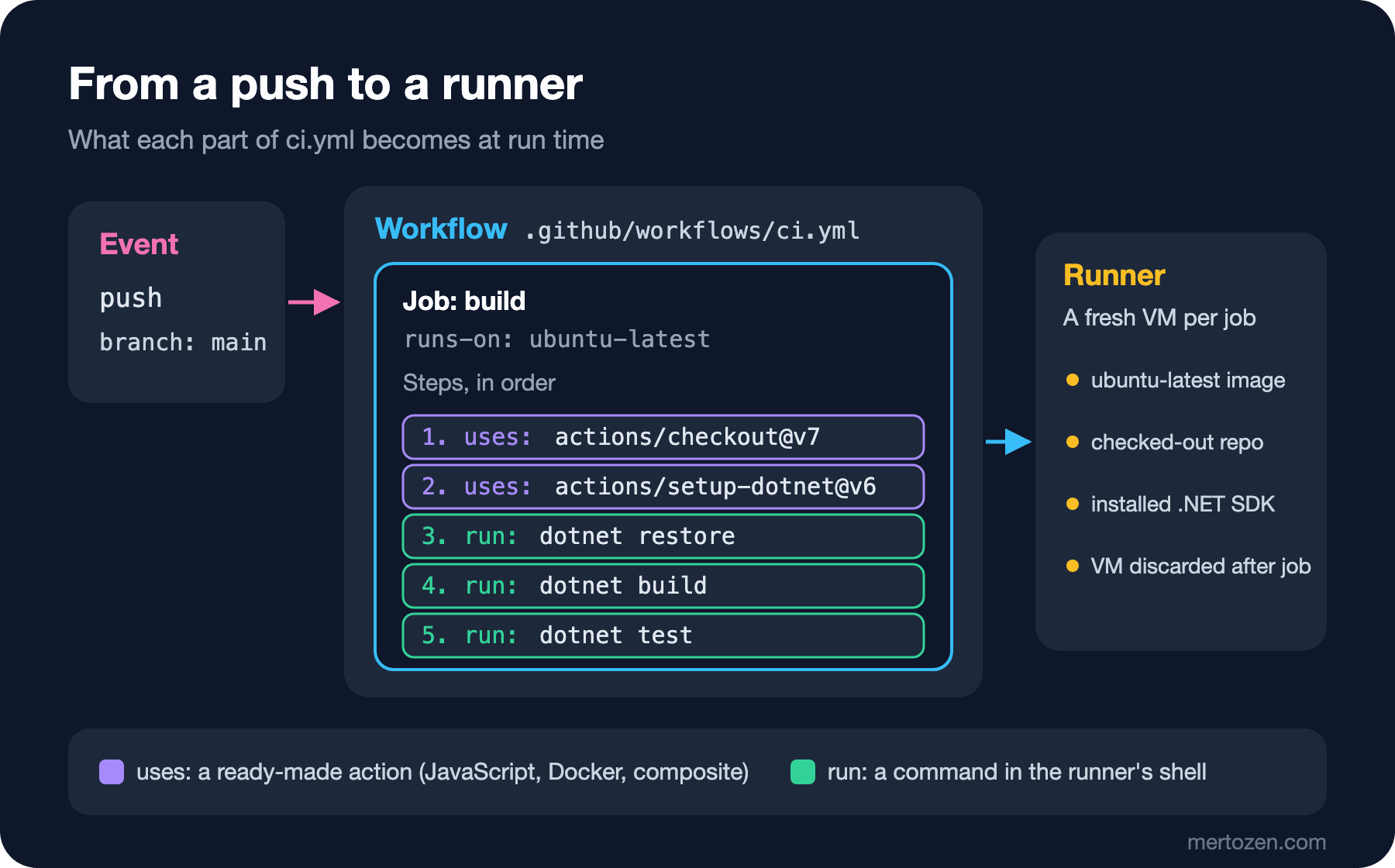
An event is what triggers a workflow: push, pull_request, workflow_dispatch (manual run), schedule and so on. A workflow is each YAML file in the .github/workflows/ folder; a repository can have as many workflows as it likes and each listens to its own events. A job is an independent unit of work inside a workflow; by default jobs run in parallel, and you chain them with needs (the topic of the fourth post). A step is one of the ordered actions inside a job; a step either calls a ready-made action (uses:) or runs a shell command (run:). A runner is the machine that executes the job.
The most important distinction is between jobs and steps. Steps of the same job run in order on the same machine and the same file system: the code that checkout downloads is right there for the build step. Two different jobs run on two different machines and cannot see each other's files; moving what one job produces to another needs an artifact (seventh post). On GitHub's own runners, except for the small single-CPU (Central Processing Unit) runners, every job gets a new VM (Virtual Machine) that is thrown away when the job finishes. So you cannot rely on a bin/ folder from a previous run, an installed global tool or a warm cache; every run starts from scratch.
The First Workflow: Restore, Build and Test for the Bookstore API
The sample repository for this series is a monorepo: the api/ folder holds Bookstore.Api (an ASP.NET Core 10 minimal API (Application Programming Interface) with Entity Framework Core (EF Core) and PostgreSQL) plus unit test and integration test projects; the web/ folder holds bookstore-web, written with Angular 22. A global.json at the root says which .NET SDK (Software Development Kit) to use. The first workflow only builds the API and runs the unit tests:
name: ci

on:
  push:
    branches: [main]
  pull_request:
    branches: [main]

jobs:
  build:
    runs-on: ubuntu-latest
    steps:
      - uses: actions/checkout@v7

      - uses: actions/setup-dotnet@v6
        with:
          global-json-file: global.json

      - name: Restore
        run: dotnet restore api/Bookstore.slnx

      - name: Build
        run: dotnet build api/Bookstore.slnx --no-restore -c Release

      - name: Unit tests
        run: dotnet test --project api/tests/Bookstore.Api.Tests --no-build -c Release
name: ci is the display name of the workflow in the Actions tab. on says which events trigger this workflow: every push to main and every pull request opened against main. Under jobs there is a single job: build. That name is the job's id; you will see it again when you write needs: build and when you pick a required check in branch protection.
runs-on: ubuntu-latest picks the runner image the job runs on. As of November 2026 this label is on the move: GitHub is migrating ubuntu-latest from Ubuntu 24.04 to 26.04 gradually between October 19 and November 19, 2026. The same workflow may have run on 24.04 last month and on 26.04 this month. The details of that migration, and when pinning to ubuntu-24.04 makes sense, are in the runners post; for now just remember that "latest" is not a fixed thing.
On to the steps: actions/checkout@v7 pulls the repository onto the runner. The runner is an empty machine; without checkout there is not a single file in the workspace. actions/setup-dotnet@v6 reads global.json and installs the SDK that satisfies its rule. Our global.json looks like this:
{
  "sdk": {
    "version": "10.0.400",
    "rollForward": "latestFeature"
  },
  "test": {
    "runner": "Microsoft.Testing.Platform"
  }
}
latestFeature means "the newest 10.0 SDK at or above 10.0.400"; as its README states, setup-dotnet interprets the rule the way .NET's own resolver does and installs the highest matching SDK. The test section switches dotnet test in .NET 10 to Microsoft.Testing.Platform mode; the current xUnit v3 release requires it. We will come back to that in the .NET CI post. The remaining three steps are the commands you already type locally: restore, build in Release, unit tests. --no-restore and --no-build avoid doing the same work twice; the real benefit of separate steps is seeing at a glance which one broke in the log.
The Difference Between uses: and run:
run: executes a command in the runner's shell; on a Linux runner the default shell is bash, and GitHub invokes it with -e, so the step stops at the first failing command. uses: calls an action someone else packaged. There are three kinds of action: JavaScript actions (run with Node.js on the runner; checkout and setup-dotnet are of this kind), Docker container actions, and composite actions that bundle several steps. actions/checkout@v7 means "the action at the v7 ref of the github.com/actions/checkout repository"; the values under with: go to the inputs defined in that action's action.yml.
You can see this plainly in act's log. When act meets a uses: line, it clones the action's repository and runs the JavaScript file inside it with Node; a run: line becomes a bash script:
[ci/build]   ☁  git clone 'https://github.com/actions/setup-dotnet' # ref=v6
[ci/build] ⭐ Run Main actions/setup-dotnet@v6
[ci/build]   🐳  docker exec cmd=[/opt/acttoolcache/node/24.19.0/arm64/bin/node /var/run/act/actions/actions-setup-dotnet@v6/dist/setup/index.js] user= workdir=
...
[ci/build] ⭐ Run Main Restore
[ci/build]   🐳  docker exec cmd=[bash -e /var/run/act/workflow/2] user= workdir=
The lesson: every action you call with uses: is third-party code running on your CI machine with your permissions. GitHub Marketplace has thousands of actions, and some are one person's hobby project. When choosing one, check in this order: who publishes it (GitHub's own actions/ organization, or the official owner of the tool?), whether the source is readable, when the last release was, and whether you really need it. Adding an action for something a two-line run: can do adds one more dependency to your attack surface. Pinning to a commit SHA (Secure Hash Algorithm) instead of a tag, and keeping that up to date with Dependabot, is the topic of the security post.
Running the Workflow Locally: actionlint and act
The "push and see" loop is slow and fills the repository history with "fix ci" and "fix ci again" commits. Two tools shorten that loop. actionlint (rhysd/actionlint) checks workflow files statically: YAML syntax, unknown keys, expressions, job dependencies, even the shell scripts inside run:. act (nektos/act) actually runs the workflow inside Docker containers. Both are single binaries; in this series we downloaded both into the work folder, not into the repository.
$ actionlint && echo LINT-OK
LINT-OK
$ act -l
Stage  Job ID  Job name  Workflow name  Workflow file  Events
0      build   build     ci             ci.yml         push,pull_request
act -l lists the workflows, jobs and events it recognizes. Now let's simulate the push event. We gave act catthehacker/ubuntu:act-24.04 as the runner image; it is a slimmed-down imitation of GitHub's runner image, not an identical copy. The real command had a few more flags that keep the cache and artifact folders inside the work folder; the line below is the essence. The important part of the log (I shortened long local paths with …):
$ act push -P ubuntu-latest=catthehacker/ubuntu:act-24.04
[ci/build] ⭐ Run Set up job
[ci/build] 🚀  Start image=catthehacker/ubuntu:act-24.04
[ci/build]   ✅  Success - Set up job
[ci/build] ⭐ Run Main actions/checkout@v7
[ci/build]   ✅  Success - Main actions/checkout@v7 [326.932875ms]
[ci/build] ⭐ Run Main actions/setup-dotnet@v6
[ci/build]   | [command]/run/act/actions/actions-setup-dotnet@v6/externals/install-dotnet.sh --skip-non-versioned-files --runtime dotnet --channel LTS
[ci/build]   | dotnet-install: Installed version is 10.0.14
[ci/build]   | [command]/run/act/actions/actions-setup-dotnet@v6/externals/install-dotnet.sh --skip-non-versioned-files --channel 10.0
[ci/build]   | dotnet-install: Installed version is 10.0.403
[ci/build]   ✅  Success - Main actions/setup-dotnet@v6 [13.840332625s]
[ci/build]   ⚙  ::set-output:: dotnet-version=10.0.403
[ci/build] ⭐ Run Main Restore
[ci/build]   |   Restored …/bookstore/api/src/Bookstore.Api/Bookstore.Api.csproj
[ci/build]   ✅  Success - Main Restore [5.5987835s]
[ci/build] ⭐ Run Main Build
[ci/build]   | Build succeeded.
[ci/build]   |     0 Warning(s)
[ci/build]   |     0 Error(s)
[ci/build]   ✅  Success - Main Build [2.523338625s]
[ci/build] ⭐ Run Main Unit tests
[ci/build]   | Test run summary: Passed!
[ci/build]   |   total: 6
[ci/build]   |   failed: 0
[ci/build]   |   succeeded: 6
[ci/build]   |   skipped: 0
[ci/build]   |   duration: 818ms
[ci/build]   ✅  Success - Main Unit tests [1.297411833s]
[ci/build] 🏁  Job succeeded
A few things to notice when reading the log. setup-dotnet picked 10.0.403 from the 10.0.400 + latestFeature rule in global.json and published it as a step output (dotnet-version). Before that it also installed an LTS (Long Term Support) runtime; this is the action's default "LTS pre-pass" and can be turned off with the skip-lts-prepass input. The whole run took about 35 seconds on this machine, 14 of them downloading the SDK; on GitHub's hosted runners some SDKs come preinstalled in the image, so the ratio will differ.
Now let's see it do its real job. On a feature branch Ada lowers the shipping fee from 29.90 to 24.90 but forgets to update the tests:
[ci/build] ⭐ Run Main Unit tests
[ci/build]   | failed Bookstore.Api.Tests.OrderPricingTests.Small_order_pays_shipping (1ms)
[ci/build]   |   Assert.Equal() Failure: Values differ
[ci/build]   |   Expected: 29.90
[ci/build]   |   Actual:   24.90
[ci/build]   | failed Bookstore.Api.Tests.OrderPricingTests.Discount_can_bring_order_below_free_shipping (0ms)
[ci/build]   | Test run summary: Failed!
[ci/build]   |   total: 6
[ci/build]   |   failed: 2
[ci/build]   |   succeeded: 4
[ci/build]   | Test run completed with non-success exit code: 2 (see: https://aka.ms/testingplatform/exitcodes)
[ci/build]   ❌  Failure - Main Unit tests [1.737119666s]
[ci/build] exitcode '2': failure
[ci/build] 🏁  Job failed
Error: Job 'build' failed
The chain works like this: dotnet test exited with code 2, a non-zero exit code failed the step, the failed step failed the job, and the job failed the workflow. On GitHub that means a red cross under the pull request and, with branch protection, a locked merge button. All of CI rests on a rule this simple: if the exit code is not zero, stop.
The Actions Tab, the Run Log and Re-runs
On GitHub every trigger creates a "workflow run", listed in the repository's Actions tab. When you open a run you see the jobs on the left and the steps of the selected job on the right; each step is a collapsible log section, and they are GitHub's counterpart to act's ⭐ Run Main Build lines. A failed step opens automatically. You can link to log lines and download the log. You can also see a test report as a summary table instead of text buried in the log; we will do that with GITHUB_STEP_SUMMARY in the expressions post.
On a red run two buttons help: "Re-run all jobs" and "Re-run failed jobs". According to the documentation you can re-run a run up to 30 days after its first attempt, and at most 50 times. A re-run uses the GITHUB_SHA and GITHUB_REF of the original event; if you pushed a new commit to the branch, the re-run does not pick it up, it retries the old commit. During a re-run the "Enable debug logging" option turns on runner and step debug logs; we will look at that separately in the debugging post. The right use of a re-run is a transient failure (a short NuGet outage, say). If a test sometimes passes and sometimes fails, pressing re-run does not fix the problem, it hides it.
Rereading the Web API 31 Workflow
The ASP.NET Core Web API series post "Containerizing an ASP.NET Core Web API with Docker and Setting Up CI/CD with GitHub Actions" showed a short workflow with two jobs. Now we can discuss why each line is there. The first job (build-and-test) is almost identical to our build job; the only difference is that it writes the SDK version into the workflow with dotnet-version: 6.0.x. In this post we moved the version into global.json, so the developer's machine and CI feed from the same file, and upgrading takes a change in one place.
The second job (docker) carried three important ideas. needs: build-and-test: do not produce an image before the tests pass. if: github.event_name == 'push': do not push images from pull requests, publish only code merged into main. packages: write under permissions: give GITHUB_TOKEN extra rights only in this job, so it can write to GHCR (GitHub Container Registry). Each of these ideas gets its own post in this series: job dependencies in the fourth, expressions and if in the third, permissions in the eighth. We will not repeat that post's Dockerfile and image push; the deploy-to-a-Linux-server post picks up that image and takes it further.
Production Notes
The goal of the first workflow is trust, not speed: knowing that the code on main builds and its tests are green at any moment. The simplest way to measure that is to look at the last 20 runs in the Actions tab. If the reds are mostly "someone broke it and fixed it right away", CI is doing its job. If the reds are scattered randomly and turn green on re-run, you have a flaky test or an external dependency problem; ignoring it means the team starts looking at red with a shrug.
Watch the duration from day one too. This small workflow took half a minute in act; as the project grows, restore and test times will grow. A CI that takes more than 10 minutes per pull request makes developers switch to something else while they wait, and the feedback loses its value. Caching, parallel jobs and path filters in the upcoming posts exist to keep that number down. On cost: standard hosted runners are free for public repositories; for private repositories the minutes come out of your plan's quota.
Finally, the workflow file is code too: it changes through pull requests, gets reviewed and keeps history. Someone who pushes a workflow straight to main can single-handedly change what CI checks. Protecting main with the rulesets from the Git & GitHub series post "Teamwork with Git: Branching Strategies, Rulesets and Conventional Commits" and making the build job a required check is what makes this workflow binding.
Common Pitfalls
YAML indentation. The mistake in the guess section is the most common one: a tab character, one space too few or too many. In YAML, indentation is the structure. Turn on YAML support in your editor and run actionlint before pushing.
Reading the on key with a general-purpose YAML library. In YAML 1.1, on, yes and true are booleans. If you try to process workflow files with your own script, you are in for a surprise:
$ python -c "import yaml; print(list(yaml.safe_load(open('.github/workflows/ci.yml')).keys()))"
['name', True, 'jobs']
PyYAML 6.0.3 turned the on key into True. GitHub's own parser interprets it correctly, but if you write a tool that edits workflows automatically, you need to quote the key as "on" or use a YAML 1.2 parser.
The workflow not being on the default branch. When you add a new workflow on a feature branch, push and pull_request run with the file on that branch. But the "Run workflow" button from workflow_dispatch and schedule only appear once the file is on the default branch; the documentation states this explicitly for these events. That is usually the answer to "I can't see the button".
Assuming the runner comes preloaded. Forgetting checkout and running dotnet build gives a "project not found" error; not specifying the SDK version and building with whatever the image has means silently switching to a different SDK the day ubuntu-latest changes.
Mistaking act for GitHub. act is great for trying a workflow's logic locally, but its image is not GitHub's, there is no GITHUB_TOKEN, and features like OIDC (OpenID Connect) and environment approvals are missing. Always keep the gap between "passed in act" and "passed on GitHub" in mind.
A Small Experiment
★☆☆ Adapt this post's ci.yml to one of your own .NET projects. Check it with actionlint first, then deliberately break the indentation of a step and read the error message.
★★☆ Break a test on purpose and run the workflow with act. Find the line in the log that turned the job red; then run the same command locally and check the exit code with echo $?.
★★★ Add a second job to ci.yml for the Angular app (actions/setup-node@v7, npm ci, npm test -- --watch=false). Think about what it means that both jobs appear in the same stage in the act -l output.
For now this workflow only runs on pushes and pull requests to main. What if you want it to run only when the api/ folder changes, do something else on tags, fire once a night on its own, or be triggered by hand with a button? In the next post we go through triggers and filters one by one.