

EF Core Migrations in Practice: Rename vs Drop, Data Migrations, Managing Views/SPs in Migrations, Team Conflicts and Squashing
Always read the generated migration: when FullName is split into FirstName/LastName, EF Core may produce a RenameColumn that moves the data into the wrong column. Data steps are written with migrationBuilder.Sql and EXEC, views and functions inside migrations or with a custom MigrationOperation; diverged migrations on a team are regenerated, and a long history is squashed into a Baseline by hand.
Version note: The code in this post was written and tested with EF Core 10 and SQL Server 2025; the EF Core 11 notes were tested with EF Core 11.0.0.
Guess First
In Bookstore, the online bookstore used as the shared example across this site's series, the customer's name sits in a single FullName column. The invoice screen wants first and last name separately, so you change the model:
public class Customer
{
    public int Id { get; set; }
    public string FirstName { get; set; } = null!;
    public string LastName { get; set; } = null!;
    public string Email { get; set; } = null!;
    public List<Order> Orders { get; set; } = [];
}
The table holds "Ada Lovelace", "Alan Turing", "Grace Hopper" and "Linus". If you run dotnet ef migrations add SplitCustomerName and apply the result without reading it, what do you see in the table? In post 07 we saw a DropColumn that came with a data loss warning; this time it doesn't go that way. The answer is in the first section.
In post 07 we laid the foundations of migrations, and in post 31 we generated Bookstore's first real migration. This post covers the work that comes when migrations meet a database full of data and a busy team: reading and fixing the generated code, moving data, versioning views and functions, team conflicts and compressing the history.
Rename or Drop?
EF Core 10.0.15 generated the opening migration like this, without any warning:
migrationBuilder.RenameColumn(
    name: "FullName",
    table: "Customers",
    newName: "LastName");

migrationBuilder.AddColumn<string>(
    name: "FirstName",
    table: "Customers",
    type: "nvarchar(200)",
    maxLength: 200,
    nullable: false,
    defaultValue: "");
EF Core saw that the disappearing FullName and the new LastName have the same type and length, and guessed that this was a rename. When I applied it, the table looked like this:
Id          FirstName LastName
----------- --------- ------------
          1           Ada Lovelace
          2           Alan Turing
          3           Grace Hopper
          4           Linus
No data was lost, but it went into the wrong column: everyone's last name became their full name, and the first name is empty. Since there was no data loss warning, this bug only gets noticed when someone looks at an invoice. To undo it I ran Down with database update InitialCreate and deleted the migration with migrations remove.
Sometimes this guessing does exactly what you want. When I renamed Customer.Email to EmailAddress, the generated migration was a RenameColumn plus a RenameIndex for the index; the data stayed in place. But as we saw in post 07, if you change the type along with the name the guess fails, and you get DropColumn + AddColumn. The rule is simple: always read the migration. EF Core knows what changed; it can't know your intent.
A Migration That Preserves Data: Splitting FullName
We write the right migration by hand. The order Microsoft recommends: add the target columns as nullable, copy the data, then make them required, and drop the old column last. Up:
protected override void Up(MigrationBuilder migrationBuilder)
{
    migrationBuilder.AddColumn<string>(
        name: "FirstName",
        table: "Customers",
        type: "nvarchar(200)",
        maxLength: 200,
        nullable: true);

    migrationBuilder.AddColumn<string>(
        name: "LastName",
        table: "Customers",
        type: "nvarchar(200)",
        maxLength: 200,
        nullable: true);

    // EXEC: in an idempotent script the new columns don't exist yet at compile time.
    migrationBuilder.Sql("""
        EXEC(N'
        UPDATE [Customers]
        SET [FirstName] = CASE WHEN CHARINDEX(N'' '', [FullName]) > 0
                               THEN LEFT([FullName], CHARINDEX(N'' '', [FullName]) - 1)
                               ELSE [FullName] END,
            [LastName]  = CASE WHEN CHARINDEX(N'' '', [FullName]) > 0
                               THEN LTRIM(SUBSTRING([FullName], CHARINDEX(N'' '', [FullName]) + 1, 200))
                               ELSE N'''' END;
        ');
        """);

    migrationBuilder.AlterColumn<string>(
        name: "FirstName",
        table: "Customers",
        type: "nvarchar(200)",
        maxLength: 200,
        nullable: false,
        oldClrType: typeof(string),
        oldType: "nvarchar(200)",
        oldMaxLength: 200,
        oldNullable: true);

    // Same AlterColumn for LastName ...

    migrationBuilder.DropColumn(
        name: "FullName",
        table: "Customers");
}
Down takes the same steps in reverse: add FullName as nullable, fill it with TRIM([FirstName] + N' ' + [LastName]), make it required, drop the two columns. We'll see the reason for EXEC in the next section. I tried both directions on a database full of data (the commands as they look after adding the design-time factory described below; the second migration is also added in this post):
dotnet ef database update --project src/Bookstore.Data
Applying migration '20261114221150_SplitCustomerName'.
Applying migration '20261114221408_AddReportingObjects'.

Id          FirstName LastName
----------- --------- --------
          1 Ada       Lovelace
          2 Alan      Turing
          3 Grace     Hopper
          4 Linus

dotnet ef database update InitialCreate --project src/Bookstore.Data
Reverting migration '20261114221408_AddReportingObjects'.
Reverting migration '20261114221150_SplitCustomerName'.

Id          FullName
----------- ------------
          1 Ada Lovelace
          2 Alan Turing
          3 Grace Hopper
          4 Linus
The single-word "Linus" came out with an empty last name, and on the way back it became "Linus" without a trailing space thanks to TRIM. A transformation like this can't always be undone without losing information; a name like "Mary Ann Evans" becomes "Mary" and "Ann Evans" going forward and is joined back correctly, but other data may break the rule. For a transformation that can't be reversed, throwing an exception in Down and putting a restore from backup into the plan is more honest than silently writing a wrong Down.
Idempotent Scripts and EXEC
In post 07 we recommended the --idempotent script for production. In the first version I had written the UPDATE without EXEC. Through the application, database update ran without problems, but the idempotent script of the same migration gave this on a database at InitialCreate:
Msg 207, Level 16, State 1, Line 24
Invalid column name 'FirstName'.
Msg 207, Level 16, State 1, Line 27
Invalid column name 'LastName'.
The script wraps every step in an IF NOT EXISTS (SELECT * FROM [__EFMigrationsHistory] WHERE ...) block and sends them all in a single batch. SQL Server compiles the batch before running it, and at that moment the FirstName column doesn't exist yet; the ALTER TABLE ... ADD hasn't run. database update had no problem because EF Core sends each command separately. SQL inside EXEC(N'...'), on the other hand, is compiled only when it runs. I ran the fixed script twice in a row on an empty database; both runs finished without errors, and the second did nothing. The lesson: if a script or a bundle goes to production, test the migration with that script, not just with database update.
Views, Functions and a Custom MigrationOperation
In post 30 we set up the fn_DiscountedPrice and fn_BestSellers functions with a separate SQL file, and in post 31 we said we'd bind the reporting model to a view. Since nothing changed in the model, migrations add AddReportingObjects produced an empty migration; I filled it in myself. For the functions, migrationBuilder.Sql is enough:
migrationBuilder.Sql("""
    EXEC(N'
    CREATE OR ALTER FUNCTION dbo.fn_DiscountedPrice (@price decimal(10,2), @percent int)
    RETURNS decimal(10,2)
    AS
    BEGIN
        RETURN ROUND(@price * (100 - @percent) / 100.0, 2);
    END');
    """);
CREATE FUNCTION and CREATE VIEW must be the first statement in a batch; the IF block of an idempotent script would break that rule, so again EXEC. CREATE OR ALTER lets the migration pass without errors on databases where the function was already created with the SQL file.
If I'm going to manage views across several migrations, I don't want to write the same EXEC and quote escaping each time. EF Core's second way is to define your own MigrationOperation and have the provider's generator produce the SQL:
public class CreateOrAlterViewOperation : MigrationOperation
{
    public required string Schema { get; init; }
    public required string Name { get; init; }
    public required string Definition { get; init; }
}

public static OperationBuilder<CreateOrAlterViewOperation> CreateOrAlterView(
    this MigrationBuilder migrationBuilder, string schema, string name, string definition)
{
    var operation = new CreateOrAlterViewOperation { Schema = schema, Name = name, Definition = definition };
    migrationBuilder.Operations.Add(operation);
    return new OperationBuilder<CreateOrAlterViewOperation>(operation);
}

public class BookstoreMigrationsSqlGenerator(
    MigrationsSqlGeneratorDependencies dependencies,
    ICommandBatchPreparer commandBatchPreparer)
    : SqlServerMigrationsSqlGenerator(dependencies, commandBatchPreparer)
{
    protected override void Generate(MigrationOperation operation, IModel? model, MigrationCommandListBuilder builder)
    {
        var sql = Dependencies.SqlGenerationHelper;
        switch (operation)
        {
            case CreateOrAlterViewOperation view:
                // CREATE VIEW must be alone in its batch; EXEC keeps idempotent scripts valid.
                var statement = $"CREATE OR ALTER VIEW {sql.DelimitIdentifier(view.Name, view.Schema)} AS {view.Definition}";
                builder
                    .Append("EXEC(N'")
                    .Append(statement.Replace("'", "''"))
                    .Append("')")
                    .AppendLine(sql.StatementTerminator)
                    .EndCommand();
                break;

            // DropViewOperation: DROP VIEW IF EXISTS ...

            default:
                base.Generate(operation, model, builder);
                break;
        }
    }
}
I registered the generator in the context with optionsBuilder.ReplaceService<IMigrationsSqlGenerator, BookstoreMigrationsSqlGenerator>(). The migration is now a readable line:
migrationBuilder.CreateOrAlterView("catalog", "vw_BookSales", """
    SELECT b.Id AS BookId, b.Title, SUM(oi.Quantity) AS Units
    FROM catalog.Books AS b
    JOIN dbo.OrderItems AS oi ON oi.BookId = b.Id
    GROUP BY b.Id, b.Title
    """);
On the first attempt I had EF Core's own GenerateSqlLiteral method produce the literal; it split the multi-line string into CONCAT(..., nchar(10), ...) pieces, and SQL Server rejected EXEC(CONCAT(...)) with Incorrect syntax near 'CONCAT'. That's why I escape the quotes myself. Down has DropView and DROP FUNCTION IF EXISTS; I reverted and re-applied, and all three objects were dropped and created again. BookSalesSummary now reads from this view with ToView("vw_BookSales", "catalog") instead of ToSqlQuery.
Design Time: Factory, Multiple Contexts and dotnet-ef.json
How does dotnet ef create the context? In post 31 we gave Bookstore.Api as the startup project; the tool built the application's host and took the context from DI. Because the API has two contexts, the command without --context said:
More than one DbContext was found. Specify which one to use. Use the '-Context' parameter for PowerShell commands and the '--context' parameter for dotnet commands.Building the host means running the application's whole startup code just to find a connection string. Instead, I put a design-time factory next to the context:
// Used only by dotnet-ef at design time; the application uses AddDbContext.
public class BookstoreContextFactory : IDesignTimeDbContextFactory<BookstoreContext>
{
    public BookstoreContext CreateDbContext(string[] args)
    {
        var connectionString = Environment.GetEnvironmentVariable("ConnectionStrings__Bookstore")
            ?? "Server=localhost;Database=BookstoreDb;Trusted_Connection=True;TrustServerCertificate=True";

        var options = new DbContextOptionsBuilder<BookstoreContext>()
            .UseSqlServer(connectionString)
            .Options;

        return new BookstoreContext(options);
    }
}
When the tool finds a factory, it doesn't try the other ways. After adding the Microsoft.EntityFrameworkCore.Design package to Bookstore.Data as well, the class library was enough on its own:
dotnet ef migrations list --project src/Bookstore.Data
Build started...
Build succeeded.
20261114220531_InitialCreate
20261114221150_SplitCustomerName
20261114221408_AddReportingObjects
Since the ReportingContext read model has no migrations (post 29), the confusion in migration commands is gone. If you use one context with several providers (e.g. SQL Server and PostgreSQL), you need to split its migrations into a separate project per provider with MigrationsAssembly; EF Core keeps a single migration chain per project.
EF Core 11 note: instead of writing --project, --startup-project and --context on every command, the EF Core 11 tool reads a .config/dotnet-ef.json file:
{
  "project": "src/Bookstore.Data",
  "startupProject": "src/Bookstore.Data",
  "context": "BookstoreContext"
}
With this file, a bare dotnet ef migrations list worked; when I ran it from inside the src folder, the tool searched the parent folders and found the file. An option you give on the command line always overrides the one in the file.
Two Branches, Two Migrations on a Team
Emre adds Book.Subtitle on the feature/book-subtitle branch, Ayşe adds Customer.Phone on feature/customer-phone; both generate migrations. Emre's is merged into main first, then Ayşe's. With EF Core 10:
Auto-merging src/Bookstore.Data/Migrations/BookstoreContextModelSnapshot.cs
Merge made by the 'ort' strategy.
No conflict, both properties are in the snapshot, everything looks fine. But the model picture in Ayşe's AddCustomerPhone.Designer.cs doesn't have Subtitle; that migration was generated without knowing about Emre's. Migrations are an ordered chain, and each link has to be built on top of the previous one. This divergence won't cause trouble today, but when you later need to remove or revert a migration you end up back at a wrong model.
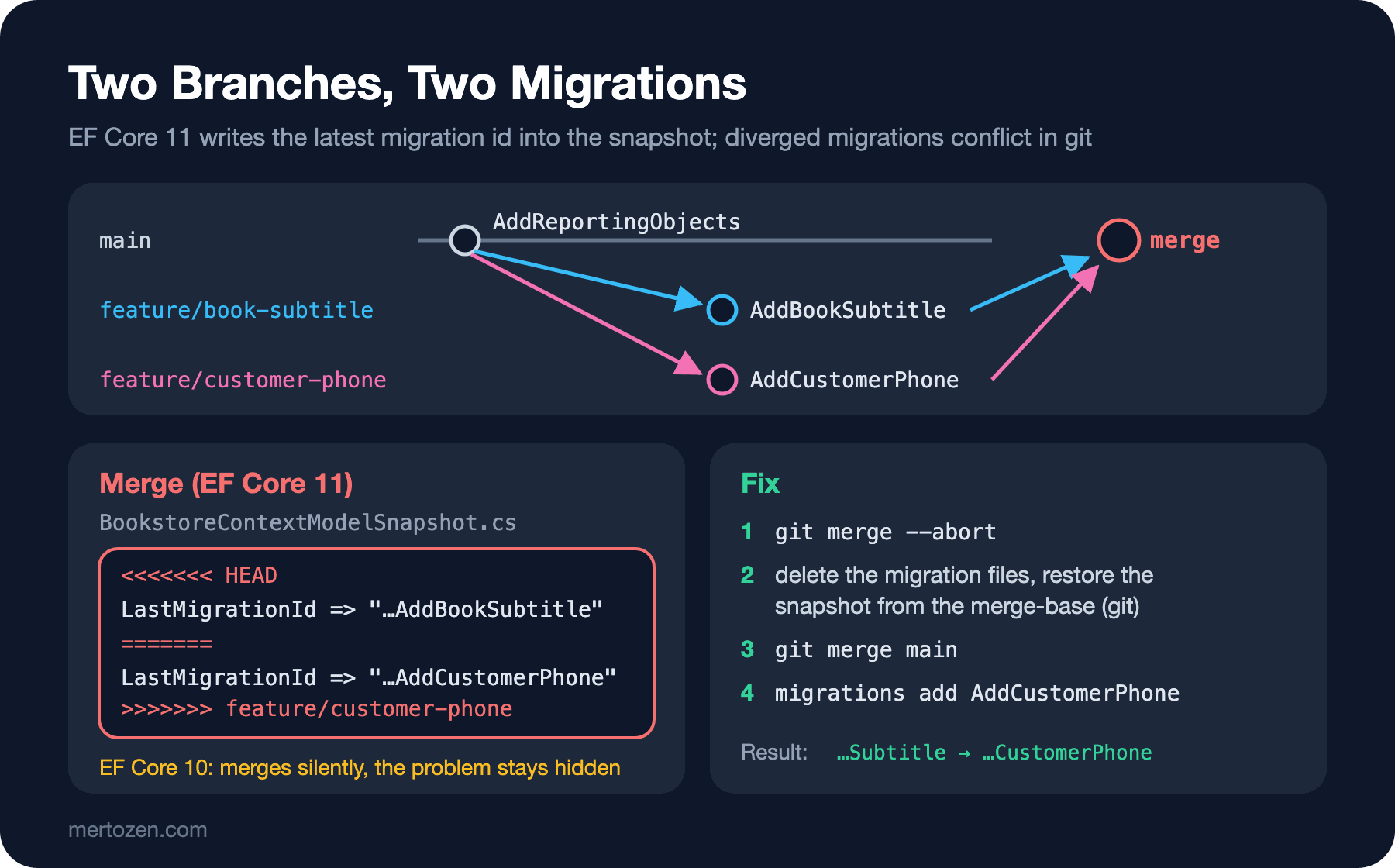
EF Core 11 makes the same scenario visible. It writes the id of the latest migration into the snapshot; since the two branches change that line differently, git reports a conflict:
CONFLICT (content): Merge conflict in src/Bookstore.Data/Migrations/BookstoreContextModelSnapshot.cs

    // If you encounter a merge conflict in the line below, it means you need to
    // discard one of the migration branches and recreate its migrations on top of
    // the other branch. See https://aka.ms/efcore-docs-migrations-conflicts for more info.
<<<<<<< HEAD
    public override string LastMigrationId => "20261114221625_AddBookSubtitle";
=======
    public override string LastMigrationId => "20261114221628_AddCustomerPhone";
>>>>>>> feature/customer-phone
The fix isn't to resolve the conflict line by line; as the documentation describes, Ayşe's migration is regenerated on top of Emre's. The steps I took on Ayşe's branch:
git merge --abort
git checkout feature/customer-phone
git rm src/Bookstore.Data/Migrations/*_AddCustomerPhone*.cs
git checkout $(git merge-base HEAD main) -- src/Bookstore.Data/Migrations/BookstoreContextModelSnapshot.cs
git commit -m "Drop AddCustomerPhone, keep model change"
git merge main
dotnet ef migrations add AddCustomerPhone --project src/Bookstore.Data
The Customer.Phone property stayed in place; only the migration files and the snapshot were rolled back. The new AddCustomerPhone is now built on a model that includes Subtitle, and it went into main as a fast-forward. On my first attempt I used dotnet ef migrations remove --offline (EF Core 11's option that doesn't connect to the database) instead of git for the second step; the tool rewrote the snapshot based on the previous migration, so merging with main conflicted again. The documentation also says to restore the snapshot from source control. With EF Core 10 you need the same steps even though no conflict appears; the only difference is whether the problem shows itself.
Squashing: Reducing History to a Single Baseline
Over the years hundreds of migrations can pile up; the build slows down, and creating a new database means replaying the whole history. EF Core has no automatic squash command; it's done by hand. I tried it in a copy of the working folder.
First I emptied the history table in the database, then deleted the migration files and the snapshot in the Migrations folder, generated a new starting migration and recorded it in the database as "applied":
DELETE FROM [__EFMigrationsHistory];

dotnet ef migrations add Baseline --project src/Bookstore.Data

INSERT INTO [__EFMigrationsHistory] ([MigrationId], [ProductVersion])
VALUES (N'20261114221749_Baseline', N'10.0.15');
dotnet ef migrations list --project src/Bookstore.Data
20261114221749_Baseline
dotnet ef migrations has-pending-model-changes --project src/Bookstore.Data
No changes have been made to the model since the last migration.No schema command ran on the existing database; only a "Baseline applied" row was written to the history table. A new database, on the other hand, will be built from Baseline. There's a trap here: Baseline didn't contain a single line starting with fn_ or vw_. Everything you wrote by hand (the functions, the view, data steps like splitting FullName) went away with the old migrations. If you don't move the functions and the view into Baseline's Up by hand, new environments get built incomplete. Because I keep my custom operations under Migrations/Operations, deleting the folder wholesale would have taken them too; I deleted only the migration files. Before squashing, make sure every environment is at the same migration, and take a backup.
Common Pitfalls
First, running dotnet ef database update in production. The tool needs source code and the SDK, it moves schema-changing rights to a developer's machine, and nobody reads in advance what it will run. For production, generate an idempotent script or a bundle and make the script a reviewed pipeline step. The Deployment Strategies series post on where migrations fit in a deploy explains how this combines with the expand-contract approach. Splitting FullName should also be split into two deploys as described there: dropping the column right away while the old code still reads FullName breaks the application during the deploy.
Second, never running Down. A generated Down is usually right; a Down you wrote by hand is only right if you've tried it. Run every data migration forward and backward on a database full of data.
Third, using BookstoreContext or the entity classes inside a migration. A migration that compiles today won't compile, or will behave differently, six months from now when the Customer class changes. Migrations belong to the past; move data with SQL or with InsertData/UpdateData.
Fourth, deleting an applied migration or trying to fix the order by renaming files. A migration that has reached a shared database stays; the fix is a new migration.
A Small Experiment
★☆☆ Rename Book.Title to Name and check whether the generated migration is a RenameColumn or DropColumn + AddColumn. Then add HasMaxLength(300) at the same time and check again.
★★☆ Generate the idempotent script of SplitCustomerName without EXEC, run it on a database at InitialCreate and see the error. Then run the version with EXEC twice on the same database.
★★★ Write a CreateOrAlterProcedure operation like CreateOrAlterView; create the usp_CustomerOrders(@customerId int) stored procedure with a migration, drop it in Down and try both directions.
With migrations, the schema is ready and goes to production safely. But while the application runs, the database won't always be there: failovers happen, connections drop, queries slow down. In the next post we'll talk about connection resiliency, logging and diagnostics in EF Core: execution strategies, command timeouts, TagWith, events and metrics.